
Keeping your Google Pixel 8 updated is one of the best things you can do for its performance and security. I always check for updates right after a new feature drop is announced, as that's when the most exciting stuff arrives. The process is straightforward, but there are a few different ways to go about it.
Check for System Updates
Open your Settings app and scroll down to System. Tap on it, and then select System update. Your Pixel will immediately check with Google's servers to see if any new software is available. If an update is waiting, you'll see a button to download and install it.
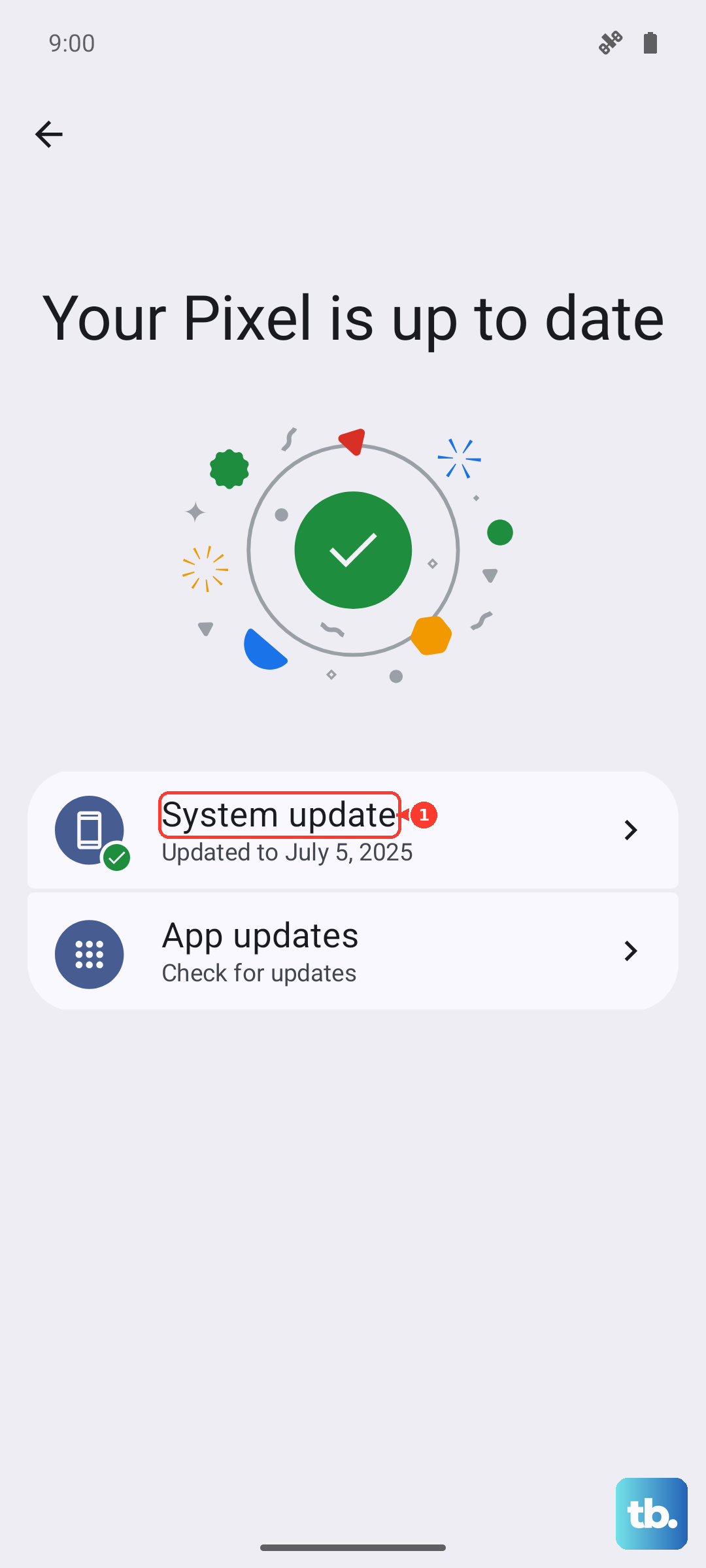
Make sure your phone is connected to Wi-Fi and has at least a 50% charge, or better yet, is plugged in. Major Android version updates can be quite large, while monthly security patches are much smaller. The download and installation process usually takes about 10 to 20 minutes total.
Enable Automatic Updates
To make sure you never miss a critical security patch, you can set your Pixel 8 to handle updates automatically. Go back to Settings > System > System update. Look for the gear icon in the top right corner and tap it.
Inside the update settings, you'll find options for Auto-download over Wi-Fi. With this enabled, your phone will quietly download updates when you're on a Wi-Fi network. You'll still get a notification to install it, giving you control over the final step.
Update Through Google Play System Updates
This is a unique layer of updating on Pixel and other modern Android phones. Google can update core system components directly through the Play Store, separate from the full OS. To check for these, go to Settings > Security & privacy.
Scroll down and tap on System & updates, then select Google Play system update. Tap the "Check for update" button. If one is available, install it. These updates are crucial for patching security vulnerabilities in Android's core services.
If an Update Gets Stuck or Fails
Sometimes a download can hang or an installation might fail. The first thing to try is a force restart. Press and hold the Power button on the side of your Pixel 8 for about 30 seconds. Keep holding it until you see the Google logo appear, then release.
After the phone reboots, try checking for the update again. If it still won't proceed, try switching to a different Wi-Fi network. A weak or unstable connection is a common culprit for failed downloads. Clearing the cache for the Google Play Store app can also help resolve update issues.
Check Your Current Android Version
It's good to know exactly what software you're running. Go to Settings > About phone. Here, you'll see detailed information including your Android version, the Android security update date, and the Build number.
This is especially helpful if you're troubleshooting a known bug. For instance, if your Pixel 8 is stopping its charge at 80%, checking here will tell you if you have the latest firmware that includes Google's fix for that adaptive charging bug.
Don't Forget Your Apps
Even with a fully updated operating system, outdated apps can cause problems. Open the Google Play Store app and tap your profile picture in the top right corner. Select Manage apps & device.
Under the "Overview" tab, you'll see if any updates are available. You can tap Update all to handle everything at once. Keeping apps updated fixes bugs, improves battery life, and closes security holes that OS updates can't touch.
Regular updates are how Google delivers fixes for things like USB-C port connection glitches or overheating during fast charging. They also bring new features and camera enhancements specific to the Pixel 8. Making a quick check a monthly habit keeps your phone running smoothly and securely.