

To change Microsoft Word to light mode on Windows, select File > Account, open the Office Theme box and choose White. Word turns light at once, with no OK button to press. Colorful is the other light choice: it is White with a blue title bar.
Word can turn dark even when you did not choose a dark Office Theme. By default the Office Theme is set to Use system setting, which follows Windows, so Word went dark when Windows did. Picking White breaks that link and turns off dark mode in Word while Windows stays dark.
The page is a separate question. Only the Black theme darkens the page, so dark menus over a black page are fixed with View > Switch Modes. White menus over a black page are not dark mode at all: the document has a page colour, or Read Mode is set to Inverse.
The short version
- Windows: File > Account > Office Theme > White turns Word light, and Excel with it.
- Word went dark by itself: the default theme, Use system setting, follows Windows. Choose White to stop that.
- Dark menus, black page: with the Black theme, select View > Switch Modes for a white page.
- White menus, black page: that is a page colour. Select Design > Page Color > No Color.
- Account or Options missing: press Alt, F, T to open Word Options from anywhere in Word.
- Mac and web: Word > Preferences > General > Turn off Dark Mode on a Mac, View > Dark Mode on the web.
Why Word looks dark, at a glance
Three settings decide how Word looks on Windows, and three other things can make a page black with no dark mode involved. Find the row that matches your screen, then go to its section below.
| What you see | Why | What to do |
|---|---|---|
| Black ribbon and black page, and Windows is in dark mode | Office Theme is on Use system setting, the default, which follows Windows | File > Account > Office Theme > White, or set Windows to Light |
| Black ribbon and black page, and Windows is light | Office Theme is set to Black, or Custom mode has the app mode on Dark | File > Account > Office Theme > White or Colorful |
| Dark grey ribbon with a white page | Office Theme is set to Dark Gray | File > Account > Office Theme > White |
| A black ribbon you like and a black page you do not | The Black theme darkens the page too | View > Switch Modes |
| White ribbon and a black page in one document | The document has a page colour | Design > Page Color > No Color |
| White text on black, no ribbon, arrows at the sides | Read Mode with the Inverse page colour | View > Page Color > None, inside Read Mode |
| Every window on the PC in high-contrast colours | A Windows contrast theme is on | Settings > Accessibility > Contrast themes > None > Apply |
| Word in a browser is dark | Word for the web follows a dark browser or system | View > Dark Mode |
| Word on a Mac is dark | Word follows the Mac's appearance | Word > Preferences > General > Turn off Dark Mode |
| Word on an iPhone, iPad or Android phone is dark | The phone is in dark mode, or on Android battery saver or the app's own setting | iPhone: Settings > Appearance > Light. Android: turn off Dark theme and battery saver, then check the app's settings |
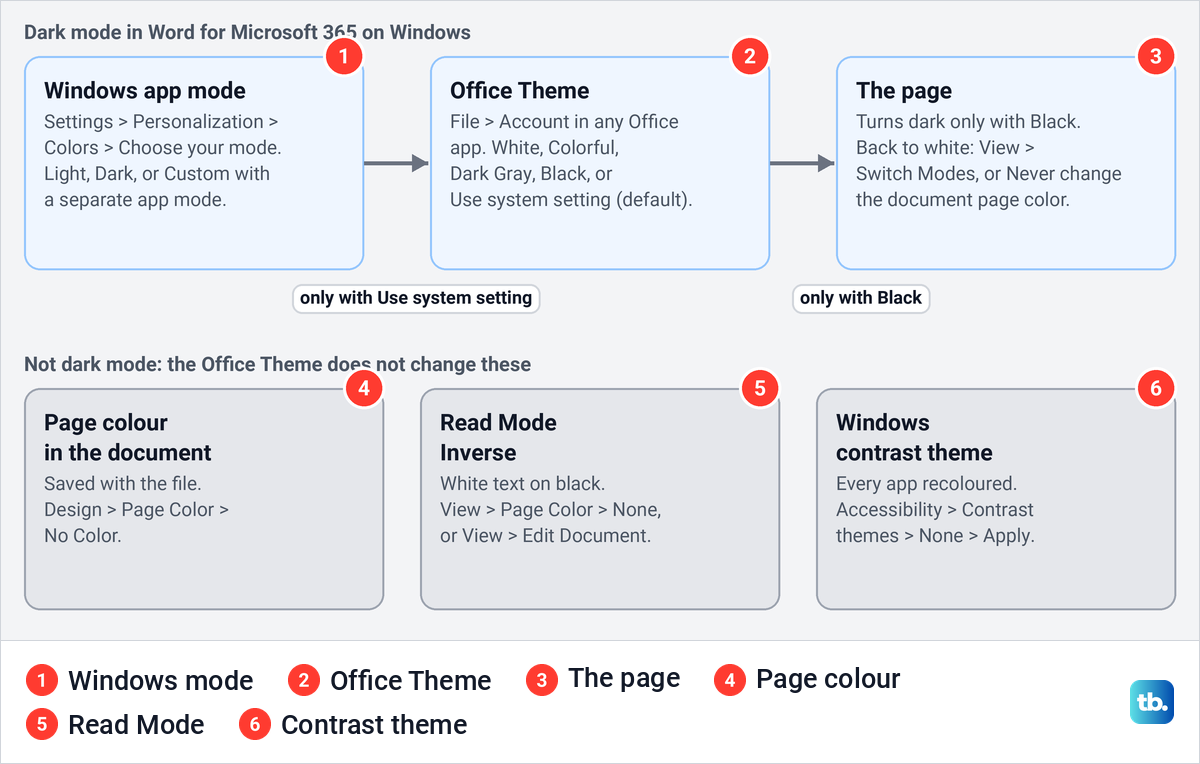
The picture below shows how the pieces fit. Windows feeds the Office Theme only while the theme is on Use system setting, the theme decides the menus, and only Black reaches the page as well.
Change Word to light mode on Windows
In Word for Microsoft 365, select File, then Account near the bottom of the left pane. Under Office Theme, open the box and choose White. On our PC the list held five entries in this order: Dark Gray, Black, White, Use system setting and Colorful.
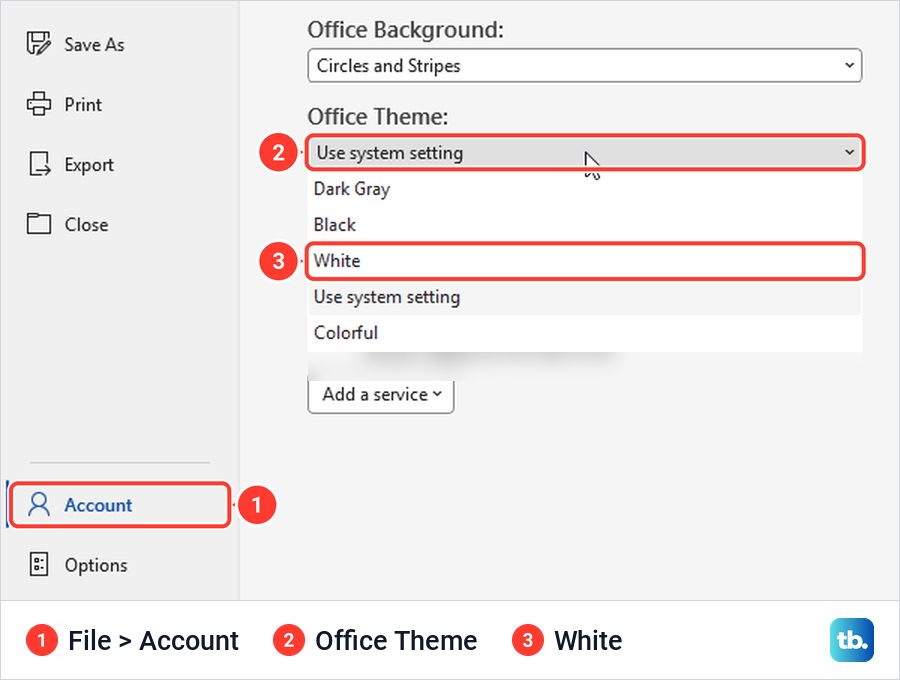
The Account page has no OK or Apply button. Each theme we picked there changed Word straight away, and Esc took us back to the document. From the keyboard, press Alt, F, D to reach the Account page.
The same box is in Word Options. Press Alt, F, T, or select File > Options, and stay on the General page. Office Theme sits under Personalize your copy of Microsoft Office, beside the Never change the document page color box.
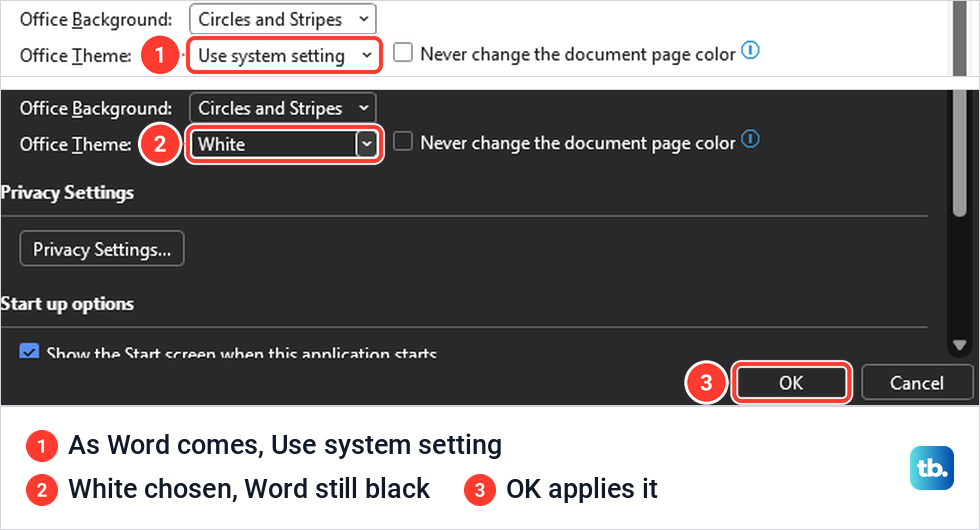
Here the change waits for you. When we chose White in Word Options, Word stayed black behind the dialog until we pressed OK.
Not sure which theme you are on? The title bar and ribbon tell them apart, and only Black darkens the page.
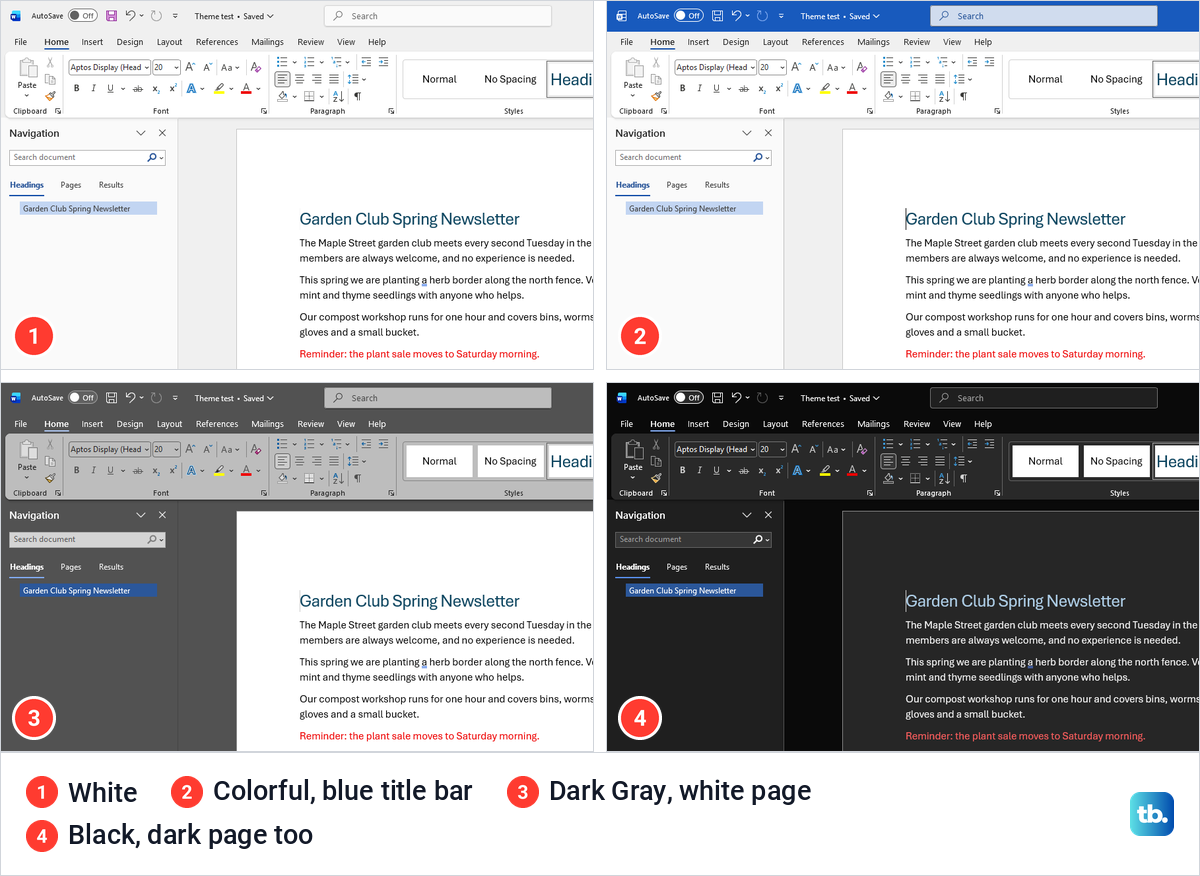
White has a white title bar and a light grey ribbon. Colorful is the same with a blue title bar. Dark Gray gives dark grey menus but leaves the page white, and Black darkens everything, page included.
Black also changes how text looks. Our dark-blue heading showed as light blue and the red line as a lighter red, which Microsoft says is deliberate, to soften colours on the dark page. The document keeps its real colours, as the print preview further down shows.
On Windows the theme belongs to Office, not to Word alone. Microsoft says choosing Black enables it for all Office apps. With Word on Black, Excel opened in Black too, and when we chose White in Excel the open Word window turned white at once.
Why Word turned dark on its own
Word follows Windows by default. Microsoft says the starting Office Theme is Use system setting, which picks White or Black to match light or dark mode in Windows. On our PC, Word Options showed exactly that setting before we changed anything. The Windows switch is in Settings > Personalization > Colors, under Choose your mode, with Light, Dark and Custom.
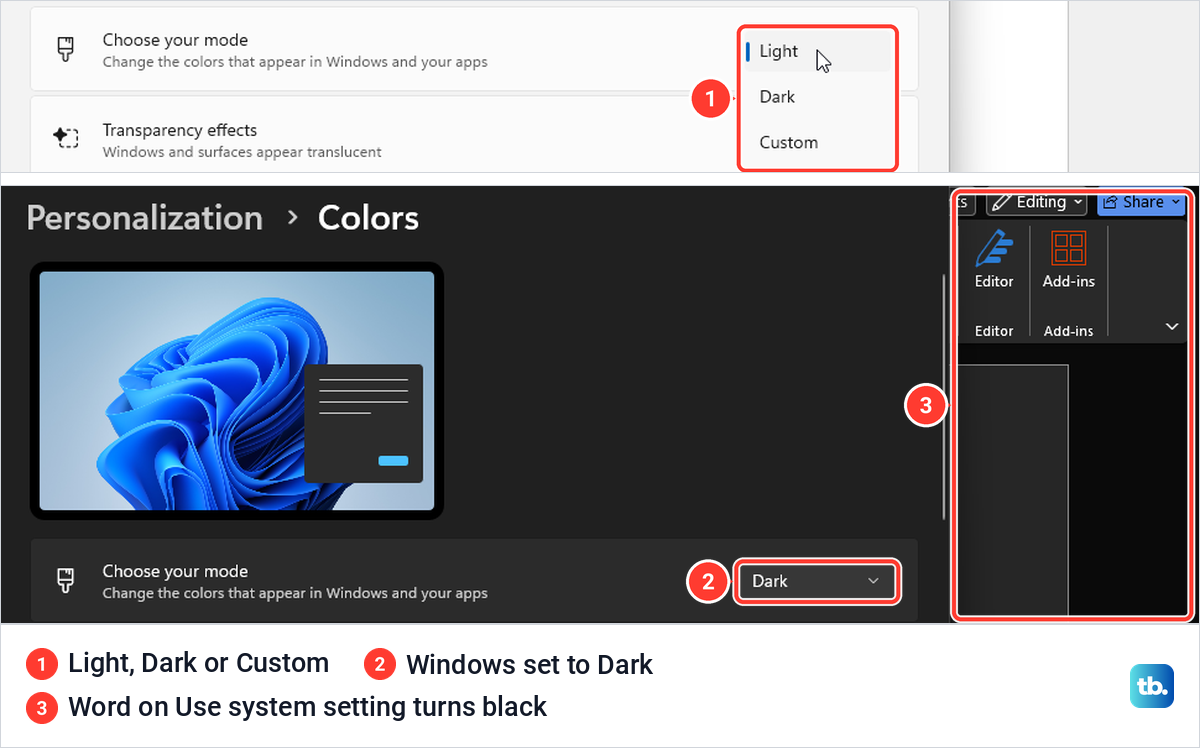
When we set Choose your mode to Dark, the open Word window went black, page included, in under a second and without a restart. Back on Light it returned as White, not Colorful. So there are two fixes: set Windows back to Light, or leave Windows dark and choose White in Word.
Keep Windows dark and Word light
The simplest way is the one above. Choose White or Colorful under File > Account > Office Theme, and Word stops following Windows. With the theme on White, we switched Windows to Dark and Word stayed light.
Custom mode is the other way, and it leaves Word on Use system setting. Choose Custom under Choose your mode and two rows appear: Choose your default Windows mode and Choose your default app mode. Word follows the second one.
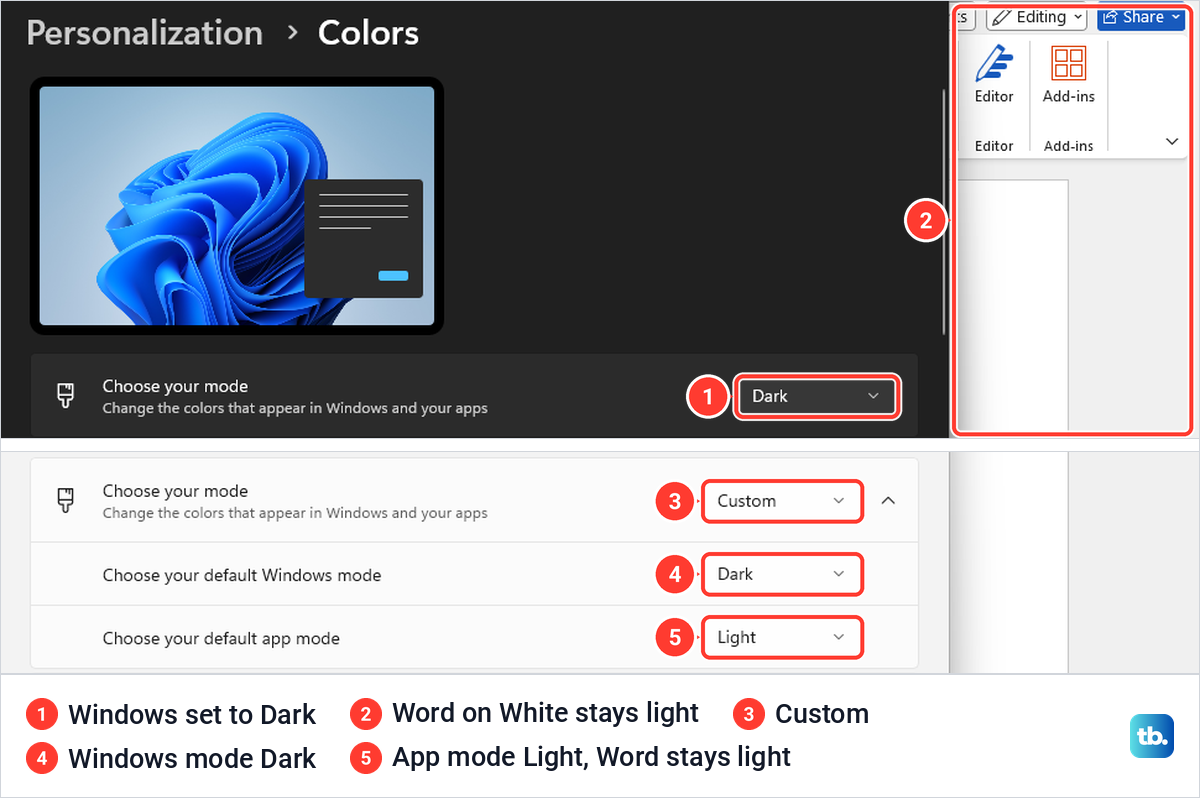
We tried it both ways round. With the Windows mode on Dark and the app mode on Light, Word stayed light while the taskbar went dark. With the Windows mode on Light and the app mode on Dark, Word turned black.
If you want the reverse everywhere else, our guide shows how to turn on dark mode on your other devices and apps. Microsoft also notes that Windows 11 can tint the background of Office apps with your desktop colours, an effect called Mica, which Transparency effects on the same Colors page turns off.
If a white page feels harsh at night, you do not have to go back to dark. Lower the brightness in Windows display settings or turn on Night light instead.
Keep dark menus with a white page
Some people like the black ribbon but want to write on white. Keep the Black theme, open the View tab and select Switch Modes in the Dark Mode group. Its tooltip on our PC read View with a Light Page Color.
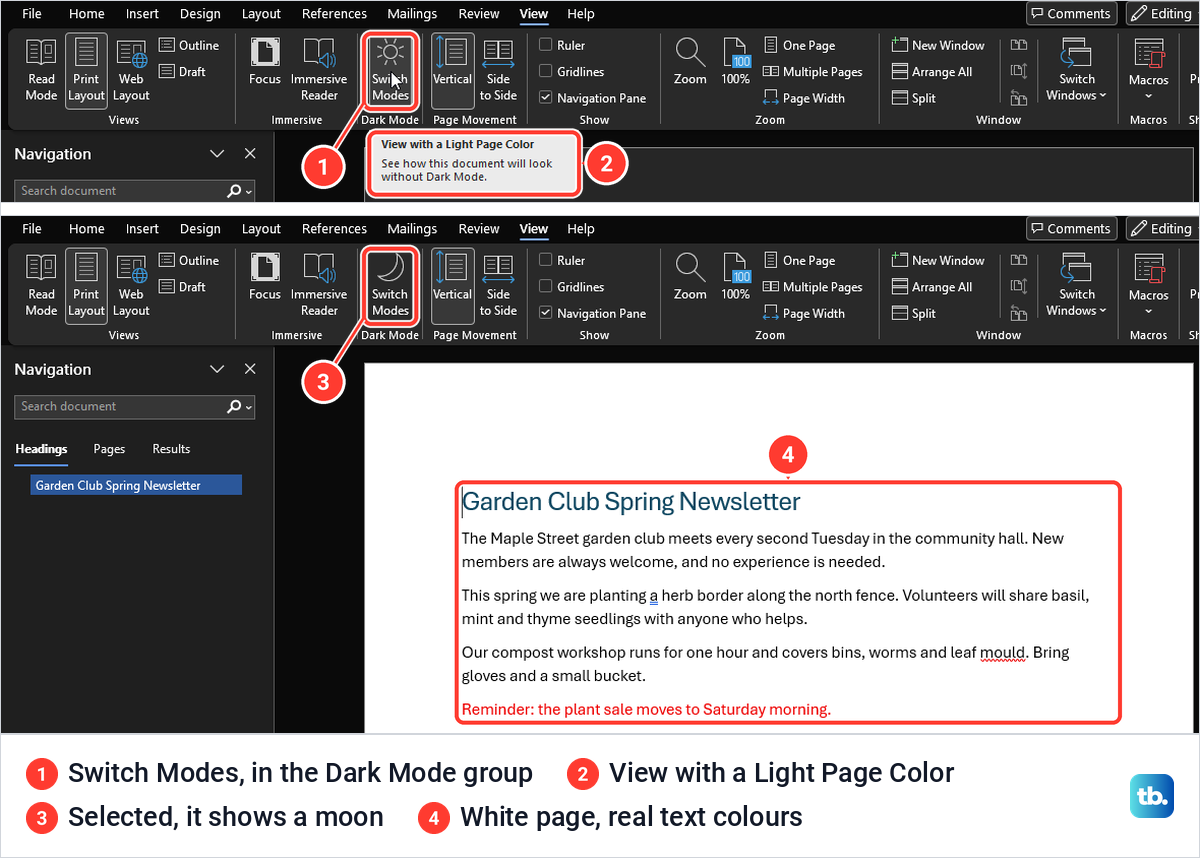
The page turned white with the text in its real colours, and the ribbon stayed black. Selecting Switch Modes again made the page dark. Word remembered the white page after we closed the document and opened it again, and closing did not even ask us to save.
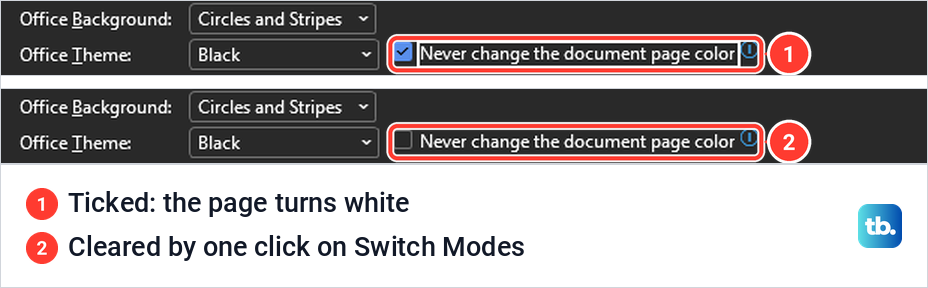
Word also has a box for this. In File > Options > General, tick Never change the document page color beside the Office Theme box and select OK. On our PC the page turned white the moment we pressed OK.
The box is not a lock, though. Switch Modes stayed on the View tab, and one click on it turned the page dark again and cleared the box in Word Options. The two controls change the same setting, so use whichever is closer.
Microsoft lists a few rough edges in dark mode. Text pasted from another app can show up as black text on a white box, so press Ctrl + Shift + V to paste it as plain text instead. Some side panes, dialog boxes, charts, text boxes and equations may stay light.
A black page under a white ribbon
If the ribbon is white and only the page is black, dark mode is not the cause. With White and Dark Gray, Word left our page white every time. A black page there means the document carries a page colour, and that is part of the file.
We added a black page colour to see what it does. Body text in the automatic colour turned white so it stayed readable, but our dark-blue heading stayed dark blue and almost vanished. The status bar changed to Accessibility: Investigate.
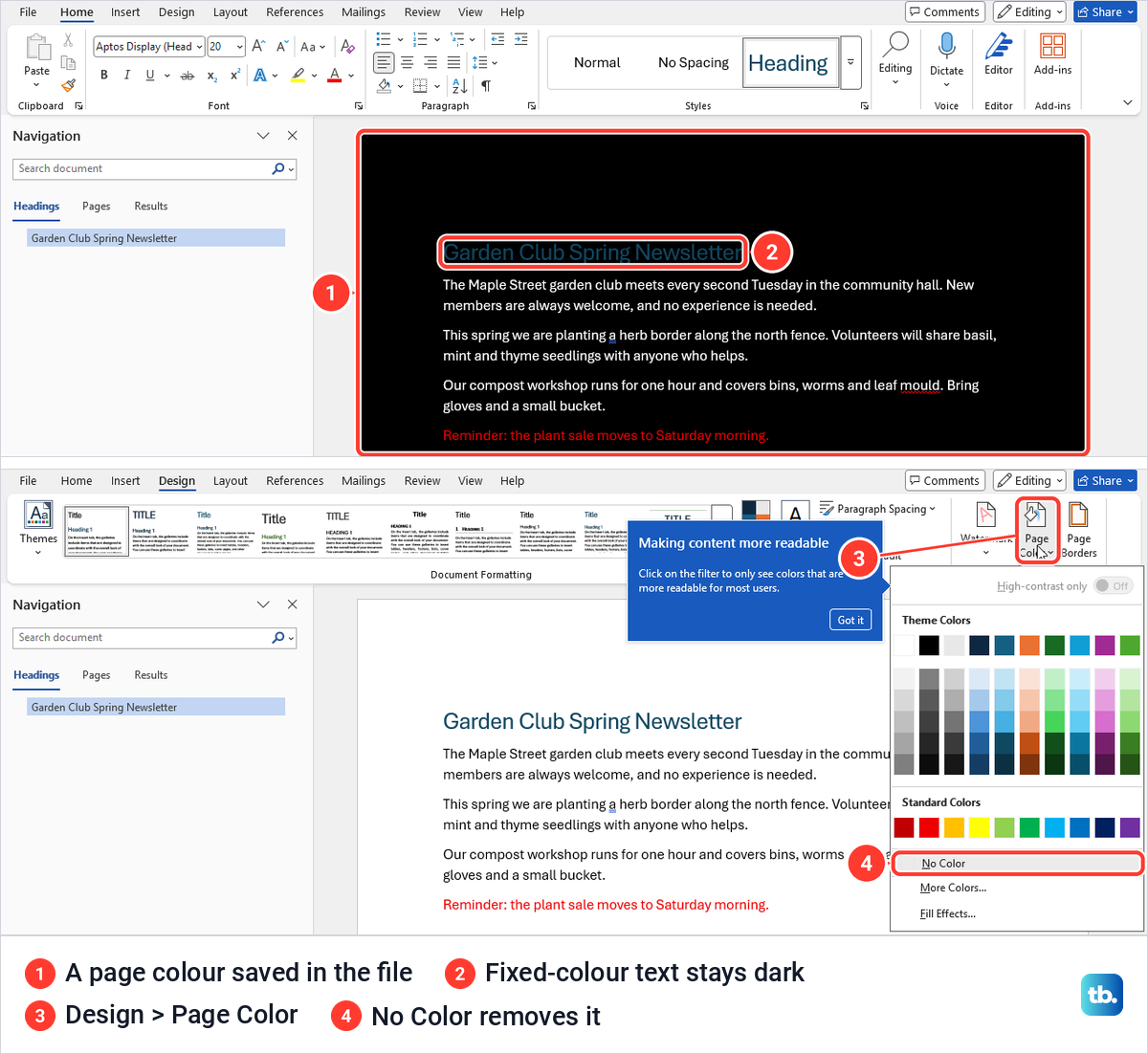
To remove it, select the Design tab, then Page Color > No Color. The same menu holds Theme Colors, Standard Colors, More Colors and Fill Effects. The colour was still there after we saved, closed and reopened the file, so save again once it is gone.
Print preview showed our black page as plain white. Microsoft says to tick Print background colors and images in File > Options > Display if you want a page colour to print. If nothing reaches the printer at all, that is a different problem, so see what to do when you cannot print from Word or Excel.
White text on black in Read Mode
Read Mode hides the ribbon and shows the document as screens you page through with arrows, so it looks nothing like normal Word. It also has a page colour of its own. In Read Mode, open the View menu at the top left, point to Page Color and choose None.
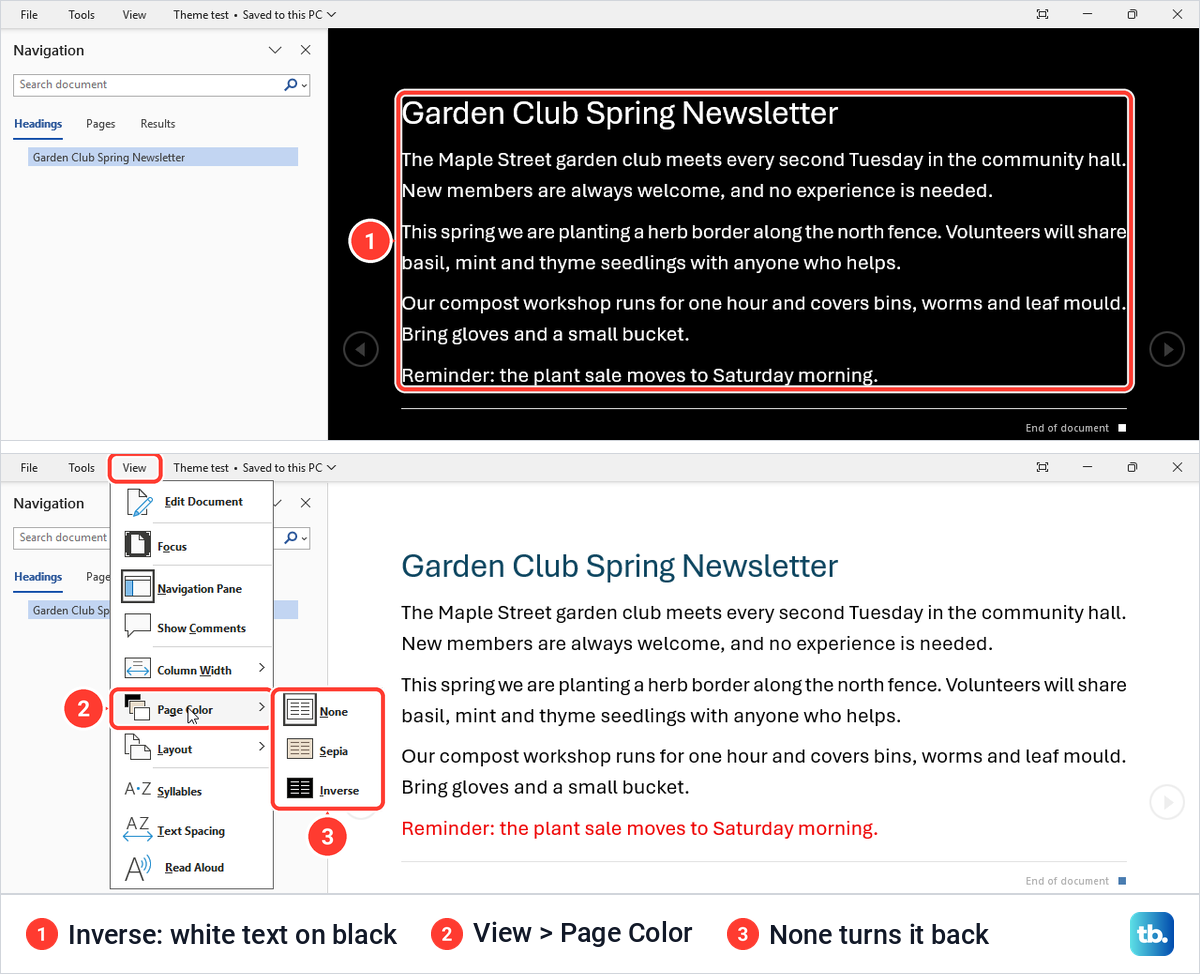
The menu offers None, Sepia and Inverse. Inverse gave us white text on black, and it showed our coloured heading and red line in white too. To leave Read Mode altogether, select View > Edit Document.
Immersive Reader, on the View tab of normal Word, is another full-screen view with a Page Color setting of its own. Microsoft says to leave it with Close Immersive Reader on its ribbon.
Every window turned black or high contrast
When every app switches to a few bold colours, often white or yellow text on black, Windows has a contrast theme on. Select Start > Settings > Accessibility > Contrast themes, choose None in the box and select Apply. Microsoft says Windows may show a Please wait screen for a few seconds.
Under the Night sky theme our Word page was black and every line of text was white, including the blue heading and the red line. The Office Theme box still worked, but nothing we picked showed until the contrast theme was off. Then the Black theme we had chosen took over.
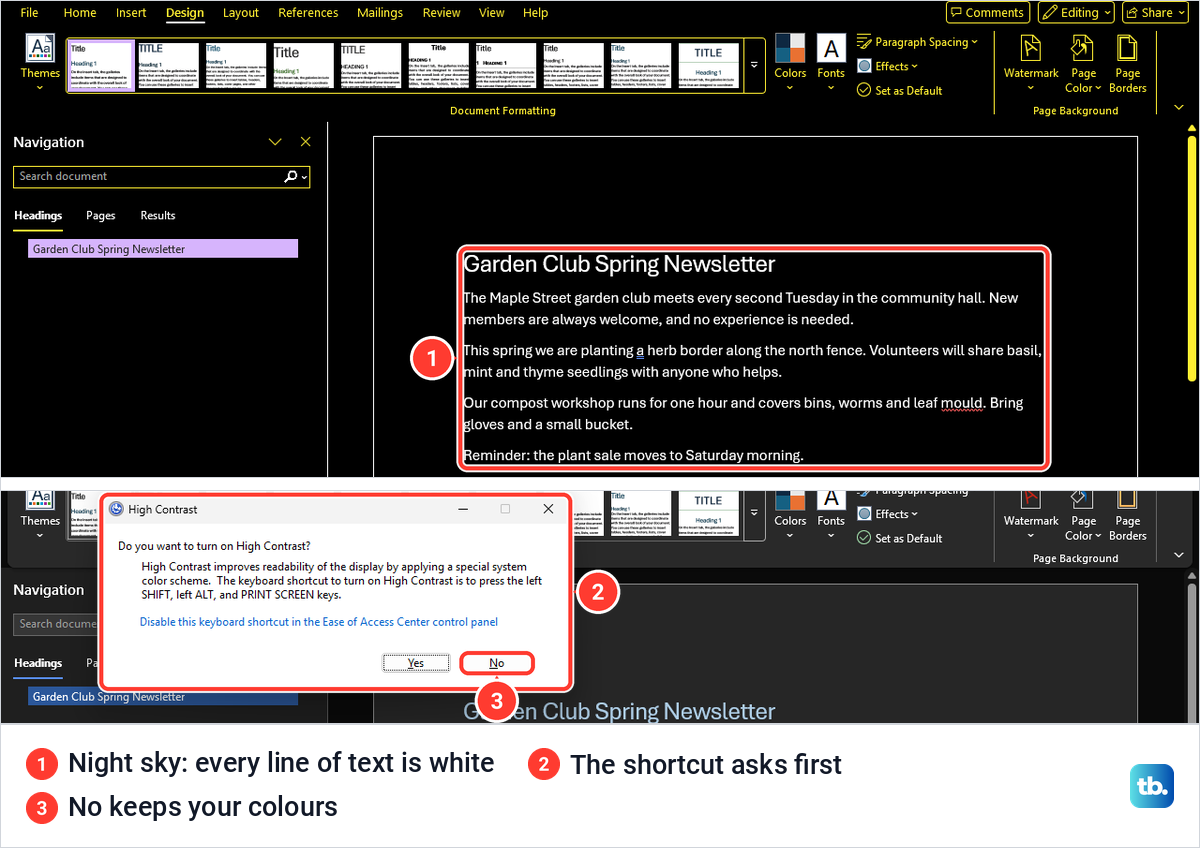
The Contrast themes page says left Alt + left Shift + Print Screen turns a contrast theme on and off. On our PC it did not switch straight away: a High Contrast box asked Do you want to turn on High Contrast? first. Select No if you pressed it by accident.
Dark mode does not print or reach other people
Dark mode only changes your screen. With Word in the Black theme and a dark page, File > Print showed a white page with our heading, body text and red line in their real colours.
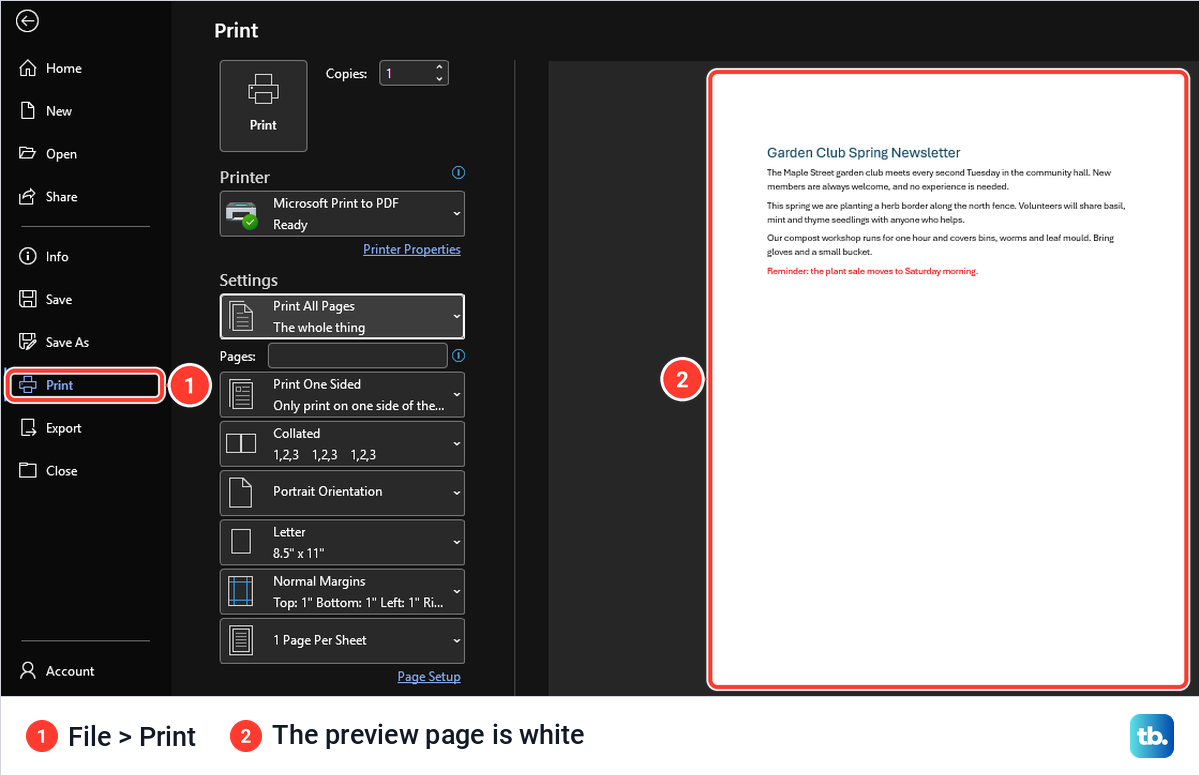
Microsoft says the document prints with the light page whatever your dark mode settings, and the people you share it with see their own view. It suggests Switch Modes as a quick preview of what they will see. If you need a copy to send, you can save a Word document as a PDF.
A page colour from the Design tab is different. It is saved in the document and comes back every time the file is opened.
If the Office Theme or Switch Modes is missing
Account and Options sit at the bottom of the File screen's left pane, below a dividing line. In a short Word window they move: our File pane ended with More..., and Account and Options were inside it, along with Save As, Print, Export and Close.
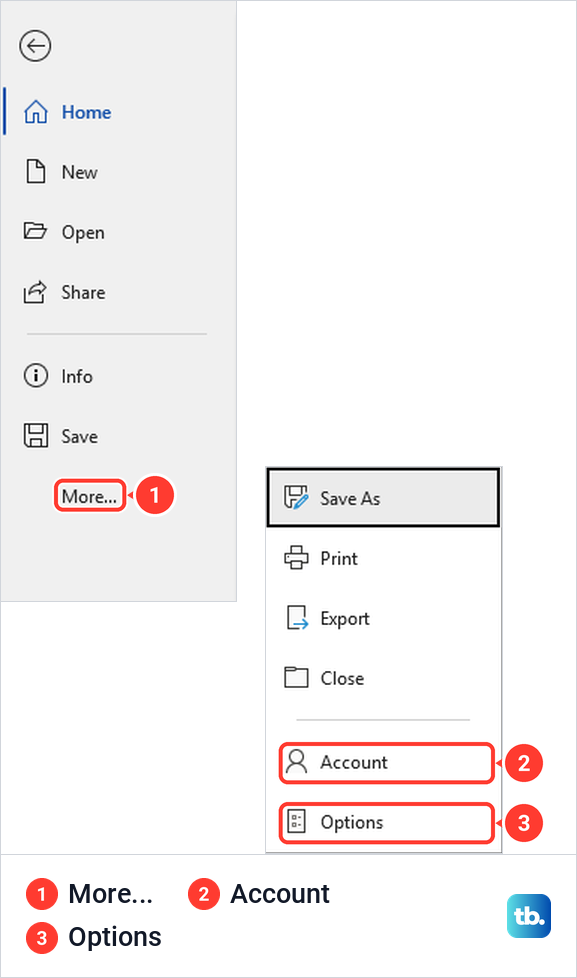
The keyboard skips all of that. Alt, F, T opened Word Options even in the short window, and the Office Theme box is on its General page.
Switch Modes belongs to dark mode, so look for it only when Word is in the Black theme, whether you chose Black or Use system setting picked it while Windows is dark. On our PC the View tab had no Dark Mode group in White or Dark Gray. If you are on Black and still cannot find it, update Microsoft Office and look again.
Turn off dark mode in Word for the web
Microsoft says Word for the web turns on dark mode by itself when your browser or operating system is set to dark. To turn it off, open the View tab and select Dark Mode. Dark mode settings do not carry over between Word for the web, Windows and Mac, so change each one separately.
To keep the dark menus with a light page, select View > Switch Backgrounds instead. Microsoft says Word remembers that choice in each browser, but only while the browser keeps cookies. A real page colour is removed with Layout > Page Color > No Color.
If other websites also look dark, check your browser's appearance setting and any dark-mode extension. Our guide to dark mode in Microsoft Edge shows where both live, so you can switch them back.
Turn off dark mode in Word for Mac
On a Mac, Microsoft says Word matches the Mac's Light or Dark appearance. To keep Word light while the Mac stays dark, select Word > Preferences > General and, under Personalize, select Turn off Dark Mode.
The same place offers Dark Mode has a white page color, for dark menus with a white page, and Word for Mac has Switch Modes on its View tab too. Unlike Windows, these settings apply only to the app you set them in, so repeat them in Excel and PowerPoint. In the Light appearance, Microsoft 365 subscribers can also choose between the Aluminum and Colorful themes.
To make the whole Mac light, Apple's steps are System Settings > Appearance, then Light. Auto switches between light and dark on your Night Shift schedule, so pick Light if Word keeps changing in the evening. Control Center also has a Dark Mode button under Display.
Word on iPhone, iPad and Android
Microsoft says Word on iPhone and iPad follows the device's appearance, so the switch is in the Settings app. Apple now puts it under Settings > Appearance > Light, and in iOS 26 and earlier it is under Display & Brightness. If the phone keeps going dark at night, Automatic is on, so turn it off there or tap Options to change its schedule.
Control Center has a shortcut as well: touch and hold the brightness bar, then select Dark Mode. If you only want a gentler screen at night, you can reduce blue light on iPhone with Night Shift and keep Word light.
On Android, the phone-wide switch is Settings > Display > Dark theme. Google says battery saver can turn Dark theme on by itself, and light theme needs battery saver off. If the phone is light but Word is still dark, Google's advice is to open the app's own settings and look for a Theme or Display option, because some apps keep a setting of their own.
How we tested this guide
We tested this on Windows 11, version 25H2, changing the Office Theme in Word and switching Windows between Light and Dark mode.
Frequently Asked Questions
Why did Word turn dark by itself?
By default the Office Theme is Use system setting, which follows Windows. When Windows switches to dark mode, Word switches to the Black theme with it. Choose White under File > Account > Office Theme to keep Word light.
Why is my Word page black but the menus are white?
That is not dark mode, which darkens the menus too. The document most likely has a page colour, which you remove with Design > Page Color > No Color. If there is no ribbon at all, you are in Read Mode with the Inverse page colour.
How do I keep Word dark but make the page white?
With the Black theme, select View > Switch Modes, and Word remembers the white page. Ticking Never change the document page color in File > Options > General does the same, but one click on Switch Modes undoes it.
Why can't I find Switch Modes?
It belongs to dark mode and sits in a Dark Mode group on the View tab when Word is in the Black theme, chosen directly or through Use system setting while Windows is dark. On our PC the View tab had no such group in White or Dark Gray, where the page is already white.
Does changing the theme in Word change Excel too?
On Windows, yes. Microsoft says the Office Theme applies to all Office apps, and when we changed it in Excel, the open Word window changed with it. On a Mac, Turn off Dark Mode applies only to the app you set it in.
Will a dark page print black?
No. Dark mode only changes your screen, and our print preview in the Black theme showed a white page. A page colour added with Design > Page Color is part of the file, and Microsoft says to tick Print background colors and images if you want it to print.
Why don't I see Account or Options under File?
They sit at the bottom of the File screen's left pane, and in a short window they move into a More entry. Press Alt, F, T to open Word Options from anywhere in Word.