The Bluetooth icon disappears from the Windows 11 taskbar when the notification-area icon is turned off, hidden in overflow, or Bluetooth is disabled.
Start with the official icon checkbox, then move through the quick visibility checks, Bluetooth controls, and driver repairs that restore the icon when Windows stops showing Bluetooth normally.
1. Enable the Bluetooth icon in Settings
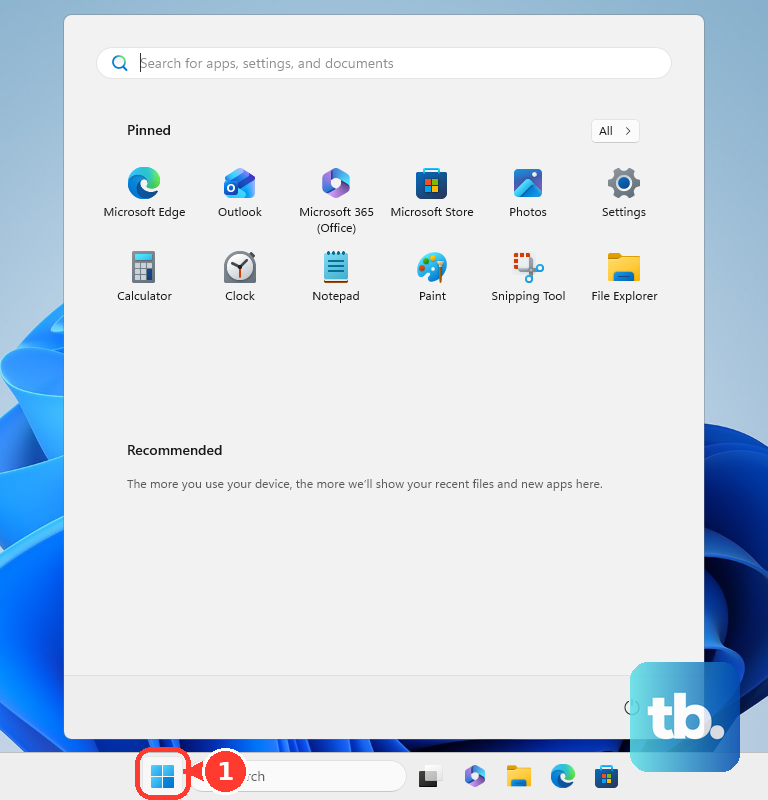
Use this first when Bluetooth works but the icon is missing near the time and date. Select Start, open Settings, select Bluetooth & devices, and then select Devices.
Under Related settings, select More Bluetooth settings. Open the Options tab, check Show the Bluetooth icon in the notification area, and select OK.
Windows 11 still keeps the main switch for the classic notification-area icon inside the older Bluetooth settings box. After that box is enabled, Windows shows the classic Bluetooth Devices icon in the notification area when the icon is not hidden elsewhere.
2. Pull Bluetooth out of hidden icons
Select Show hidden icons, the chevron beside the notification-area icons near the time and date. Look for Bluetooth Devices, then drag Bluetooth Devices from the overflow area to the visible notification area.
If the icon exists but sits in overflow, the fix is a taskbar move rather than a Bluetooth repair. Use Taskbar settings for the same visibility problem when Windows lists Bluetooth there.
Right-click the taskbar, select Taskbar settings, and open Other system tray icons. Turn on Bluetooth or Bluetooth Devices.
If Bluetooth is not listed, return to More Bluetooth settings. Enable Show the Bluetooth icon in the notification area.
3. Switch Bluetooth on before fixing the tray
A disabled Bluetooth adapter leaves Windows with no Bluetooth control to show. Select Start, open Settings, select Bluetooth & devices, and turn Bluetooth to On.
Quick Settings gives you the same on/off control from the taskbar. Select the Network, Sound, or Battery icon next to the time and date, then select the Bluetooth tile so it is On.
From the keyboard, press Windows + A to open Quick Settings.
4. Clear Airplane mode and hardware switches
Select the Network, Sound, or Battery icon near the time and date. Make sure Airplane mode is Off.
If your laptop or tablet has a physical Bluetooth or wireless switch, move it to the on position. Open Settings or Quick Settings again, and confirm Bluetooth is On.
Before you troubleshoot drivers, remove the two blockers Microsoft calls out for missing Bluetooth controls. When the Bluetooth action is missing from Quick Settings after those checks, treat the adapter or driver as the part that needs repair.
5. Run the Bluetooth troubleshooter
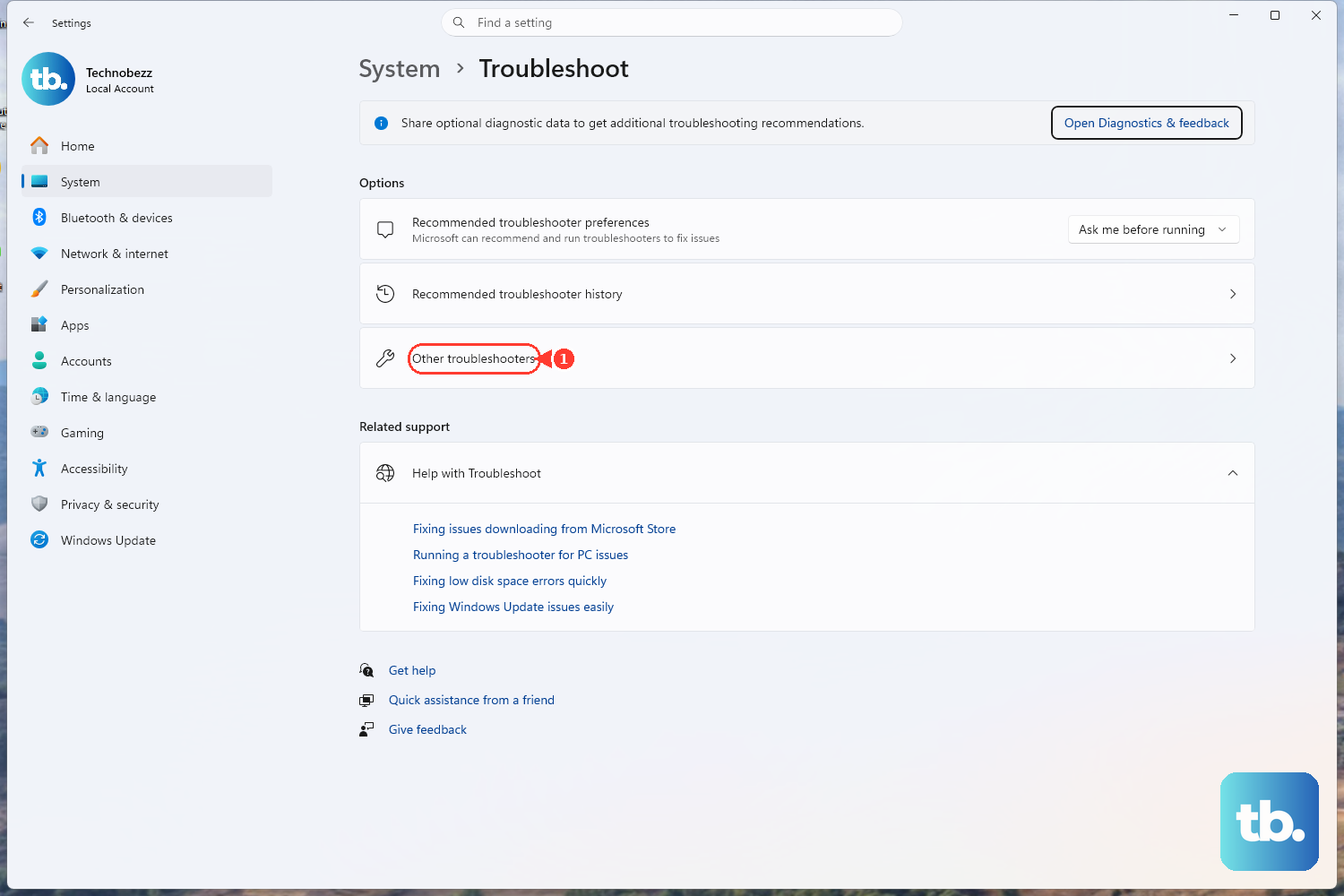
Use the troubleshooter when the Bluetooth icon, toggle, or controls are missing.
- 1.Select Start.
- 2.Open Settings.
- 3.Select System.
- 4.Select Troubleshoot.
- 5.Select Other troubleshooters.
- 6.Next to Bluetooth, select Run.
Microsoft also points Windows 11 users to the automated Bluetooth troubleshooter in the Get Help app. Let the troubleshooter finish its checks, apply any offered repair, and return to Bluetooth & devices.
Confirm that Bluetooth is On.
6. Refresh the Bluetooth driver
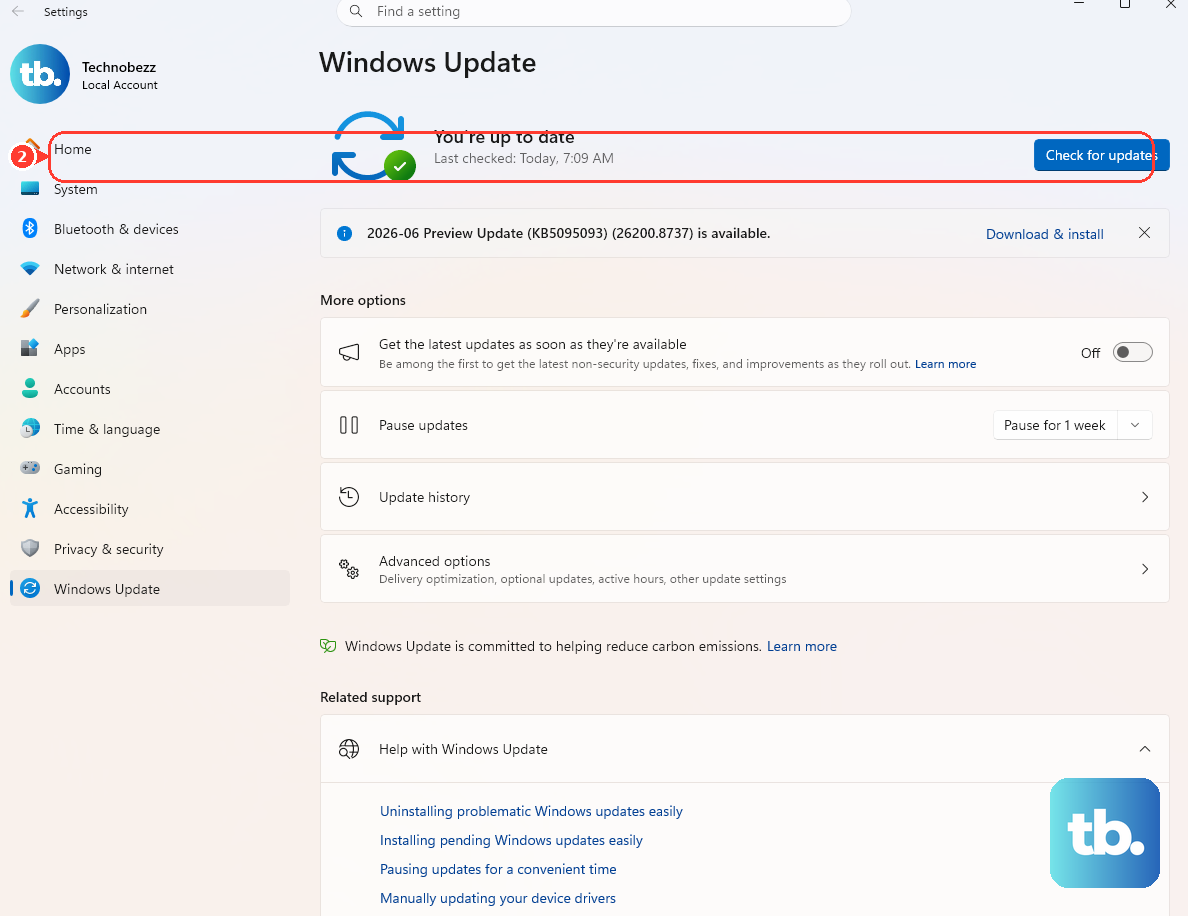
Driver repair comes next when Windows does not restore the icon through Settings or the troubleshooter. Start with Windows Update, because Microsoft delivers some Bluetooth drivers there.
Select Start, open Settings, and select Windows Update. Select Check for updates, install available updates, and restart if Windows prompts you.
Then update the adapter in Device Manager. Select Start, type Device Manager, select Device Manager, and expand Bluetooth.
Right-click the Bluetooth adapter, select Update driver, and select Search automatically for drivers. Follow the prompts, then restart if Windows prompts you.
If Windows Update and Device Manager do not restore Bluetooth, go to your PC manufacturer’s official support website. Search by your device model number, download the latest Bluetooth driver for Windows 11, install it, and restart.
7. Reinstall the adapter when Bluetooth still appears in Device Manager
Select Start, type Device Manager, and select Device Manager. Expand Bluetooth, right-click the Bluetooth adapter, select Uninstall device, and select Uninstall.
Select Start > Power > Shut down, then turn the PC back on. Use this when the Bluetooth icon is missing but the Bluetooth adapter still appears under Bluetooth in Device Manager.
Removing the device lets Windows reinstall the adapter during the next startup. If Windows does not reinstall the driver, open Device Manager, select Action, and select Scan for hardware changes.
8. Skip old Windows 10 Action Center fixes
Older instructions point to Settings > Devices > Bluetooth & other devices > More Bluetooth options, or to adding Bluetooth in Action Center quick actions. Those are Windows 10 paths, and Microsoft says Windows 10 free updates, technical assistance, and security fixes ended on October 14, 2025.
On Windows 11, use Settings > Bluetooth & devices > Devices > More Bluetooth settings for the notification-area icon. Use Quick Settings instead of Action Center.
9. Check organization restrictions on work PCs
Managed Windows devices are different: an organization can hide the notification area, remove Quick Settings, or restrict Bluetooth availability through policy. When the whole notification area is missing, Quick Settings is removed, or Bluetooth settings are locked, contact your IT administrator.
Policy changes belong in your organization’s management tools, not in the consumer Bluetooth settings flow.
Frequently Asked Questions
Why is the Bluetooth icon missing even though Bluetooth works?
The notification-area icon is turned off or hidden. Enable Show the Bluetooth icon in the notification area under More Bluetooth settings, then check Show hidden icons beside the clock.
How do I restore the Bluetooth icon with a command?
Run bthprops.cpl to open the Bluetooth settings box, open Options, check Show the Bluetooth icon in the notification area, and select OK. The current consumer path is through Windows 11 Settings.
What if Windows does not show a Bluetooth toggle at all?
Turn Airplane mode off, check the device’s physical wireless switch, run the Bluetooth troubleshooter, then update or reinstall the Bluetooth adapter driver.
Where should I get a Bluetooth driver for Windows 11?
Use Windows Update first. If that does not restore Bluetooth, download the latest Windows 11 Bluetooth driver from your PC manufacturer’s official support website for your exact model.