YouTube Miniplayer can fail in a few different ways: the button disappears, the tiny player gets stuck, or playback stops when you leave the app. The fix depends on whether you mean YouTube’s in-app Miniplayer or Picture-in-Picture. Start with the video type, then move through the exact desktop, mobile, app, and browser settings that control it.
1. Test a video that supports Miniplayer
Start with the limit YouTube enforces: Miniplayer is not available for Shorts or videos marked made for kids, and there is no viewer setting that forces it on for those videos.
Open YouTube.
Choose a standard long-form video that is not a Short and is not marked made for kids.
Try the Miniplayer button again.
If Miniplayer works on that regular video, YouTube is working as designed. Use a supported video type when you need the Miniplayer.
2. Open Miniplayer the right way on desktop
Open a regular video watch page on youtube.com.
Select the Miniplayer button in the bottom corner of the video player.
Or right-click the video and choose Miniplayer.
Or click the video player and press i on your keyboard.
On a computer, YouTube gives you those three supported ways to launch the Miniplayer. Need the shortcut list? Press Shift + ? on YouTube to open the keyboard shortcuts panel.
3. Reset a stuck Miniplayer window
Click X at the top-right of the Miniplayer to close it.
Press Esc to dismiss it from the keyboard.
Click Expand to return to the watch page.
Open the video again from Watch history or from the original video page.
A stuck Miniplayer needs a clean close or restore before you reopen the video.
4. Start mobile Miniplayer inside the YouTube app
Mobile Miniplayer starts inside YouTube, not as a floating home-screen window.
Android, iPhone, and iPad: open a regular video in the YouTube app, then tap Back or swipe down while the video is playing.
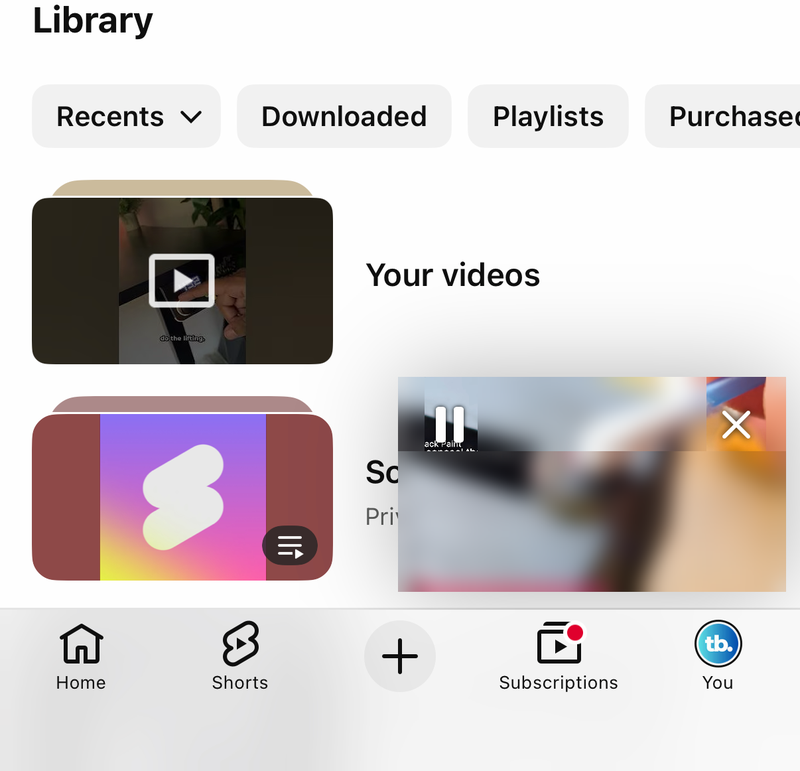
Use a regular video for this test. Shorts and videos marked made for kids do not use the YouTube Miniplayer.
5. Turn on Picture-in-Picture for floating playback
On Android: open Settings, tap Apps, choose YouTube, open Advanced, tap Picture-in-picture, and turn Allow picture-in-picture on.
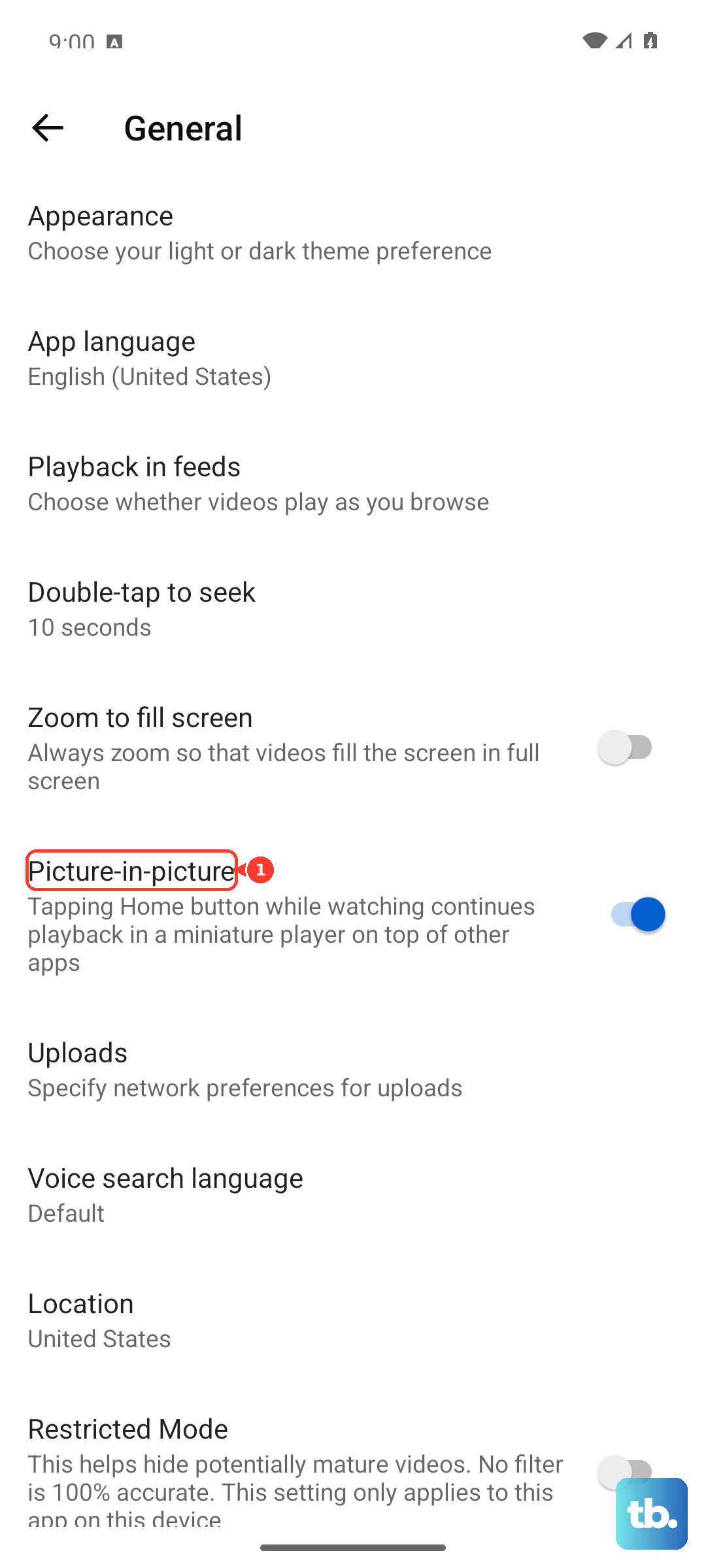
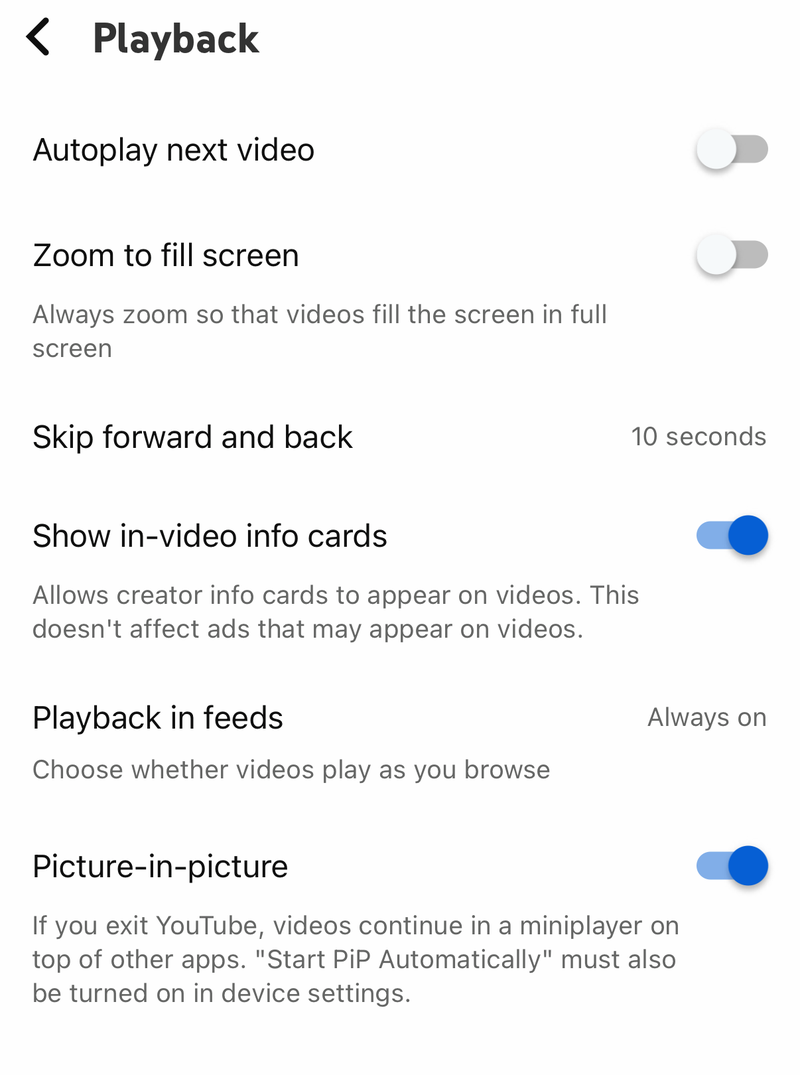
Then open the YouTube app, go to Settings, tap Playback, turn Picture-in-Picture on, start a video, and exit the app while it plays.
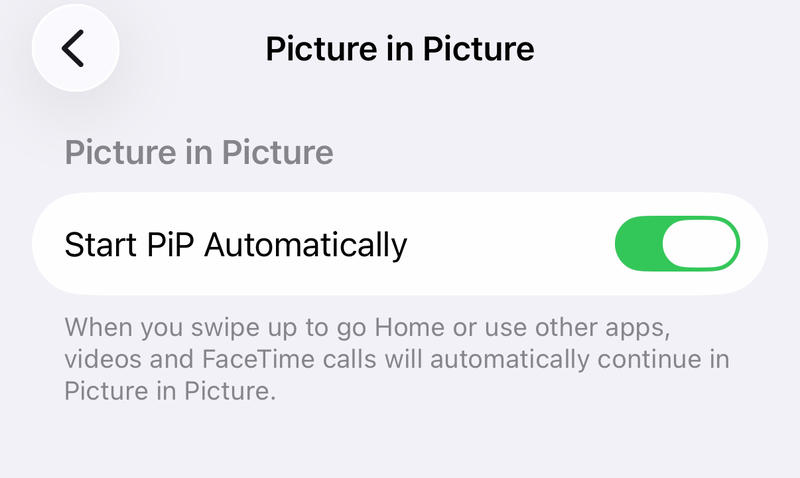
On iPhone or iPad: open Settings, tap General, open Picture-in-picture, and turn Start PiP Automatically on.
Next open the YouTube app, go to Settings, tap Playback, turn Picture-in-Picture on, start a video, and leave the app.
If you want the video to float outside the YouTube app, use Picture-in-Picture instead of Miniplayer. YouTube supports PiP on iOS 15.0 or later. Music content, including official music videos, Art Tracks, children’s songs, and user-generated song covers, requires YouTube Premium.
6. Stop mobile playback from pausing
Miniplayer and background play follow different rules.
If you hide the mobile Miniplayer by dragging or swiping it to the edge, playback pauses for non-Premium users. Keep the Miniplayer visible while the video plays, or sign in with YouTube Premium when you need background play.
YouTube says PiP for non-music long-form and Shorts content is available to all users across iOS and Android.
7. Refresh the YouTube app
Clear cache on Android: open Settings, tap Apps or Applications, choose YouTube, tap Storage, then tap Clear cache.
Reopen YouTube and replay the video.
Update YouTube on Android: open Google Play Store, tap your profile picture, choose Manage apps & device, open Updates available, find YouTube, and tap Update.
You can also tap Update all.
Update YouTube on iPhone or iPad: open App Store, tap your profile picture, tap App Updates, then tap Update next to YouTube.
When the app controls are missing or the player UI breaks, clear the local app data path first, then update or reinstall from the official store. If the app still fails, close YouTube and reopen it. Reboot the device next.
Then uninstall YouTube and reinstall it from the official app store.
8. Clear desktop browser conflicts
Browser extensions, ad blockers, old site data, and outdated browsers can break YouTube playback controls on desktop.
- 1.Open YouTube in a private or incognito window with extensions disabled.
- 2.In Chrome, open More, go to Extensions, choose Manage extensions, turn extensions off, and reload YouTube.
- 3.Allow ads on YouTube or turn off ad blockers when playback or player controls fail.
- 4.Update your browser.
- 5.In Chrome, open More, choose Delete browsing data, then clear cache and cookies.
YouTube recommends a current compatible browser such as Google Chrome, Firefox, or Safari.
9. Separate Miniplayer from other playback features
Playback in feeds: open the YouTube app, tap your profile picture, open Settings, tap General, then choose Playback in feeds.
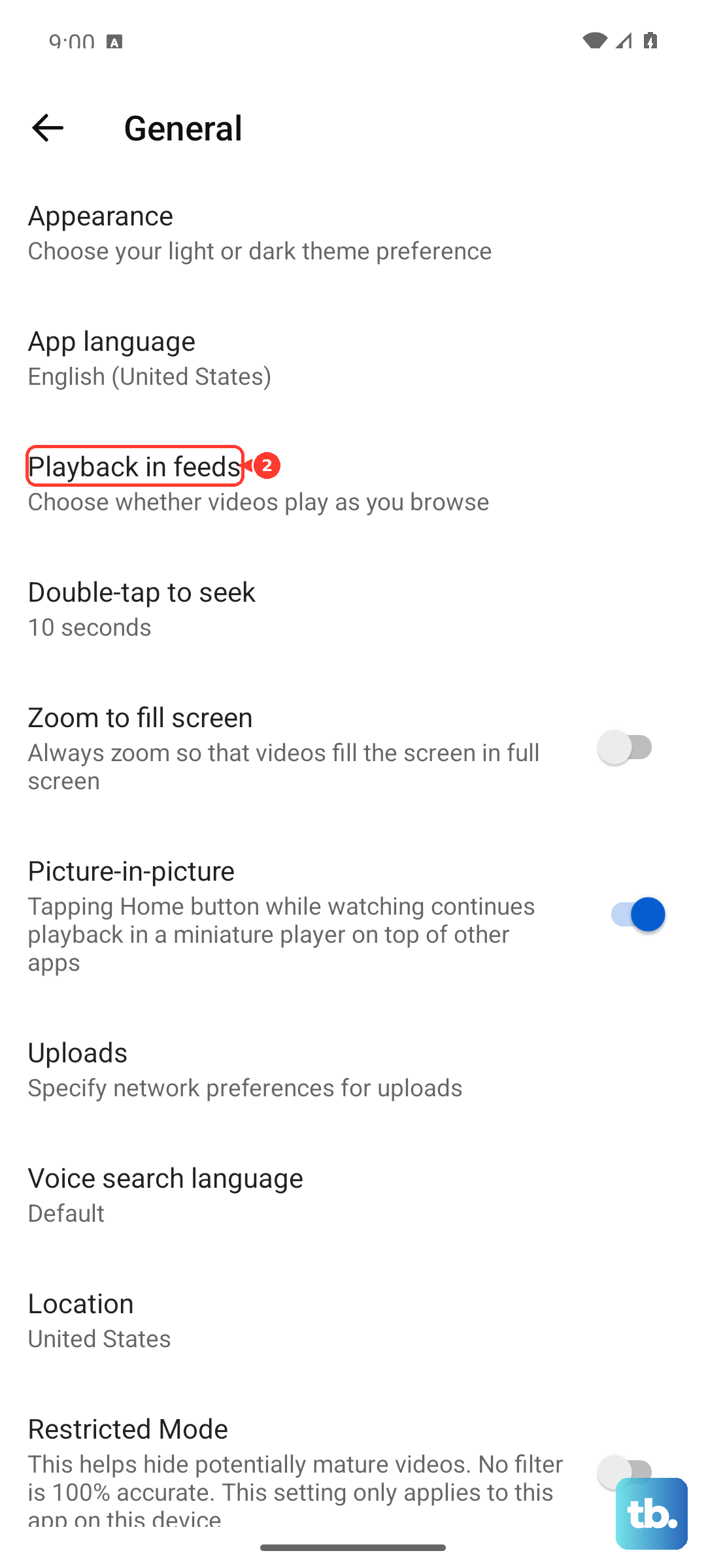
Select Always on, Wi-Fi only, or Off.
That setting controls Home and search result preview playback, not the watch-page Miniplayer.
Browser Picture-in-Picture: in Firefox, play a YouTube video and click the Picture-in-Picture button over the video.
In Microsoft Edge, play a YouTube video with audio unmuted, select the Media Control Center icon next to the address bar, then choose the Picture-in-picture icon.
In Chrome, Google’s Picture-in-Picture Extension uses Alt + P on Windows, Linux, and ChromeOS, or Option + P on macOS.
Some YouTube settings look related but control a different feature. On a personal desktop where restrictions affect what YouTube shows, open your profile photo, choose Restricted Mode, and turn Activate Restricted Mode off. If YouTube says a network administrator or mobile provider controls restrictions, that administrator or provider has to change it.
Frequently Asked Questions
Why does YouTube Miniplayer work on some videos but not others?
YouTube disables Miniplayer on Shorts and videos marked made for kids. A normal long-form video is the correct test video.
What key opens YouTube Miniplayer on desktop?
Click the YouTube video player, then press i. Press Shift + ? on YouTube to see the full keyboard shortcut list.
Why does YouTube stop when I push the Miniplayer off screen?
Non-Premium users’ playback pauses when the mobile Miniplayer is hidden by dragging or swiping it to the edge. Keep it visible or use YouTube Premium for background play.
Is YouTube Miniplayer the same as Picture-in-Picture?
No. YouTube Miniplayer stays inside YouTube. Picture-in-Picture creates a floating video window outside the app or browser tab.