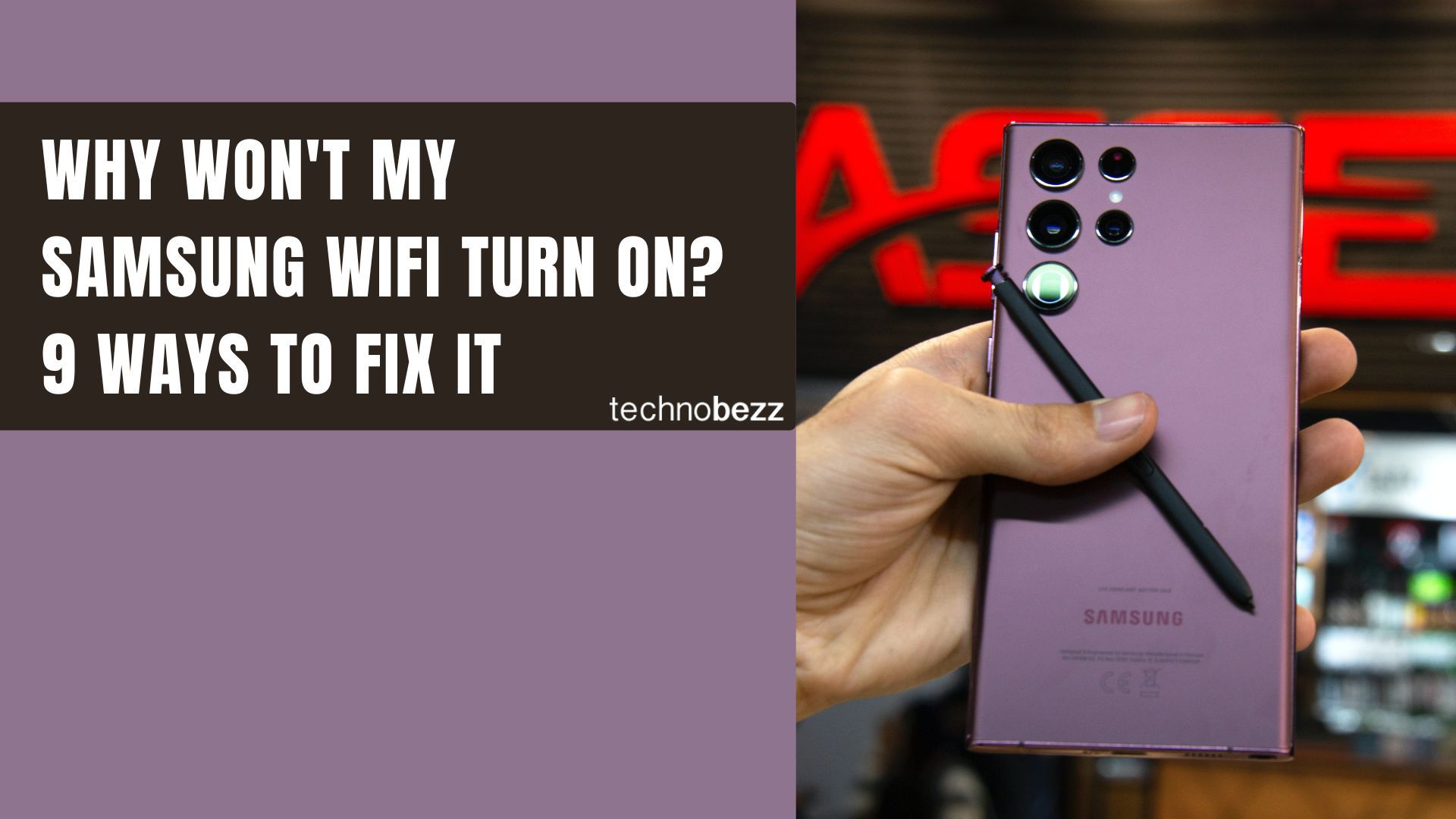
Your Samsung WiFi won't turn on, and tapping the toggle does nothing or it flips back off instantly. This is almost always a software or settings conflict rather than a broken WiFi chip, so it is usually fixable in a few minutes. Below are 14 fixes for Galaxy phones running One UI, ordered from the fastest quick wins to deeper resets.
Work down the list in order and test the WiFi toggle after each step. Most people are back online before they reach the network reset.
Match Your Symptom To The Fix First
WiFi failures on Samsung phones come in three flavors, and each points to a different starting fix. Use this table to skip straight to the most likely cause for your situation.
| What you see | Most likely cause | Start with |
|---|---|---|
| WiFi toggle is greyed out and won't tap | Mobile Hotspot is on, or a frozen system service | Fix 1 and Fix 3 |
| WiFi turns on then switches off by itself | Power saving or Intelligent WiFi rules | Fix 4 and Fix 5 |
| WiFi connects but there is no internet | Bad saved network or network config | Fix 6 and Fix 8 |
| Toggle stays dead after a factory reset | Possible hardware fault | Fix 13 and Fix 14 |
1. Turn Off Mobile Hotspot
If your phone is sharing its connection as a hotspot, it uses the same WiFi radio to broadcast, which greys out the WiFi toggle so you cannot join a network. This is the single most common reason the switch looks locked.
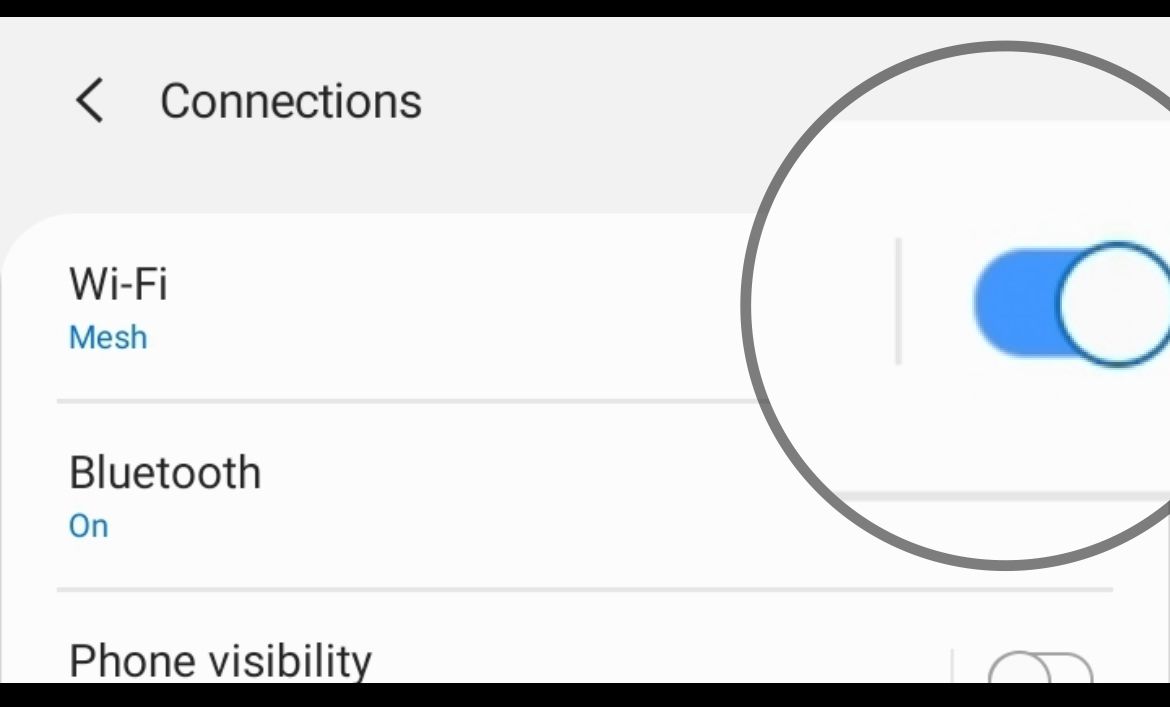
Go to Settings > Connections > Mobile Hotspot and Tethering and turn Mobile Hotspot off. The WiFi toggle should become tappable again right away.
2. Restart Your Phone
A restart clears the temporary system glitches that freeze the WiFi service after a long uptime or a bad app session. It is the fix that quietly solves the most cases.
- 1.Press and hold the Side and Volume Down buttons at the same time until the power menu appears
- 2.Tap Restart, then tap Restart again to confirm
- 3.Wait for the phone to fully boot, then try the WiFi toggle
If the screen is unresponsive, force a reboot by holding the Side and Volume Down buttons for about 10 seconds until the phone restarts.
3. Toggle Airplane Mode
Airplane mode shuts down every wireless radio at once, then powers them back up cleanly when you switch it off. This forces a full reinitialization of the WiFi hardware stack, which often unsticks a dead toggle.
- 1.Swipe down from the top of the screen to open Quick Settings
- 2.Tap Airplane mode to turn it on
- 3.Wait about 15 seconds
- 4.Tap Airplane mode again to turn it off, then try WiFi
4. Turn Off Power Saving Mode
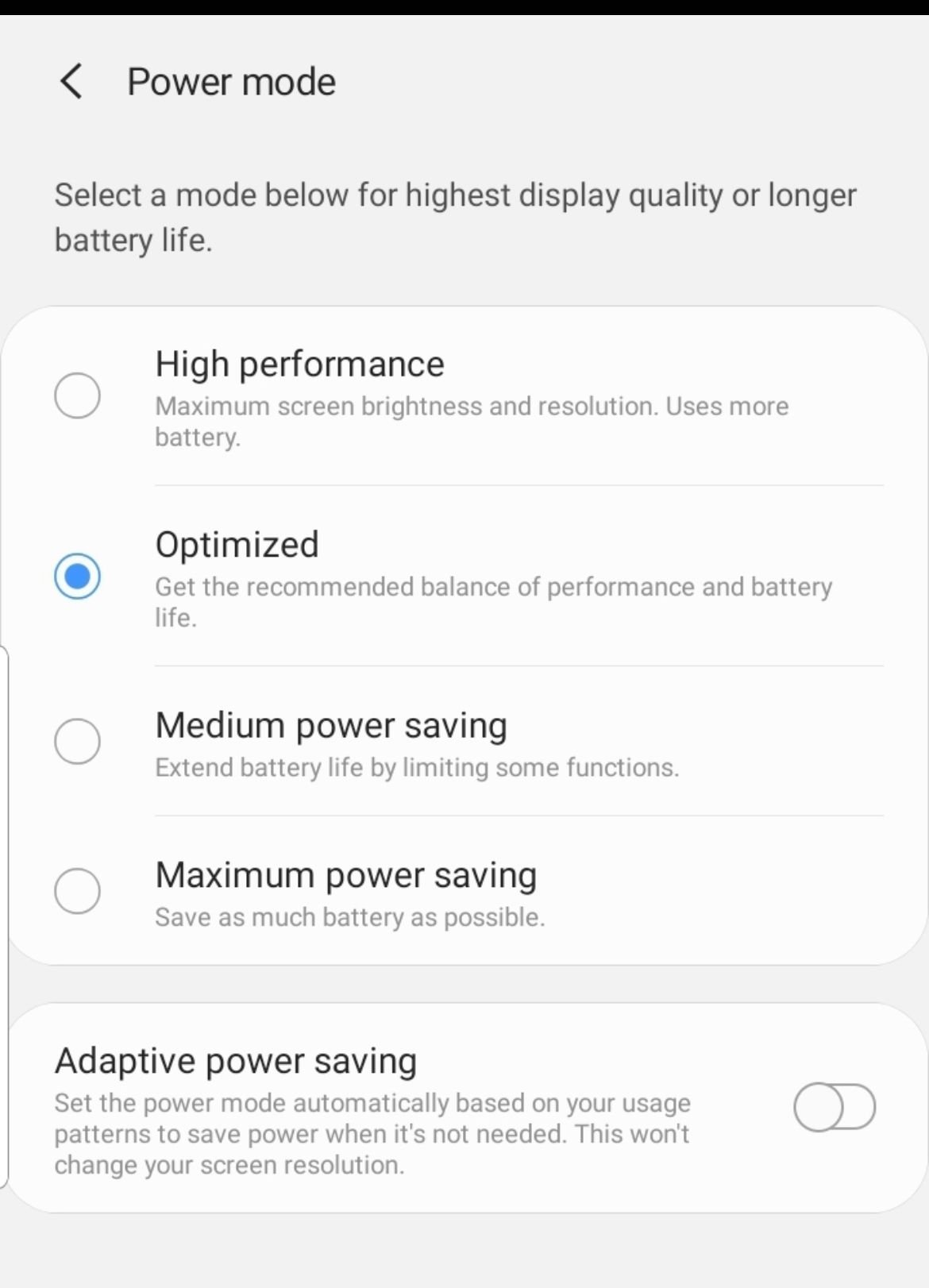
Power saving mode limits background activity and can choke the connectivity services that keep WiFi running, sometimes making the toggle behave erratically. Turning it off rules this out in seconds.
Go to Settings > Battery and turn Power saving off. On One UI 8.5 and later the power saving controls are grouped into Standard and Maximum profiles, so set it to off or Standard while you test.
5. Check Your Intelligent WiFi Settings
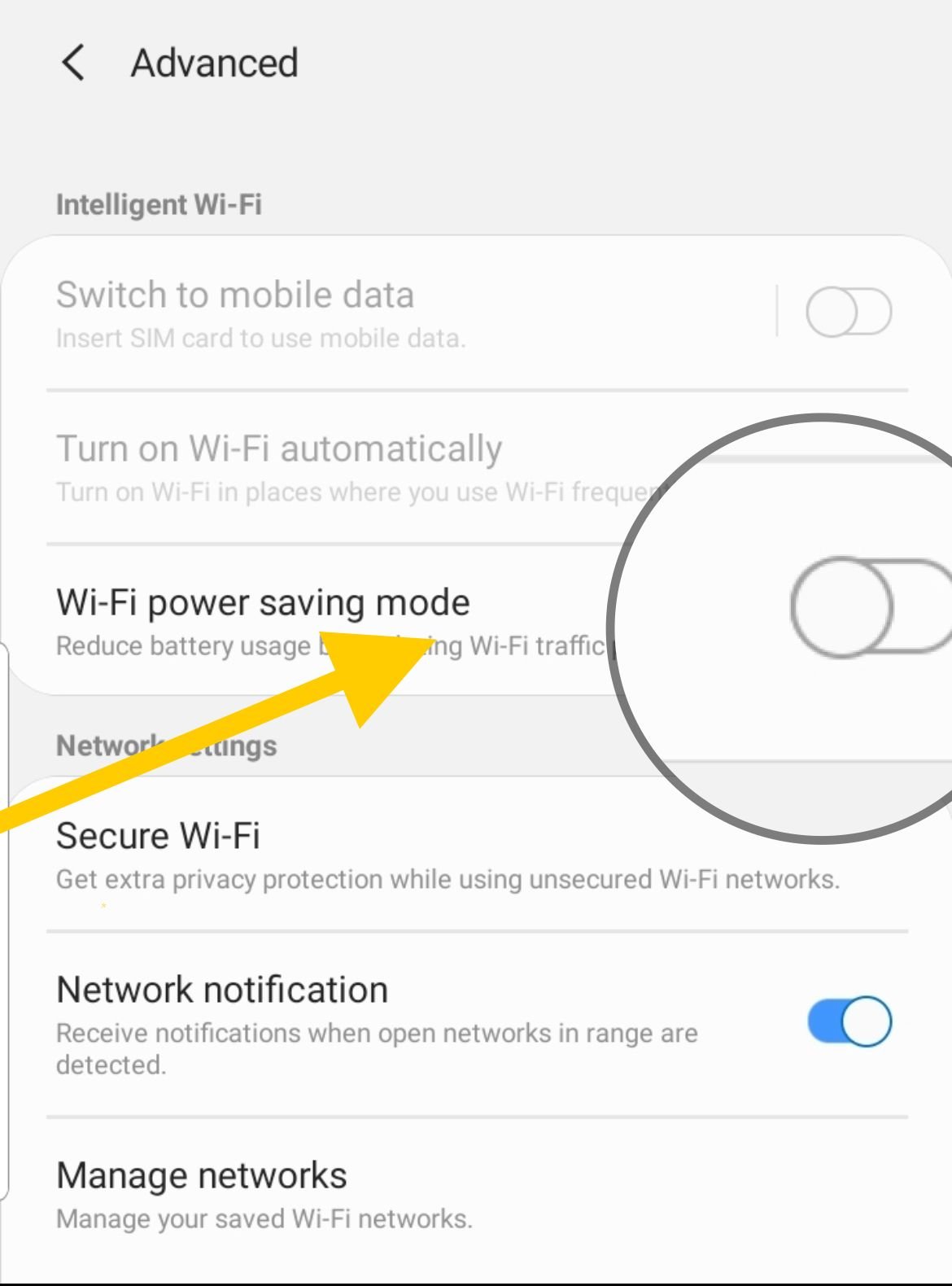
Samsung bundles its smart connectivity rules under Intelligent WiFi. Features like Switch to mobile data and WiFi power saving mode can make WiFi drop or appear to turn itself off when the signal dips.
- 1.Go to Settings > Connections > WiFi
- 2.Tap More options, the three dots in the top corner
- 3.Tap Intelligent WiFi
- 4.Turn off WiFi power saving mode and Switch to mobile data while testing
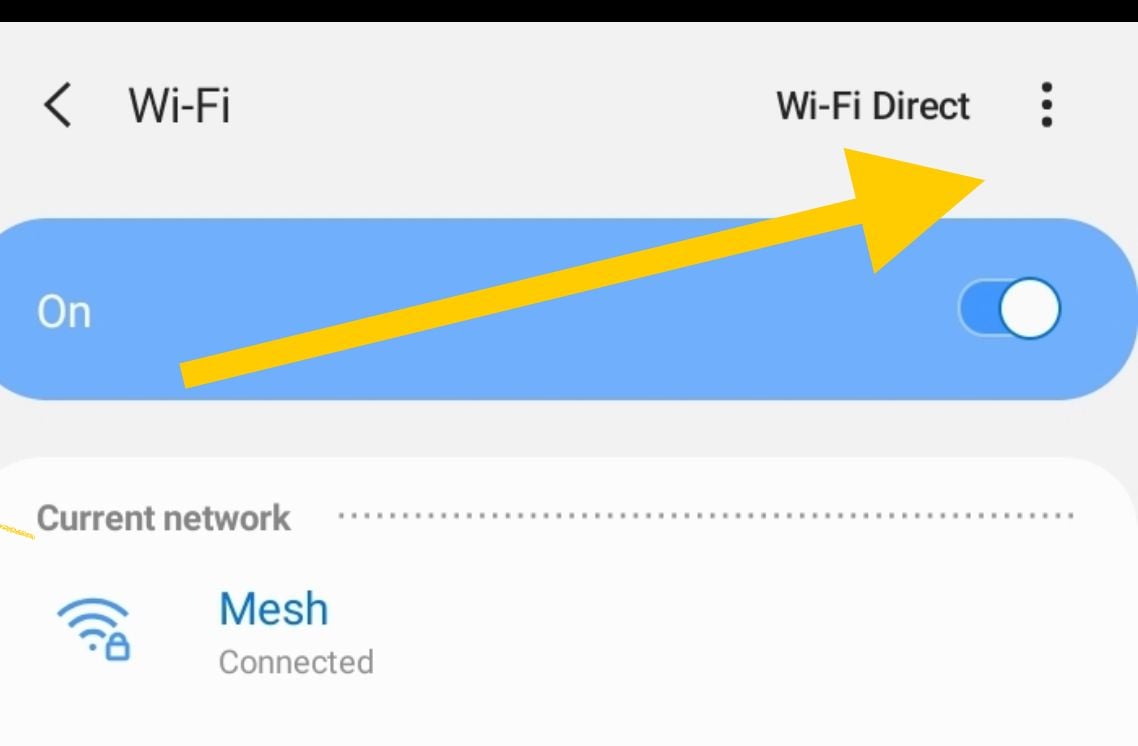
On older One UI builds these toggles live under Advanced or Advanced settings rather than Intelligent WiFi, but the option names are the same.
6. Forget The WiFi Network And Rejoin
A saved network with an outdated password or a corrupt profile can keep the connection from establishing, even when the toggle is on. Forgetting it and rejoining gives the phone a clean handshake.
- 1.Go to Settings > Connections > WiFi
- 2.Tap the gear or the network name, then tap Forget
- 3.Tap the network again, enter the password, and reconnect
If you have several stale networks saved, forget the ones you no longer use to remove conflicts.
7. Update One UI
WiFi bugs after a major One UI release are common, and Samsung ships connectivity fixes in follow-up updates. Installing the latest software often resolves a toggle that broke right after an update.
Go to Settings > Software update, tap Download and install, and apply anything available. Keep the phone on WiFi or mobile data and charged during the install.
8. Reset WiFi And Bluetooth Settings
This wipes only your wireless configuration and rebuilds it from scratch, which clears corrupt network data without touching your photos, apps, or accounts. On newer Galaxy phones the WiFi reset is combined with Bluetooth.
- 1.Go to Settings > General management > Reset
- 2.Tap Reset Wi-Fi and Bluetooth settings, or Reset network settings on older versions
- 3.Tap Reset settings and confirm with your PIN if asked
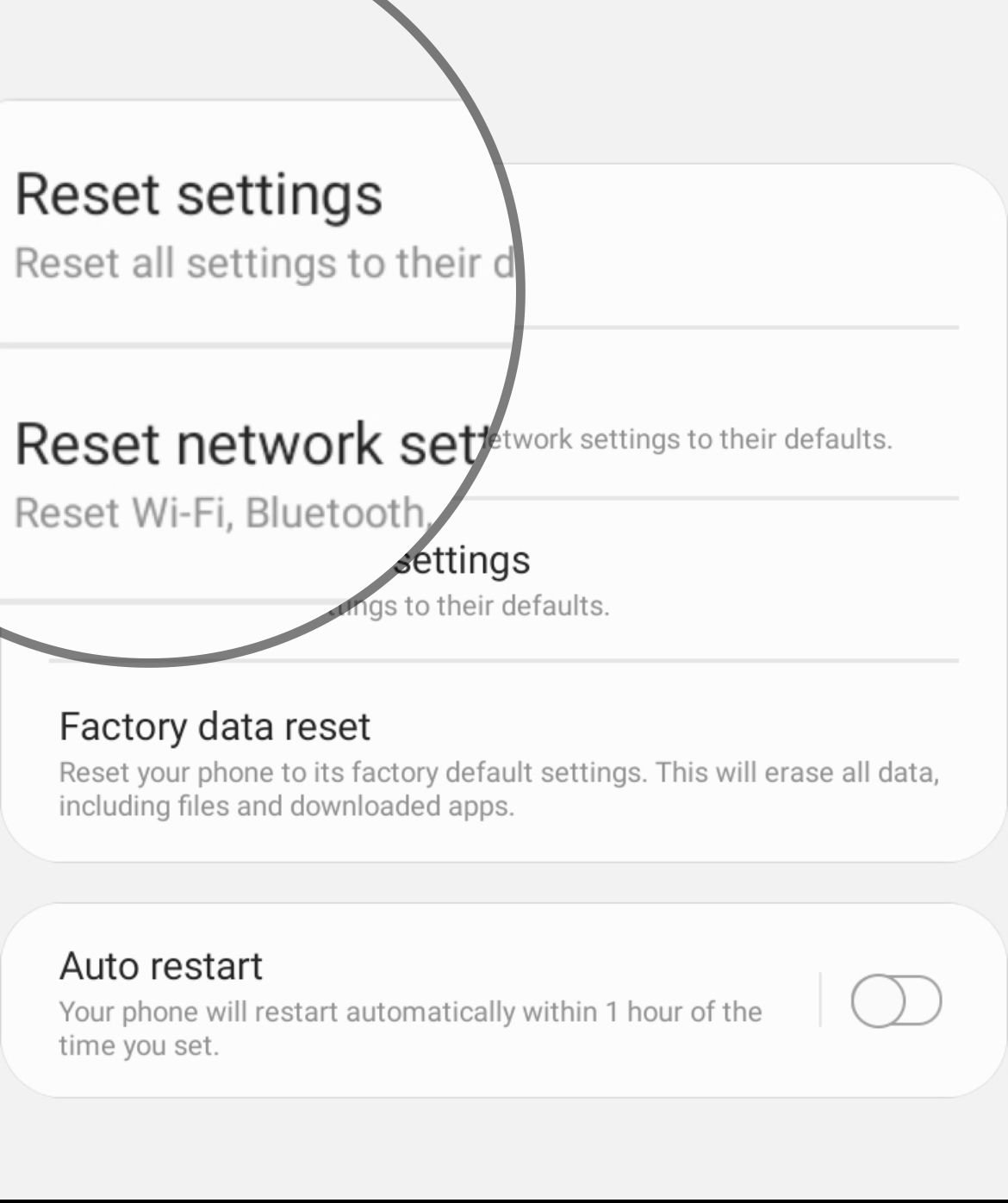
Afterward you will need to rejoin your WiFi network and re-pair Bluetooth accessories, so have your WiFi password ready.
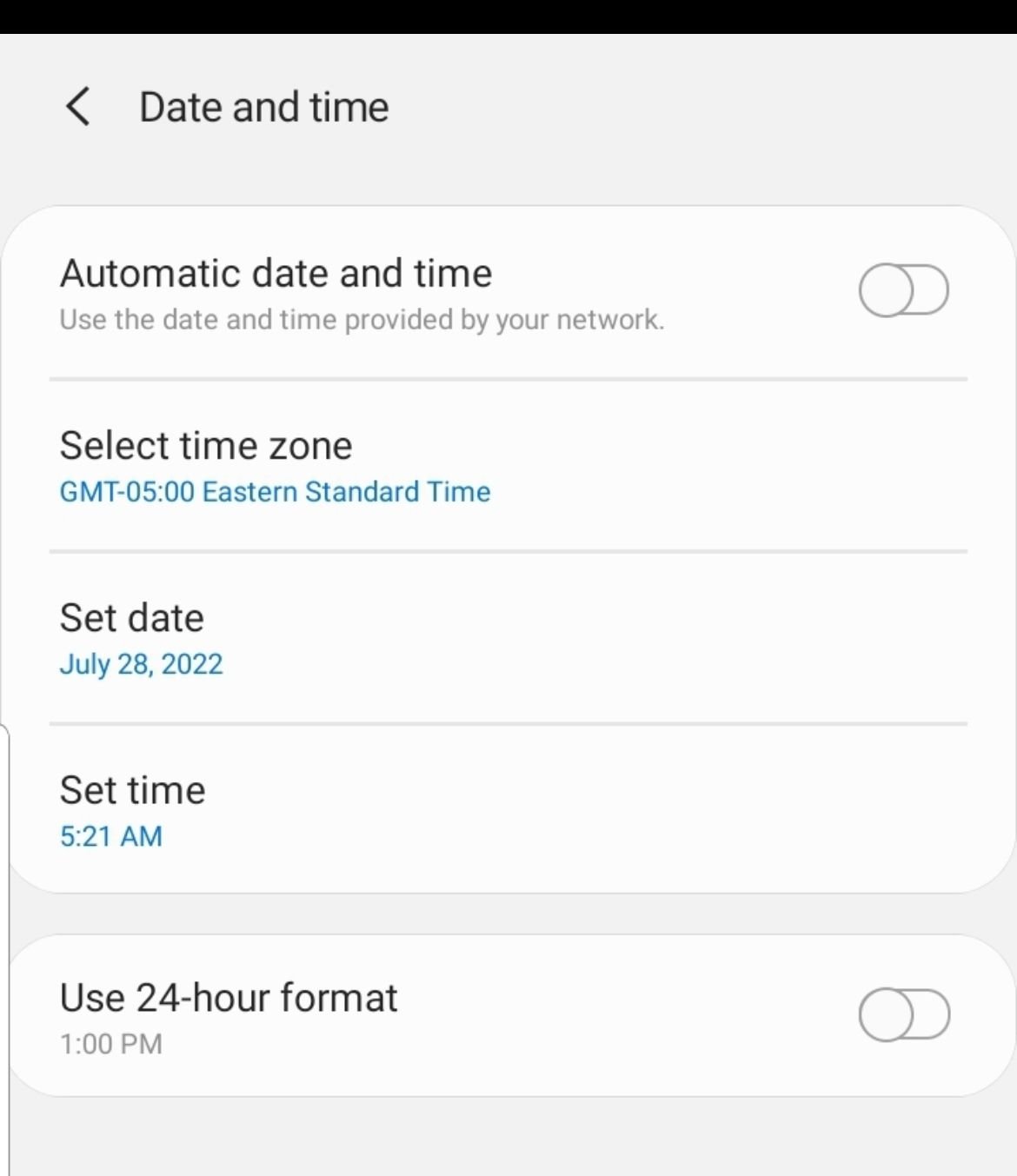
9. Check Your Date And Time
A wrong system clock can break the secure handshake some networks require, leaving WiFi unable to authenticate. Setting the time automatically keeps it accurate.
- 1.Go to Settings > General management > Date and time
- 2.Turn on Automatic date and time
- 3.If it is already on, toggle it off and back on to force a resync
10. Wipe The Cache Partition
The cache partition holds temporary system files, and a corrupt entry there can interfere with connectivity. Wiping it clears that data without deleting any of your personal files.
- 1.Power the phone off completely
- 2.Connect it to a PC with a USB cable, then hold Volume Up plus Side until the recovery menu appears
- 3.Use the volume keys to select Wipe cache partition and the Side button to confirm
- 4.Choose Reboot system now
Recovery key combinations vary slightly by model, and the option is missing on some newer Galaxy phones, so confirm the steps for your exact device if the menu does not appear.
11. Test In Safe Mode
Safe Mode boots the phone with only built-in apps running, which tells you whether a third-party app is hijacking WiFi. A VPN, security, or network-tweaking app is a frequent culprit.
- 1.Press and hold the Side and Volume Down buttons at the same time until the power menu appears
- 2.Touch and hold the Power off icon until Safe mode appears, then tap it
- 3.Test WiFi while in Safe Mode
If WiFi works in Safe Mode, a recently installed app is the problem. Restart to leave Safe Mode, then uninstall recent apps one at a time until WiFi behaves normally.
12. Run The Samsung Members Diagnostics
The Samsung Members app includes a built-in hardware test that can check the WiFi module and give you a clear pass or fail result. It is the fastest way to tell software trouble apart from a hardware fault.
- 1.Open the Samsung Members app and go to the Discover tab
- 2.Tap Diagnostics, then Phone diagnostics
- 3.Run the Wi-Fi test on its own or tap Test all
A failed WiFi test points to the chip or antenna, which means the remaining software fixes will not help.
13. Factory Reset As A Last Resort
A factory reset returns the phone to its original software state and clears any deep configuration problem that survived the earlier steps. It erases everything, so use it only after the other fixes fail.
- 1.Back up your photos, contacts, and files to Samsung Cloud, Google, or a PC
- 2.Go to Settings > General management > Reset
- 3.Tap Factory data reset, then Reset, and follow the prompts
Set the phone up as new afterward and test WiFi before restoring apps, so a problem app does not return with your backup.
14. When To Suspect Hardware
If the WiFi toggle stays greyed out or dead even after a factory reset and a failed Members diagnostic, the WiFi chip or antenna is likely damaged. Water exposure, a drop, or a faulty component can all cause this.
At that point, contact Samsung Support or visit an authorized service center for a repair. A hardware fault cannot be fixed from the Settings menu, so further software steps will only waste your time.
How To Turn WiFi On And Off Manually
Once WiFi is working again, you can control it two ways. The quickest is Quick Settings, and the full controls live in the Connections menu.
- 1.Swipe down from the top of the screen and tap the WiFi icon to toggle it
- 2.For full options, go to Settings > Connections > WiFi and use the switch at the top
Long-pressing the WiFi icon in Quick Settings opens the network list directly, which is handy for switching networks fast.
Frequently Asked Questions
Why is my Samsung WiFi toggle greyed out?
The most common reason is that Mobile Hotspot is turned on, since it uses the same radio and locks the WiFi toggle. Turn off the hotspot under Settings > Connections > Mobile Hotspot and Tethering, and if that does not help, restart the phone to clear a frozen WiFi service.
Why does my Samsung WiFi turn off by itself?
Power saving mode and Intelligent WiFi features such as Switch to mobile data and WiFi power saving mode can drop or disable WiFi automatically when the signal weakens. Turn these off under Settings > Connections > WiFi > Intelligent WiFi to keep the connection steady.
Will resetting network settings delete my files?
No. Resetting WiFi and Bluetooth settings, or network settings, only clears saved networks, passwords, and paired devices. Your photos, apps, and accounts stay untouched, but you will need to rejoin WiFi and re-pair Bluetooth accessories afterward.
Will a factory reset fix WiFi that won't turn on?
It can, if the cause is a deep software problem, since a factory reset rebuilds the system from a clean state. If WiFi still will not turn on after a factory reset, the issue is almost certainly hardware and needs a repair.
How do I know if my WiFi problem is hardware?
Run the WiFi test in the Samsung Members app under Diagnostics > Phone diagnostics. A failed result, especially one that persists after a factory reset, points to a damaged WiFi chip or antenna and means you should contact Samsung Support.
Why does WiFi connect but show no internet on my Samsung?
This usually means the saved network profile or the network configuration is corrupt rather than the WiFi radio being broken. Forget the network and rejoin it, and if that fails, reset WiFi and Bluetooth settings under Settings > General management > Reset.
First published October 14, 2025. Last updated June 4, 2026.