FaceTime on your iPad can fail before the call starts, freeze on a black screen, refuse to activate, or disappear from the Home Screen entirely. Most of the time, the fix is hiding in account setup, internet access, Screen Time, cellular settings, or the app install itself. Start with the quick checks, then move into the fixes that reset the connection without wiping the iPad.
1. Confirm FaceTime setup first
Use this check when FaceTime will not turn on, will not ring, or shows the wrong address for incoming calls. Open Settings > Apps > FaceTime, then turn on FaceTime.
Sign in with your Apple Account. Under You can be reached by FaceTime at, select the email addresses or phone number you want people to use.
That one screen handles the basics: the FaceTime switch, the Apple Account, and the reachable addresses. Fix those before chasing deeper problems.
2. Refresh FaceTime and restart iPad
Go to Settings > Apps > FaceTime, then turn FaceTime off. Restart the iPad, return to Settings > Apps > FaceTime, then turn FaceTime back on, or sign in again with the same Apple Account.
When activation hangs or FaceTime refuses to sign in, those steps reset the FaceTime registration first. To restart an iPad without a Home button, press and hold either Volume button and the Top button until the power off slider appears. Drag the slider, wait 30 seconds, then press and hold the Top button until the Apple logo appears.
On an iPad with a Home button, press and hold the Top button until the slider appears. Drag it, wait 30 seconds, then press and hold the Top button again until the Apple logo appears.
If the iPad is frozen, force restart it. On models without a Home button, press and quickly release the Volume button closest to the Top button, press and quickly release the other Volume button, then hold the Top button until the Apple logo appears. On models with a Home button, hold Home and the Top button until the Apple logo appears.
3. Verify your Apple Account
Activation errors often come from the account, not the iPad. Check the Apple Account before changing more settings: go to account.apple.com, sign in with the same Apple Account used on the iPad, fix the account name or password there, then try FaceTime again.
Apple also provides online account enablement for FaceTime and iMessage activation problems.
- 1.Open https://apple.co/IMFT-mac.
- 2.Under Enable Apple Account, tap Get Started.
- 3.Sign in with your Apple Account.
- 4.Follow the onscreen instructions.
- 5.Enter your phone number when you use one with FaceTime or iMessage.
4. Rule out outages and weak internet
Open Apple System Status and check whether FaceTime has a service outage. Confirm the iPad is connected to Wi-Fi or Cellular Data and can access the internet. After that, try FaceTime again on a different Wi-Fi network or cellular connection.
Move to a faster Wi-Fi or cellular connection when FaceTime shows connection alerts, choppy video, a black screen, or dropped calls. Reduce other streaming on the same network while you test the call.
FaceTime needs an internet connection. A working browser page is a good first test, but call quality also depends on the speed and stability of the network. When FaceTime suddenly fails across several contacts or devices, check Apple System Status before changing iPad settings.
5. Enable cellular FaceTime on iPad
Cellular FaceTime on a Wi-Fi + Cellular iPad depends on cellular data for the app, carrier support, and current carrier settings. Open Settings > Cellular, Settings > Mobile Data, or Settings > Cellular Data, then turn on FaceTime.
Check Apple’s carrier support list for your country or region and confirm your carrier lists FaceTime over Cellular. To update carrier settings, connect to Wi-Fi or cellular, then open Settings > General > About.
Follow the carrier settings update prompt when it appears. When the carrier does not list FaceTime over Cellular, use Wi-Fi or contact the carrier.
6. Set time correctly and update iPadOS
Open Settings > General > Date & Time, then turn on Set Automatically. Wrong time settings break activation and connectivity. Fix that first, then install the latest iPadOS update.
Update iPadOS wirelessly after you back up the iPad, plug the iPad into power, connect to Wi-Fi, open Settings > General > Software Update, and tap Download and Install when an update is available.
If the wireless update does not appear or does not finish, update with a computer. Connect the iPad to a Mac or PC.
On a Mac with macOS Catalina 10.15 or later, open Finder, select the iPad, click General, click Check for Update, then click Download and Update. On a Windows PC, open the Apple Devices app, select the iPad, select General in the sidebar, click Check for Update if needed, then click Update.
On a Mac with macOS Mojave or earlier, or on a Windows PC using iTunes, click the device button, click Summary, click Check for Update, then click Update.
7. Unblock FaceTime, Camera, and Microphone
If FaceTime opens but video or audio fails, restrictions and privacy settings are the next checks. Open Settings > Screen Time > Content & Privacy Restrictions > Allowed Apps & Features, then allow FaceTime and Camera.
For a child account, the family organizer opens Settings > Screen Time, taps the child’s name under Family, then opens Content & Privacy Restrictions > Allowed Apps & Features and allows the needed apps and features.
For camera access, open Settings > Privacy & Security > Camera, then allow the app that needs the camera. For microphone permission, open Settings > Privacy & Security > Microphone, then allow the relevant app.
For muffled or missing audio, remove screen protectors, films, or cases, clear debris from microphone openings, then record front and back camera videos in Camera to test the microphones. Screen Time blocks the built-in FaceTime and Camera apps, while privacy controls affect app access to the camera and microphone.
8. Reinstall FaceTime and reset the network
Touch and hold FaceTime, then tap Remove App or Delete App. Tap Delete App or Delete, then open App Store.
Search for the exact app name FaceTime, then tap the Redownload button. After it installs, open FaceTime from the Home Screen.
If FaceTime was deleted, those steps restore Apple’s FaceTime app from the App Store. If it is still missing, check Screen Time > Content & Privacy Restrictions > Allowed Apps & Features, confirm FaceTime is available in your country, region, or carrier, and check device management restrictions on managed iPads.
If FaceTime is installed and the account checks pass, reset network settings after the Wi-Fi, cellular, and VPN checks above. Open Settings > General > Transfer or Reset iPad > Reset.
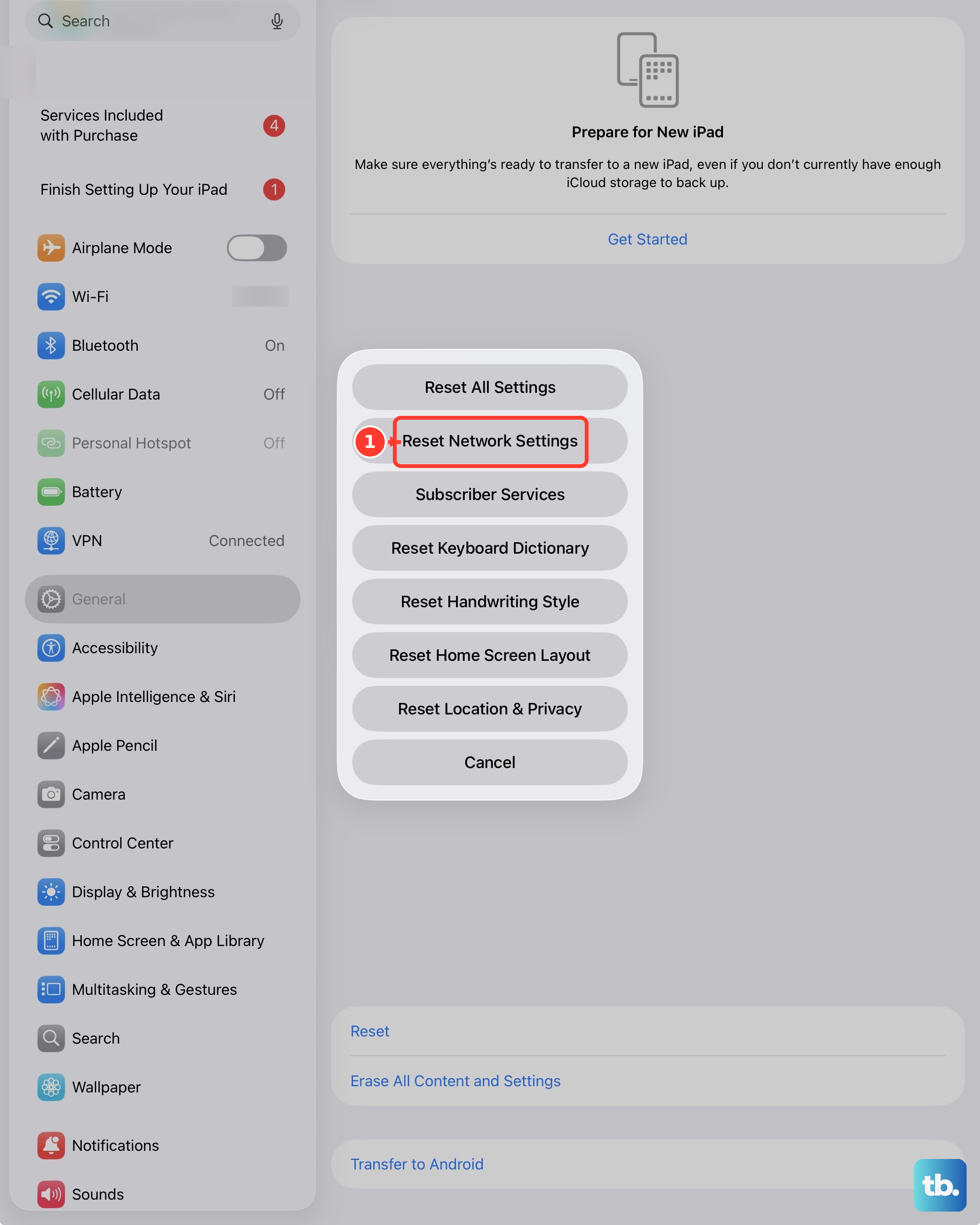
Tap Reset Network Settings, reconnect to Wi-Fi, and test FaceTime again. This removes Wi-Fi networks and passwords, cellular settings, and VPN or APN settings.
For work or school iPads, check management before erasing anything. Look for VPN, firewall, antivirus, parental-control, content-blocking, profile, or filter software; turn off filtering in that app, test FaceTime again, or delete the app when it is not required. In Settings, search for VPN, profile, firewall, and filter; turn off, change, or delete unmanaged settings, then restart iPad.
On restricted networks, ask the administrator to allow FaceTime and iMessage traffic. On managed iPads, the administrator needs to allow FaceTime in the device management restrictions.
Frequently Asked Questions
Why does FaceTime work on Wi-Fi but not cellular on my iPad?
FaceTime over cellular requires a Wi-Fi + Cellular iPad, cellular data enabled for FaceTime, carrier support for FaceTime over Cellular, and current carrier settings.
Why is FaceTime missing from my iPad?
FaceTime is missing when the built-in app was removed or Screen Time blocks it. Restore FaceTime from the App Store, then allow FaceTime and Camera in Screen Time.
Can I FaceTime someone on Android or Windows from my iPad?
Yes. Open FaceTime, tap New, enter one or more contacts, tap the Link button, and send the link. Android and Windows users join in the latest Google Chrome or Microsoft Edge.
Why can’t the other person hear me on FaceTime?
Check for blocked microphone openings first. Remove cases, films, or screen protectors, clear debris, then record front and back camera videos to test the microphones.
What should I do if FaceTime still fails after these fixes?
Use Apple Support when microphone tests fail, the camera still does not work, or FaceTime keeps failing after account, network, update, app, and restriction checks.