Hold the power button and volume down button together for about ten seconds until the screen goes black and the Samsung logo appears.
I've seen this resolve temporary software glitches that prevent calls from coming through on many Galaxy models. Sometimes the simplest fix is just restarting your phone.
Key Points
- Check Do Not Disturb Mode First: Swipe down from the top of your screen to open the quick settings panel and look for the moon icon.
- Verify Your Network Connection: Open Settings > Connections > Mobile Networks and make sure your mobile data is turned on.
- Review Call Settings and Permissions: Go to Settings > Apps > Phone > Permissions and ensure the Phone app has permission to make and manage calls.
- Install Available Software Updates: Open Settings > Software Update > Download and Install.
- Reset Your Network Settings: If calls still aren't coming through, try resetting your network settings.
- Check Carrier Settings and Features: Contact your mobile carrier to see if they have any network issues in your area.
Check Do Not Disturb Mode First
Swipe down from the top of your screen to open the quick settings panel and look for the moon icon. If it's highlighted, tap it to turn off Do Not Disturb. This mode silences all incoming calls and notifications, which is why you might not be hearing anything.
I'd start with this check before moving to more complex solutions.
Verify Your Network Connection
Open Settings > Connections > Mobile Networks and make sure your mobile data is turned on. While you're there, tap Network Operators and select Select Automatically. Your phone will search for available networks and connect to the strongest signal in your area.
If you're in a building or basement, try moving closer to a window or stepping outside. Concrete walls and metal structures can block cellular signals completely.
You can check your signal strength by looking at the bars in the top right corner of your screen.
Review Call Settings and Permissions
Go to Settings > Apps > Phone > Permissions and ensure the Phone app has permission to make and manage calls. Sometimes after an update, these permissions can get reset. Also check Settings > Blocked Numbers to make sure you haven't accidentally blocked the people trying to reach you.
Look at Settings > Notifications > Phone and make sure notifications are enabled for incoming calls. If they're turned off, you won't see or hear anything when someone calls you. This setting sometimes changes after major software updates.
Install Available Software Updates
Open Settings > Software Update > Download and Install. Samsung released a February 2026 update for the Galaxy S25 Ultra that included various bug fixes. Installing the latest software can resolve call reception issues that were caused by previous software versions.
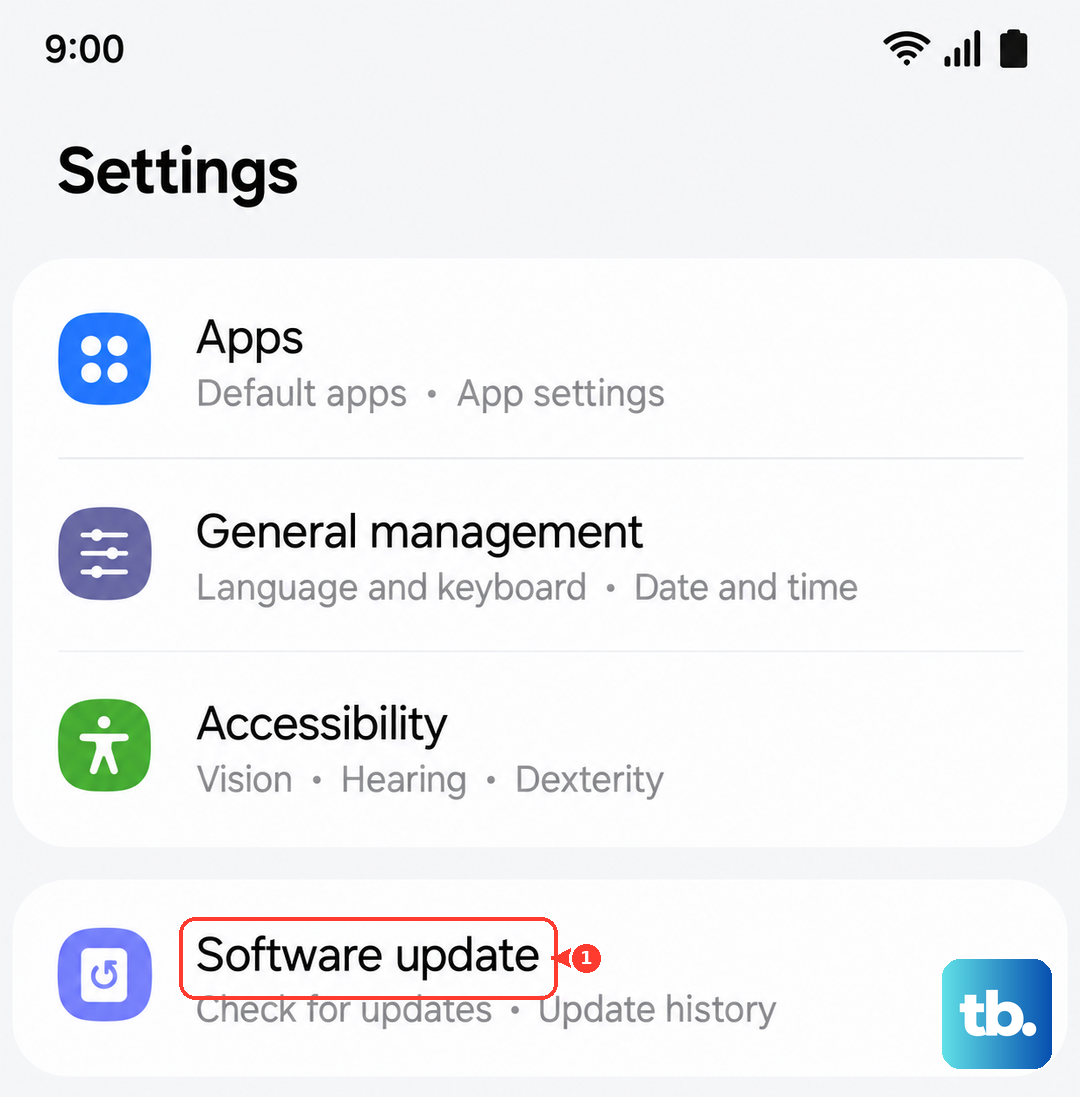
Before updating, make sure your phone has at least 50% battery and is connected to Wi-Fi. The update process takes about 10-15 minutes and your phone will restart automatically.
I'd start with this fix if you haven't updated in a while.
Reset Your Network Settings
If calls still aren't coming through, try resetting your network settings. Go to Settings > General Management > Reset > Reset Network Settings. This will erase all your Wi-Fi passwords, Bluetooth connections, and cellular network settings.
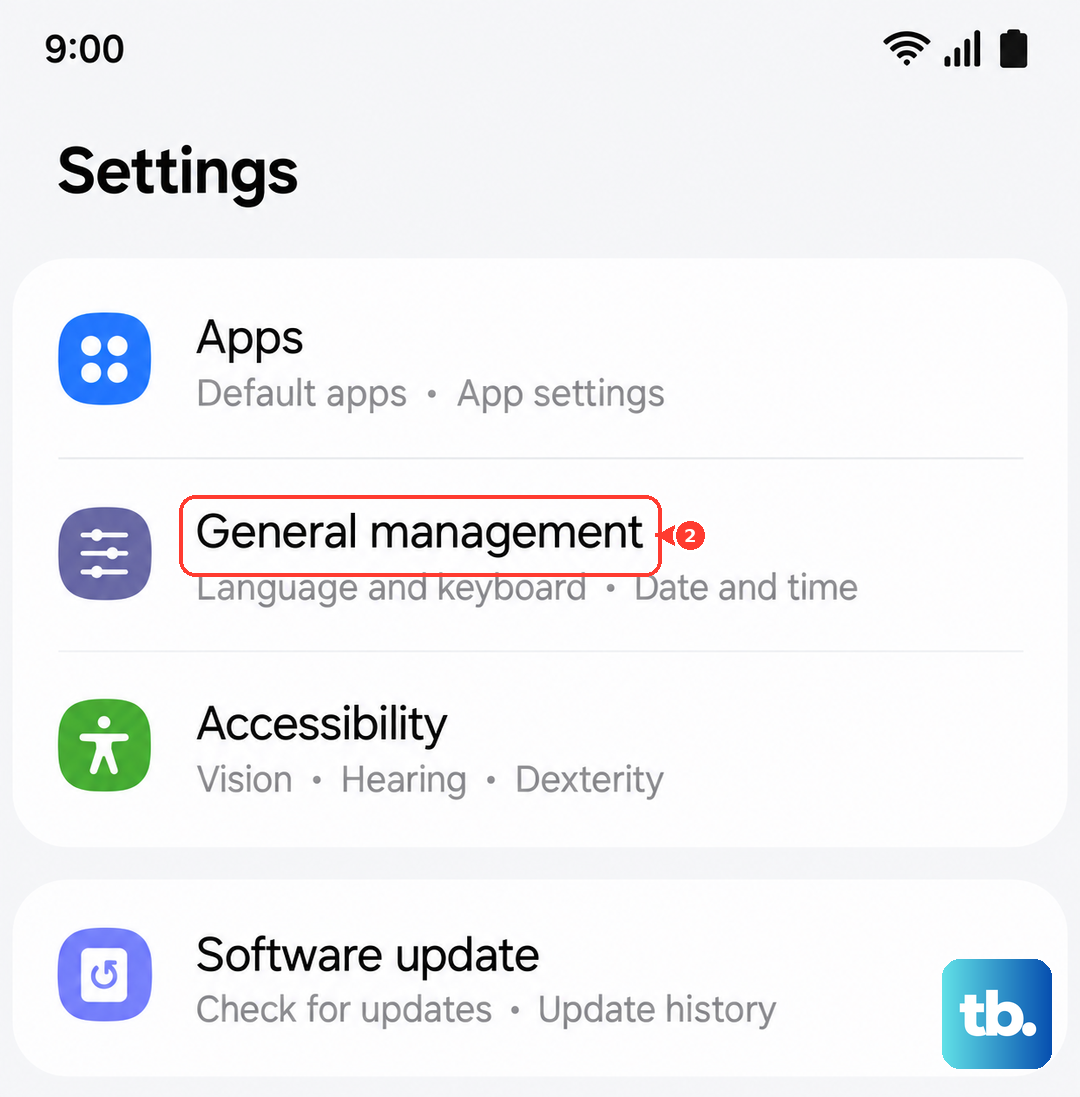
Your phone will restart after this reset. You'll need to reconnect to Wi-Fi networks and re-pair Bluetooth devices, but your call logs and personal data will remain untouched.
This often fixes persistent network-related issues that prevent calls from reaching your device.
Check Carrier Settings and Features
Contact your mobile carrier to see if they have any network issues in your area. You can also ask them to refresh your connection on their end, which sometimes resolves call routing problems. They might need to update your carrier settings or check if there are any account issues.
Some carriers offer apps that can check your connection status and troubleshoot network problems. Download your carrier's official app from the Google Play Store and run any diagnostic tools it provides. These apps can often detect issues that your phone's built-in tools might miss.
Disable Call Screening Features
The Galaxy S25 Ultra runs One UI 8 with various call management features. Go to Settings > Galaxy AI > Call Assist and check if any call screening or filtering options are enabled. These features can sometimes be too aggressive and block legitimate calls.
If you see options for spam protection or call screening, try turning them off temporarily to see if calls start coming through. You can always re-enable them later once you've confirmed they're not causing the problem.
Perform a Factory Reset
As a last resort, you can perform a factory reset. First, back up all your important data to Samsung Cloud or Google Drive. Then go to Settings > General Management > Reset > Factory Data Reset and follow the prompts.
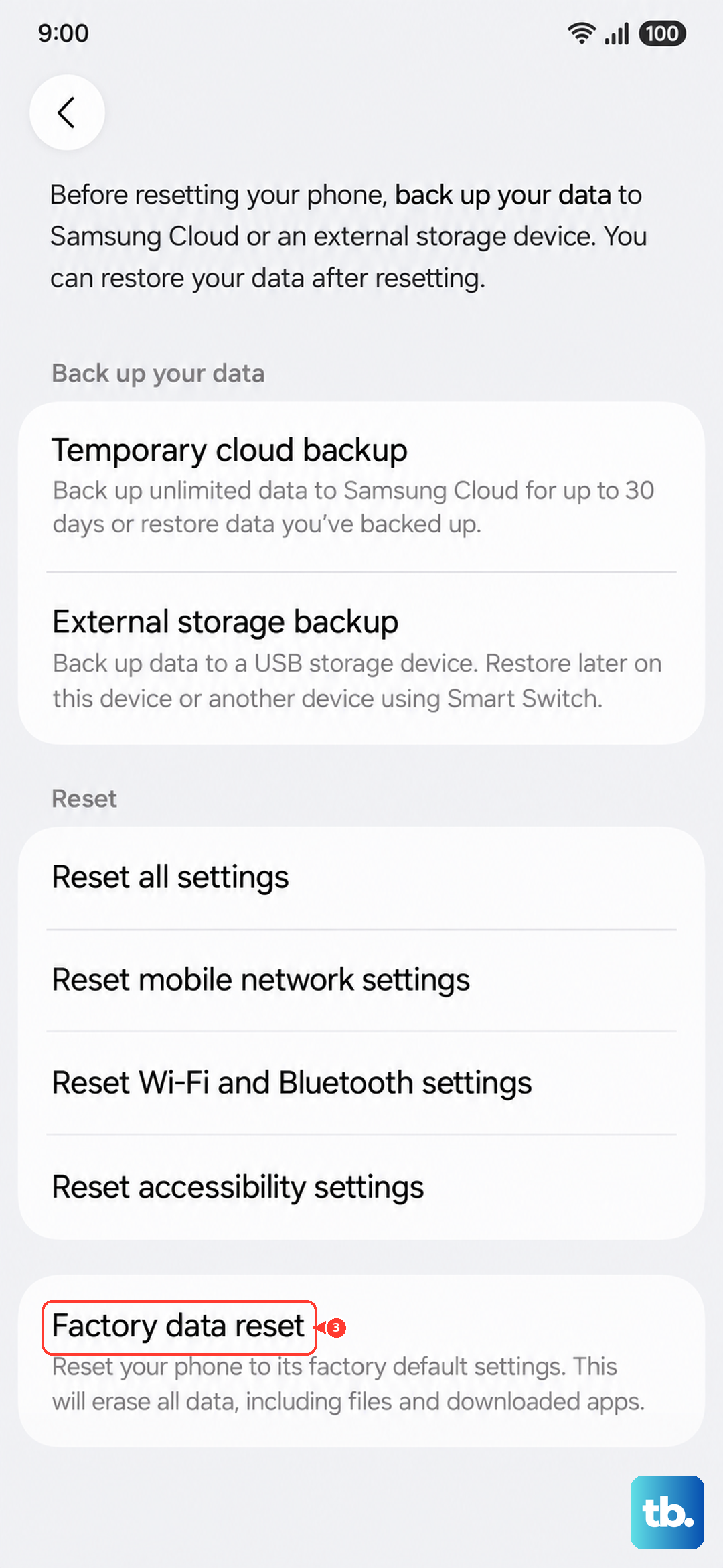
This will erase everything on your phone and restore it to its original factory settings. After the reset, set up your phone as new without restoring from a backup initially.
This can eliminate any software conflicts that might be preventing calls from reaching your device.