
Your Samsung Galaxy Z Fold 7 is a premium piece of engineering. It's especially jarring when you see that "Not registered on network" error, which effectively bricks your phone for calls, texts, and mobile data. The immediate culprit is usually a problem with your IMEI number. Every phone has a unique 15-digit IMEI that identifies it on your carrier's network, and if software glitches corrupt it or the phone can't read it, you're invisible to cell towers.
You can check your IMEI by opening the dialer and typing *#06#. If it shows "IMEI Null" or a string of zeros, your Z Fold 7 needs attention. Before you panic, try these fixes in order. Most people get back online without needing to touch the IMEI at all. Start with the quickest checks first.
Force Restart Your Z Fold 7
A standard restart is a good first step, but your Z Fold 7 also has a force restart option that can clear more stubborn hiccups. Press and hold the Volume down and Side buttons simultaneously for about 10 seconds until the display goes black and the Samsung logo appears. This isn't the same as a factory reset, it just forces a fresh boot cycle. Once it's back on, the phone re-registers with nearby cell towers, which often clears the error on its own.
Toggle Airplane Mode
This takes five seconds and sometimes works when a full restart doesn't. Swipe down from the top of the screen to pull open the notification shade and tap the Airplane Mode icon. Wait about 10 seconds, then tap it again to turn it off. When Airplane Mode disengages, your Z Fold 7 has to perform a completely fresh handshake with your carrier's network. I've seen this one fix the issue without any further troubleshooting.
Is Your SIM Card Seated Properly?
A SIM card that's even slightly loose can cause all sorts of registration problems. Power off your Z Fold 7 first, this is important. Locate the SIM tray on the bottom edge of the phone and use the ejection pin that came in the box (a paperclip works in a pinch). Pull the tray out, pop the SIM card off, and inspect both the card and the tray for any dust or grime. A gentle puff of compressed air on the tray slot can clear debris. Reinsert the SIM, making sure it lies flat, and push the tray in until it clicks securely. Power your phone back on and check the network status.
Check Your Account Status
The error isn't always a phone problem. An expired prepaid balance, an overdue bill, or a suspended account will trigger the exact same "not registered on network" message. Log into your carrier's app or website and confirm your account is active. If you're on a family plan, check with the account holder. It saves a lot of headache to rule this out before you start digging into settings.
Reset Network Settings
This is a safe step that clears saved Wi-Fi networks, Bluetooth pairings, and cellular configurations without touching your photos, apps, or accounts. It's good for fixing corrupted settings that might be blocking registration. Open Settings > General management > Reset > Reset network settings. You'll need to re-enter some Wi-Fi passwords afterward, but it resolves a lot of registration issues. The phone restarts automatically when it's done.
Manually Change the Network Type
Your Z Fold 7 might be trying to latch onto a network band your carrier doesn't support well in your area. Switching from 5G to LTE can force a connection that works. Go to Settings > Connections > Mobile networks > Network mode and pick LTE/3G/2G (auto connect). If your phone immediately registers on the network, the problem is with 5G coverage in that location. You can switch back to 5G once you're in a better coverage area.
Is Your Software Up to Date?
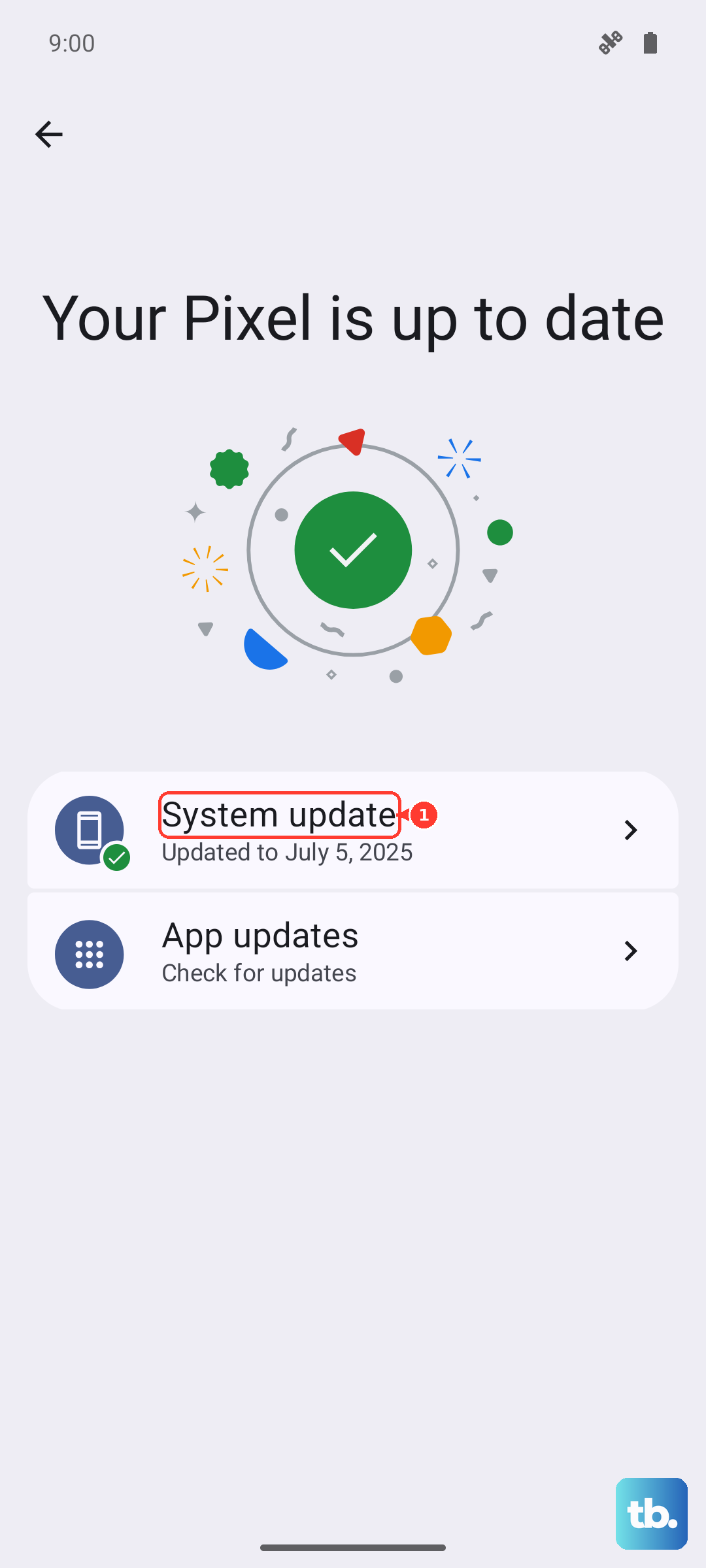
Samsung and carriers regularly push out updates that patch known network registration bugs. An outdated system can have issues that have already been fixed. Open Settings > Software update > Download and install. If an update is available, install it and let the phone restart. This is especially worth checking if you've been putting off a system update for a while.
Clear the Phone App Cache
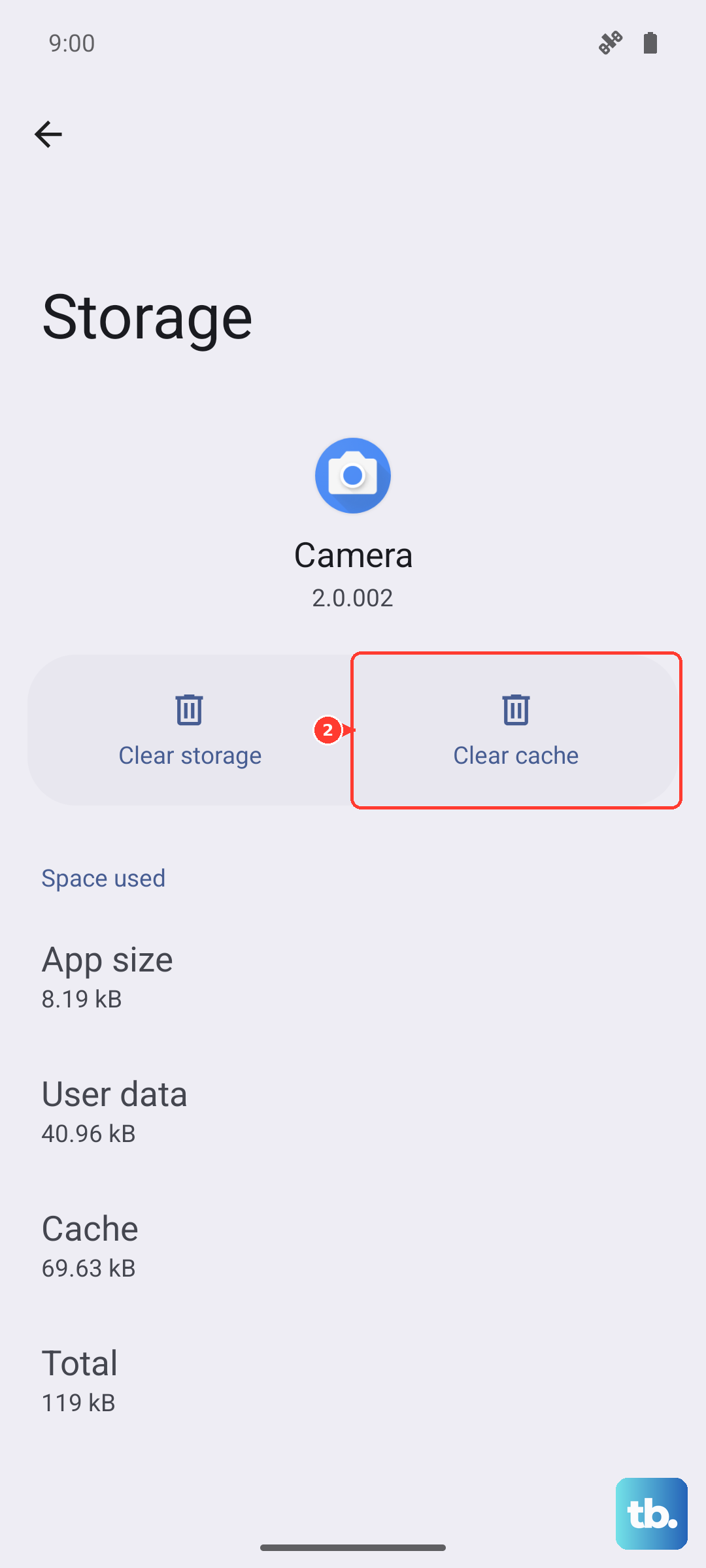
The Phone app handles your device's telephony stack, and a corrupted cache in that app can cause registration errors. Head to Settings > Apps > Phone > Storage and tap Clear cache. Don't worry, this doesn't delete your contacts or call history. It just removes temporary data that might have gone bad. Restart your phone afterward so everything rebuilds cleanly.
Swap in a Known Working SIM
If you're still stuck, the SIM card itself might be damaged. Borrow a working SIM from a friend or family member and insert it into your Z Fold 7. If the borrowed SIM connects to the network without issue, your original SIM is the problem and you'll need a replacement from your carrier. If the borrowed SIM also fails to register, you're dealing with a phone-side issue rather than a bad card.
Factory Reset
This is the last step you should try before assuming hardware failure. A factory reset wipes everything and returns your Z Fold 7 to its factory state. Back up your photos, contacts, and anything else you want to keep first. Go to Settings > General management > Reset > Factory data reset and follow the prompts. After the reset, set up the phone from scratch, don't restore from a backup right away, as that could bring back the same corrupted settings. Check if the network error is gone during the initial setup. If it persists even after a clean factory reset, the problem is almost certainly a hardware fault with the radio module, and you'll need to arrange a repair directly with Samsung.











