Maybe a sign-in alert landed in your other inbox, a contact replied to a message you never sent, or your password suddenly stopped working. Those are the moments your Outlook.com account is telling you something is wrong.
Once you regain control, replace the old password with one that cannot be guessed. A free strong password generator creates a long random password locally in your browser, and nothing you generate ever leaves your device.
The good news: Microsoft keeps a detailed record of who signed in, and the controls to lock everything down are all in one place. You just need to work through them in the right order.
This guide walks you from confirming the break-in to slamming the door shut and cleaning up what the intruder touched. Start at the top and move down; the quickest, most common checks come first.
Check the Recent Activity Page
This is the fastest way to confirm a hack. The Recent activity page shows every sign-in from the last 30 days, including ones that were not you.
- 1.Go to account.live.com/Activity, or sign in at account.microsoft.com, open the Security section, and select Review activity.
- 2.You may be asked to enter a verification code to confirm it is you.
- 3.Read the two sections: Recent activity (significant security events) and Unusual activity (entries that need your response).
- 4.Expand any entry to see the date and time, location with a map, the device or operating system, the browser or app type, and the IP address.
If you find a sign-in you do not recognize in the Unusual activity section, expand it and select This wasn't me. (Depending on your account state, this button may instead read Secure your account.) Microsoft then walks you through changing your password and updating your security info. If an entry was genuinely you, select This was me.
Verify the Sign-In Alert Was Genuine
Microsoft sends an alert to your alternate email or phone whenever it spots a sign-in from a new location, device, or other unusual activity. Attackers send fakes that look just like these.
A legitimate message comes from the Microsoft account team at [email protected]. Treat any lookalike sender as phishing.
Do not click links inside the message, even if it looks real. Instead, go directly to the Security page yourself and select Review activity to open the Recent activity page.
Run a Full Malware Scan Before Anything Else
Order matters here. If a keylogger is sitting on your Windows PC, changing your password first just hands the new one straight to the attacker. Scan, then change.
Make sure your antivirus is running and up to date.
In Windows Security, open the Virus & threat protection tab.
Select Scan options, choose Full scan, then select Scan now.
If you do not have antivirus installed, set up Microsoft Defender and run the full scan before you touch your password.
Change Your Password
Once the full scan is clean, set a new, strong password.
If you can still sign in, change it from your account security settings. If you can no longer sign in, use the Forgot password reset option. If even the reset fails because the attacker also changed your security info, jump to the account recovery form section below.
Sign Out Everywhere
Changing your password does not automatically eject sessions that are already open. Signing out everywhere ends them on every device and browser.
Sign in to your Microsoft account and open Advanced security options on the security dashboard.
Scroll to Sign out everywhere and select Sign out.
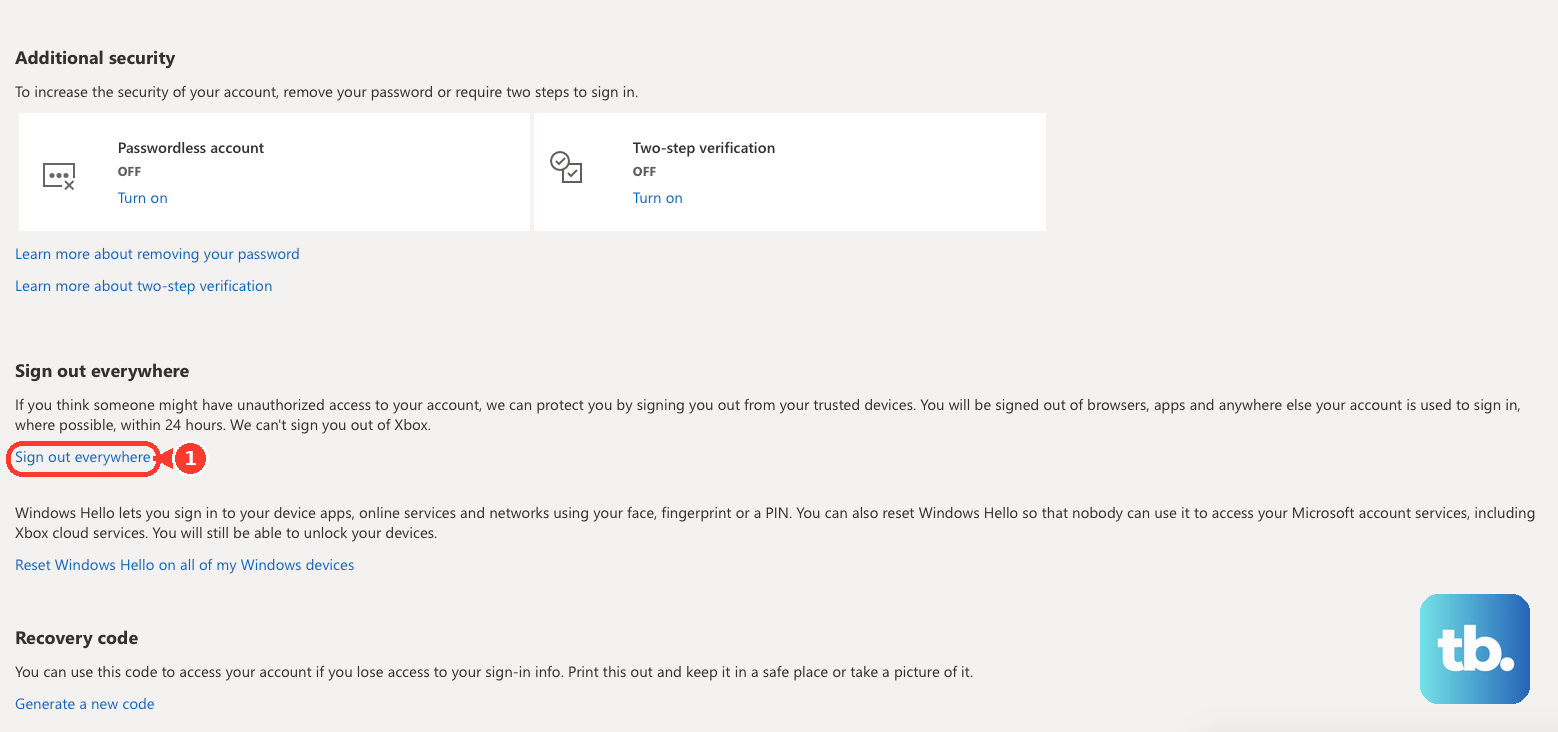
This can take up to 24 hours to fully apply, and it does not sign out an Xbox console. Just as important, it does not change your password on its own, so make sure you have already done that.
Turn On Two-Step Verification
With a second factor in place, a stolen password alone is no longer enough to get in.
Go to account.microsoft.com/security and sign in.
Select Manage how I sign in to see your verification options.
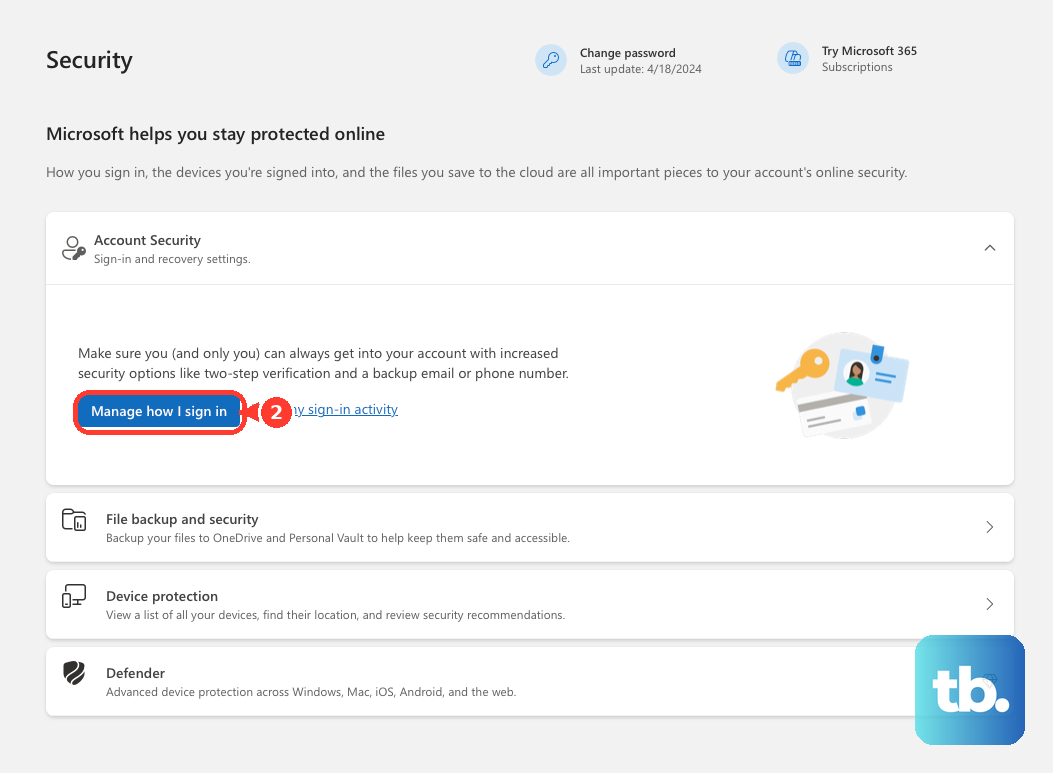
Under Additional security and Two-step verification, select Turn on.
Follow the on-screen prompts, for example scanning a QR code with an authenticator app.
One gotcha: older apps or devices that cannot prompt for a code may start failing with an "incorrect password" error. They need an app password, found under Additional security and only visible once two-step verification is on. Microsoft recommends keeping three pieces of security info on file so you are never locked out.
Clean Up Your Security Info and Verification Methods
An attacker who got in may have added their own phone number or email as a recovery method so they can keep getting back in. Verify only your own contact methods remain.
Go to account.microsoft.com/security and select Manage how I sign in.
Review the list for any phone number or email address you do not recognize, and remove it.
To add a method, select Add a new way to sign in or verify and pick an option such as an email address, an authenticator app, or a passkey (face, fingerprint, or device PIN). You can have up to 10 methods.
Microsoft is phasing out SMS as a verification method for personal accounts, so favor an authenticator app or passkey. Do not add an alias of your own account as a verification method.
Turn Off Automatic Forwarding
A common trick is to silently forward a copy of every incoming message to the attacker. Shut it off in Outlook.com.
Select Settings (the gear icon).
Go to Mail > Forwarding.
Clear the Enable forwarding checkbox and remove any forwarding address you did not set.
Select Save.
If two-step verification is on, you may be prompted to verify your identity while changing this setting.
Review and Delete Suspicious Inbox Rules
Checking forwarding alone is not enough. Attackers also hide rules that auto-delete or move your mail, often to bury password-reset emails before you ever see them.
At the top of the page, select Settings.
Go to Mail > Rules.
Read every rule. For any rule you did not create, select Delete (the trash icon beside it).
To pause a rule instead of deleting it, use the toggle next to the rule name.
In New Outlook for Windows the path is the same (Settings > Mail > Rules), but rules are not supported for third-party accounts such as Gmail, Yahoo, or iCloud; manage those at the provider.
Check Connected Accounts and Automatic Replies
When Microsoft detects a possible compromise it resets some settings, but confirm the rest yourself.
Open Connected accounts and remove any linked account or service you do not recognize.
Recheck Forwarding to confirm no redirect slipped back in.
Open Automatic replies and confirm no auto-reply was added; a rogue one can leak information or push scam links to everyone who emails you.
Restore Deleted Email
If the intruder purged messages, you can usually get them back, but the clock is ticking.
In Outlook.com, select the Deleted Items folder (or the Junk Email folder) in the left pane.
At the top of the message list, select Recover items deleted from this folder.
Select the items you want, then select Restore.
Recovered items return to their original folder when possible; otherwise mail goes to the Inbox, calendar items to the calendar, contacts to contacts, and tasks to tasks. Items are recoverable for only 30 days after they leave the Deleted Items folder, so act quickly.
Use the Account Recovery Form When You Are Locked Out
If the attacker changed both your password and your security info, the normal reset will fail. The recovery form is your way back in, and it is judged by how many questions you answer correctly.
Open the Microsoft account recovery form.
Provide a working email address you can access for the result; it can be any active email, even a friend's or a temporary Outlook.com account.
Answer as thoroughly as you can: old passwords, original account name and location, exact subject lines of recent emails, contacts you emailed, and any Skype, Xbox, or billing details. Guessing is fine; wrong answers do not count against you.
For the best odds, fill it out on a device and at a location you have used with the account before, and check your browsers for saved passwords.
Microsoft sends the result to your working email within 24 hours. You can submit up to twice per day, for as many days as you need.
Frequently Asked Questions
How can I tell a real Microsoft security email from a phishing one?
A genuine alert comes from [email protected]. Rather than trusting any sender, do not click the links; go straight to the Security page yourself and select Review activity.
Why should I scan for malware before changing my password?
If a keylogger is on your PC, it captures whatever you type, including a brand-new password. Running a full antivirus scan first (Windows Security > Virus & threat protection > Scan options > Full scan) removes that risk before you make the change.
I signed out everywhere but the intruder still seems to have access. Why?
Signing out everywhere can take up to 24 hours to fully apply and does not sign out an Xbox console. It also does not change your password by itself, so change your password immediately as well.
How long do I have to recover email the hacker deleted?
Deleted mail is recoverable for 30 days from the Deleted Items folder using Recover items deleted from this folder > Restore. Junk email is also kept 30 days before automatic deletion, so do not wait.
What if the password reset just will not work?
That usually means the attacker changed your security info too. Use the account recovery form, answer as many questions as you can (guessing wrong does no harm), and Microsoft replies within 24 hours.
Is checking forwarding enough to stop mail theft?
No. Attackers also hide inbox rules that delete or move messages. Always review Settings > Mail > Rules as well and delete any rule you did not create.