Bluetooth is one switch, but every device puts that switch in a different place. Pick your device below and use the current Settings or Quick Settings path to turn Bluetooth on, then pair your headphones, speaker, keyboard, mouse, or other accessory.
1. Turn On Bluetooth in Windows 11
Windows 11 gives you two clean ways in: Settings for the full path, or Quick Settings when you want the fast toggle.
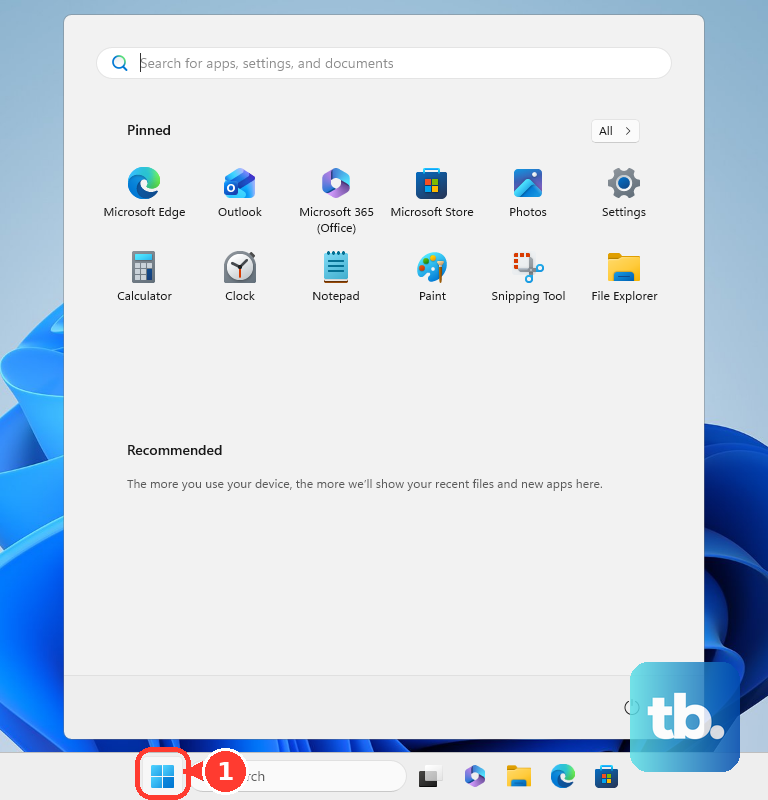
- 1.Select Start.
- 2.Open Settings.
- 3.Select Bluetooth & devices.
- 4.Select Bluetooth.
- 5.Switch Bluetooth On.
For the shortcut, select the Network, Sound, or Battery icon beside the time and date, then select the Bluetooth tile.
To connect a nearby device from the same area, select the Manage Bluetooth devices chevron on the Bluetooth tile, turn Bluetooth on when prompted, then choose the device under New devices.
Check Airplane mode before you troubleshoot. Select the Network, Sound, or Battery icon and make sure Airplane mode is Off.
2. Switch On Bluetooth on a Mac
On a current Mac, use System Settings instead of the older System Preferences path. Open the Apple menu, select System Settings, select Bluetooth, then click the Bluetooth switch to turn it on.
The menu bar route is faster. Click Control Center, open the Bluetooth status menu, then click the switch to turn Bluetooth on.
Mac desktops have one extra rule: when the only connected keyboard, mouse, or trackpad uses Bluetooth, Bluetooth cannot be turned off.
With an external USB Bluetooth adapter, the Bluetooth on/off option may not appear in Bluetooth settings; unplug the adapter to turn Bluetooth off.
3. Enable Bluetooth on iPhone and iPad
Open Settings, tap Bluetooth, then turn Bluetooth on. Control Center is different. Open Control Center and tap the Bluetooth button to reconnect or turn Bluetooth back on after a Control Center disconnection, but use Settings > Bluetooth for the main Bluetooth switch.
Some apps need their own Bluetooth permission. Open Settings > Privacy & Security > Bluetooth, then turn on access for the app.
4. Find Bluetooth on Android and Samsung Galaxy
On Google Pixel and similar Android phones, the full path is: open Settings, tap Connected devices, tap Connection preferences, tap Bluetooth, then turn Use Bluetooth On. From Pixel Quick Settings, swipe down from the top of the screen, tap the Bluetooth tile, then turn Use Bluetooth on.
You can also touch and hold Bluetooth, then open Connection preferences > Bluetooth.
On Samsung Galaxy phones and tablets, open Settings > Connections > Bluetooth, then tap the switch at the top.
For Quick settings on One UI 7.0 or later, swipe down from the top right to open the Quick panel, then tap Bluetooth; on One UI 6.1.1 or earlier, swipe down from the top with two fingers. Blue means enabled, gray means disabled. Touch and hold Bluetooth to open Bluetooth settings.
5. Use Bluetooth on a Chromebook
Chromebook keeps the fastest Bluetooth switch next to the clock. Select the Time in the bottom-right corner, select Bluetooth, then turn Bluetooth on.
For the full settings page, select Time > Settings > Bluetooth, then turn Bluetooth on. To pair a new accessory, select + Pair new device.
Fast Pair accessories can appear from the Bluetooth area. When ChromeOS detects one, select Connect.
6. Open Bluetooth on Ubuntu
Ubuntu and GNOME use the Bluetooth page in Settings for the normal consumer path. Open the Activities overview, type Bluetooth, open Bluetooth, then set the switch at the top to on.
On laptops with a physical wireless switch or Bluetooth keyboard key, turn that hardware control on first. Use the Fn key with the Bluetooth key when your laptop labels it that way, then return to the Bluetooth settings page.
7. Pair Your Accessory After Bluetooth Is On
Your phone or computer needs Bluetooth on, and the accessory needs to be discoverable.
Turn on the accessory, put it in discovery or pairing mode with its documented button or button combination, then select it from your device's Bluetooth settings.
On Windows 11, use Quick Settings > Bluetooth > Manage Bluetooth devices, then choose a device under New devices.
On Android, turn on a Fast Pair accessory, keep it near the phone, then tap Connect when the notification appears. Bluetooth and Location must be on.
On ChromeOS, open Time > Settings > Bluetooth > + Pair new device.
Google Assistant-enabled speakers and displays have their own pairing shortcut. Say Hey Google, Bluetooth pairing, then open Bluetooth settings on your phone or computer and connect to the speaker or display.
This works on supported Assistant-enabled speakers, Smart Displays, Smart Clocks, and Pixel Tablet; Google notes it may not work on some Assistant-enabled speakers.
8. Fix a Missing Bluetooth Toggle
A missing Bluetooth switch means the device is not detecting usable Bluetooth hardware, a driver needs repair, an adapter is unplugged, or an admin policy is blocking changes.
On Windows 11, run the Get Help automated Bluetooth troubleshooter. Open Device Manager, expand Bluetooth, select your Bluetooth adapter, select Update driver, then select Search automatically for drivers. Return to Settings > Bluetooth & devices and turn Bluetooth On.
On a Mac using an external USB Bluetooth adapter, plug the adapter in.
On Windows 11, make sure Airplane mode is Off.
Chrome has a separate Bluetooth permission for websites, available in Chrome on a computer or Android device.
Turn on OS Bluetooth first, make the Bluetooth Low Energy device discoverable, open the compatible webpage in Chrome, click or tap the page, choose the device, then select Pair or Connect.
Chrome on iPhone and iPad does not support connections between Bluetooth devices and websites.
To manage Chrome desktop permissions, open Chrome Settings > Privacy and security > Site settings > Additional permissions > Bluetooth devices.
Work and school devices can block Bluetooth. Managed Windows, ChromeOS, iPhone, iPad, Mac, and Android Enterprise devices have admin policies that can prevent users from enabling Bluetooth normally.
Frequently Asked Questions
Can I enable Bluetooth from Quick Settings on Windows 11?
Yes. Select the Network, Sound, or Battery icon beside the time and date, then select the Bluetooth tile. Use the Manage Bluetooth devices chevron to connect nearby devices.
Where is Bluetooth on a Samsung Galaxy phone?
Open Settings > Connections > Bluetooth, then tap the switch at the top. You can also swipe down with two fingers and tap the Bluetooth tile in Quick settings.
Why does my iPhone app need Bluetooth permission?
Some apps request Bluetooth access for device functions. Open Settings > Privacy & Security > Bluetooth, then turn on access for that app.
Can Chrome turn Bluetooth on for my computer?
No. Turn on Bluetooth in your operating system first. Chrome only manages website permission and pairing for supported Bluetooth Low Energy devices.