

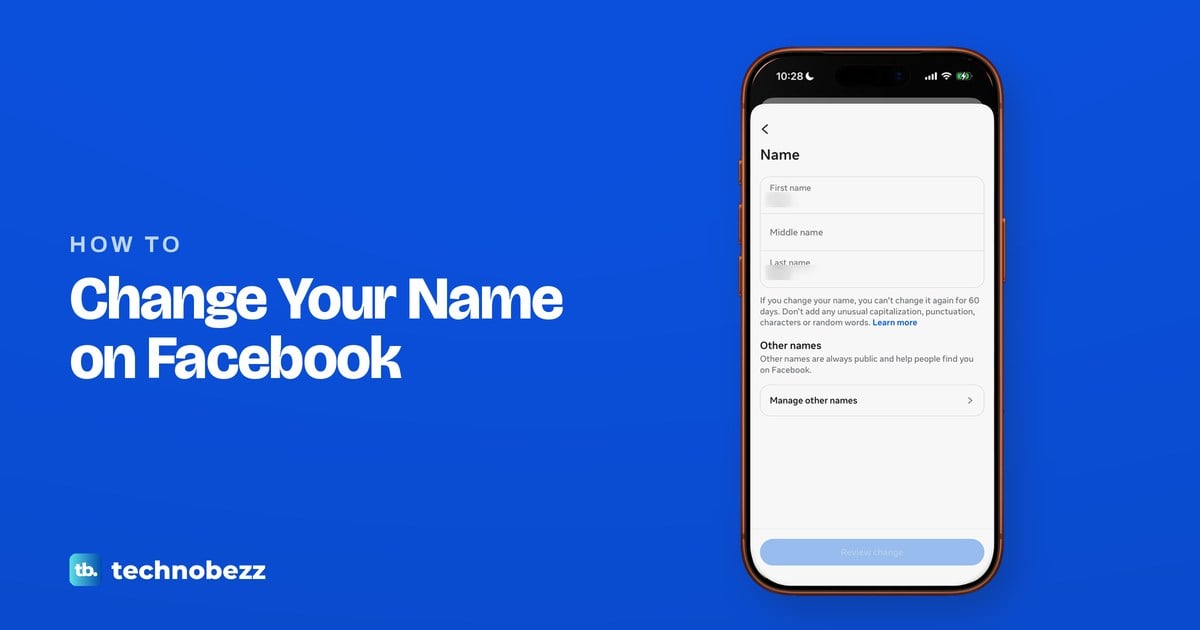
To change your name on Facebook, open Meta Account (still called Accounts Center on some accounts) from Facebook's settings, tap the card at the top that shows your profiles, pick your Facebook profile and tap Name. Type the new name, tap Review change, then Save changes. Meta then makes you wait 60 days before the next change, so check the spelling first.
In the Facebook app on our iPhone 17 Pro with iOS 26.6, the way in was Menu at the top left, then Settings and privacy and Settings. Our settings showed Meta Account, where Profiles sits one step deeper, behind the account card at the top. Nicknames and maiden names are added separately as other names, and a change Facebook will not accept has its own form.
The short version
- Meta Account: Menu > Settings and privacy > Settings > Meta Account > the account card at the top > your Facebook profile > Name.
- Accounts Center: the same start, then Accounts Center > Profiles > your account > Name.
- The limit: after a change you wait 60 days for the next one.
- What fails: symbols, numbers, odd capitals, titles, mixed alphabets and words that are not a name.
- Nicknames and maiden names: add them as other names, which are always public.
- Refused, or one name only: use Meta's Changing Your Name form.
Facebook name changes at a glance
Your profile name, your username, your Instagram name and a Page name are four separate settings. The table shows where each one lives and the catch that comes with it.
| What you want to change | Where to change it | The catch |
|---|---|---|
| First, middle or last name | Meta Account > the account card > your Facebook profile > Name, or Accounts Center > Profiles > your account > Name | Once every 60 days |
| A nickname, maiden name or other name | Name > Manage other names, or About > Names on your profile | Always public |
| Your name in another alphabet | A language-specific name, added through Name > Manage other names | Only eleven languages |
| A single name with no surname | Meta's Changing Your Name form, with the same word in both boxes | Meta reviews the request |
| Your profile web address | Username, on the same profile screen as Name | You may not get the old one back |
| Your Instagram name | Instagram's own settings | No longer syncs from Facebook |
| A Facebook Page's name | The Page's Settings > Page setup > Name | A request, and only with Facebook access to the Page |
Change your name in the Facebook app
Open the Facebook app and tap Menu, the three lines at the top left. On our iPhone that opened a panel, with the Settings and privacy group a scroll down from the top. Tap the group to expand it, then tap Settings.
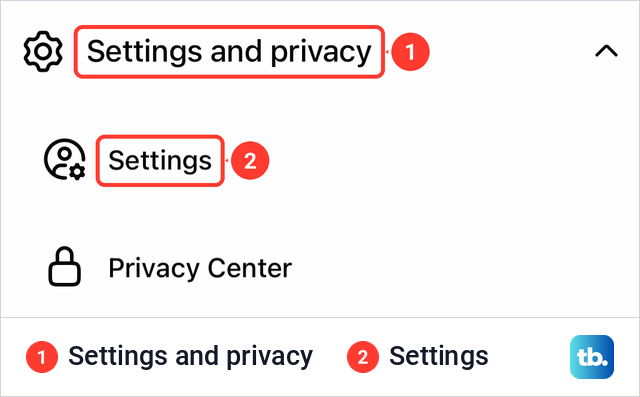
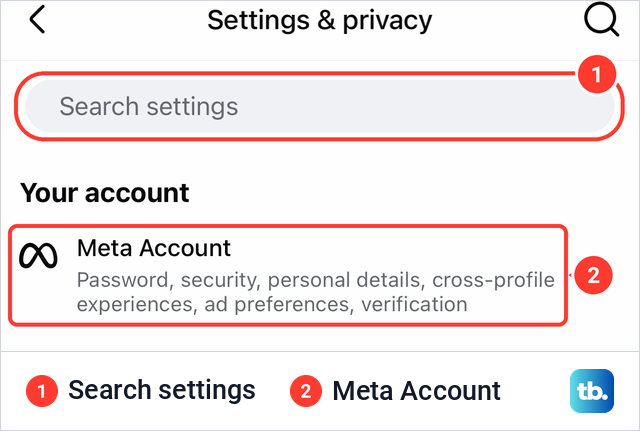
The page that opens is titled Settings & privacy, with a Search settings box at the top. On our iPhone the first section, Your account, held a single row called Meta Account, described as password, security, personal details, cross-profile experiences, ad preferences and verification. Tap it. If yours says Accounts Center instead, the next section explains the difference.
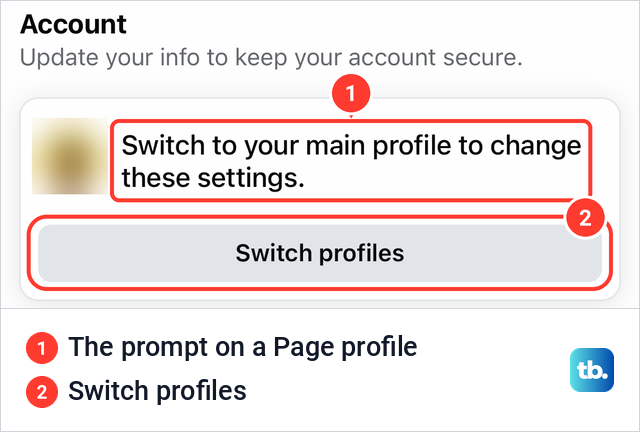
If you manage a Facebook Page, check which profile the app is using first. When our app was switched into a Page, the Account section showed "Switch to your main profile to change these settings." with a Switch profiles button instead of Meta Account. Tap Switch profiles, pick your own profile and open Settings again.
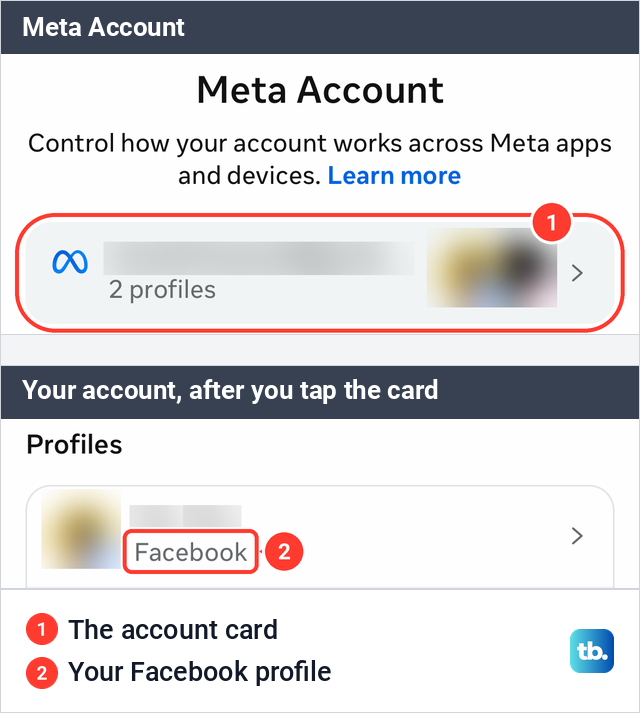
When we opened Meta Account, a sheet first offered to add another profile, and we closed it with the X. The main screen has no Profiles row. Instead, a card at the top shows the account's email address and how many profiles it holds, followed by Login and security, Cross-profile experiences and the other settings. Tap that card.
The card opens a screen called Your account, with Default contact info, a Profiles list and Pages you manage. Our list held the Facebook profile and an Instagram profile, each with its picture and name. Tap the one labeled Facebook.
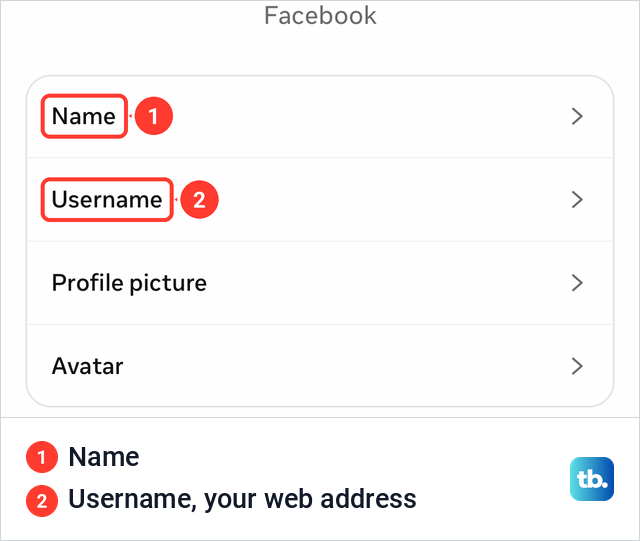
The Facebook profile screen has four rows: Name, Username, Profile picture and Avatar. Tap Name. Username is your web address rather than the name people see, and it is covered further down.
The Name screen has boxes for First name, Middle name and Last name. Under them, Facebook prints its own warning: "If you change your name, you can't change it again for 60 days. Don't add any unusual capitalization, punctuation, characters or random words." On our iPhone the Review change button at the bottom was greyed out while nothing had been edited.
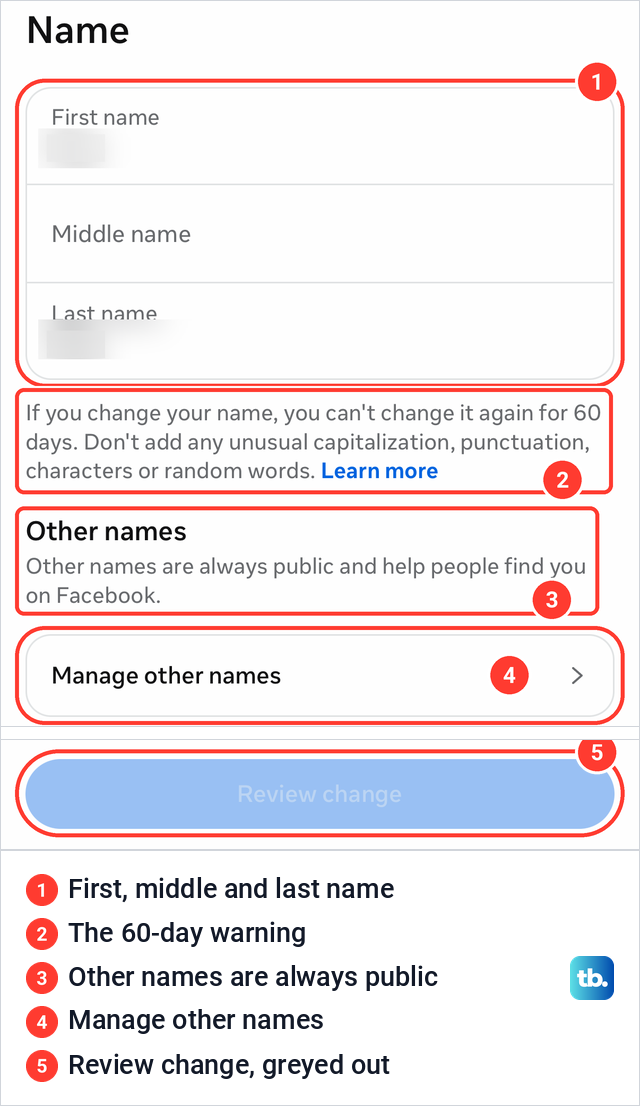
Type the new name into the boxes you want to change and leave the others as they are. Meta's steps from here are to tap Review change, then Save changes. Read the name once more before you save, because the next change is 60 days away once this one goes through.
Meta's Help Center gives its Accounts Center steps for the Android app too, starting from Menu at the top left. Its steps for Facebook in a phone browser are the same except that Menu is at the top right. If the app will not open its settings at all, start with our fixes for Facebook not working on iPhone.
If your app says Accounts Center instead of Meta Account
Meta is moving people from Accounts Center to Meta Account gradually. Its help pages say "You may see either Accounts Center or Meta Account settings as the place to manage your account settings," and add that Meta Accounts are only available in some locations and arrive person by person.
We saw both labels on the same iPhone at the same time. The Facebook app showed Meta Account, while the Instagram app, signed in to another account, still showed Accounts Center under a banner reading "Learn more about the upcoming update to Meta Accounts".
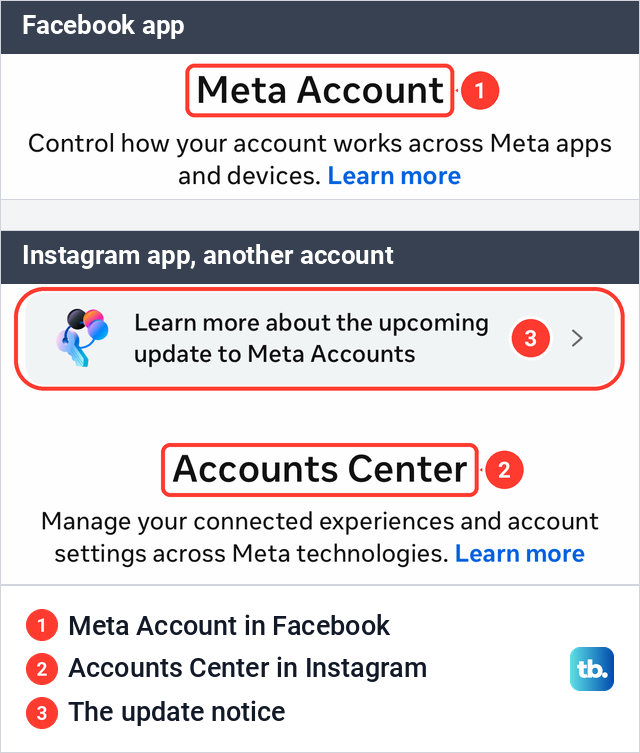
Both labels lead to the Name setting. In the Accounts Center we saw, the first card on the screen was labeled Profiles and personal details and showed the number of profiles; Meta's steps are to tap Profiles, then your account, then Name. In Meta Account, the card at the top shows your email address and profile count instead, and tapping it opened the Profiles list.
Meta keeps your contact info and birthday in the same Profiles and personal details area. If those need fixing too, our guide shows how to hide or correct your birthday on Facebook.
Change your Facebook name on a computer
On facebook.com, Meta's steps are to click your profile picture in the top right, select Settings & privacy, then click Settings. Click Accounts Center, then Profiles and your account. Click Name, enter your name, click Review change and then Save changes.
If your account shows Meta Account instead, Meta's article on Pages in a Meta Account says to click Meta Account and select Profiles and personal details. Meta's 60-day rule applies however you make the change.
What Facebook accepts as a name
Meta's rule is that your profile name should be the name your friends call you in everyday life. It should also appear on an ID or a document from Meta's ID list. Meta refuses five kinds of names:
- Symbols, numbers, unusual capitalization, repeating characters or punctuation.
- Characters from more than one language.
- Titles of any kind, such as professional or religious titles.
- Words or phrases instead of a name.
- Offensive or suggestive words of any kind.
A nickname can be your first or middle name only when it is a variation of your real name, and Meta's example is Bob instead of Robert. Profiles are for individual people, so a business, organization or idea needs a Page. Pretending to be anything or anyone is not allowed either.
Meta also has a practical tip. If your Facebook and Instagram accounts in the same Accounts Center share the same first and last name, Meta says it could help people find you through recommendations. If the point of a new name is the opposite, to stop one person finding you, Meta's own answer for someone you don't want seeing your name or profile is to block them.
How long you wait between name changes
Meta says you can change your name every 60 days, and the Name screen repeats the rule before you press anything. Meta's Help Center gives no way to shorten the wait. Its contact form is for trouble changing your name, which the section on refused names covers.
Change your last name after marriage or divorce
A new surname goes in the Last name box on the same Name screen, under the same 60-day rule. Meta's steps for a change in settings include no document upload. If Facebook asks you to confirm your name, it may ask for documents, which is covered below.
If you want old friends and classmates to keep finding you, add your earlier surname as an other name. Meta lists a maiden name among the other names you can add to your account. Keep in mind that other names are public, as the next section explains.
Add a nickname, maiden name or other name
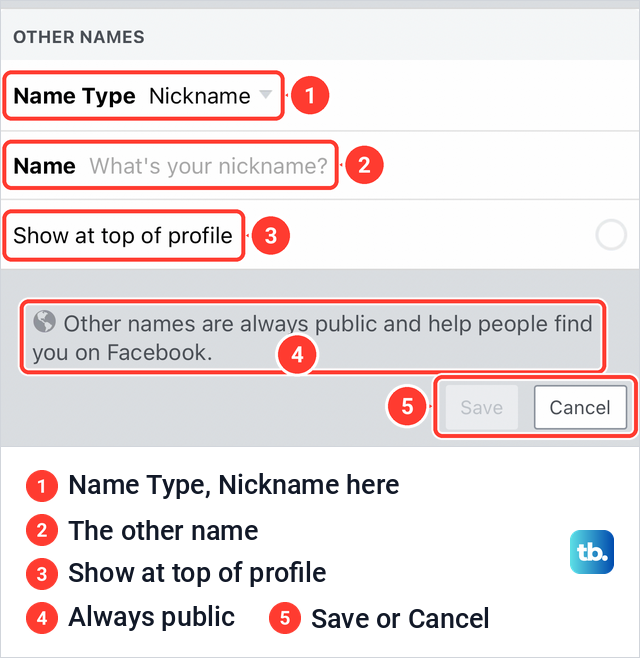
Other names sit beside your profile name instead of replacing it. On our iPhone, the Name screen had an Other names section with the line "Other names are always public and help people find you on Facebook." and a Manage other names row under it.
Tapping Manage other names opened an Other names form straight away. It had a Name Type menu set to Nickname, a Name box asking "What's your nickname?", a Show at top of profile option, and Save and Cancel buttons. Pick the type, type the name, decide whether it should appear at the top of your profile, then tap Save.
Meta's help article gives a second route that starts from your profile. On a computer, open your profile, click About, then Names, and click Add other names below Other names. In the iPhone and Android apps, Meta's steps are to tap your name inside your profile, scroll down to Other names and tap Add other name.
Leaving Show at top of profile unticked does not hide the name. Meta says an other name not shown at the top is still visible in the About section of your profile and in search results. To remove one on a computer, Meta's steps are About, Names, Edit next to the name, then Remove and Remove again to confirm.
If privacy is part of the reason for the change, a public other name works against you. Our guide on how to lock your Facebook profile covers the other half of keeping strangers out.
Show your name in another alphabet
A language-specific name is your Facebook name written in another language. Meta offers it for Chinese (Simplified and Traditional), Japanese, Korean, Russian, Ukrainian, Serbian, Belarusian, Greek, Arabic, Hebrew and Thai. People who use Facebook in that language see it on your profile and in search results, posts, comments and photo tags.
Meta's steps for adding one are written for a computer: Settings & privacy, Settings, Accounts Center, your profile, Name and Manage other names, then the button that begins Add a nickname, a birth name to add the name. You see the name yourself when Facebook is set to that language, so change the language on Facebook for a moment to check it. Meta also says the name should match how it appears on a magazine subscription, ID or membership card.
If Meta rejects a language-specific name and you believe it follows the name rules, Meta's article on names points to a separate contact form for a rejected language-specific name. It is not the same form as the one for ordinary name changes.
Use one name instead of a first and last name
The Name screen expects a first and a last name, so Meta handles single names by request. If you already have an account, Meta says to ask for a one-word name, which it calls a mononym, through its Changing Your Name contact form. The form asks for a new first name and a new last name, so enter the same name in both boxes.
Meta then works with you to put the single name on the account. If your name was refused while you were creating a new account, Meta points to a different form, My Name Wasn't Accepted, after checking that the name is one you use in everyday life.
When Facebook will not accept your new name
Meta lists four reasons a name change can fail. The name breaks the rules above, you changed it too recently, Facebook has asked you to confirm your name, or the name does not match the name on an ID. The first two take a minute to check yourself.
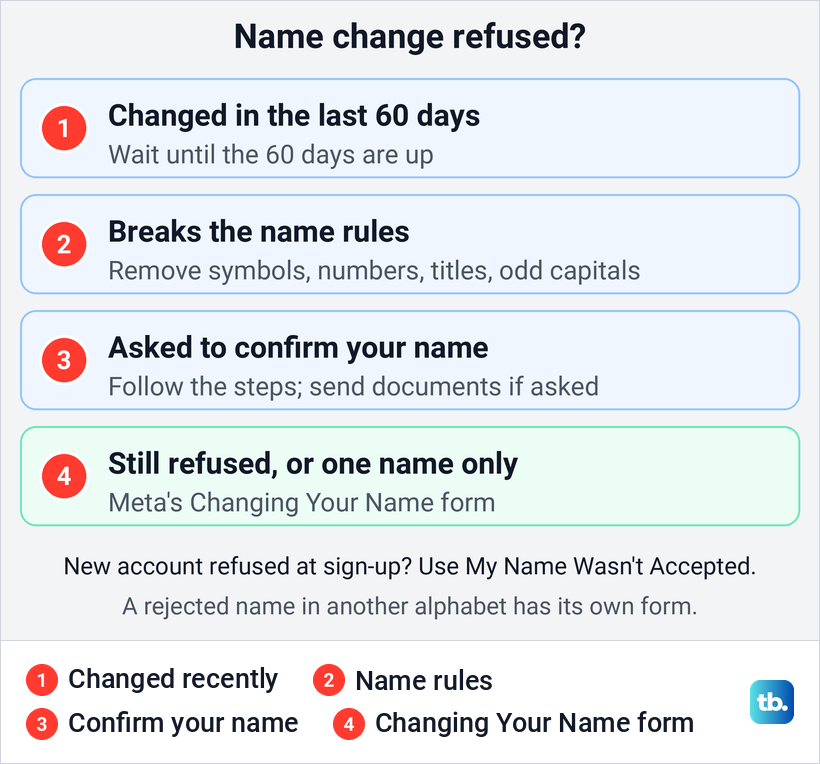
If none of them applies, or you need a single name, use Meta's Changing Your Name form. The form opens only after you log in to Facebook. If it gets no answer, our list of ways to contact Facebook support covers the other routes.
If your name changed and you did not change it, treat it as a security problem before anything else. First check whether your Facebook account was hacked, then set up two-factor authentication on Facebook so a stolen password is not enough.
If Facebook asks you to confirm your name
Sometimes Facebook asks you to confirm your name when you log in. Meta says some features may be unavailable while it works with you to confirm or edit the name, and that you should log in and follow the on-screen instructions. You may be asked to upload an ID or something else from Meta's ID list that shows the name you use in everyday life.
A government ID is not required. Meta accepts one government ID that shows your name together with your date of birth or a photo. If you cannot provide one, send two different non-government IDs that both show your name, with at least one of them showing your date of birth or photo. The name on what you send must be the name you want on your profile.
Meta's names article also says it can accept combinations such as a magazine subscription and a utility bill, or a piece of mail and a credit card statement. Check any pair like that against the rules above before you send it.
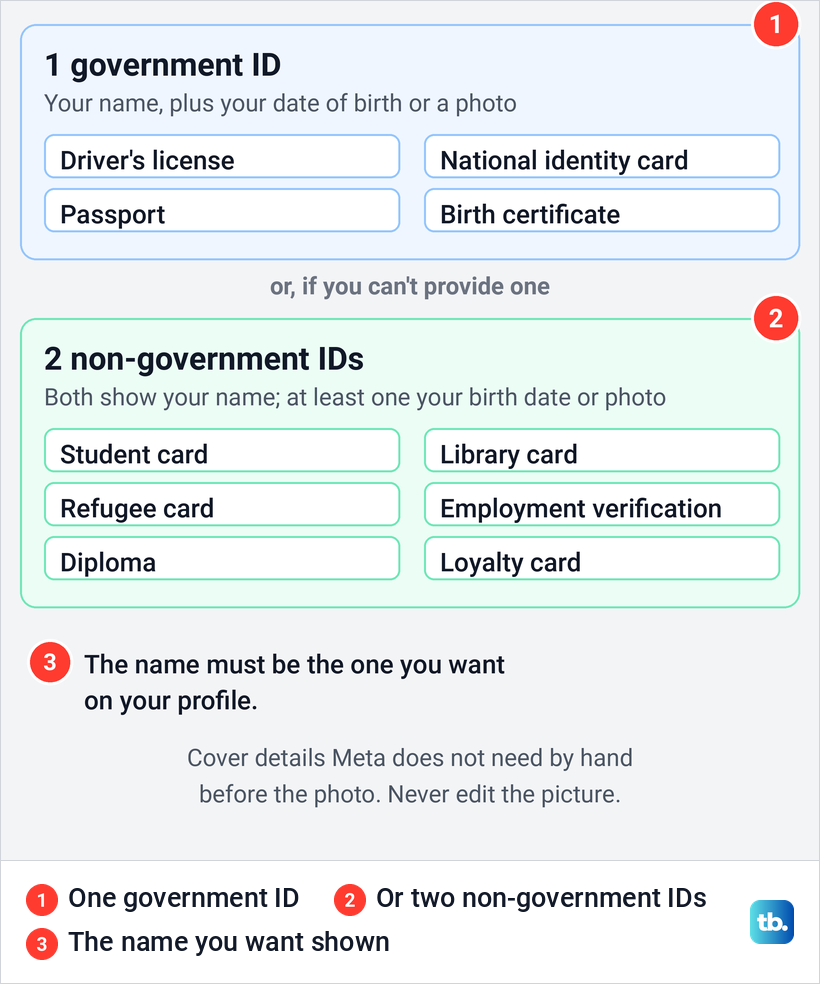
Do not blur or edit the photo of your ID, because Meta does not accept photos digitally modified to hide information. You can physically cover details it does not need, such as an ID number, before you take the picture. Send only what is asked for, since Meta says extra documents may slow the review.
Meta says your ID is stored securely and is not visible on your profile or to other people. It tells you how long it will keep the ID before you upload it, and it suggests deleting the photo from your phone's gallery once the upload is done.
If the confirm-your-name screen keeps you out of the account altogether, our guide on how to recover a Facebook account when you are locked out goes step by step. A suspended or disabled account is a different problem, and the way back is to appeal a suspended Facebook account.
Your username, Instagram name and Page names are separate
Your username is the address of your profile, not the name people see. Meta says changing it also changes your profile link at facebook.com/username and your Messenger link at m.me/username, and that it can contain only letters, numbers and periods. Meta also warns that you may not be able to reclaim your original username once you have changed it.
Your Instagram name is changed in Instagram. Meta now says your name and username no longer sync across your profiles in the same Accounts Center, only your profile picture, so a new Facebook name does not carry over.
A Facebook Page's name is not in Meta Account at all, because Meta says Page settings are still managed in Facebook itself. When we switched the app into a Page, its Page setup screen listed Name and Username among its rows. On a computer, Meta's steps are to switch into the Page, open Settings, then Page setup and Name, click Edit next to the Page name, click Review Change, enter your password and click Request Change.
You need Facebook access to the Page, because people with task access cannot request a new name. Changing the Page's name does not change its username.
How we tested this guide
We tested this in the Facebook app on an iPhone 17 Pro with iOS 26.6, following the Meta Account settings to the Name screen.
Frequently Asked Questions
How often can you change your name on Facebook?
Once every 60 days. Meta prints the rule on the Name screen itself, right under the name boxes, so you see it before you press Review change.
Why can't I change my name on Facebook?
You may have changed it in the last 60 days, the new name may break Meta's rules on symbols, numbers, capitals, titles, mixed alphabets or phrases, or Facebook may have asked you to confirm your name. If none of those applies, use Meta's Changing Your Name form.
My Facebook says Meta Account, not Accounts Center. Where is my name?
Open Meta Account, tap the card at the top that shows your email address and profiles, then tap your Facebook profile and Name. Meta is moving accounts to Meta Account gradually, so both labels are in use.
Can I use only one name on Facebook?
Yes, by request. Fill in Meta's Changing Your Name form and enter the same name as both the new first name and the new last name.
Do I need a government ID to change my name?
Not to change it in settings, where Meta's steps include no upload. If Facebook asks you to confirm your name, send one government ID with your name and your date of birth or photo, or two non-government IDs that show the name you want, at least one with your date of birth or photo.
Does changing my Facebook name change my Instagram name?
No. Meta says names and usernames no longer sync between Facebook and Instagram, so change your Instagram name in Instagram.
How do I add a nickname without replacing my name?
Open Name, tap Manage other names, leave Name Type on Nickname, type the nickname and tap Save. Other names are always public, even when they are not shown at the top of your profile.