
Your Galaxy S24 is a powerhouse, but over time, it can get bogged down by temporary files. Clearing out this cached data is a quick way to free up storage and smooth out any app sluggishness without touching your personal photos or settings.
Use Device Care for a Quick Cleanup
The fastest way to clear cache on your S24 is through Samsung's built-in tool. Swipe down and open your Settings, then tap on Battery and device care. From there, tap Storage and hit the blue Clean now button.
This automatically scans and removes cached data from all your apps in one go. It's a great first step if your phone feels slow or you're getting low storage warnings.
Clear Cache for a Specific App
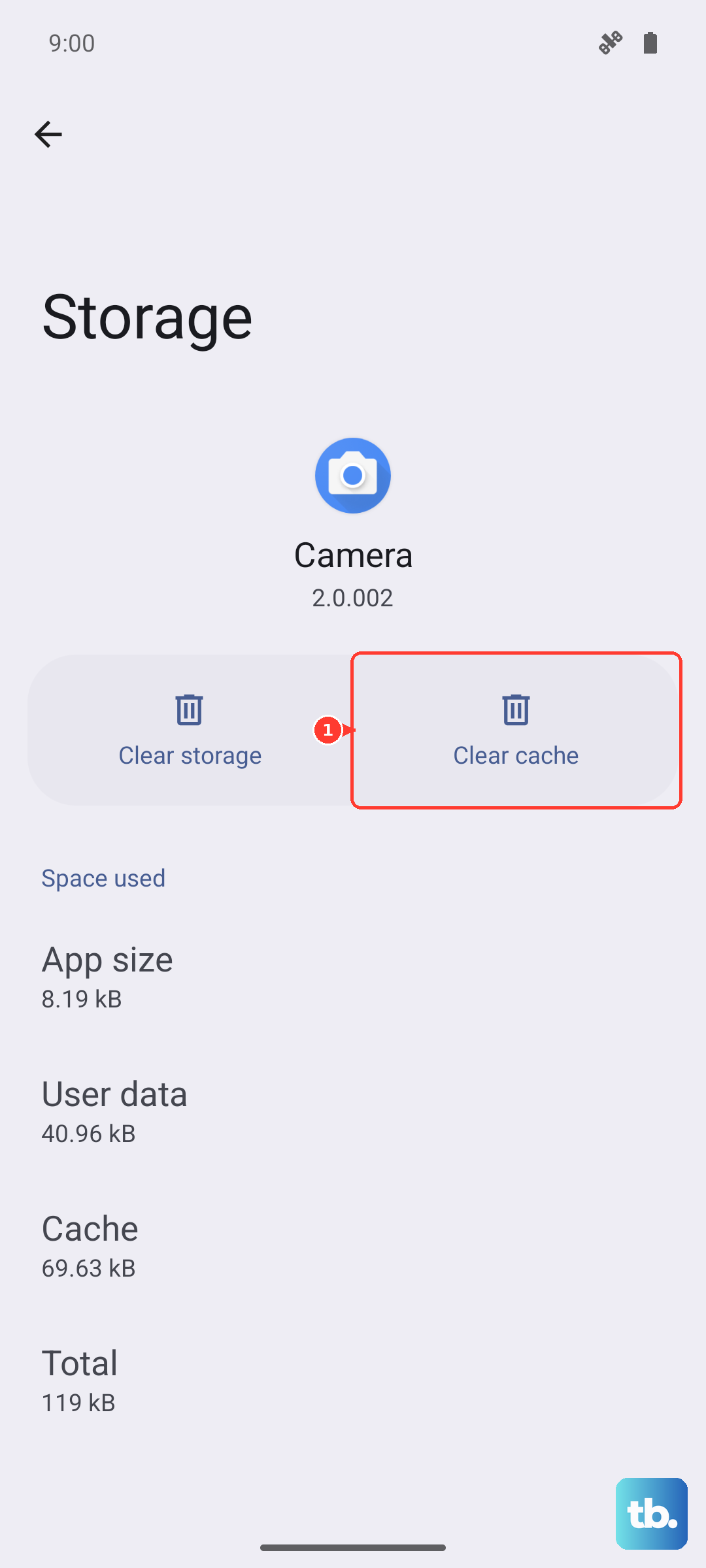
If one particular app is acting up, like Instagram or Chrome, you can target it directly. Go to Settings > Apps, then select the troublesome app from the list. Tap on Storage and you'll see two options: Clear data and Clear cache.
Always choose Clear cache first. This deletes temporary files the app has stored, often fixing glitches without erasing your login information or saved preferences within the app.
Clear Your Browser Cache
If you use Samsung Internet, open the app and tap the menu icon (three lines). Go to Settings > Personal browsing data > Delete browsing data. Make sure Cached images and files is checked, then tap Delete.
For Google Chrome users, the process is similar. Tap the three dots, go to Settings > Privacy and security > Clear browsing data. Select Cached images and files and choose your time range before clearing.
Wipe the System Cache Partition
This is a deeper clean for system-level cache, which can help after a One UI update if your phone feels buggy. First, power your S24 off completely. Connect it to your computer with a USB-C cable.
Press and hold both the Volume Up button and the Side key until you see the Samsung logo, then let go. Use the volume buttons to highlight Wipe cache partition and press the Side key to select it. Confirm, then select Reboot system now.
Manage Messages and Media Storage
Your Messages app can hoard a surprising amount of cached media. Open the app, tap the three dots for the menu, and go to Settings. Look for an option like Delete old messages to automatically remove messages after a set period.
For a more hands-on approach, go through individual conversations, long-press on media-heavy messages, and delete them. This directly clears the cached photos and videos stored within the app.
Set Up Automatic Maintenance
You can put your S24 on autopilot. Go back to Settings > Battery and device care and tap the three-dot menu in the top right. Select Automation and you can turn on options like Restart when needed and Auto optimize daily.
With this enabled, your phone will automatically clear cached files and perform minor optimizations while you sleep, helping to maintain consistent performance.
Restart Your Phone Regularly
Never underestimate a simple reboot. It clears the phone's active memory (RAM) and flushes temporary system caches. Just press and hold the Side key, then tap Restart on your screen.
I make it a habit to restart my phone once a week. It's a thirty-second trick that often resolves minor hiccups before they become bigger issues.











