
Factory resetting your Samsung Galaxy A36 is the most thorough way to clear out persistent software glitches or prepare it for a new owner. It erases everything you've added, returning the phone to exactly how it was when you first took it out of the box. I'd always start with a cache wipe, but if you're dealing with deep-seated One UI 7 bugs or performance lag, this is the definitive solution.
Your First and Most Important Step: Back Up
Before you even think about the reset button, secure your data. Your Galaxy A36 offers a few solid ways to do this. The easiest is through Google One. Head to Settings > Accounts and backup > Backup data and ensure Google One backup is turned on and recent.
For a more comprehensive backup that includes your home screen layout, go to Settings > Accounts and backup > Bring data from old device and use the Samsung Smart Switch app to save a full backup to your computer or an SD card. Double-check that your photos are safely in Google Photos or Samsung Cloud.
Remove Your Accounts to Avoid a Lock
This step is critical to bypass Factory Reset Protection (FRP). If you don't do this, you'll be locked out after the reset because the phone will ask for the last Google account that was signed in. Go to Settings > Accounts and backup > Manage accounts.
Tap on your Google account and select Remove account. Do the same for your Samsung account. Enter your password or PIN when prompted. This severs the phone's link to your identity and allows a clean setup afterward.
Perform the Factory Reset from Settings
This is the standard method when your phone is working and you can access the menus. Open Settings and navigate to General management > Reset > Factory data reset. You'll see a detailed list of everything that will be deleted, including apps, photos, and accounts.
Scroll to the bottom and tap Reset. On the final warning screen, tap Delete all. The phone will ask for your security PIN, pattern, or password one last time for verification. Once you enter it, the process begins and your A36 will restart into the Android setup wizard when it's done.
Using Recovery Mode for a Stuck Phone
If your Galaxy A36 is frozen, stuck in a boot loop, or won't turn on properly, you'll need to use the hardware buttons. First, ensure the phone is completely powered off, then connect it to a computer using a USB cable. With the cable connected, press and hold the Volume Up button and the Power button at the same time.
Hold them until you see the Samsung logo, then release. You'll boot into the Android Recovery menu. Use the Volume Down button to highlight Wipe data/factory reset and press the Power button to select it. On the next screen, use Volume Down to select Factory data reset and confirm with the Power button.
After the erase is complete, you'll be back at the main recovery menu. Select Reboot system now with the Power button. Your phone will restart, and you'll be greeted by the initial "Hello" setup screen.
Consider a Less Drastic Reset First
A full factory reset isn't always necessary. Your Galaxy A36 has targeted reset options that can solve specific problems. Go to Settings > General management > Reset. Here, you'll find Reset network settings, which is great for fixing Wi-Fi or Bluetooth issues.
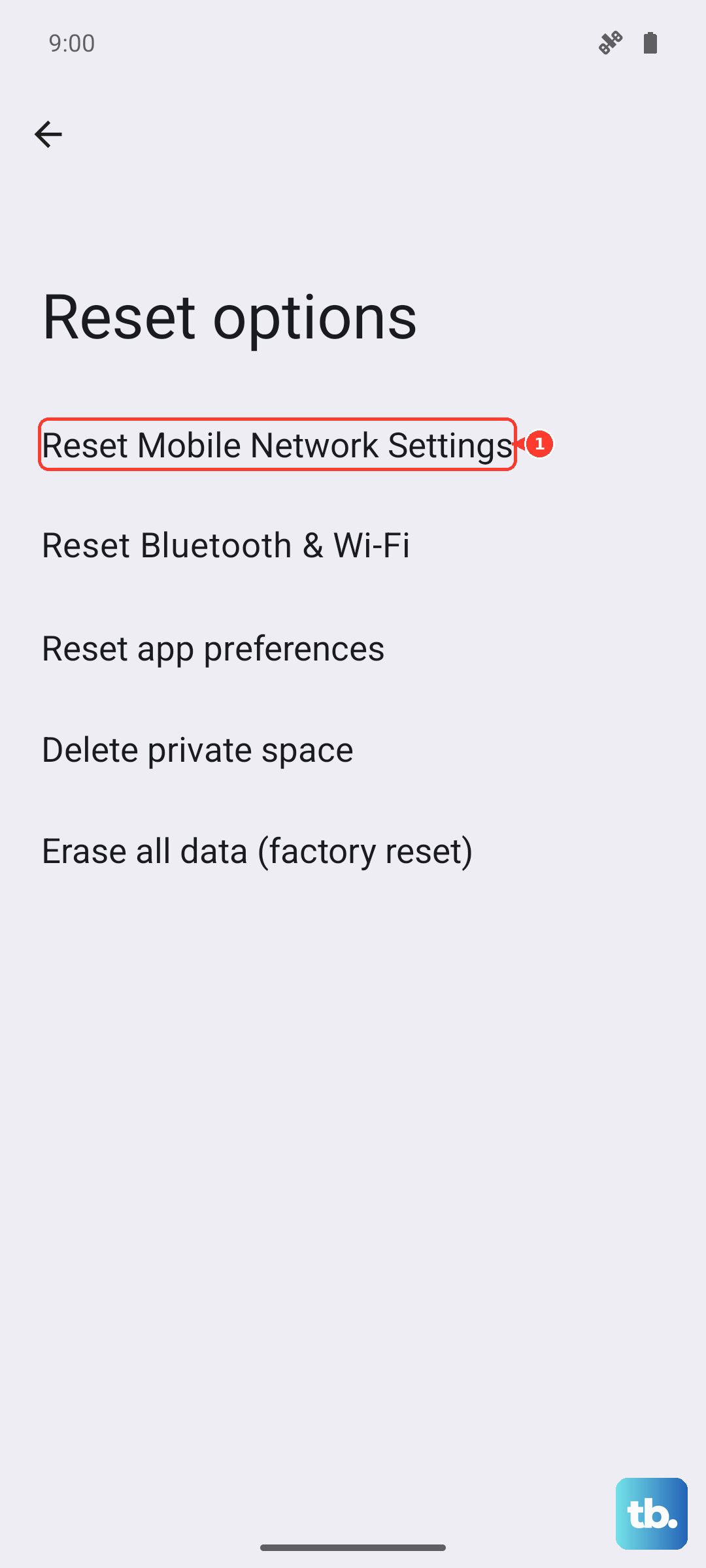
You can also try Reset accessibility settings or Reset app preferences. These clear configuration errors without touching your personal files. For general sluggishness after the Android 15 update, note that One UI 7 no longer includes a Wipe cache partition option in recovery mode, so instead open Settings > Battery and device care and tap Optimize now, or clear individual app caches under Settings > Apps.
Setting Up Your Fresh Galaxy A36
After the reset, you'll walk through the standard Android setup. Connect to Wi-Fi and sign back into your Google and Samsung accounts. When you get to the restoration screen, choose to restore from your Google One or Smart Switch backup.
This is a good time to implement some tips for a better experience. Enable Battery protection in settings to limit charging to 85% for long-term health. If you're not in a 5G area, disabling those radio bands can also improve your battery life throughout the day.











