
Your iPhone 13 accumulates temporary files and cached data from apps and websites as you use it. This cache helps things load faster, but over time it can take up valuable storage space and sometimes cause apps to stutter or crash. Clearing it out is a good maintenance habit, especially on a phone that's been in use since 2021.
Clear Safari Cache and Data
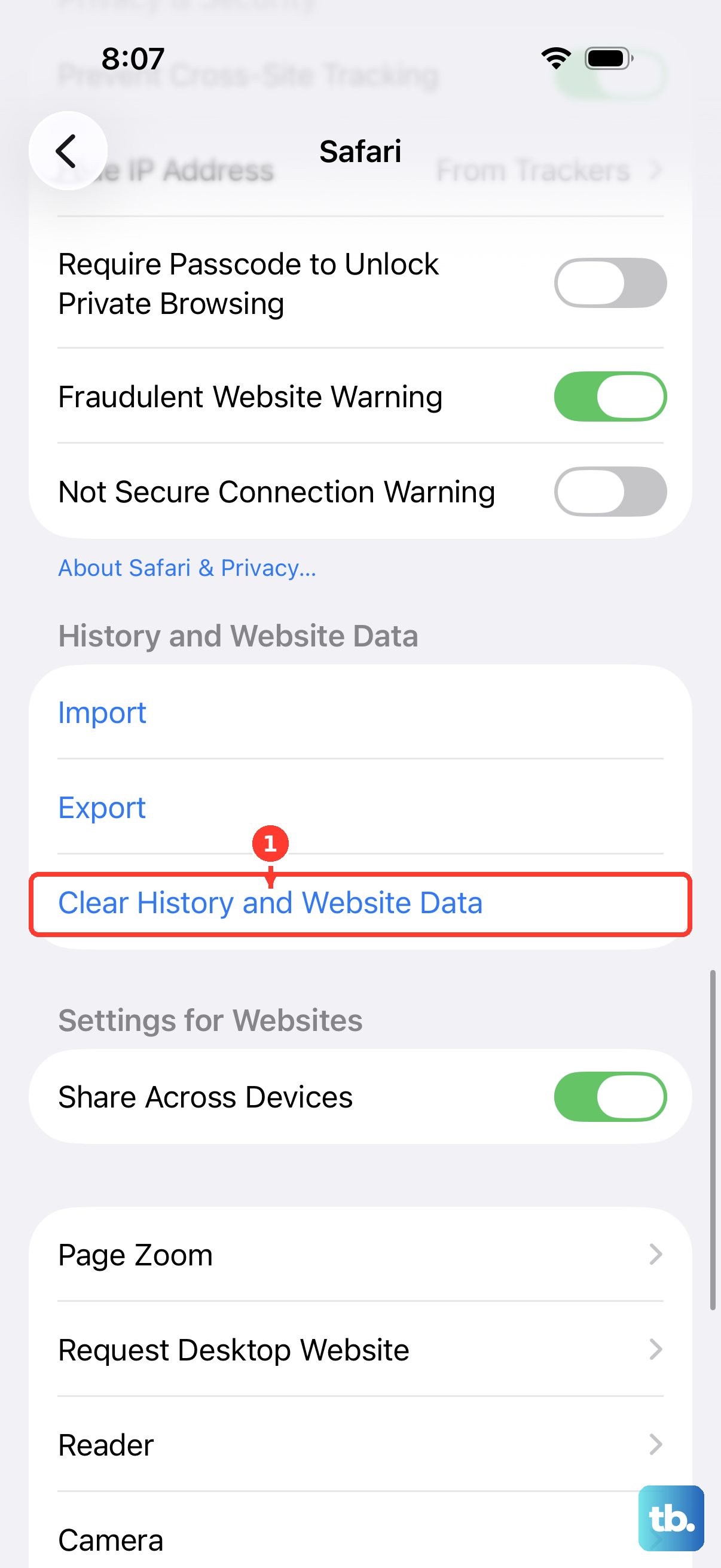
Safari's browser cache is often the biggest storage offender. To wipe it completely, open Settings > Safari and scroll down to tap Clear History and Website Data. Confirm your choice. This action removes your browsing history, cookies, and all cached site data, so you'll be signed out of most websites.
If you want to keep your history but still clear the cached files, there's a more targeted option. Go to Settings > Safari > Advanced > Website Data and tap Remove All Website Data at the bottom. This method just clears the cache without touching your history.
Use Offload App to Clear App Cache
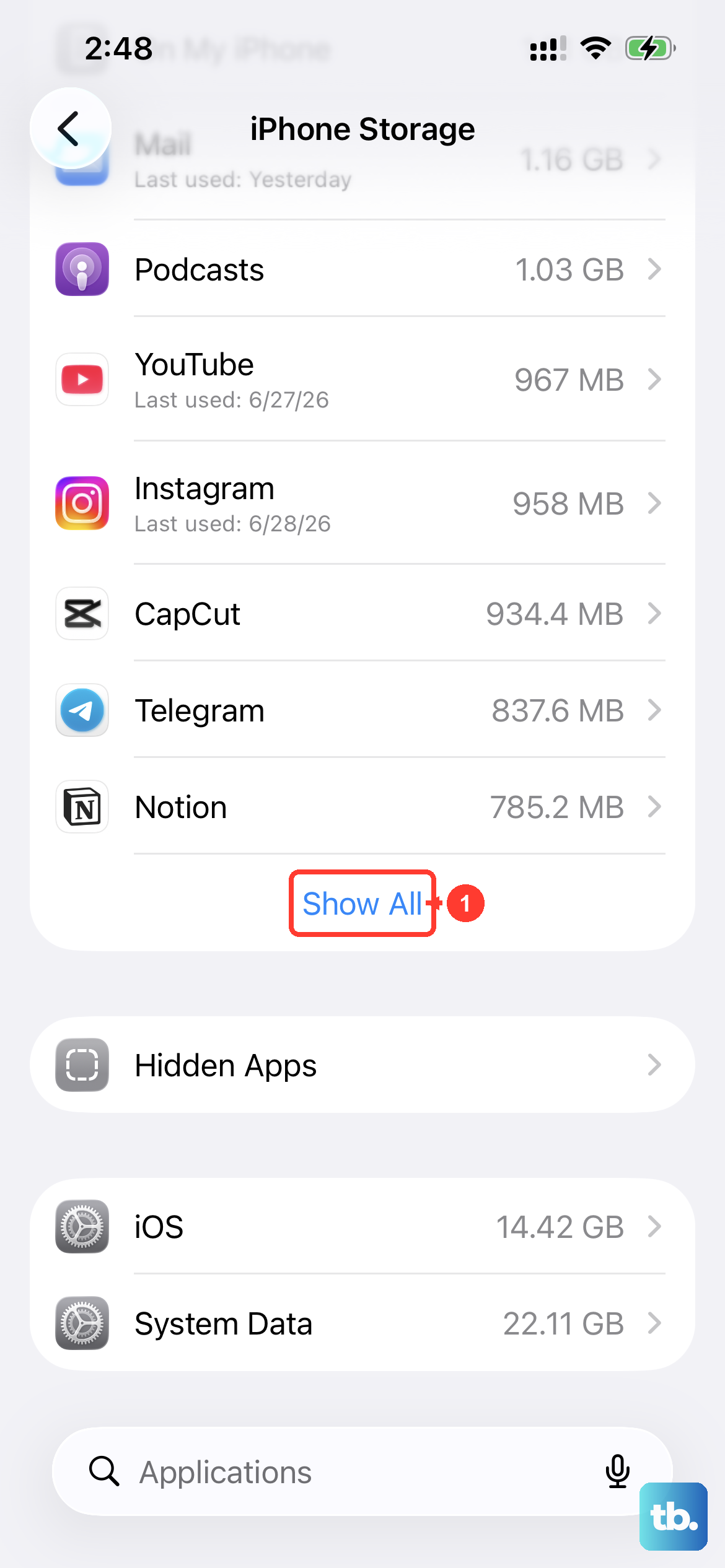
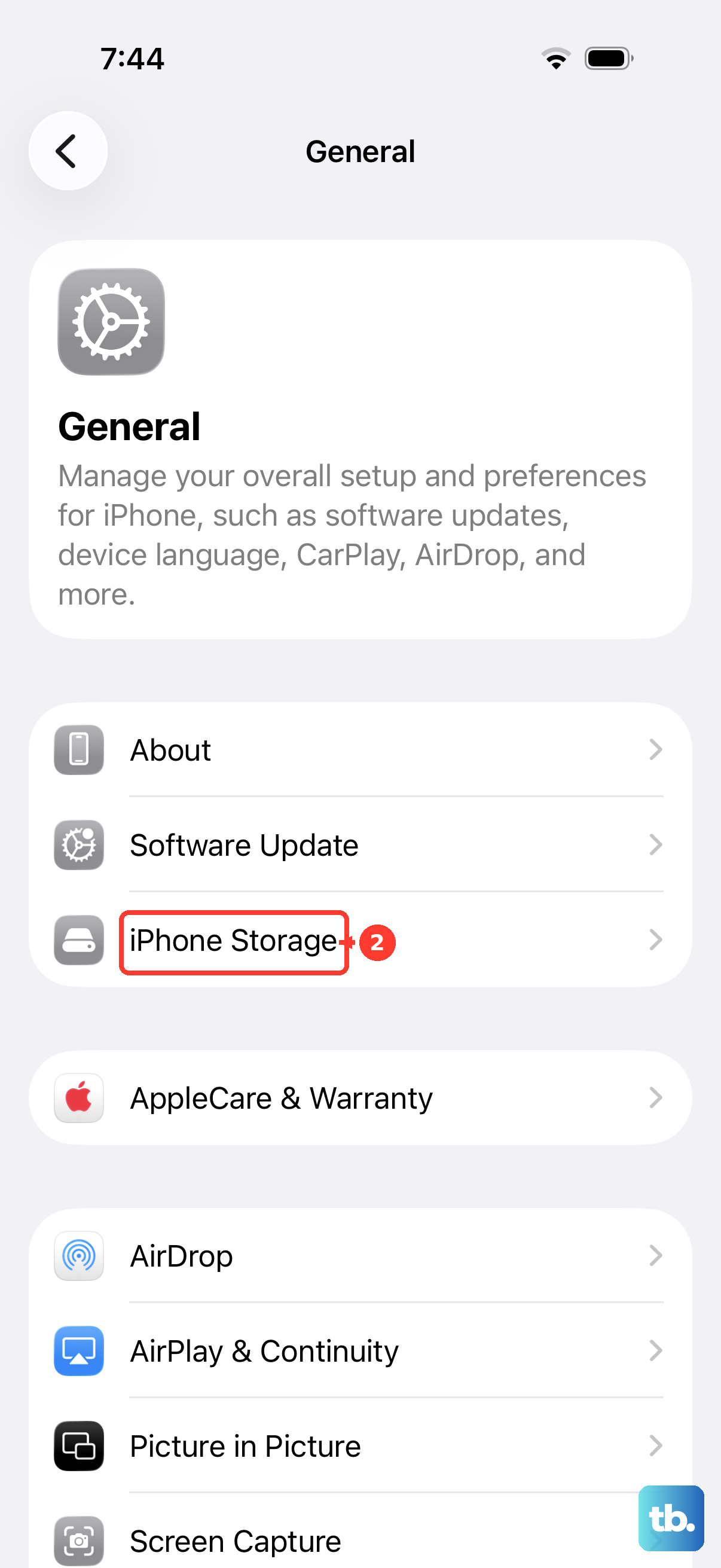
iOS doesn't give you a simple "clear cache" button for most apps, but offloading is the next best thing. Head to Settings > General > iPhone Storage and wait for the list of apps to load. Tap on any app, like Instagram or Spotify, to see its storage breakdown.
Tap Offload App. This removes the app itself but keeps all your documents and data. Then, just tap the cloud icon to reinstall it from the App Store. The fresh install comes without the gigabytes of cached videos and images these apps tend to hoard.
Delete and Reinstall Problem Apps
For a completely clean slate, delete the app entirely. Press and hold its icon on your Home Screen, tap Remove App, and then choose Delete App. Go to the App Store to download it again. This erases everything, including cache, saved logins, and settings.
I'd use this for apps that are consistently buggy or sluggish. It's a surefire way to clear any corrupted temporary files that offloading might miss. Just remember you'll need to sign back in and set your preferences again.
Manage Messages Storage
The Messages app can silently consume many gigabytes with photos, videos, and animated GIFs. To see the breakdown, go to Settings > General > iPhone Storage, then tap on Messages. You'll see categories like "Photos," "Videos," and "GIFs."
Tap into each one to review and delete items you don't need. You can also set messages to auto-delete. Go to Settings > Messages > Keep Messages and change it from Forever to 30 Days or 1 Year to prevent future buildup.
Restart Your iPhone 13
A simple restart clears various system-level caches and frees up RAM. To restart your iPhone 13, quickly press and release the Volume Up button, then the Volume Down button. Finally, press and hold the Side button until you see the Apple logo appear, then let go.
Doing this once a week can help maintain general performance. It's also a good first step if you notice your phone feeling a bit slower than usual, which can happen as the battery ages after a couple of years.
Check iPhone Storage Recommendations
Your iPhone 13 has built-in tools to help manage space automatically. Go to Settings > General > iPhone Storage and look at the recommendations at the top of the screen. iOS might suggest enabling Offload Unused Apps or reviewing large attachments.
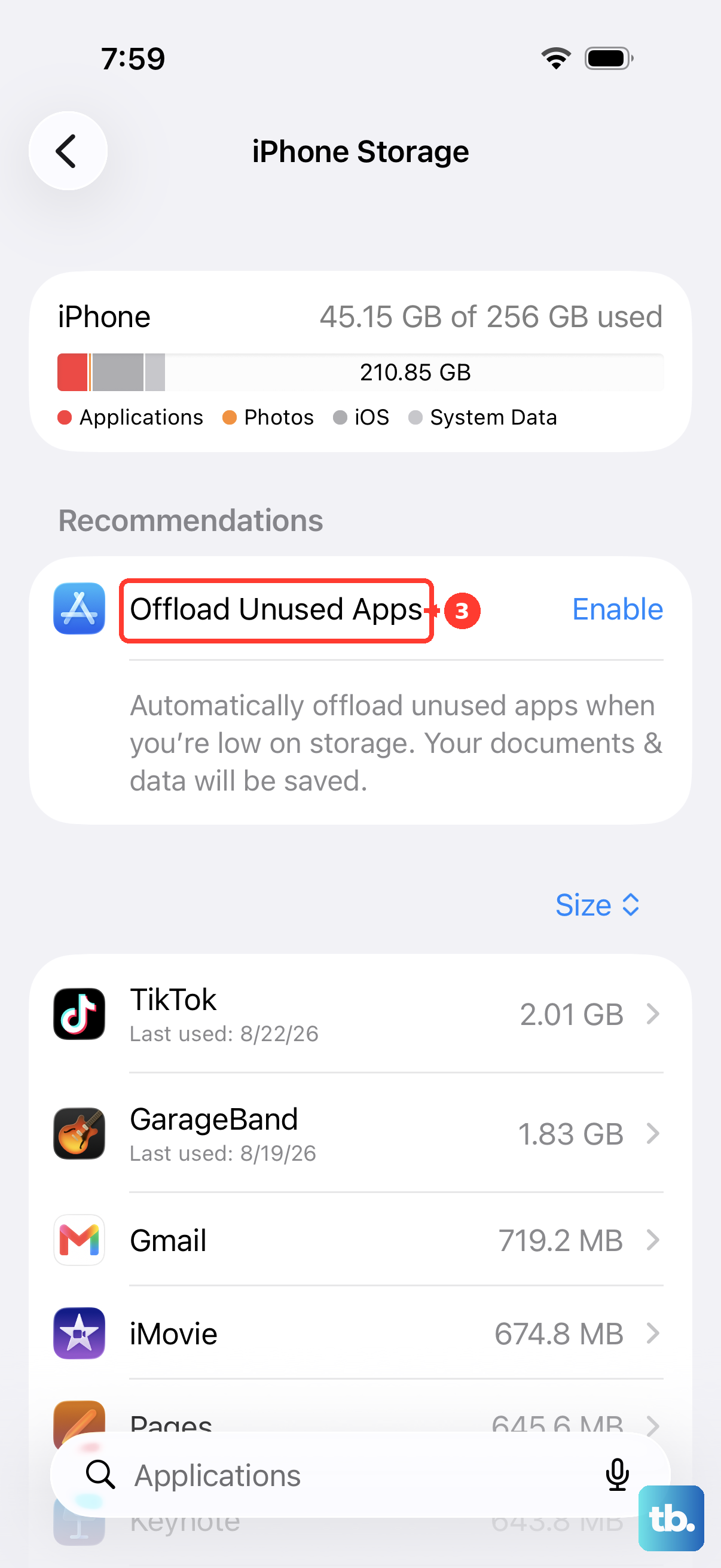
It will also prompt you to empty the "Recently Deleted" album in Photos. Tapping these suggestions lets the system handle the cleanup for you, which is an easy way to keep storage in check without digging through every app.
Flush the DNS Cache
If websites are taking a long time to load or failing to connect, your DNS cache might be the issue. The fastest fix is to toggle Airplane Mode. Open Settings, tap the Airplane Mode switch to turn it on, wait about 10 seconds, and then turn it off.
This forces your phone to get fresh address information for websites. The restart method mentioned above also accomplishes this, along with clearing other temporary system files.