
The iPad Pro M5 handles multitasking like a champ, but even the M5 chip can feel sluggish when caches build up. Temporary files from Safari, streaming apps, and message attachments eat into your storage over time. Clearing them out is straightforward without needing a third-party tool.
Start with Safari
Safari is usually the biggest cache hog on any iPad. Open Settings > Safari and tap Clear History and Website Data. Confirm the action. This removes your browsing history, cookies, and all cached website data. You'll need to log back into sites afterward, so make sure you know your passwords.
If you want to keep your history but still clear cached files, go to Settings > Safari > Advanced > Website Data and tap Remove All Website Data. This clears the temporary files without erasing your browsing history.
Offload your biggest apps
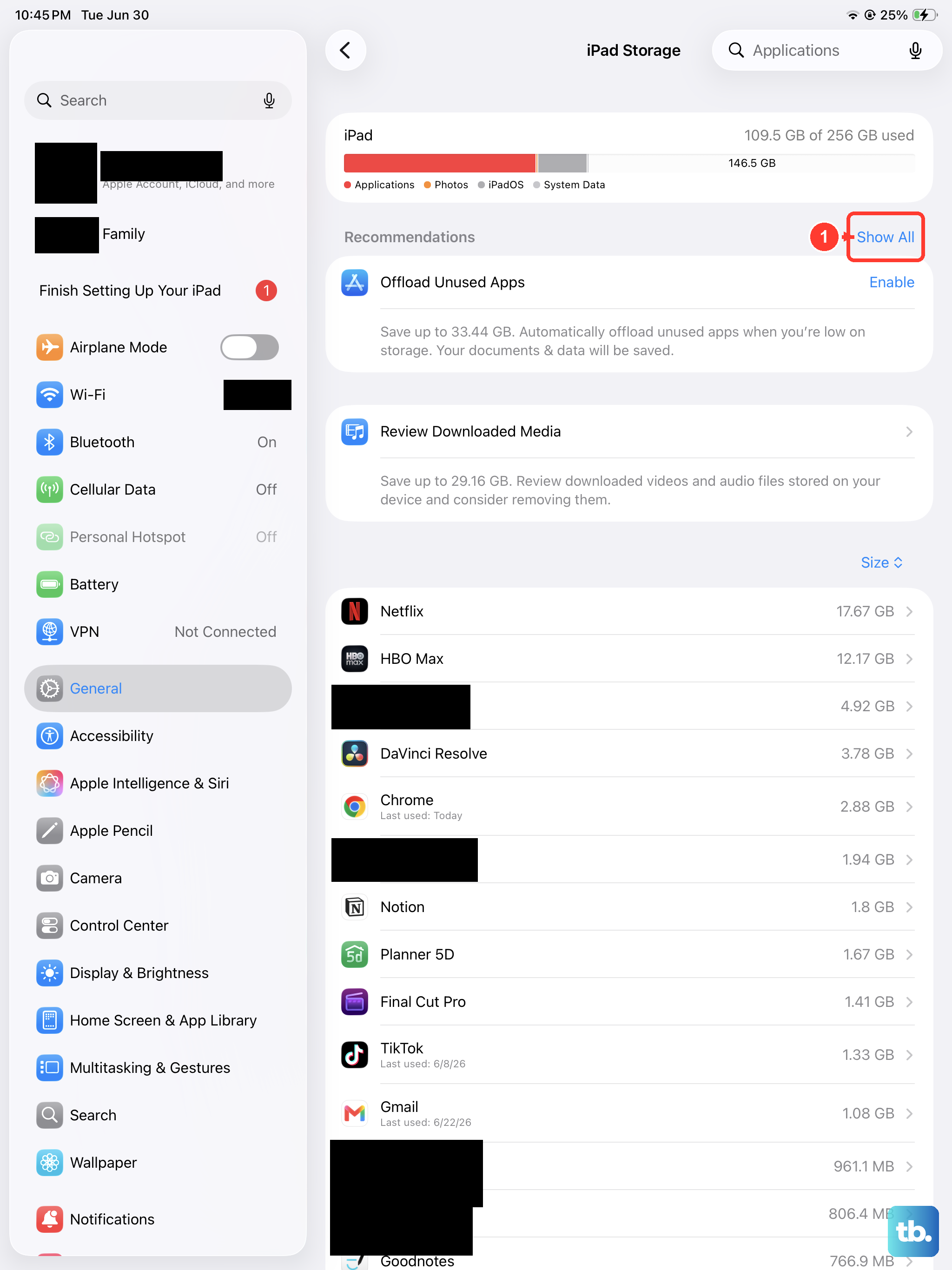
iPadOS 18 doesn't have a universal "clear cache" button for individual apps, but offloading works as a solid alternative. Go to Settings > General > iPad Storage. Tap any app from the list to see how much space it uses. Tap Offload App to remove the app's data bundles while keeping its documents and settings. Then reinstall it from the App Store. This clears cached data while preserving your login and configurations.
For apps that eat a lot of space, like social media and streaming apps, this can reclaim hundreds of megabytes.
Delete and reinstall apps for a fresh start
For a deeper clean, delete the app entirely and reinstall it. Press and hold the app icon on your Home Screen, tap Remove App, then Delete App. Download it again from the App Store. This wipes everything, including cached data, downloaded content, and stored files. You'll need to sign back in and reconfigure your settings.
This is particularly effective for apps like Instagram, TikTok, and Facebook, which tend to accumulate large caches over time on the Pro M5.
Tame the Messages app
Messages can take up gigabytes of storage with photos, videos, and GIFs. Go to Settings > General > iPad Storage > Messages. You'll see a breakdown of storage used by photos, videos, GIFs, and stickers. Tap into each category and delete what you don't need.
You can also set messages to auto-delete after 30 days or 1 year: Settings > Messages > Keep Messages. Change it from Forever to 30 Days or 1 Year. This prevents a future pileup without any manual effort.
Flush the DNS cache
If websites are loading slowly or not at all, clearing the DNS cache can help. The quickest way is to toggle Airplane Mode on and off. Open Control Center by swiping down from the top-right corner of your screen. Tap the Airplane Mode icon, wait about 10 seconds, then tap it again. This forces your iPad to re-resolve website addresses.
Restarting your iPad Pro M5 also clears the DNS cache along with other temporary system files.
Use the iPad Storage recommendations
Go to Settings > General > iPad Storage and look at the recommendations at the top. iPadOS suggests things like enabling Offload Unused Apps (automatically removes apps you haven't used in a while), reviewing large attachments, and emptying the Recently Deleted photo album. These built-in tools help keep your storage clean without manual effort.
Force restart your iPad Pro M5
A simple restart clears temporary system caches, frees up RAM, and often fixes minor performance issues. If your iPad Pro M5 feels sluggish or unresponsive, use the force restart sequence: press and quickly release the Volume Up button, then press and quickly release the Volume Down button, then press and hold the Top button until the Apple logo appears. You can release the button once you see the logo. This is safe to do anytime and doesn't erase any of your data.