
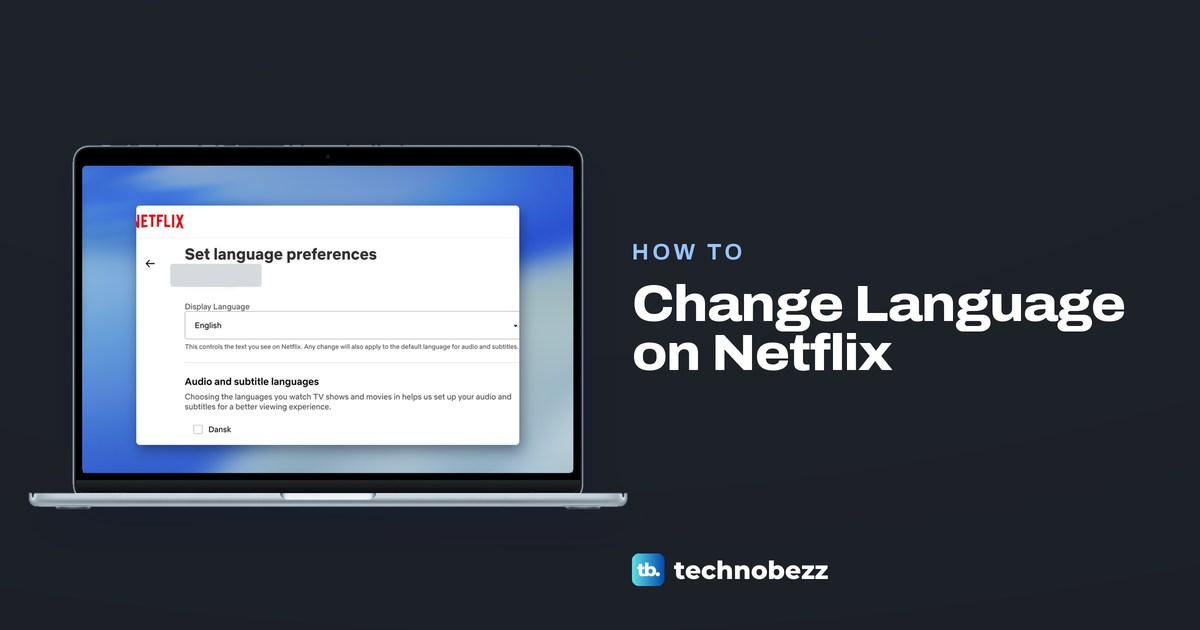
To change Netflix's menu language, edit the profile's Display Language; to change a show's audio, open Audio & Subtitles while it plays. For the menus in a web browser, go to Account > Profiles, open the profile, select Languages, choose a Display Language and select Save. On a TV, select the pencil icon on the profile selection screen, then Language, and in the phone app the same setting sits under My Netflix > Manage Profiles.
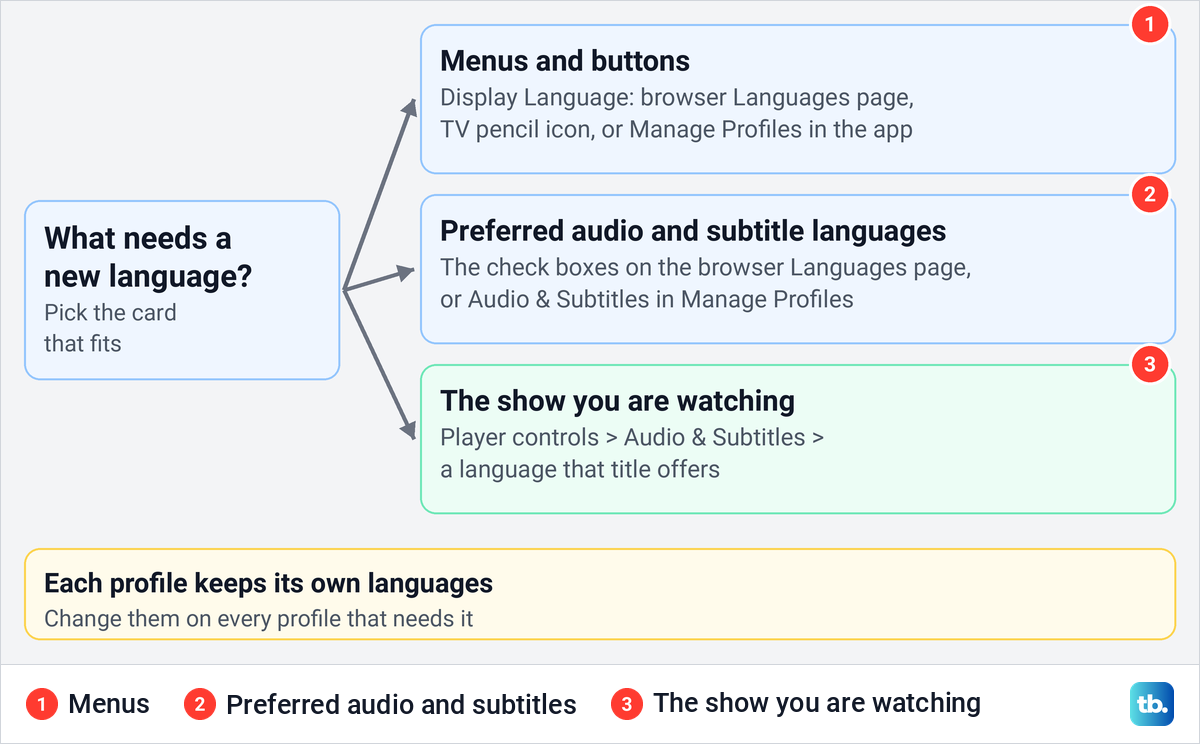
Menus are only one of three language settings, and mixing them up can make a fix seem not to work. The same browser page holds the profile's preferred Audio and subtitle languages, which the form says help Netflix set up your audio and subtitles, and a single show's track is picked in the player. Each profile keeps its own choices, so repeat the change for anyone else on the account.
The short version
- Menus in a browser: Account > Profiles > the profile > Languages > Display Language, then Save.
- Menus on a TV or phone: the pencil icon on the profile selection screen, or My Netflix > Manage Profiles. Netflix says the choice saves automatically.
- Preferred audio and subtitles: the check boxes under Audio and subtitle languages, on the same browser page.
- The show you are watching: Audio & Subtitles in the player, from the languages that title has.
- Menus you cannot read: open netflix.com/account/profiles in a browser and follow the icons back to English.
Pick the Netflix language setting you need
Netflix separates the words on its menus, the languages a profile prefers for sound and subtitles, and the tracks a single show offers. Find the row that matches what you want to change, then use the section for it below.
| What you want to change | Where to go | How it saves |
|---|---|---|
| Menus in a web browser | Account > Profiles > the profile > Languages > Display Language | Select Save at the bottom of the page |
| Menus on a TV or streaming player | Profile selection screen > pencil icon > Language | Netflix says it saves automatically, then you select Done |
| Menus on a phone or tablet | My Netflix > profile name > Manage Profiles > the profile > Display Language | Netflix says it saves automatically |
| Preferred audio and subtitle languages | The browser Languages page, or Manage Profiles > Audio & Subtitles in the app | Save in a browser, automatic in the app |
| The show you are watching | Player controls > Audio & Subtitles | Pick from the languages that title offers |
The first four rows change settings stored with a profile. The last row works inside the player, and Netflix says the languages it lists vary from title to title.
Change the Netflix display language in a web browser
The browser route is the one to use when the TV or phone menus are in a language you cannot read, because you can type an address instead of reading a menu. Sign in to Netflix in a browser on a computer or phone, open your Account page and choose Profiles, or go straight to netflix.com/account/profiles.
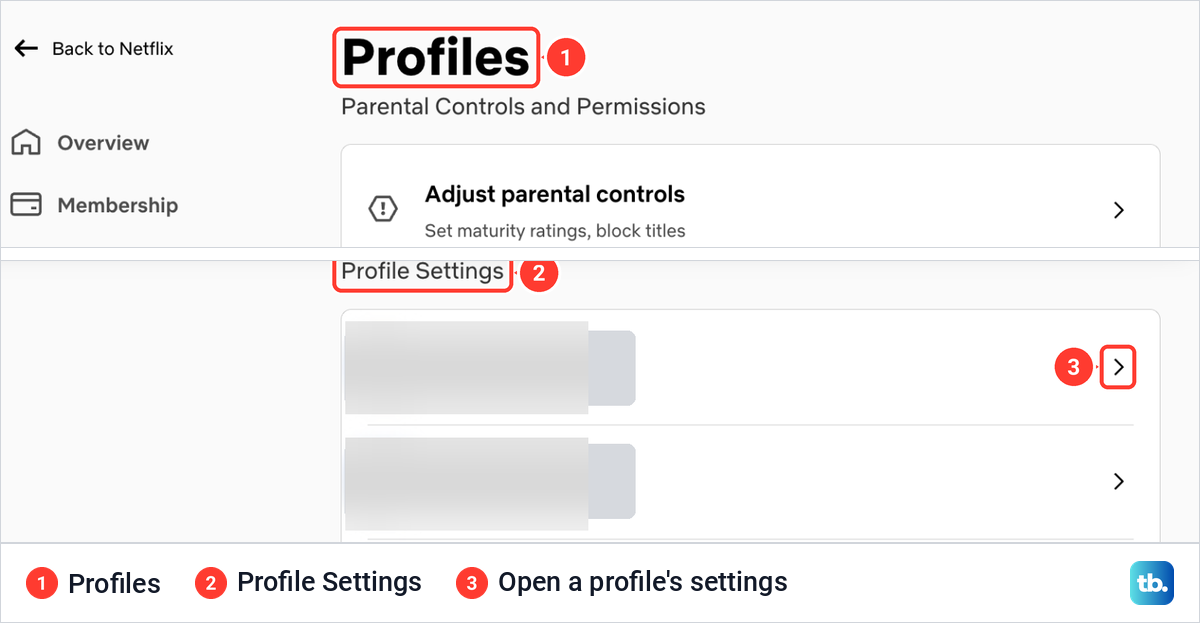
When we opened that page in Chrome, it was titled Profiles, with a Parental Controls and Permissions card at the top. Further down, a card headed Profile Settings listed the profiles one per row, each with its picture and an arrow at the right end. Select the arrow on the profile whose language you want to change.
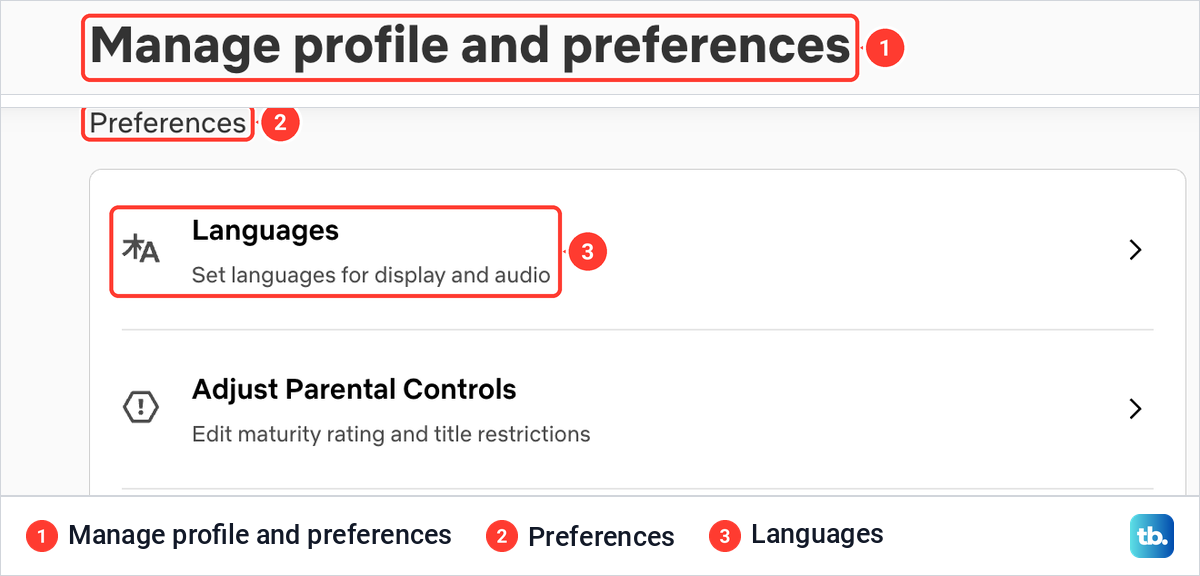
That opened a page titled Manage profile and preferences. Lower down, under the heading Preferences, the first row is Languages, described as Set languages for display and audio and marked with an icon of a written character beside the letter A. Adjust Parental Controls sits right under it, and our guide to set up parental controls on Netflix covers that row and the Profile Lock PIN.
Select Languages. The page that opened was titled Set language preferences, and its first control was a drop-down box named Display Language, showing the current language with an arrow at its right end. Netflix's help says to choose the new display language in that box, then select Save.
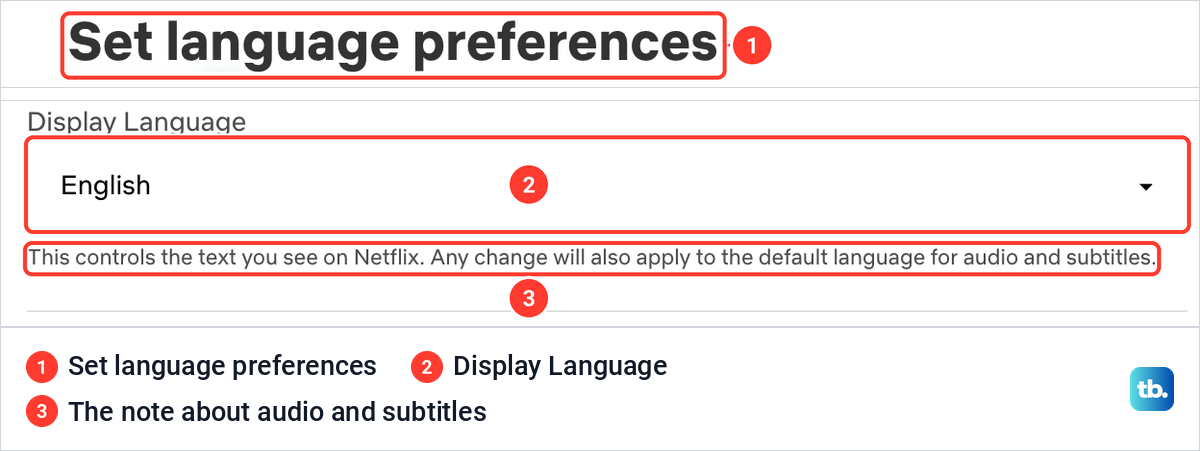
Read the line under the box before you save, because it reaches beyond the menus. On our screen it said: This controls the text you see on Netflix. Any change will also apply to the default language for audio and subtitles. So a menu change is not only cosmetic: Netflix's own form says it also moves the starting language for sound and subtitles.
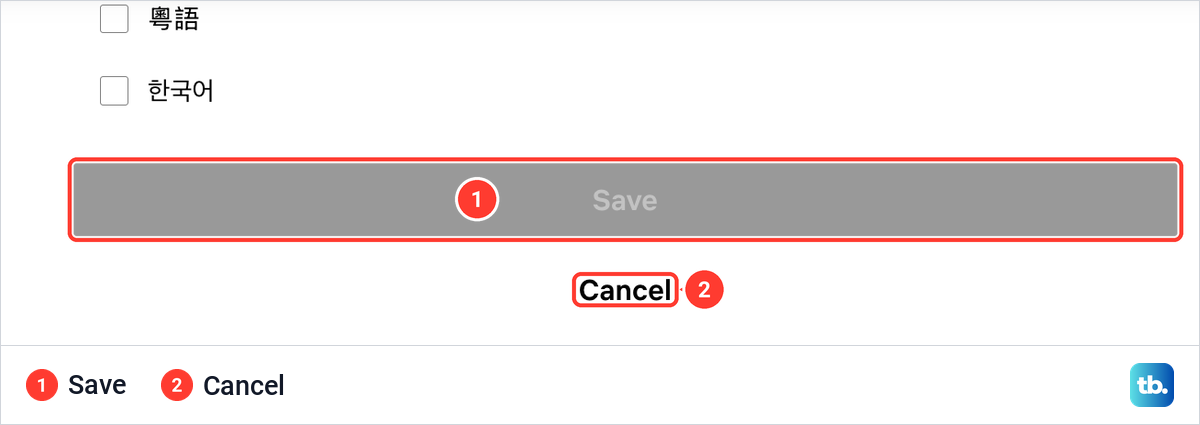
Save is at the very bottom of the page, below a long list of audio and subtitle languages, with Cancel under it. With nothing changed yet, Save sat grey on our screen.
The display language belongs to the profile you opened, not to the whole account. To change someone else's menus, go back to Profiles and repeat the steps on their row. Netflix adds that a device which still shows the old language may need you to sign out and sign back in.
Change the Netflix menu language on a TV
Netflix's help gives a shorter route on TVs and streaming players, and it starts before you pick a profile. Open the Netflix app and go to the profile selection screen, where you choose who is watching. Highlight the profile you want to change and select its Edit icon, a pencil.
Select Language, then choose a language from the list. Netflix says the new language saves automatically, so nothing else needs confirming before you select Done. If the TV is in a language you cannot read, the pencil is the landmark to look for on that screen. Netflix's help does not say how to get back to the profile selection screen from inside a profile, so if you cannot find it, use the browser route above, which changes the same setting.
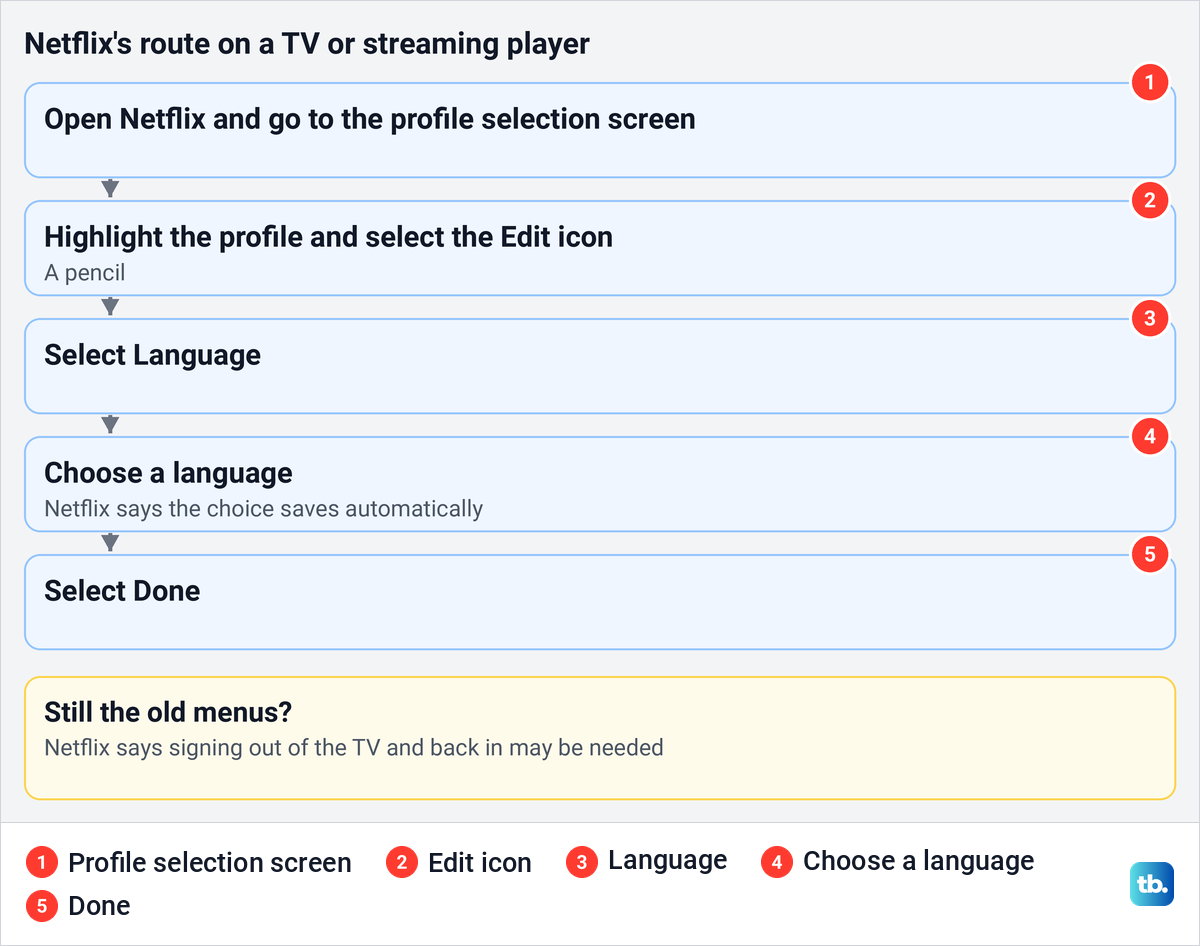
The TV route and the browser route change the same display language for the profile, so either one works for a profile you watch on the TV. If the TV keeps showing the old menus after a change made elsewhere, Netflix's advice is to sign out and back in on it, and our steps to log out of Netflix on a TV cover each brand's menu.
Change the Netflix menu language on a phone or tablet
Netflix's help uses one route for the Android app and for the iPhone and iPad app. Tap My Netflix in the lower right corner, tap the profile name at the top, then tap Manage Profiles and choose the profile you want to edit.
Tap Display Language and choose a language. Netflix says the new language saves automatically. The same profile screen also holds Audio & Subtitles, the app's version of the preferred languages covered further down.
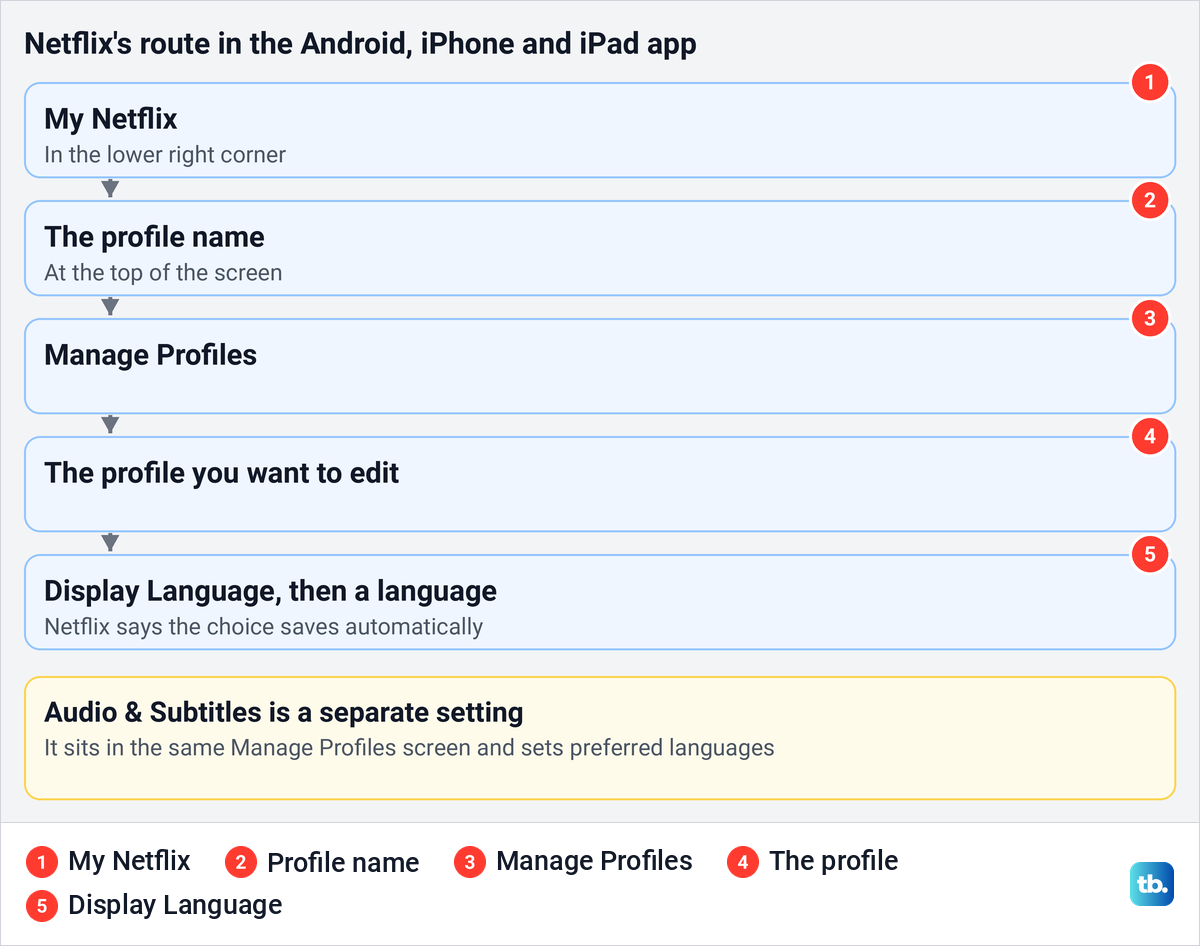
The positions are the useful part when the app is in another language. Netflix places My Netflix in the lower right and the profile name at the top, so you can reach the profile name by position. For the next step, Netflix's help shows a pencil icon beside Manage Profiles.
Change Netflix language back to English
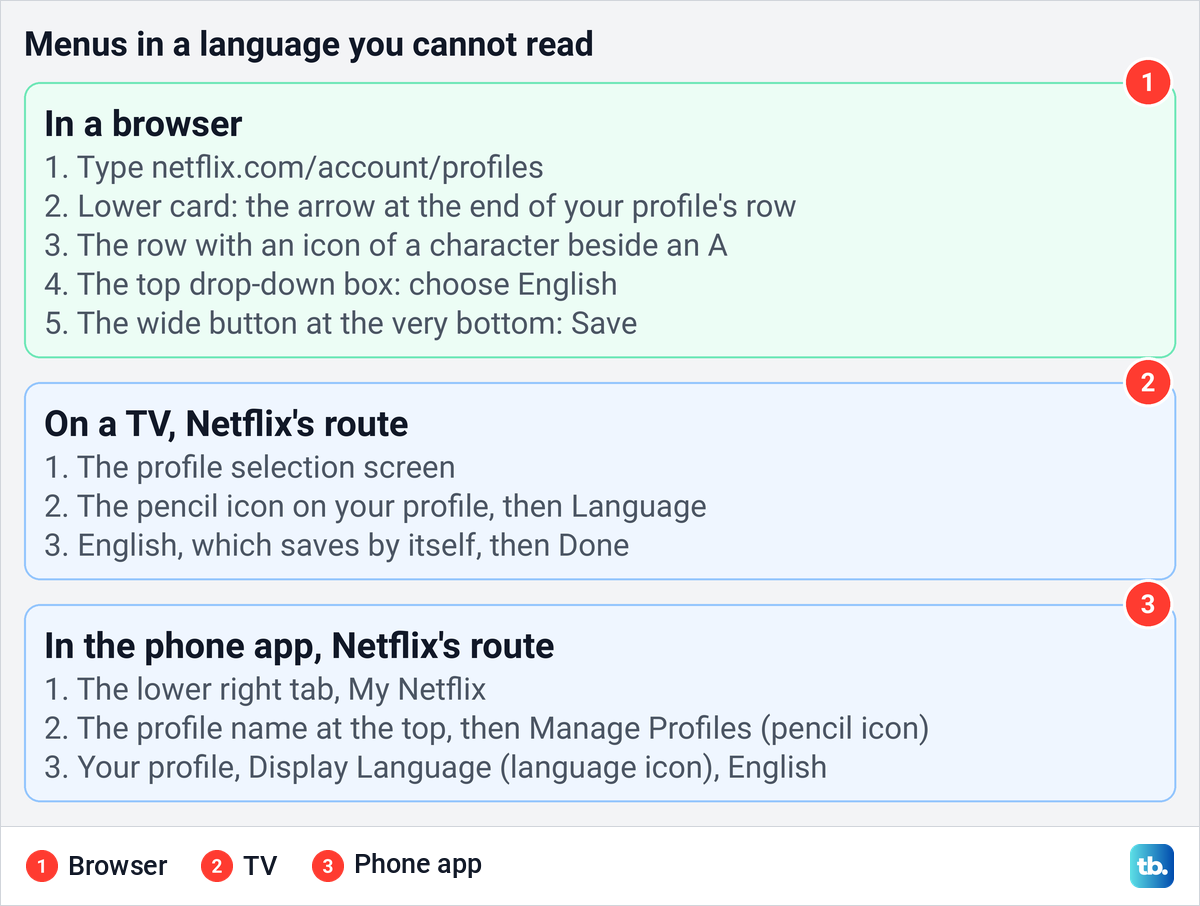
When the menus are in a language you cannot read, go by position and icons rather than guessing at translated words. A browser is the easiest place to do it, because typing netflix.com/account/profiles on a phone or computer skips the menus entirely. Sign in if Netflix asks.
From there, follow the landmarks we saw on Netflix's web pages. In the lower card, select the arrow at the right end of your profile's row. On the next page, find the icon of a character beside the letter A, which marks the Languages row. On the Languages page, the first drop-down box at the top is Display Language: choose English there, then select the wide button at the very bottom, Save.
Do not reach for the check boxes in the middle of that page. On our screen they wrote each language in its own language and script, Dansk, Deutsch, English, Español and 한국어 among them, but they set preferred audio and subtitles rather than the menus. The Display Language box above them is the one that changes the words on screen.
On a TV, Netflix's route works by position too: from the profile selection screen, select the pencil on your profile, then the language setting, choose English and select Done. If a step is unclear on the TV, make the change from a phone browser instead, then sign the TV out and back in if it still shows the old language.
In the phone app, tap the lower right tab, then the profile name at the top. Netflix's help marks Manage Profiles with a pencil icon and Display Language with a language icon, so open the pencil row, choose your profile, then the language row, and pick English.
Set preferred audio and subtitle languages
Below Display Language, the browser page has a second section, Audio and subtitle languages. Its description read: Choosing the languages you watch TV shows and movies in helps us set up your audio and subtitles for a better viewing experience. Then comes a long list of check boxes, one per language.
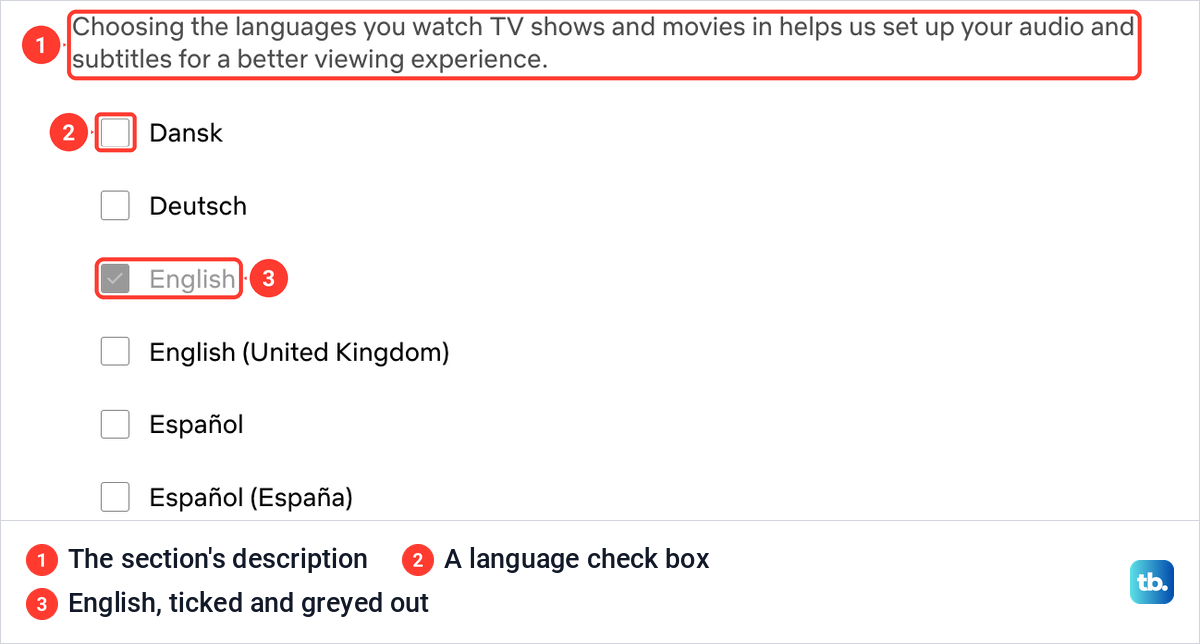
On our screen, English was already ticked and greyed out, the same language shown in the Display Language box. Netflix's help says to tick the audio and subtitle languages you would like, then select Save.
In the phone and tablet app, Netflix's route is My Netflix > the profile name > Manage Profiles > the profile > Audio & Subtitles, and the choice saves automatically. These preferences help Netflix pick audio and subtitles for you. They cannot add a track a title does not have.
Choosing a subtitle language is not the same as switching subtitles on. To show them while you watch, use our guide to turn on Netflix subtitles while watching, and if text keeps appearing over the picture when you do not want it, follow the steps to turn off closed captions on Netflix.
Change the audio language while a show is playing
To switch the language of the show in front of you, start playing it and bring up the player controls. Netflix's help says to tap or click the screen on a phone, tablet or computer, and to press the Up or Down arrow on the remote on a smart TV, streaming player or game console. On an Apple TV, swipe up or press Up on the remote.
Select Audio & Subtitles at the top or bottom of the screen. On the web in Chrome, the button on our screen was a speech-bubble icon at the bottom right of the player, and pointing at it opened a panel with an Audio column and a Subtitles column, each with a tick beside the current choice.
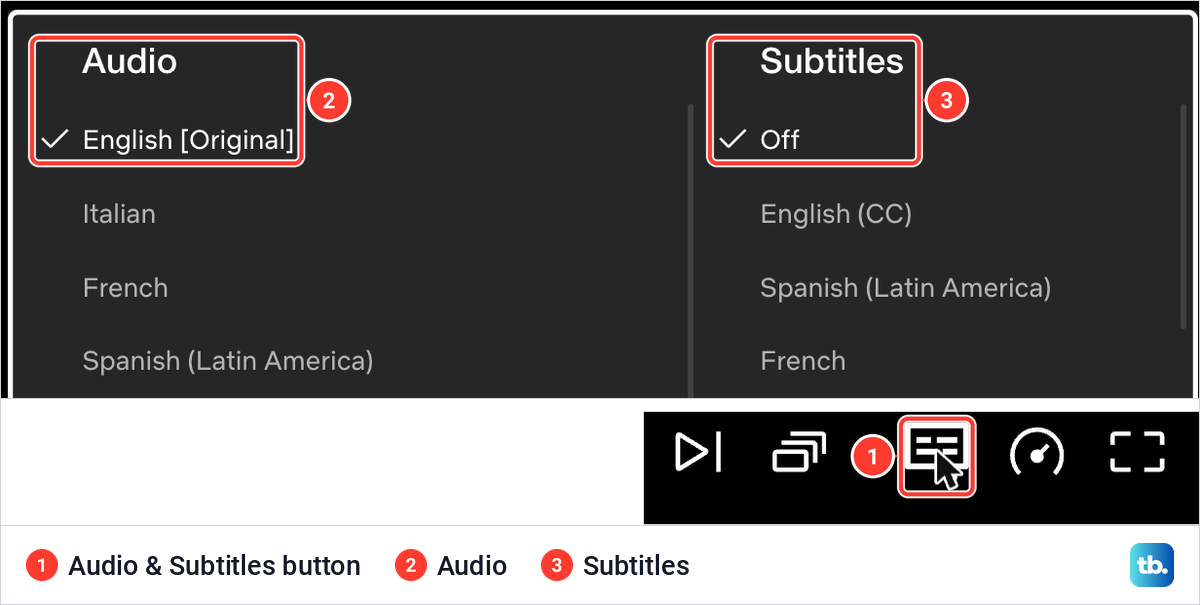
On TVs, Netflix says the language options can appear at the bottom without their usual icon, and Other shows every language the title has. Pick the audio track and, if you want them, the subtitles.
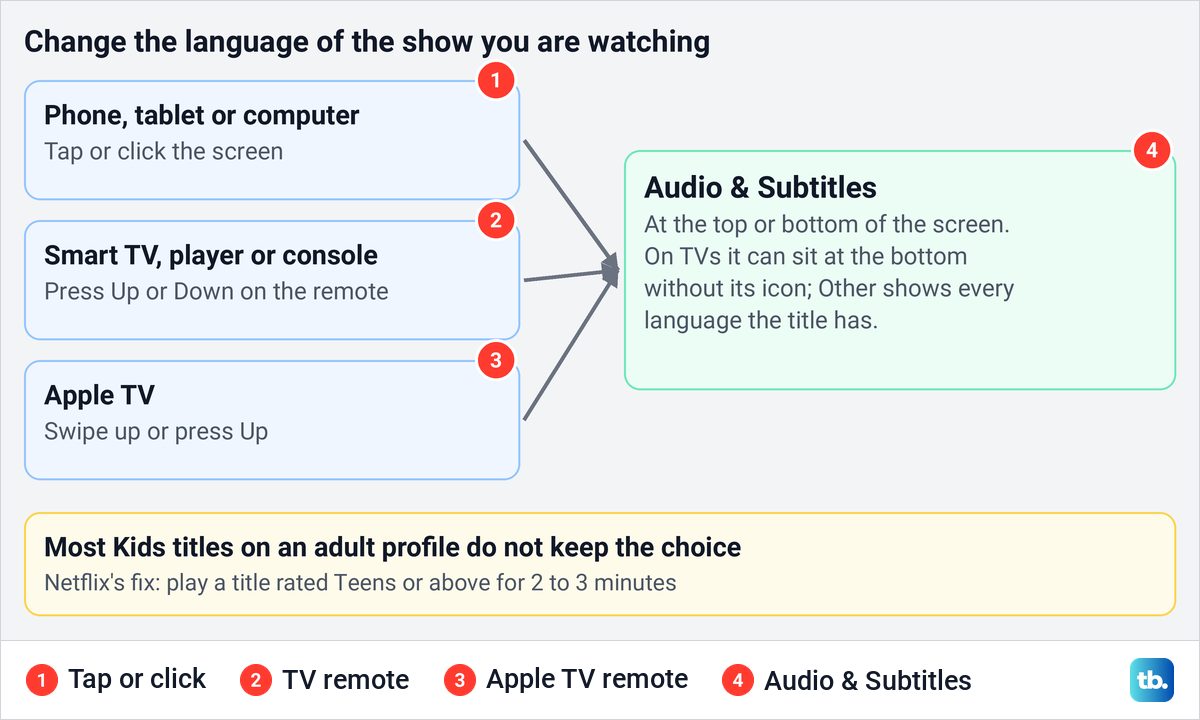
Netflix notes two catches. Audio and subtitle choices are not saved when you watch most Kids titles from an adult profile, and if your audio resets every time, it recommends playing a title rated Teens or above for two to three minutes to set the preferred language. Subtitles can also appear with your subtitle setting off, when a show has dialogue in a language other than its original one.
If the TV goes silent after you switch tracks, pick the title's original audio again in Audio & Subtitles. If the sound stays off, work through our guide to fix Netflix sound on a TV.
Find shows in the language you want
Netflix's help points to Browse by Languages on the web for finding titles by audio, subtitle or original language, and its pages at netflix.com/browse/audio and netflix.com/browse/subtitles list titles by language. In the app, search works too. Netflix's own examples include Hindi Dubbed Movies & TV for a dubbed track and Spanish movies for the original language.
Browsing by language finds titles that already have a track; it does not add one to a show that lacks it. Netflix also says a profile's maturity rating and language preferences can affect which shows and movies that profile sees, so two profiles on one account can see different titles.
Why a language is missing on Netflix
Netflix lists four reasons a subtitle or audio language may be missing: your location, the profile's language preferences, the title itself and the device. Licensing is often behind the title reason. Some TV shows also have different languages for different seasons, seasons Netflix offered before 2018 may lack some, and weekly releases get their languages once they are complete.
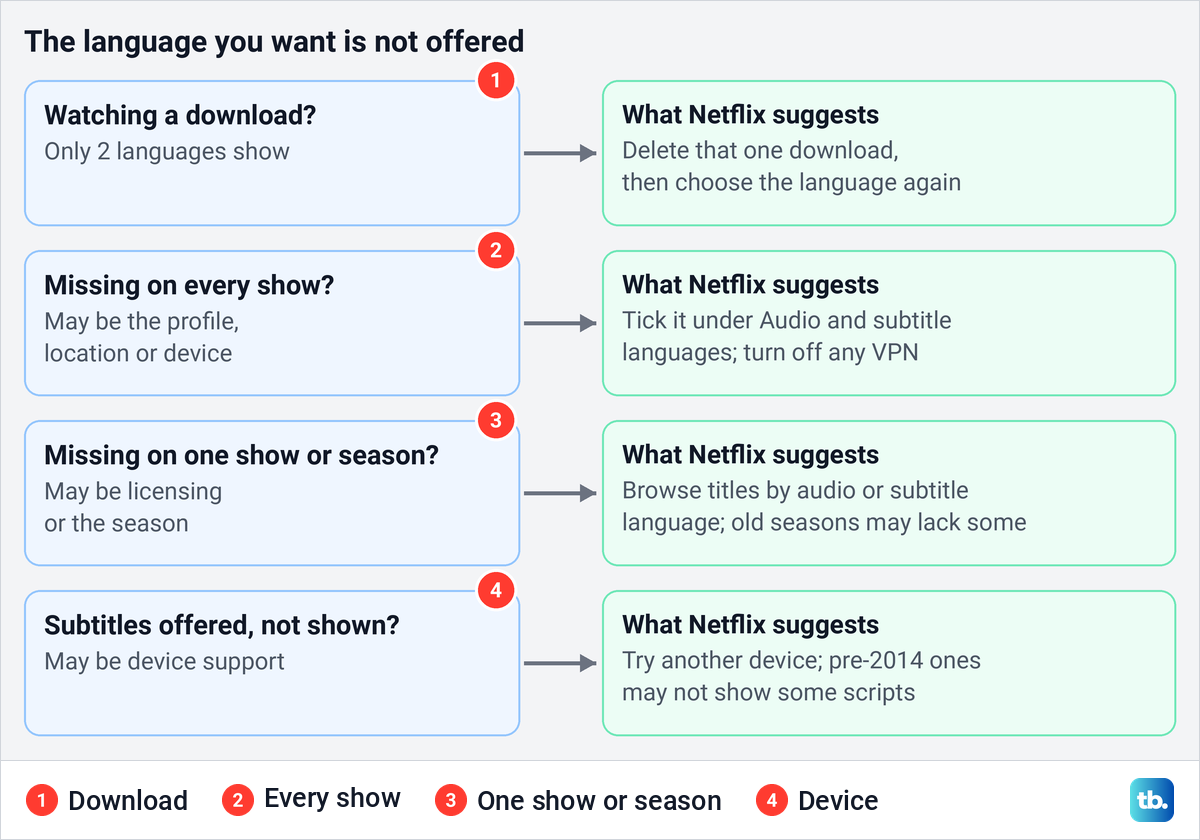
Downloads are an easy trap to miss. If a title is downloaded to your device, Netflix shows only its two most relevant languages, even when you watch it while connected to WiFi. Its fix is to delete that one download and choose the language again, so there is no need to delete everything you have downloaded.
For subtitles Netflix offers but your device will not display, try another device. Netflix says devices made before 2014 may not show subtitles in Arabic, Chinese, Hebrew, Hindi, Japanese, Korean, Thai, Romanian or Vietnamese, and it treats 2014 only as a rough guide.
If shows are not available in your language, or titles other people nearby can see are missing for you, Netflix says it may think you are in another country. Its first advice is to turn off any VPN or proxy, including one built into antivirus software, and try again.
When the new language does not show on another device
Netflix publishes no time for a language change to reach other devices. Its advice for a device that still shows the old language is to sign out of Netflix on it and sign back in. Our guide to sign out of Netflix on your devices covers the phone, browser and TV routes.
Check the profile before you sign anything out. The language belongs to one profile, so a TV that opens a different profile keeps that profile's language. If the TV app will not open at all while Netflix works on your phone, that is a separate fault, covered in our guide to fix Netflix on a TV when it works on your phone.
Language settings do not touch your plan or billing. If you meant to stop paying instead, follow the steps to cancel a Netflix subscription.
How we tested this guide
We tested this on Netflix on the web in Chrome, going from the Profiles page through a profile's Languages page and opening the player's Audio and Subtitles panel.
Frequently Asked Questions
How do I change Netflix back to English if I cannot read the menus?
Open netflix.com/account/profiles in a browser and select the arrow on your profile's row, then the row marked with a character beside the letter A. Choose English in the first drop-down box and select the wide Save button at the bottom. On a TV, Netflix's route is the pencil on the profile selection screen, then Language, English and Done.
Does changing the language on Netflix change it for every profile?
No. The language is set for one profile at a time, so open each profile that needs it and change it there. Other people's profiles keep their own menus and audio preferences.
Why is a show still dubbed after I changed the menu language?
The show uses the audio track picked in the player. Open Audio & Subtitles while it plays and choose the language you want, then check the profile's Audio and subtitle languages on the browser Languages page, since Netflix's form says a menu change also sets the default audio language.
Why is my language missing from the audio menu?
Netflix says it depends on the title, your location, the device and the profile's language preferences, and licensing can rule a language out for a particular show. Try another title or season to see whether the problem is the show or your setup.
Why do I see only two languages on a downloaded show?
Netflix shows the two most relevant languages for a downloaded title. Delete that download and stream the title to see its full list.
Why does my TV still show the old language?
Netflix says you may need to sign out of Netflix on the TV and sign back in. Check also that the TV opens the same profile you changed, because each profile has its own language.
Why does Netflix keep resetting my audio language?
Netflix does not save audio and subtitle choices made while watching most Kids titles from an adult profile. Its fix is to play a title rated Teens or above for two to three minutes, which sets the preferred audio language for later viewing.