
When your Google Pixel 9a's keyboard starts giving you bizarre or unhelpful word suggestions, it can slow you down to a crawl. The predictions might seem completely random, stuck on one word, or just stop working altogether. I'd start with a quick restart, but if that doesn't cut it, here are the specific fixes for the Gboard app on your Pixel.
Restart Your Pixel 9a
It sounds simple, but a restart clears out temporary glitches in the system that can confuse the keyboard's AI. Just press and hold the Power button for about 30 seconds until you see the Google logo appear and the phone reboots. This is often the fastest way to get things back on track.
Clear Gboard's Cache and Data
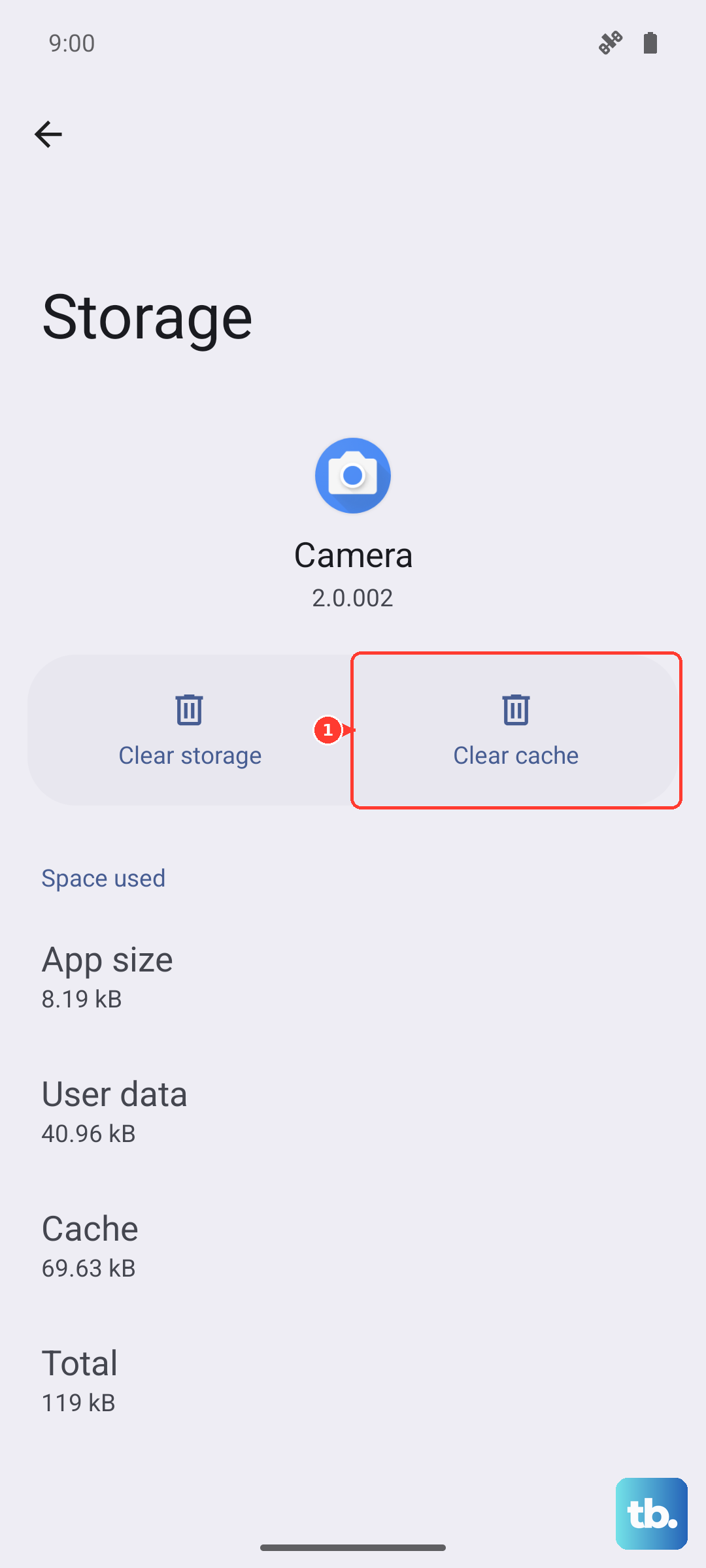
If a restart doesn't help, the next step is to clear Gboard's temporary files. Go to Settings > Apps > See all apps. Find and tap on Gboard in your app list. Then, tap Storage & cache.
Tap Clear cache first. This removes temporary data without affecting your personal dictionary or settings. If the predictions are still wrong, come back here and tap Clear storage or Clear data. Be aware, this will reset Gboard to its default settings and erase any custom words you've saved.
Check and Toggle Gboard Predictions
Sometimes the predictive text feature just needs a quick refresh. Open any app that uses the keyboard, like Messages, and tap to bring up Gboard. Look for the three-dot menu icon in the top toolbar of the keyboard and tap it.
Go to Settings > Text correction. Here, make sure Show suggestion strip is turned on. While you're here, toggle it off, close the settings, then go back and toggle it on again. This can kickstart the prediction engine if it's gotten stuck.
Update Your Language Pack
Gboard's predictions rely on language models that get periodic updates. If yours is out of date, the suggestions can go haywire. Open Gboard's settings again via the three-dot menu on the keyboard.
Navigate to Languages. Tap on the language you're using, like English (US). If there's an update available, you'll see an option to download it. Ensuring you have the latest language data is crucial for accurate predictions, especially with new slang or terms.
Update the Gboard App
Running an old version of Gboard can lead to all sorts of quirks. Open the Google Play Store on your Pixel 9a and tap your profile picture in the top right. Go to Manage apps & device > Manage, then find Gboard in the list of installed apps.
If an update is available, you'll see an Update button. Tap it to install the latest version. Google frequently releases updates to improve the Tensor G4's on-device AI for better and faster predictions.
Retrain Your Voice Model (If Using Voice Typing)
If your wrong predictions are happening specifically when you use voice typing, the voice model might be confused. This is a known area where the AI can sometimes misinterpret. Go to your main phone Settings and search for "Voice Match" or navigate to Security & Privacy > Device unlock > Voice Match.
From there, you can delete your existing voice model and retrain it. The Pixel 9a will have you repeat a few phrases again to better understand your speech patterns, which should lead to more accurate text conversions from your voice.
Reset App Preferences
This is a broader fix that won't delete your personal data but will reset all your app permissions and default apps. If a system-level setting is interfering with Gboard, this can clear it. Go to Settings > System > Reset options.
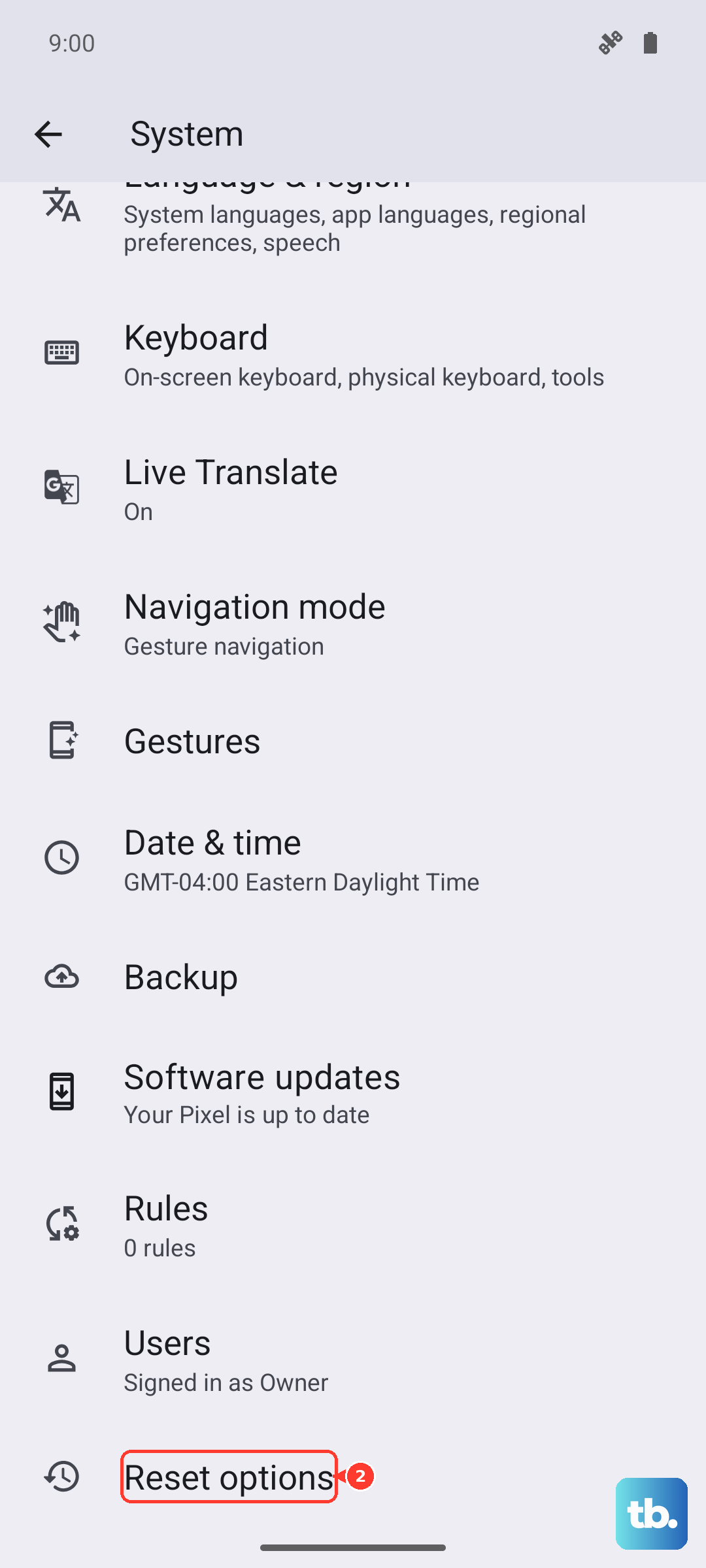
Tap Reset app preferences. You'll need to re-grant permissions to apps afterward, but it can resolve conflicts that are causing the keyboard to behave strangely. Your Gboard dictionary and settings will remain intact with this method.