When your Motorola Razr Plus (2024) starts suggesting bizarre words or its predictions feel completely off, it can really slow you down. The issue usually stems from a glitch in the keyboard's learning data or a temporary software hiccup. The good news is, you can almost always fix it yourself without losing your personal dictionary.
Restart Your Razr Plus
Before diving into settings, give your phone a quick reboot. This clears out any temporary memory issues that might be confusing the keyboard's prediction engine. Just press and hold the Power button for about 10 to 15 seconds until you see the Motorola logo appear and the phone restarts.
It’s a simple step, but I’ve seen it resolve prediction problems more often than you’d think, especially if you haven't rebooted in a while.
Toggle Predictive Text Off and On
Sometimes the predictive text feature just needs a quick refresh. Open any app that uses the keyboard, like Messages or Notes. Tap into a text field to bring the keyboard up.
Look for the prediction bar above the keys. Long-press on the comma or settings key (it might look like a gear icon) to open the keyboard's quick settings. Find the option for "Predictive text" or "Show suggestions" and toggle it off. Wait a second, then toggle it right back on.
This forces the system to re-initialize the feature, which can clear up minor glitches immediately.
Clear the Gboard App Cache
Your Razr Plus uses Google's Gboard as its default keyboard. Clearing its cache removes temporary files that might have become corrupted. Go to Settings > Apps > See all apps.
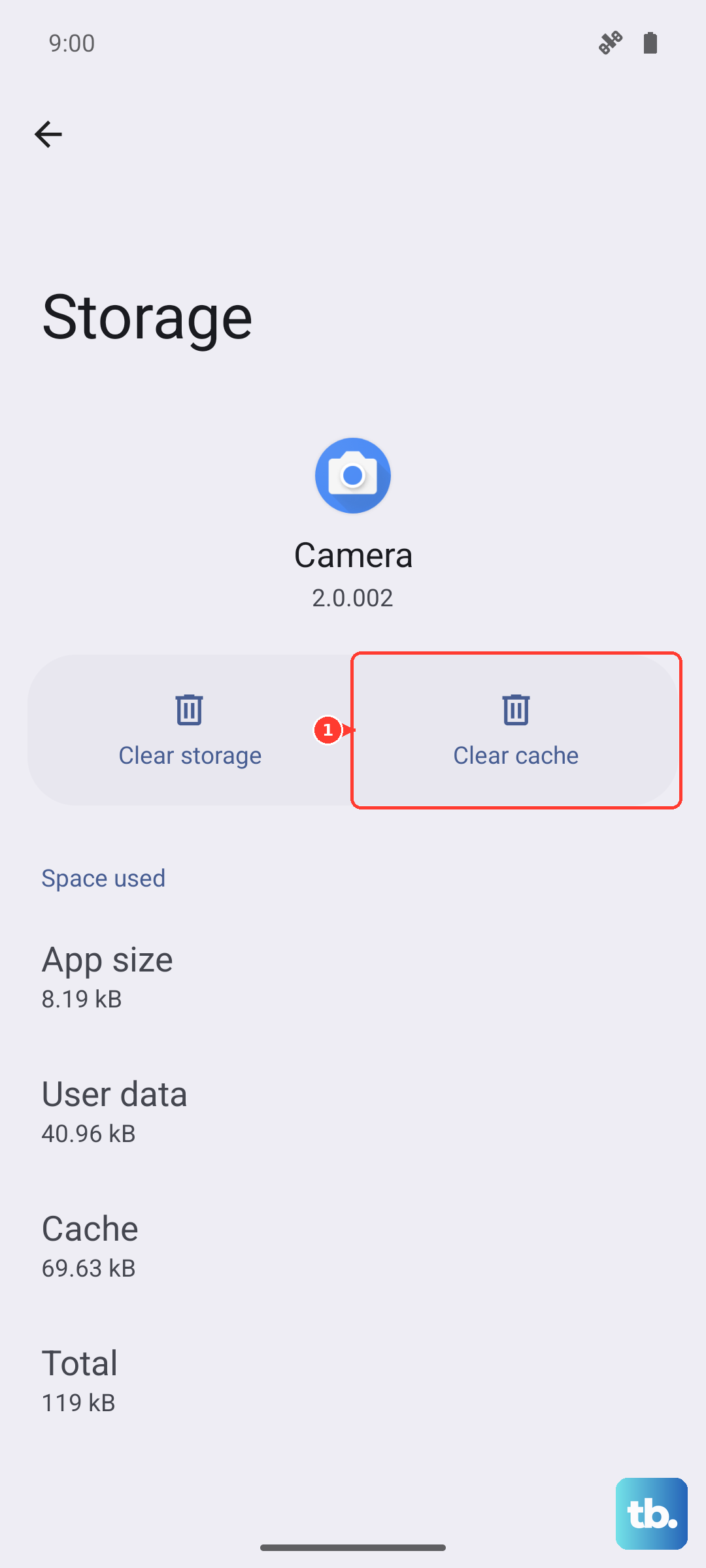
Find and tap on Gboard. Tap Storage & cache, then tap Clear cache. This won't delete your personal dictionary or saved words, it just cleans out the junk.
Reset Gboard's Learning Data
If predictions are still wrong, the keyboard might have learned from some bad typing. You can reset this without wiping everything else. Go back to Settings > Apps > Gboard > Storage & cache.
This time, tap Manage space. Look for an option labeled "Delete learned words" or "Clear personal dictionary." Tapping this will reset the AI's learning back to a fresh state.
Remember, this will erase words you've manually added and the keyboard's memory of how you type, so it will need to learn your habits again.
Check Your Keyboard Language Settings
Incorrect language settings can send predictions into a tailspin. Open Gboard's settings directly by long-pressing the comma key on the keyboard and tapping the gear icon, or go through Settings > System > Languages & input > On-screen keyboard > Gboard.
Tap Languages. Make sure the correct language (like "English (US)") is listed and selected. If you have multiple languages enabled, try disabling the secondary ones temporarily to see if that stabilizes the predictions.
Update Gboard and Your Phone's Software
An outdated app or system software can cause compatibility bugs. First, open the Google Play Store, tap your profile picture, and go to Manage apps & device. Check for updates and make sure Gboard is updated to the latest version.
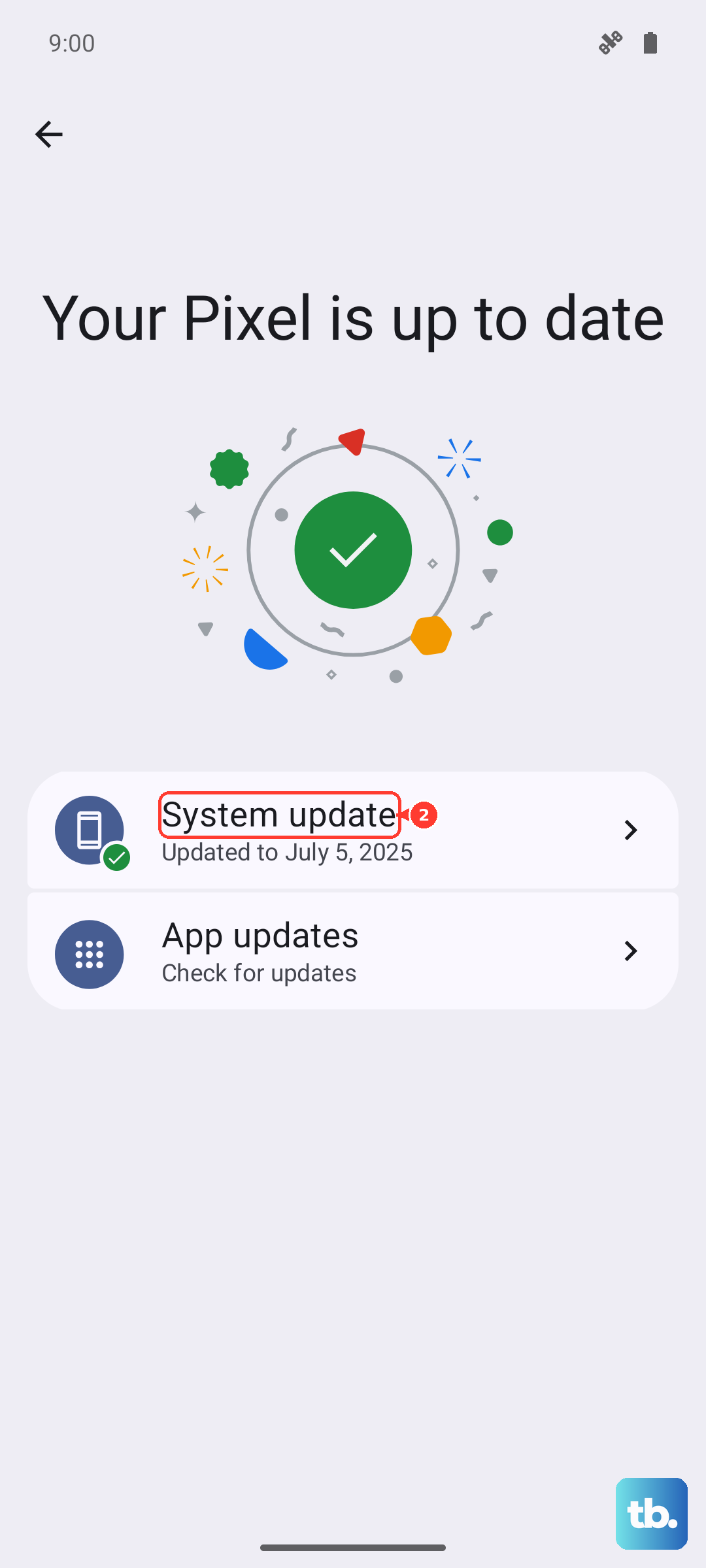
Next, check for a system update. Go to Settings > System > System updates. Motorola often includes fixes for core components like the keyboard in these updates. Installing the latest Android 14 patch can resolve underlying issues causing the prediction errors.