When your iPad's keyboard predictions start suggesting bizarre words or stop helping altogether, it can really slow you down. The suggestions might feel off-topic, repetitive, or just plain wrong. This is usually a software hiccup with the keyboard's learning data, and there are a few straightforward ways to get it back on track.
Toggle Predictive Text Off and On
Let's start with the quickest fix. Sometimes the predictive text feature just needs a simple refresh. Open any app that uses the keyboard, like Notes or Messages.
Tap on a text field to bring up the keyboard. Look for the predictive text bar above the keys. If you see a row of suggested words, press and hold the emoji or globe icon on the bottom left.
A small menu will pop up. Tap Keyboard Settings. Here, you'll find a switch for Predictive Text. Turn it off, wait a second, and then turn it back on. This often resets the suggestion engine without losing your personal data.
Reset the iPad's Keyboard Dictionary
If the predictions are still weird, the next step is to reset the learned dictionary. This clears all the custom words and corrections your iPad has learned from your typing, which can sometimes get corrupted.
Go to Settings > General > Transfer or Reset iPad. At the bottom of this screen, tap Reset. From the list of reset options, choose Reset Keyboard Dictionary.
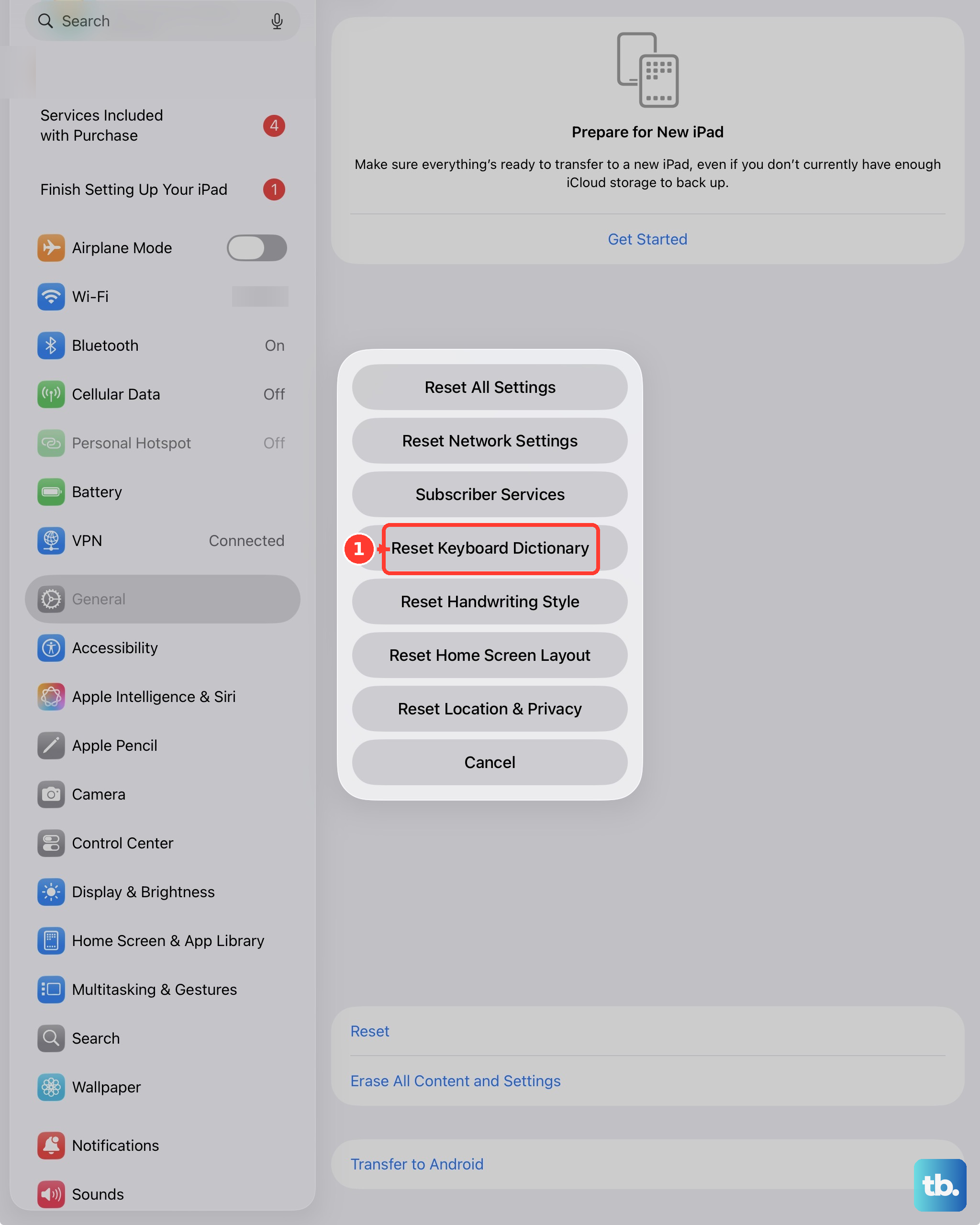
You'll need to enter your passcode to confirm. This will wipe the dictionary clean, so it will forget slang, names, or unusual spellings you've taught it. The predictions will revert to the standard language model and start learning from your typing again.
Check Your Text Replacement List
Your Text Replacement shortcuts can sometimes interfere with regular predictions. It's worth checking this list for any odd or conflicting entries. Head to Settings > General > Keyboard > Text Replacement.
Scroll through the list. If you see any shortcuts that are just a single letter or a common word, they might be triggering at the wrong time. You can tap on one to edit it or swipe left to delete it. Cleaning this up can help the standard predictions work more smoothly.
Ensure the Correct Language is Active
The keyboard needs to know which language you're typing in to give accurate predictions. Press and hold the globe or emoji icon on the keyboard until the language selection menu appears.
Make sure the correct language, like English (US), is selected and highlighted. If you have multiple languages enabled, the predictions can get mixed up as the system tries to guess which one you're using. I'd recommend disabling any keyboards for languages you don't currently need.
Restart Your iPad
A full restart clears out temporary system glitches that can affect all sorts of functions, including the keyboard. The method depends on your iPad model.
For iPads without a Home button, quickly press and release the Volume Up button, then the Volume Down button. Finally, press and hold the Top button until you see the Apple logo appear.
For iPads with a Home button, just press and hold both the Home button and the Top button together until the screen goes black and the Apple logo shows up. After it boots back up, try the keyboard again.
Update iPadOS
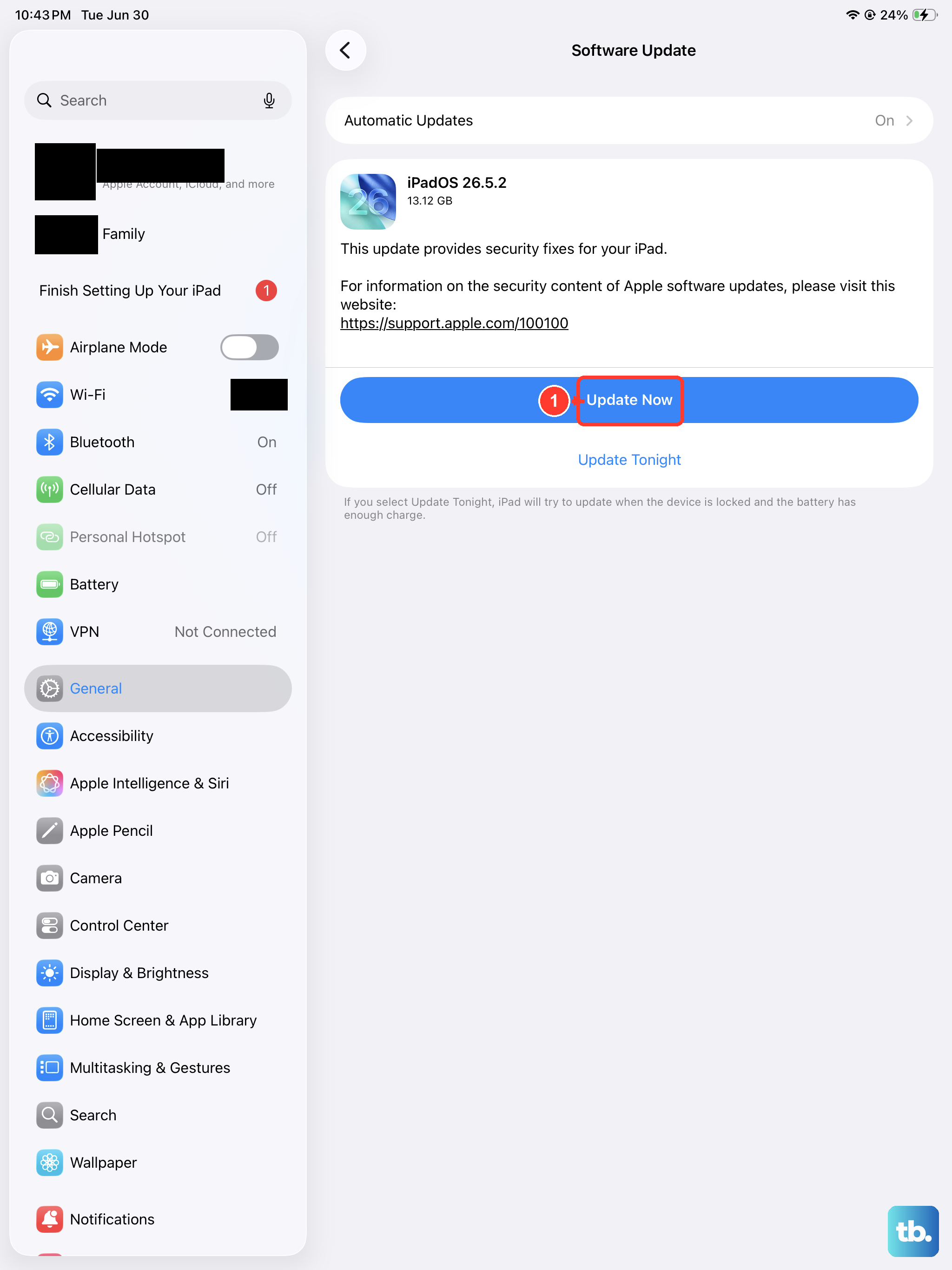
If this started happening after a recent update, or has been a persistent issue, a newer version of iPadOS might contain a fix. Apple frequently addresses keyboard and prediction bugs in point updates.
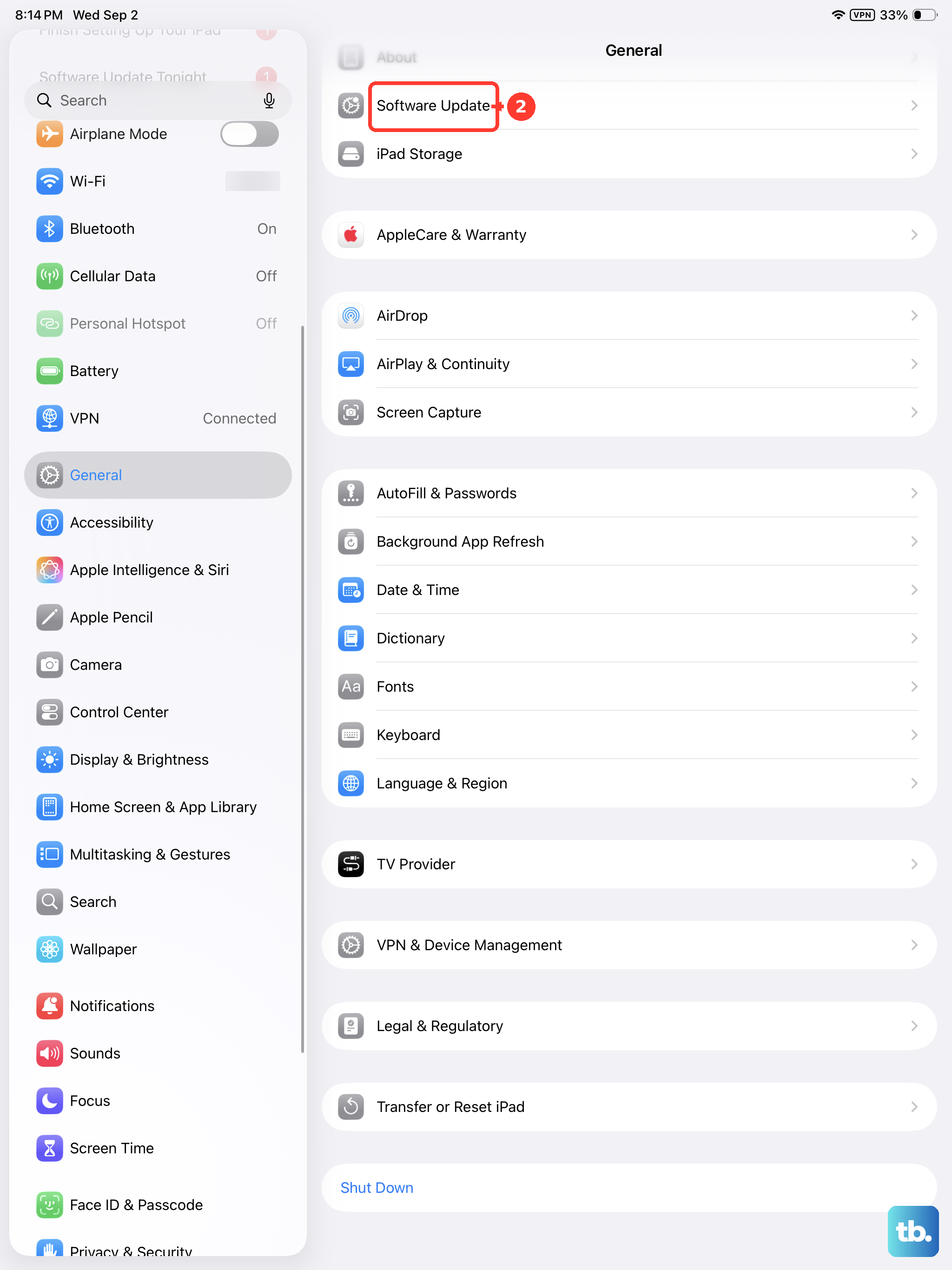
Go to Settings > General > Software Update. If an update is available, tap Download and Install. It's a good idea to plug your iPad into power during this process. Once updated, the system will restart and the keyboard services will be refreshed with the latest code.