
When your Google Pixel 9 Pro's keyboard starts giving you bizarre or unhelpful word suggestions, it can slow you down and get pretty annoying. The predictions might be completely off-topic, fail to learn your style, or just stop showing up altogether. Let's get those smart suggestions working properly again.
Restart Your Pixel 9 Pro
This is the quickest thing to try and often clears up temporary glitches. Just press and hold the Power button for about 30 seconds until you see the Google logo appear and the phone restarts. It's a fresh start for the system, including the keyboard service.
Clear the Gboard App Cache
Since your Pixel uses Gboard by default, the first technical step is to clear its cache. This gets rid of temporary files that might have become corrupted without touching your personal dictionary or settings.
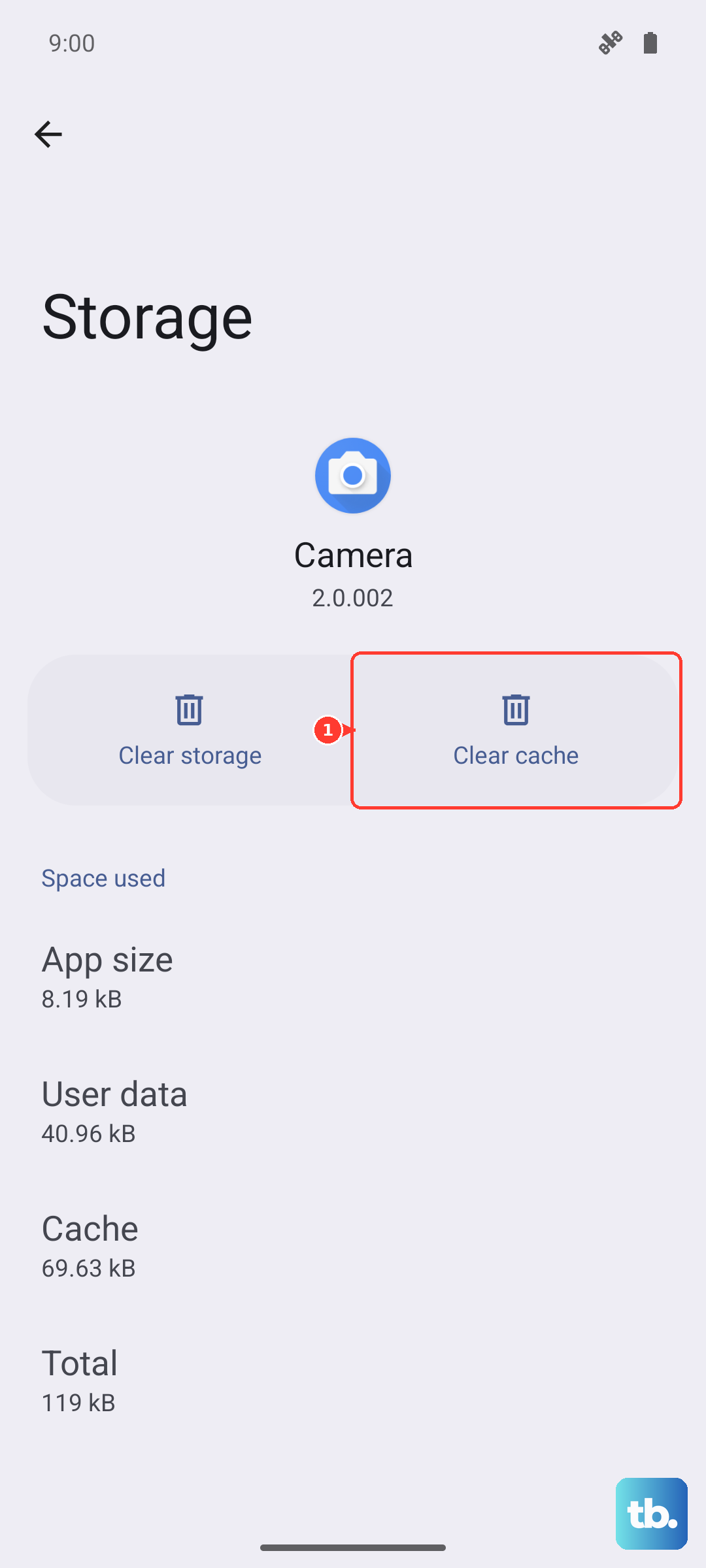
Go to Settings > Apps > See all apps. Find and tap on Gboard. Then, tap Storage & cache and select Clear cache. Give it a moment and then test your keyboard to see if predictions are back on track.
Check Your Gboard Smart Compose Settings
Sometimes a setting might have been accidentally toggled off. Open any app that uses the keyboard and tap to bring it up. Tap the gear icon on the top row of the keyboard to go directly to Gboard settings.
Navigate to Text correction. Here, make sure Show suggestion strip and Next-word suggestions are both enabled. You can also try toggling them off and back on to refresh the feature.
Update Gboard and Your Language Packs
An outdated app can cause prediction problems. Head to the Google Play Store, tap your profile picture, and go to Manage apps & device. Look for updates, or search for "Gboard" directly and see if an update is available.
While you're in Gboard's settings, also check your language. Go to Languages and tap on the language you use (like English US). Make sure all the sub-features like "Spell check" and "Personalized suggestions" are enabled, as these feed into the prediction engine.
Retrain Your Personal Language Model
Gboard learns from how you type to offer better suggestions. If it's learned some bad habits, you can reset this data. In your phone's main Settings, go to System > Languages & input > Virtual keyboard > Gboard.
Tap on Advanced and look for the option labeled Delete learned words and data or similar. Confirm the reset. This will clear its memory of your typing patterns, so it will start learning fresh from this point forward.
Clear Gboard App Data (Last Resort)
If predictions are still wrong, a more complete reset is needed. This will erase all Gboard settings, your personal dictionary, and any saved shortcuts. Go back to Settings > Apps > Gboard > Storage & cache.
This time, tap Clear storage or Manage space > Clear all data. After confirming, your keyboard will revert to its default state. You'll need to re-enable any preferences, but this often resolves deep-seated corruption that cache clearing can't fix.