If your Google Pixel 9a is getting uncomfortably warm, you're not alone. That heat is usually a sign the phone is working hard, but it can slow things down and make the device unpleasant to use. Let's get it cooled off.
The quickest thing to try is a force restart. Just press and hold the Power button for about 30 seconds until you see the Google logo appear. This clears out any temporary software glitches that might be causing a runaway process. I'd start with this one, as it often resolves random overheating spikes without affecting your data.
Check for Rogue Apps and Updates
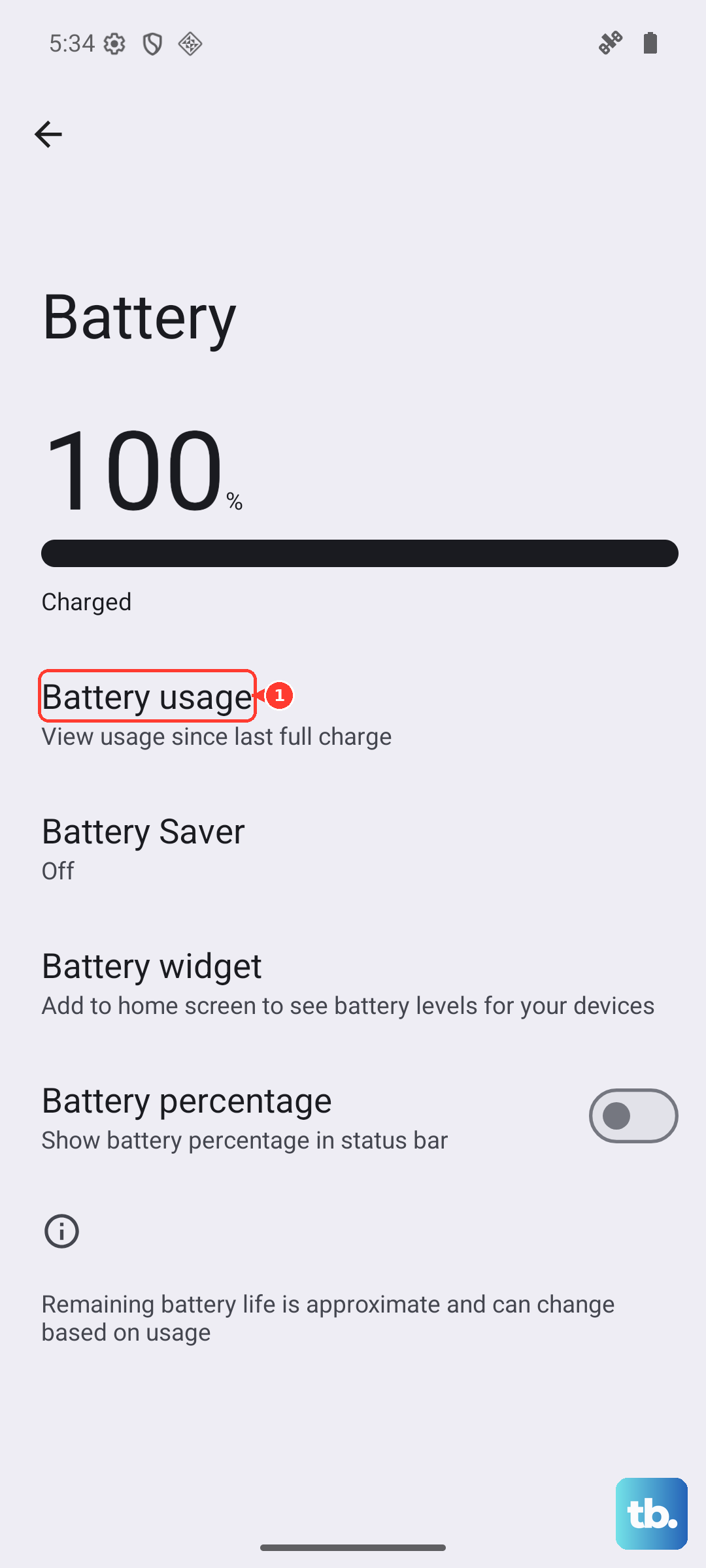
Sometimes, a single misbehaving app is the culprit. Open your Settings and go to Battery > Battery usage. Look for any apps showing unusually high usage in the background. If you spot one, try force stopping it from its app info page or uninstalling it temporarily to see if the temperature drops.
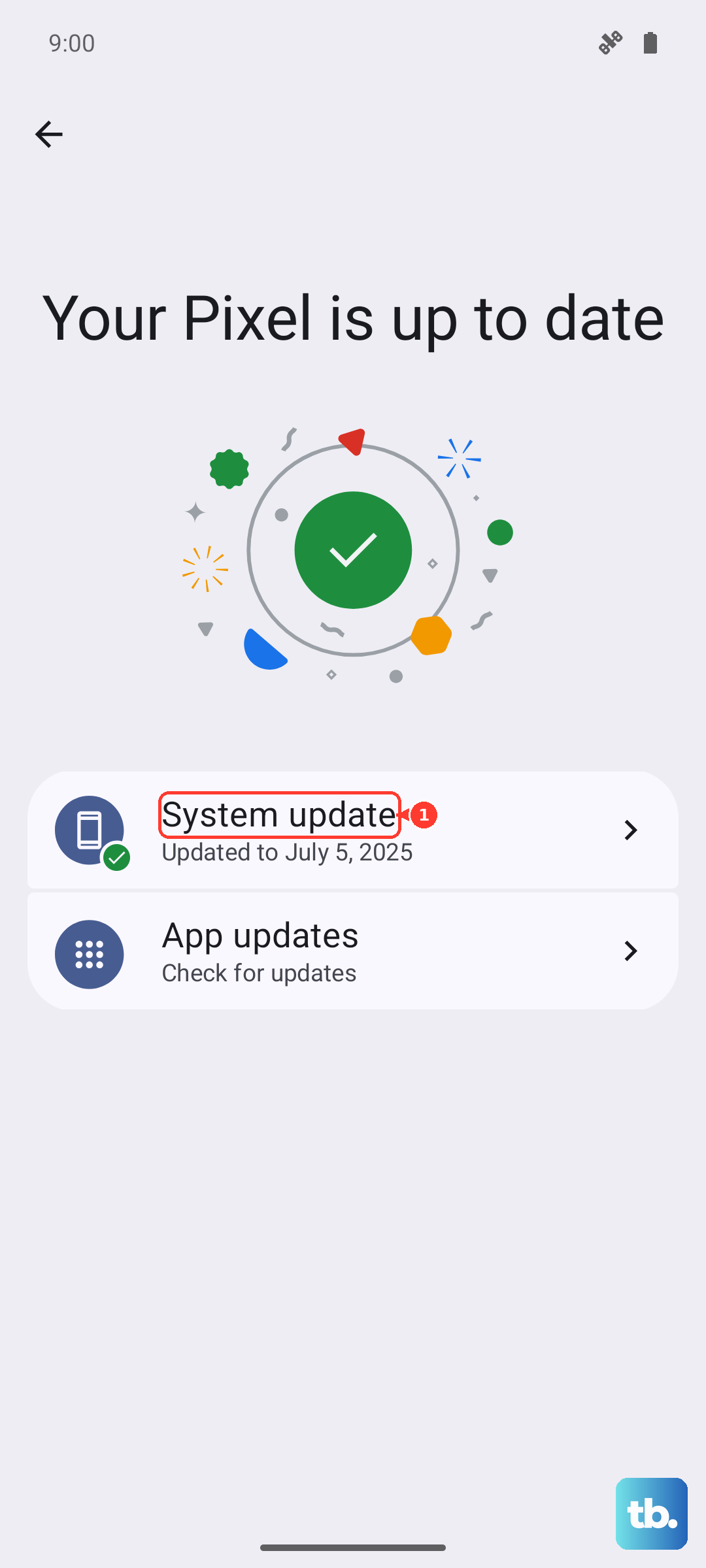
Next, make sure your phone's software is current. Head to Settings > System > System update to check for any available Android updates. Google frequently releases patches that improve thermal management and fix bugs causing excess CPU load. While you're there, open the Play Store, tap your profile icon, and go to Manage apps & device to update all your apps.
Adjust Your Settings for Cooler Operation
A few tweaks in your settings can make a big difference. First, lower your screen brightness. The display is one of the biggest power draws. Also, consider reducing the screen timeout to turn off faster when not in use.
If you're not using them, turn off location services, Bluetooth, and Wi-Fi scanning. You can find these in Settings > Location > Location services. Background scanning for networks and Bluetooth devices keeps the modem and processor active.
For a more aggressive approach, enable Extreme Battery Saver. This severely limits background activity and is very effective at cooling the phone down fast, though it will restrict most app notifications. It's perfect for when you need to cool the phone quickly and only need core functions.
Manage Your Charging Habits
Charging generates heat, and the Pixel 9a's 23W wired charging can get it quite warm. If you're using the phone heavily while it's plugged in, like gaming or video calling, you're combining two major heat sources. Try to let it charge undisturbed, especially if you notice it's hot.
Make sure you're using a good charger. For the fastest, most efficient charge, you want a USB-PD charger rated for 30W or more. Cheap, uncertified chargers can cause the phone to heat up more due to inefficient power conversion. Also, if you're using wireless charging, remember it's limited to 7.5W on the 9a and will naturally generate more heat than wired charging. Take the case off while wirelessly charging to help with heat dissipation.
For overnight charging, use the Adaptive Charging feature. When you set an alarm and plug in at night, the phone charges slowly to 100% just before you wake up. This long, slow trickle charge generates much less heat than a fast top-up and is better for your battery's long-term health.
Be Mindful of Your Environment and Case
Never leave your phone in direct sunlight, like on a car dashboard. The dark screen absorbs heat rapidly, and ambient temperatures inside a car can soar. Similarly, avoid using it for intensive tasks in a hot environment.
Take a look at your phone case. A thick, insulating case can trap heat around the device. If your Pixel 9a feels hot, try removing the case for a while to let it cool down faster. Some cases are better ventilated than others.
Address Signal and Modem Issues
The Pixel 9a uses a Tensor G4 chip, and some users have reported its modem can work harder in areas with weak coverage, which heats up the phone. If you're in a spot with only one or two signal bars, try switching to Airplane mode for a few minutes, or connect to Wi-Fi if available. This gives the cellular radio a break.
You can also try manually selecting your network carrier. Go to Settings > Network & internet > Internet > tap the gear icon next to your carrier > Network. Turn off "Choose automatically" and manually select your network from the list. Sometimes this finds a more stable connection that doesn't cause the modem to strain as much.
Consider a Factory Reset (Back Up First)
If you've tried all the above and the phone still consistently overheats during normal use, a software issue might be deeply embedded. Before this step, ensure all your important data is backed up to Google Photos, Google Drive, or your computer.
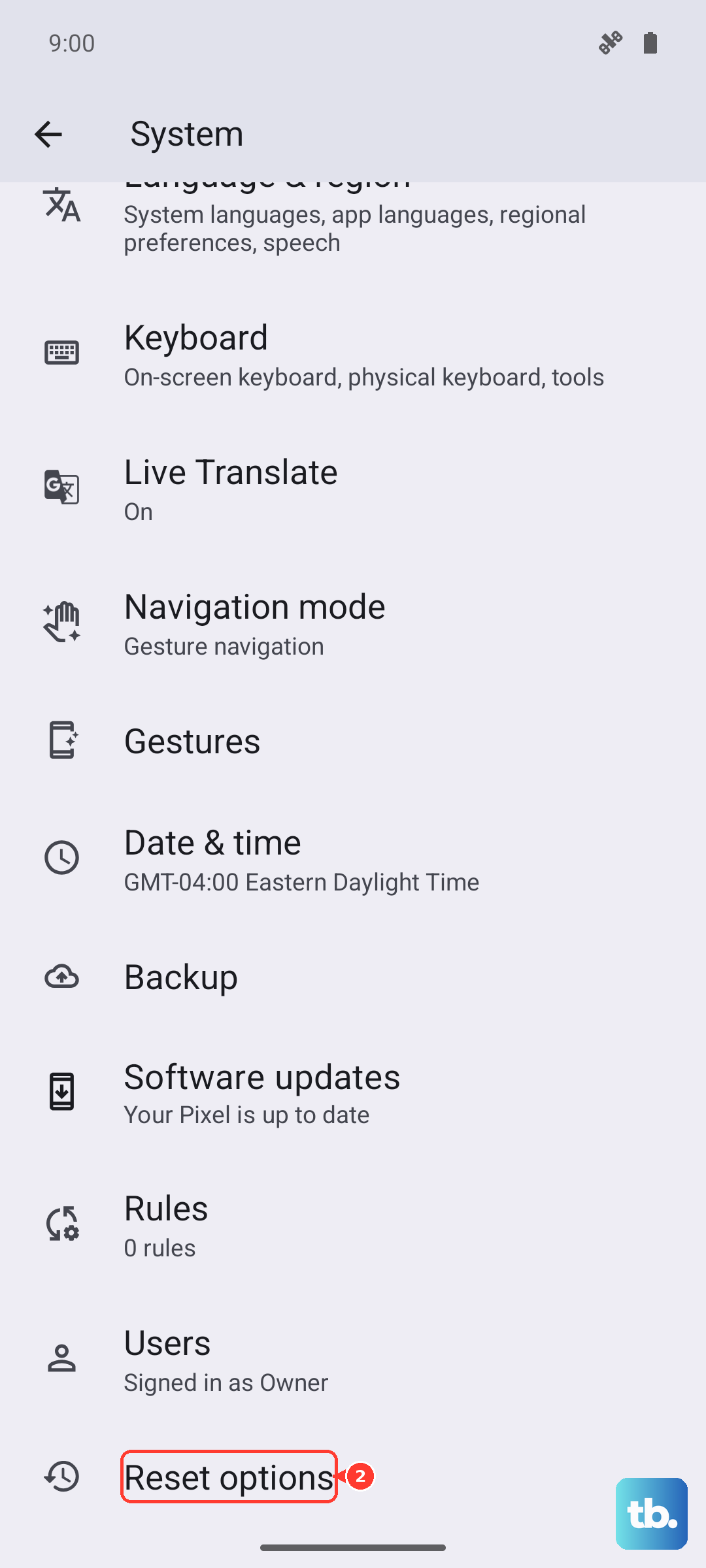
A factory reset will wipe the phone back to its original state. You can do this by going to Settings > System > Reset options > Erase all data (factory reset). After the reset, set the phone up as new without restoring a backup immediately. Use it for a day to see if the overheating persists. If the phone stays cool, the issue was likely software-related.