
If your Google Pixel 8 is getting uncomfortably warm, you're not alone. This is a common issue with modern smartphones, especially when they're pushing their powerful processors. An overheating phone can lead to performance slowdowns, rapid battery drain, and in some cases, it might even stop charging to protect itself.
Let's get straight to the most common fix. First, check what's running. Swipe down from the top of your screen twice to see the full Quick Settings panel, then tap the battery icon. If you see a message that says "Phone is warm," it will often list the app causing it. Force close that app immediately.
If the phone is hot to the touch, take it out of its case. Cases, especially thick or poorly ventilated ones, trap heat. Place the phone on a cool, hard surface like a table or countertop and let it sit for a few minutes. Avoid leaving it on a bed, couch, or in direct sunlight.
Stop Fast Charging Temporarily
Your Pixel 8 supports 27W wired and 18W wireless fast charging, which generates more heat than standard charging. If the phone or your environment is already warm, this can push it over the edge. Unplug it from the fast charger and use a standard 5W or 10W USB-C charger instead until it cools down.
You can also disable Adaptive Charging if you think it's acting up. Go to Settings > Battery > Adaptive charging and toggle it off. There was a known bug where the phone would stop at 80%, and while a fix was released, turning this feature off can help rule it out.
For wireless charging, make sure the charger and phone are aligned properly. Misalignment causes the charger to work inefficiently, generating excess heat. Also, remove any metal objects or cards between the phone and the charger.
Update Your Software
Google has released several firmware updates addressing thermal management and charging bugs. It's crucial to be on the latest version. Go to Settings > System > System update and tap "Check for update."
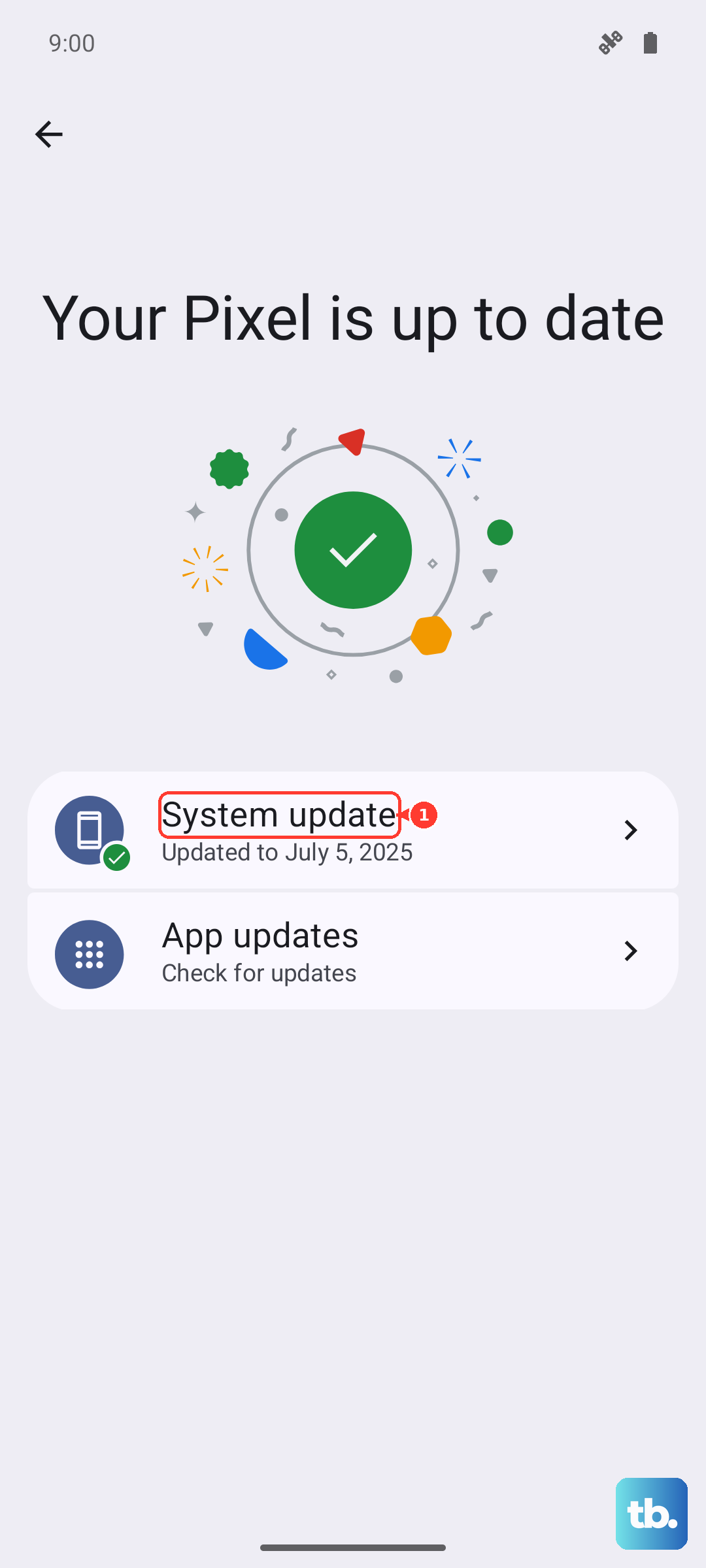
Install any available updates, as they often contain optimizations for the Tensor G3 chip's performance and efficiency. I've seen updates resolve overheating issues that were purely software-related, especially after a major OS upgrade to Android 15.
While you're there, also check for app updates in the Google Play Store. A buggy app, particularly one with background location or constant sensor access, can be a major source of heat.
Manage Background Activity and Performance
Some apps are just power-hungry. Open Settings > Battery > Battery usage. Look for apps with unusually high background usage. Tapping on an app will let you restrict its background activity.
For intensive tasks like gaming or video recording, try lowering the graphics settings in the app itself. The Pixel 8's screen can also get bright and warm. Consider reducing the brightness manually or disabling Adaptive Brightness temporarily in Settings > Display.
If you're using mobile data in an area with a weak signal, the modem works harder, generating heat. Switching to Wi-Fi or enabling Airplane mode for a short period can let the phone cool down.
Inspect Your USB-C Port and Accessories
A dirty or damaged USB-C port can cause connection issues and irregular charging, which leads to heat. Power off the phone first. Then, using a non-metallic tool like a plastic toothpick or a can of compressed air, gently clear any lint or debris from the port.
Try a different USB-C cable and power adapter. A faulty or out-of-spec cable can cause resistance and heat buildup. Always use certified accessories when possible. The same goes for wireless chargers, stick with Qi-certified models.
Perform a Force Restart
If the phone is hot and unresponsive, a force restart can clear any temporary software glitches. Simply press and hold the Power button for about 30 seconds. Release it when you see the Google logo appear on the screen.
This is different from a normal restart and doesn't erase any data. It's a good first step if the device feels sluggish and warm, as it kills all processes and starts fresh.
Reset App Preferences or Consider a Factory Reset
If a specific app seems to be the culprit repeatedly, you can reset all app preferences. This won't delete app data, but it will reset permissions, background restrictions, and default apps. Go to Settings > Apps > See all apps, tap the three-dot menu, and select "Reset app preferences."
As a last resort, if the overheating is persistent and not related to a specific, avoidable situation, you might consider backing up your data and performing a factory reset. This rules out any deep-seated software corruption. Go to Settings > System > Reset options > Erase all data (factory reset).
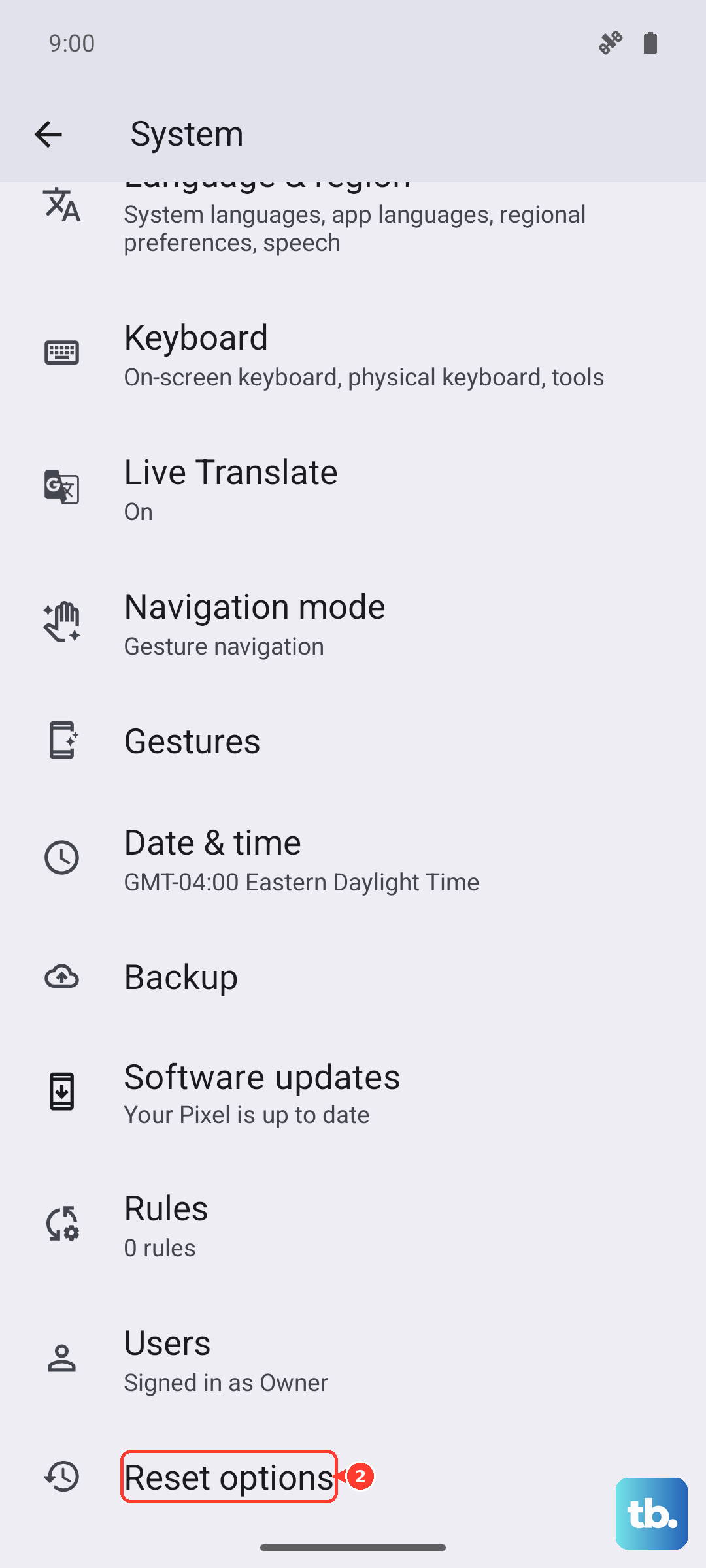
Remember to exhaust the simpler fixes first. Most Pixel 8 overheating is temporary and caused by environmental factors, fast charging, or a misbehaving app that just needs to be closed or updated.