
If your Google Pixel 9 feels unusually warm to the touch or you're getting overheating warnings, it's usually a sign that something is pushing the processor too hard. Modern phones like the Pixel 9 pack a lot of power into a slim body, and sometimes that heat needs to be managed. I'd start by checking what's running in the background, as that's the most common culprit.
First, try a simple restart. Press and hold the power button for up to 60 seconds, then release it when the Google logo appears. This force restart clears out any temporary glitches that might be causing a process to run wild and generate heat.
Check for Rogue Apps and Background Activity
After restarting, open your recent apps view and swipe away everything. Then, go to Settings > Battery and look at the battery usage graph. Tap on "See full device usage" to get a detailed list of which apps have been consuming power since your last full charge.
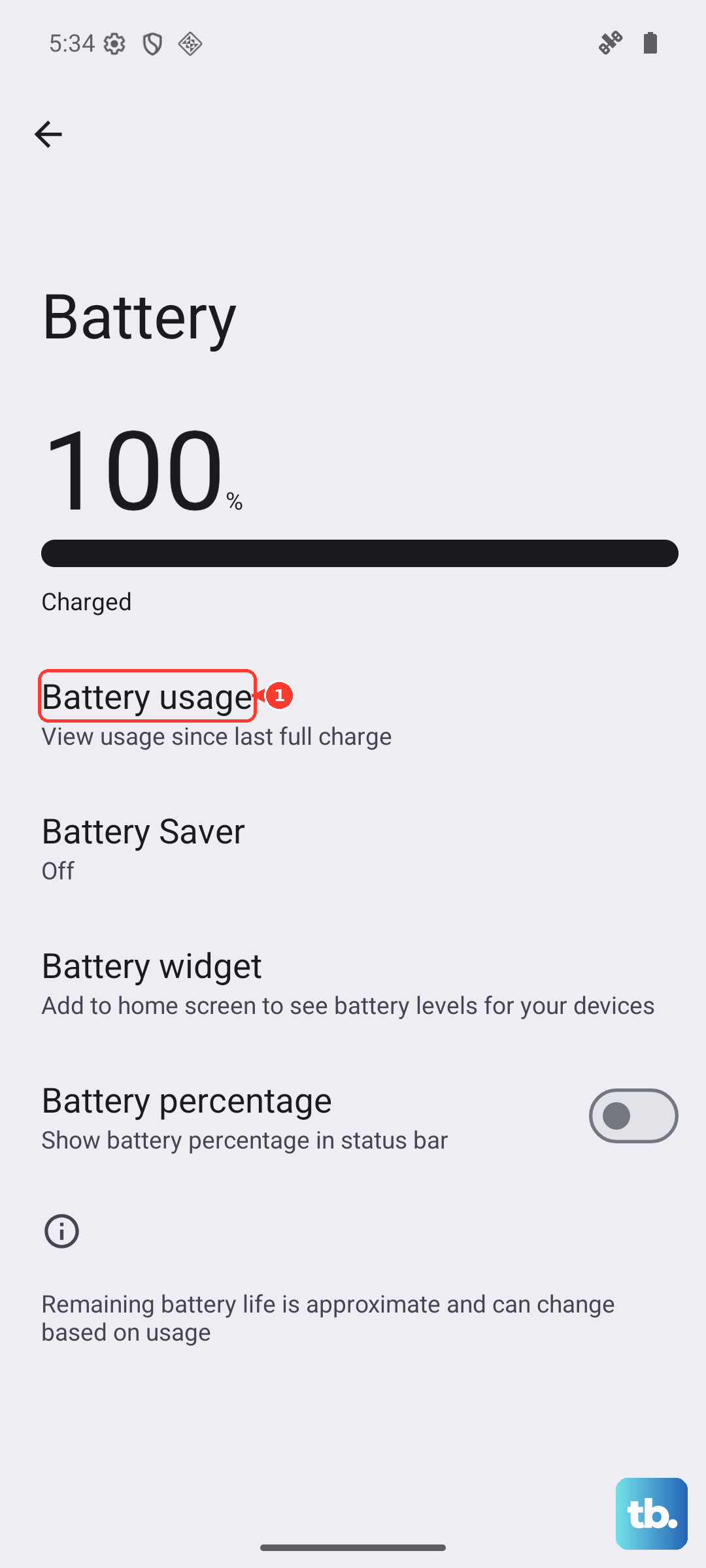
Pay close attention to apps you don't actively use but are showing high background usage. Social media, navigation, and weather apps are frequent offenders. If you spot one, go to Settings > Apps, select the app, and tap "Force stop." For a longer-term fix, go into that app's settings and look for options to restrict background data or battery usage.
Sometimes, a recent app update can introduce bugs that cause overheating. Check the Google Play Store for updates to any apps you suspect, or consider temporarily uninstalling a newly added app to see if the temperature goes back to normal.
Adjust Your Display and Performance Settings
The Pixel 9's bright, smooth display is a major battery and heat source. Lowering the screen brightness can have an immediate cooling effect. Also, consider reducing the screen timeout so it turns off faster when not in use.
You can also change the refresh rate. Go to Settings > Display > Smooth display. Toggle this off to lock the refresh rate at 60Hz instead of the adaptive 120Hz. The lower refresh rate is easier on the processor and generates less heat, especially during long browsing or video sessions.
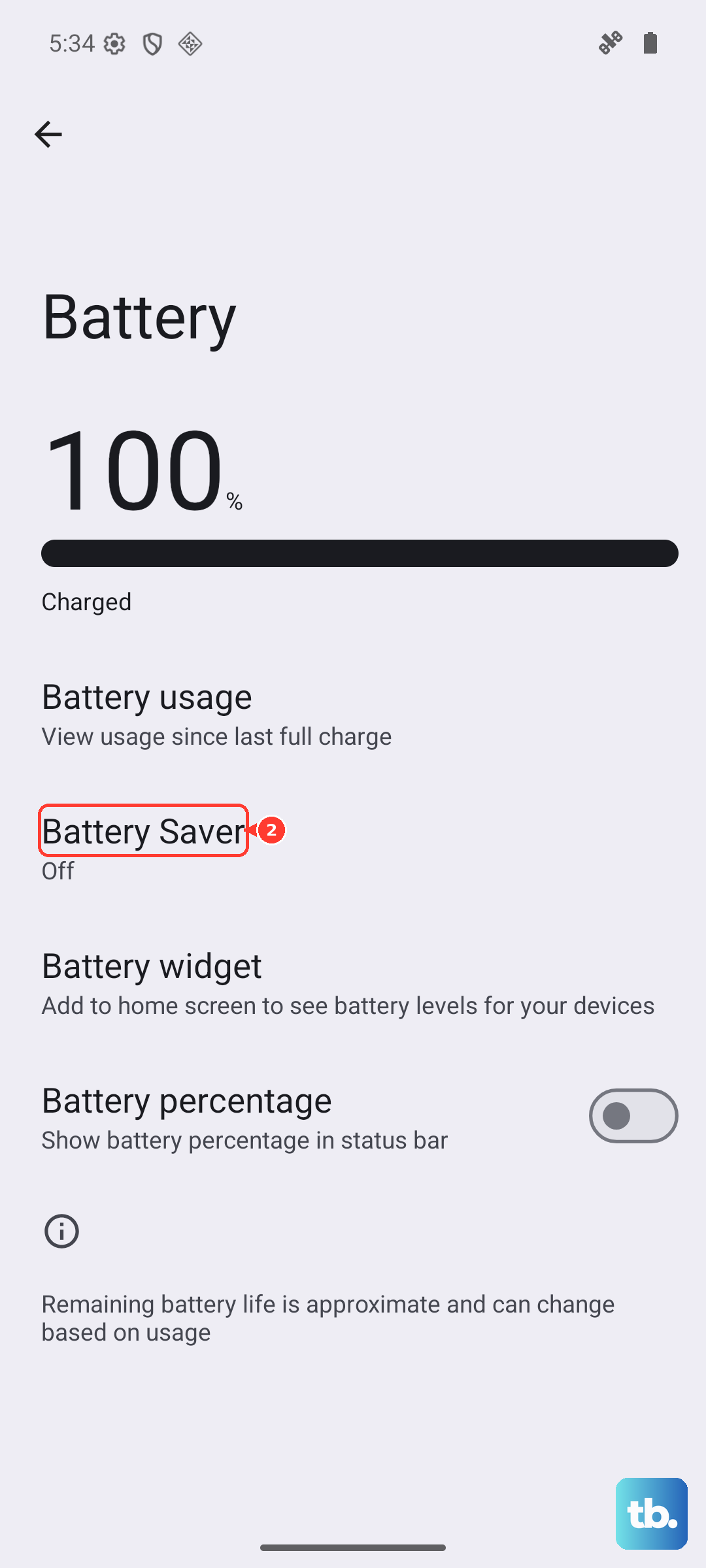
For a more aggressive approach, enable Battery Saver. This limits background activity, reduces visual effects, and caps performance. You can turn it on manually from the Quick Settings panel or in Settings > Battery > Battery Saver. Be aware that Extreme Battery Saver can sometimes interfere with normal phone functions, so use the standard mode first.
Manage Your Charging Habits
Charging, especially fast charging, naturally generates heat. If your phone is overheating primarily while plugged in, take it out of its case. Cases can trap heat against the phone's body, preventing it from dissipating properly.
Make sure you're using a compatible charger. The Pixel 9 supports up to 27W wired charging, but it works best with Google's official 30W USB-C charger. Using an underpowered or poorly made charger from another brand can cause inefficient charging that produces excess heat.
Also, check your Adaptive Charging settings. This feature, found in Settings > Battery > Adaptive charging, learns your routine and intentionally holds the charge at around 80% overnight until just before your alarm. This is better for long-term battery health and generates less sustained heat than trickling to 100% all night. If your phone is warm on the charger in the morning, this is likely why.
Update Your Software and Mind Your Environment
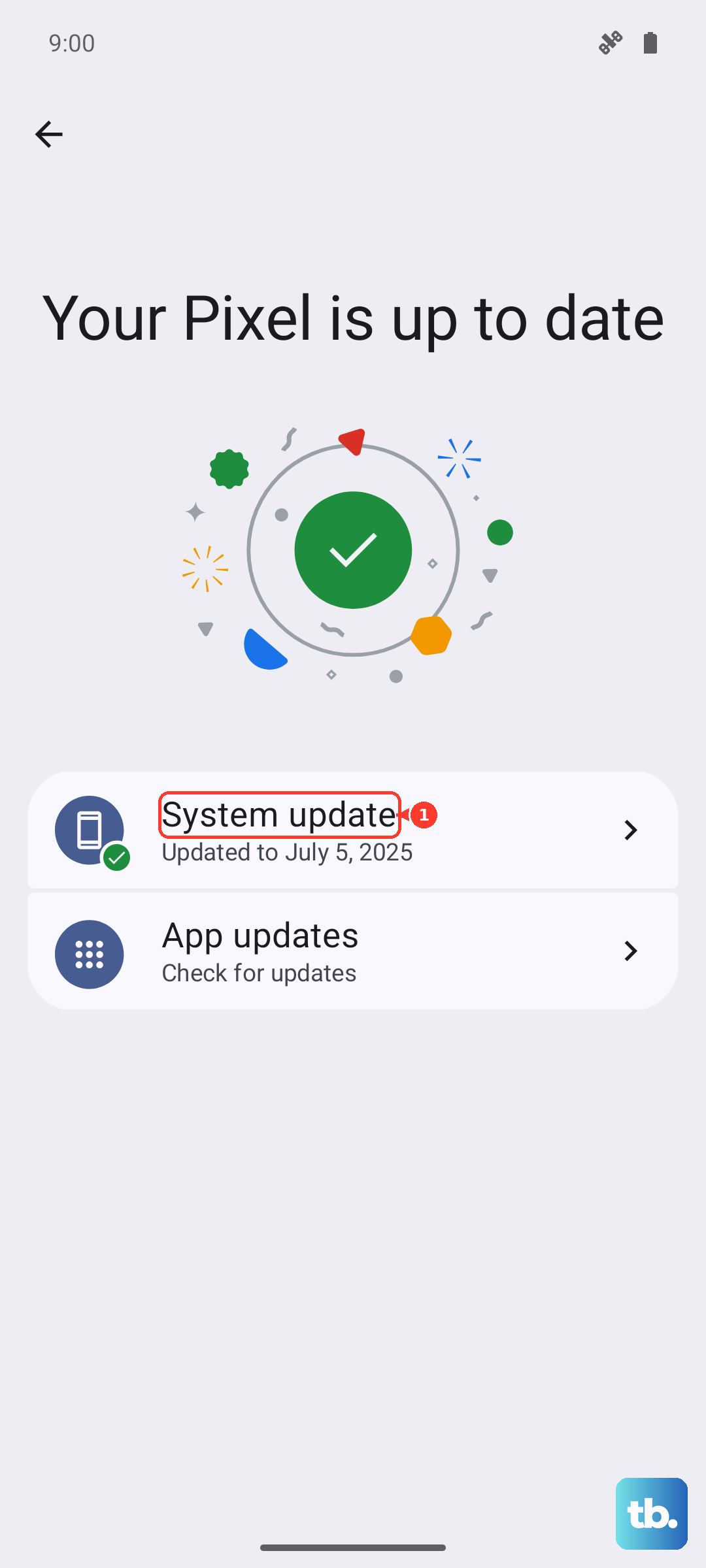
Google frequently releases updates that include thermal management improvements and bug fixes. Go to Settings > System > System update to check for the latest Android version or security patch. Some users have reported specific charging and heat-related bugs after major Feature Drop updates, which are often resolved in a follow-up patch.
Your physical environment plays a big role. Avoid using your Pixel 9 in direct sunlight, like on a dashboard during a summer drive. Don't leave it on a blanket, couch, or other soft surface that can insulate heat, especially while gaming or charging.
If you're doing something intensive like recording 4K video, playing a graphics-heavy game, or using GPS navigation for a long drive, expect the phone to get warm. This is normal. Try to take breaks, close the app when you're done, and give the phone a moment to cool down. Turning on Airplane mode for a few minutes can also help it shed heat quickly by shutting down the power-hungry cellular radio.