
If your Pixel 9's camera app won't open, freezes, or just shows a black screen, start with a simple restart. Press and hold the power button until the shutdown menu appears, then tap Restart. This clears out any temporary glitches in the camera system that can happen after an app update or a minor software hiccup.
Before digging into settings, open a quick online camera test in your browser. If the preview shows a live picture, the camera hardware works and the issue is with app permissions or configuration.
Give the phone a full minute to reboot completely. Once it's back on, try opening the camera again from the lock screen shortcut or the app drawer.
Key Points
- Force Close and Update the Camera App: A stuck app process is often the culprit.
- Clear the Camera App's Cache and Data: Corrupted temporary files can break the camera.
- Check for Android System Updates: Google frequently releases camera fixes in monthly updates.
- Boot Into Safe Mode: This will tell you if a third-party app is interfering.
- Inspect for Physical Damage or Obstructions: A case or a piece of debris might be blocking a lens.
- Reset All App Preferences: This can fix permission issues without deleting your data.
- Check for Overheating: The Pixel 9 will disable the camera if it gets too hot.
- Try a Third-Party Camera App: This helps determine if the problem is with the hardware or Google's app.
- Perform a Factory Reset: Use this as a last resort to rule out deep software corruption.
Force Close and Update the Camera App
Sometimes the camera app gets stuck in the background. Swipe up from the bottom of your screen and hold to enter the recent apps view. Find the Camera app and swipe it all the way up to close it. Then, head to the Google Play Store, search for "Google Camera," and see if an update is available.
I'd start with this one, as it's the quickest fix for a lot of random camera blackouts. Developers push updates to squash bugs, so making sure you have the latest version is crucial.
Clear the Camera App's Cache and Data
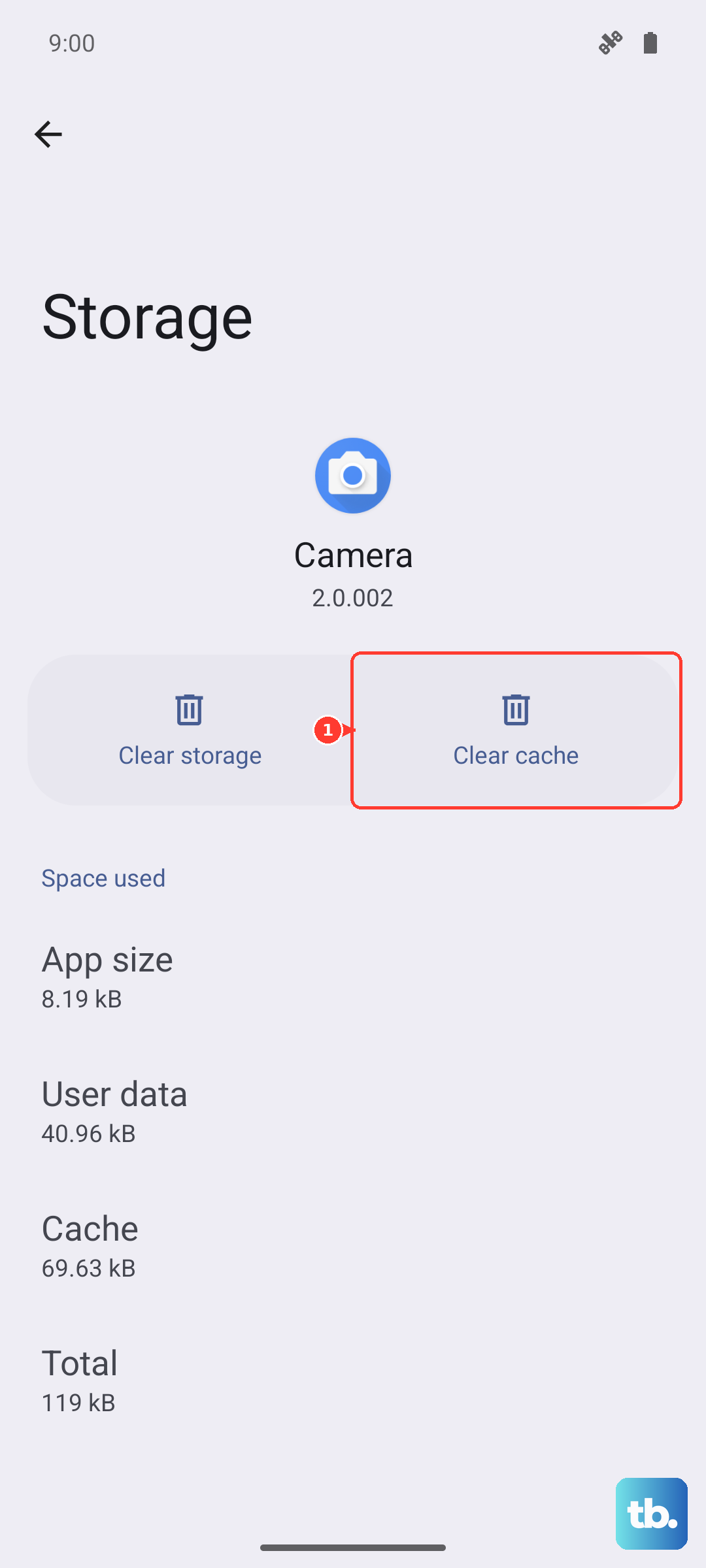
If updating didn't help, the app's stored data might be corrupted. Go to Settings > Apps > See all apps. Find and tap on "Camera." Select Storage & cache.
Tap "Clear cache" first. This deletes temporary files without touching your personal settings or photos. If the camera still fails, go back and tap "Clear storage" or "Clear data." This will reset the app to its default state, so you'll need to re-grant permissions and set your preferences again.
Check for Android System Updates
Google's monthly Pixel updates often include camera improvements and bug fixes. Open Settings > System > Software update and tap "Check for update." Install any available update and restart your phone when it's done.
In my experience, camera issues that pop up after a Feature Drop or a major app update are usually resolved by the next system patch. It's worth checking even if your phone says it's up to date, as updates sometimes roll out in stages.
Boot Into Safe Mode
Booting into Safe Mode temporarily disables all third-party apps. If your camera works perfectly here, you know a downloaded app is causing the conflict. To enter Safe Mode, press and hold the power button, then tap and hold the "Power off" icon on your screen until you see the Safe Mode prompt.
Tap "OK" to reboot. Test the camera. To exit, just restart your phone normally. You'll then need to uninstall recent apps one by one to find the offender.
Inspect for Physical Damage or Obstructions
Take a close look at the camera module on the back of your Pixel 9. Make sure the protective lens cover isn't cracked. Also, check if your phone case is properly aligned and isn't pressing against or covering any part of the camera bump.
Use a soft, dry microfiber cloth to gently clean all the lenses. Smudges and dirt can sometimes confuse the autofocus system or cause hazy images, which might feel like the camera isn't working right.
Reset All App Preferences
This is a useful step if camera permissions got messed up. It resets notification settings, default apps, and background data restrictions for all apps, but it won't delete any of your personal data. Go to Settings > Apps > See all apps.
Tap the three-dot menu in the top right and select "Reset app preferences." Confirm the action. Afterward, open the camera app, it will ask for permissions again. Grant them and see if it functions.
Check for Overheating
The Pixel 9 has safety features that will shut down the camera if the phone gets too hot. If you've been using it for extended video recording, gaming, or it's been sitting in direct sunlight, let it cool down for 10-15 minutes.
Remove the case to help it dissipate heat faster. Once it's back to a normal temperature, try the camera again. You might see a warning message like "Camera disabled. Phone is too hot." if this was the cause.
Try a Third-Party Camera App
Download a simple camera app from the Play Store, like "Open Camera." If this third-party app can access and use the camera hardware without issue, then the problem is almost certainly with the Google Camera app software or its data on your phone.
If the third-party app also shows a black screen or fails, it points more toward a system-level or hardware problem. This test is a great way to narrow down where the fault lies.
Perform a Factory Reset
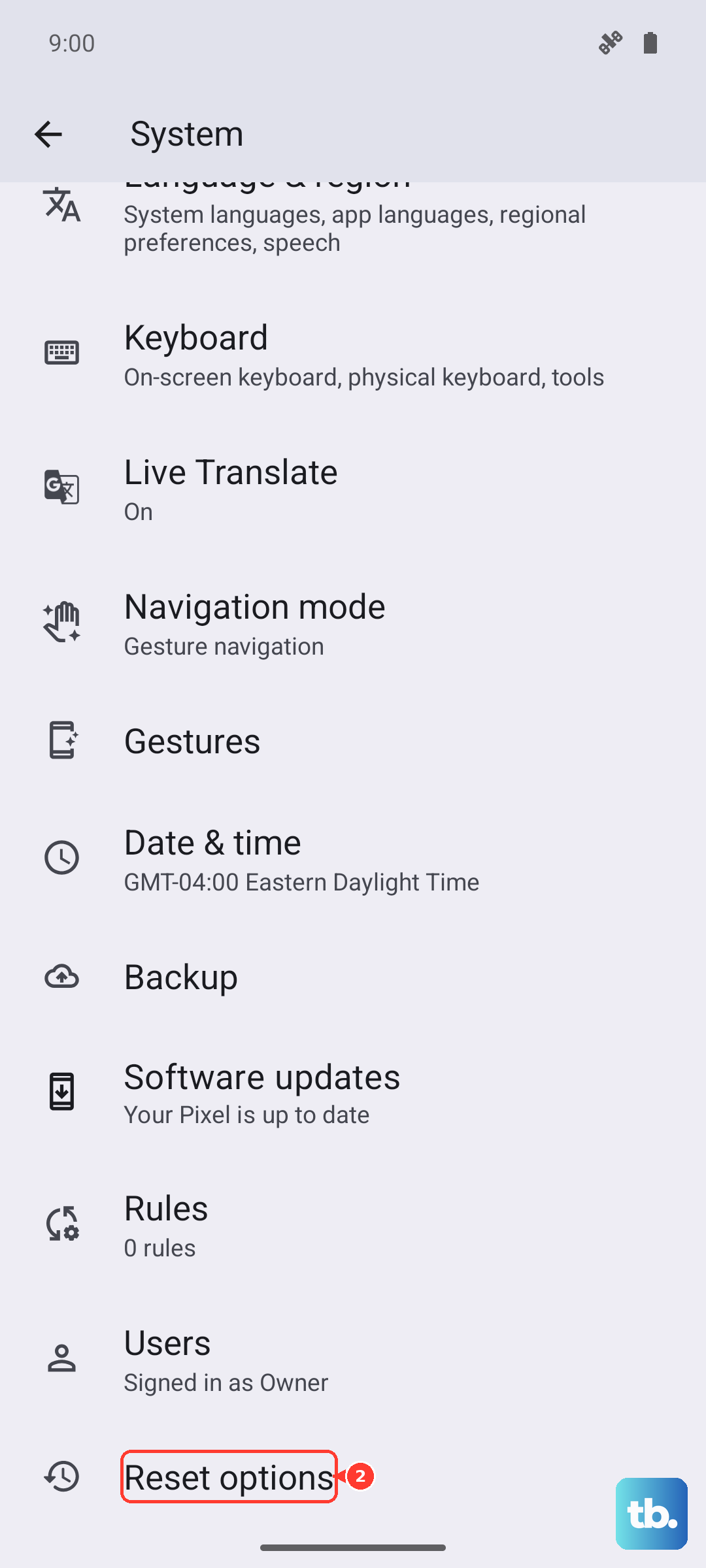
Before you do this, ensure you have a complete backup of your phone. A factory reset will erase everything and is the final step to rule out deep-seated software corruption. Go to Settings > System > Reset options > Erase all data (factory reset).
After the reset is complete, set up the phone as new without restoring a backup immediately. Test the camera right away. If it works, you can then restore your data, but be aware that restoring a backup could potentially bring back the problematic configuration.