
The Google Pixel 10a is usually a rock-solid phone, but a boot loop can turn it into a frustrating brick pretty quickly. The screen lights up, shows the Google logo, maybe the G animation plays, and then it restarts and does it all over again. You're stuck in a cycle with no way in. Here's how to break out of it.
Force a Restart
This is the first thing to try, and it works more often than you'd think for a temporary software glitch. Press and hold the Power button for about 30 seconds, or for up to 60 seconds until the device restarts. Don't let go just because the screen flashes, hold it until you feel a vibration or see the screen go completely black and back to the logo.
If the boot loop was caused by a rogue app or a minor crash during an update, this usually breaks the cycle. You'll boot straight back into Android 16 like nothing happened.
Let the Battery Drain or Wait
Sometimes the boot loop happens because of a system update that's still trying to install in the background. If the Google logo has a progress bar under it, that's a good sign it's still working. Just plug your Pixel 10a into a 45W USB-C PPS charger and let it sit for an hour.
If the bar isn't moving, the phone might be critically low on battery, causing it to restart over and over. Letting it charge undisturbed for a while can resolve this.
Boot into Safe Mode
Third-party apps are a common cause of boot loops. Maybe you installed a new launcher or a system modification app that didn't play well with Android 16. Safe Mode starts the phone with only the built-in software, blocking all third-party apps from running.
To get into Safe Mode, press and hold the Power button. When the power menu appears, long-press Restart (or Power off) until you see the Safe Mode prompt. Tap OK. If the phone boots up normally in Safe Mode, you know a downloaded app is the culprit. Uninstall recent apps or the last one you installed before the loop started.
Use Google's supported recovery path
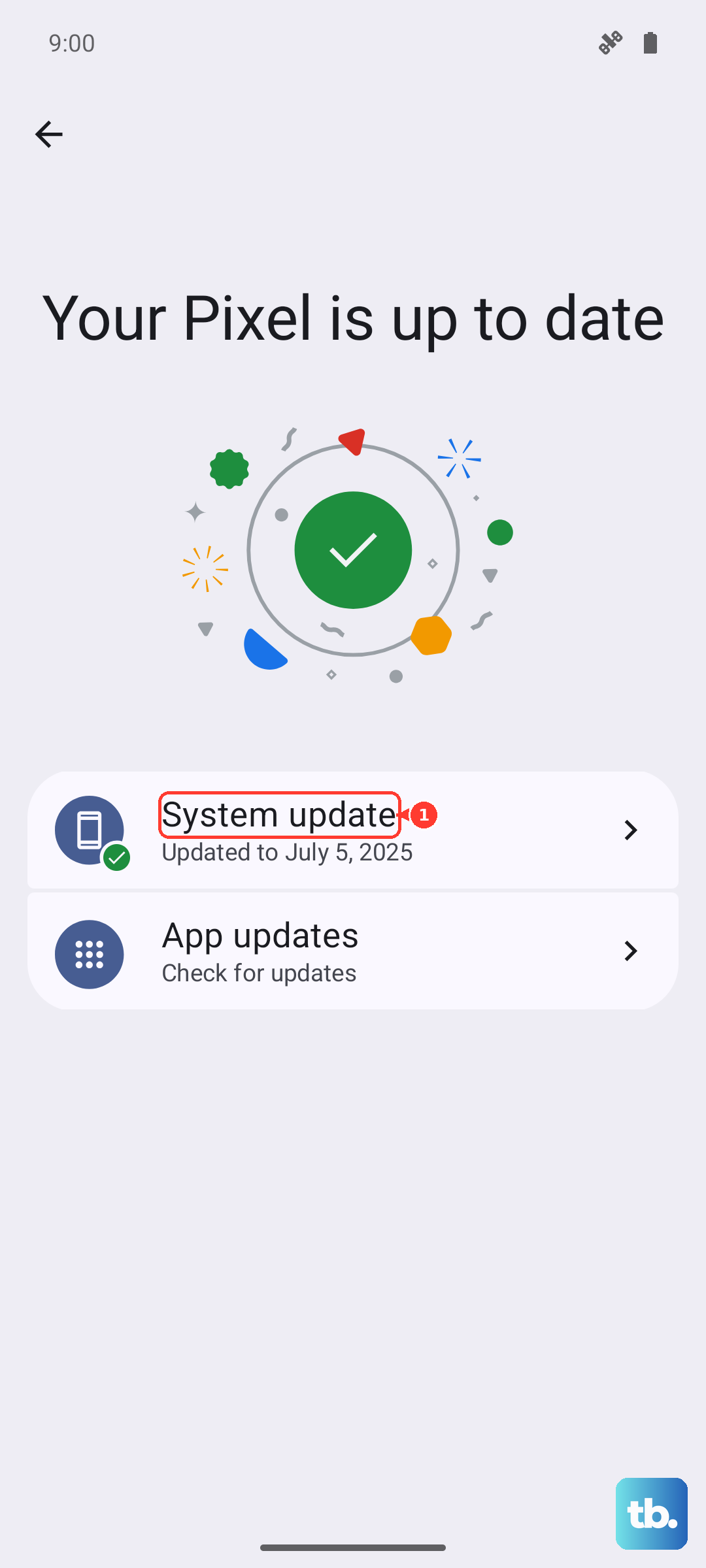
Skip the old recovery-cache wipe step on Pixel. If the phone can boot, restart it, check Settings > System > Software update, check Storage, and use Safe mode to test whether a downloaded app is causing the problem.
If the phone still will not boot, stays on the logo, or keeps restarting, Google's documented button-based recovery path is a factory reset from Fastboot/Recovery. That erases the phone, so use it only as a last resort after non-destructive steps and backups have been considered.
Factory Reset from Recovery
If a cache wipe doesn't break the loop, a factory reset is the nuclear option for software faults. Get back into Recovery Mode the same way (Power + Volume Down). This time, select Wipe data/factory reset.
You will lose everything that isn't backed up to the cloud, photos, messages, app data, all of it. After the reset finishes, select Reboot system now. The Pixel 10a will boot up fresh, asking you to set it up from scratch. If it gets stuck again during setup, that strongly points to a hardware problem.
Reinstall the Firmware with the Android Flash Tool
Factory reset still didn't work? The system partition itself might be too corrupted to recover. The best way to fix this is to reflash the entire operating system. You can use Google's Android Flash Tool on a computer (it works over the web in Chrome) or use the Fastboot command line tool.
Power off the phone. Hold Volume Down + Power to boot into the bootloader. Connect it to your computer, open the Android Flash Tool website, and let it download and flash the latest factory image for the Pixel 10a. In my experience, this fixes almost every software-based boot loop, no matter how bad it looks.
Check for Overheating
The Pixel 10a can get warm under heavy use, and if it's too hot, Android 16 will shut itself down to protect the hardware. If the boot loop started after gaming in the sun, using wireless charging, or fast charging, the phone might be thermally shutting down before it can finish booting.
Set the phone down in a cool place for 30-40 minutes. Don't put it in the fridge, condensation will kill it. Once it's room temperature, try the force restart sequence again.
Motherboard or Power IC Failure
If you've wiped the cache, factory reset, reflashed the OS, and the phone still won't stop rebooting, it's likely a hardware issue. A failing battery that can't hold voltage, a damaged power management chip, or a loose internal connector can all cause continuous boot loops.
At this point, contacting Google Store support or taking it to a local repair shop is the next step. If the phone is under warranty, Google will usually replace the device outright, which is the cleanest fix possible.