
Restart Your Pixel 10a First
Before anything else, try a quick restart. On the Pixel 10a, you can force restart by pressing and holding the Power button for 30 seconds, or pressing Power + Volume Down together for 10-15 seconds until the phone restarts. This clears temporary software glitches that might be blocking your network connection.
Often the SIM provisioning failure is just a hiccup after a recent software update or a roaming handoff. A forced restart reinitializes the modem and forces it to re-register with your carrier's network.
Check If Your SIM Is Actually Activated
If you just got a new SIM card for your Pixel 10a, it might not be activated yet. Contact your mobile carrier to verify the activation went through on their end. They can check if the SIM is properly linked to your account and provisioned for service.
Some carriers require you to complete an online activation process or call a number before the SIM becomes active. Double-check your onboarding paperwork or the carrier's app.
Toggle Airplane Mode to Refresh the Connection
Sometimes the Pixel 10a's modem gets stuck on an outdated network configuration. Toggling airplane mode forces it to disconnect and reconnect fresh. Swipe down from the top of the screen, tap the airplane mode icon, wait about 30 seconds, then tap it again to turn it off.
This is one of the quickest things to try and often resolves the provisioning error without any hassle. If your phone grabs a signal immediately after, you're all set.
Remove and Reinsert the SIM Card
A poorly seated SIM can trigger the not provisioned message. Turn off your Pixel 10a, then insert the SIM ejector tool into the small hole on the left side of the phone. The tray pops out, so check the SIM is clean and free of scratches or debris.
Place it back in the tray, making sure it sits flat and doesn't wiggle. Push the tray back in until it clicks, then power the phone back on. If the SIM was slightly shifted, this should fix it.
Update Carrier Services on Your Pixel 10a
Android 16 on the Pixel 10a uses Carrier Services as a system app to handle network provisioning. If it's outdated, the provisioning request might fail silently. Open the Google Play Store, tap your profile icon, then go to Manage apps and device. Look for Carrier Services under "Updates available" and install any pending update.
This is a specific Android fix that doesn't apply to every phone, but on the Pixel 10a it can make a real difference. I've seen this resolve the error on multiple devices running Android 16.
Make Sure Your Account Balance Is Good
If you're on a prepaid plan, an empty or low balance can cause your carrier to temporarily suspend service. That often shows up as a SIM not provisioned error. Check your account through your carrier's app, website, or by logging into your account page.
For postpaid plans, verify there are no billing issues or account holds. A quick call to customer service can clarify if there's a hold on your line.
Try Manually Selecting Your Network
The Pixel 10a usually picks the right network automatically, but sometimes it picks the wrong one or fails to connect to any. Go to Settings > Network & internet > Mobile network > Network operators. Tap "Search networks" and wait for the list to populate, then select your carrier from the results.
If you get an error like "Not allowed" or "Unable to connect," that points to a provisioning issue on the carrier side rather than the phone.
Reset Network Settings
If nothing else has worked, a network settings reset on the Pixel 10a can wipe out corrupted APNs or modem configurations. Go to Settings > System > Reset options > Reset mobile network settings. Confirm the reset and the phone will restart.
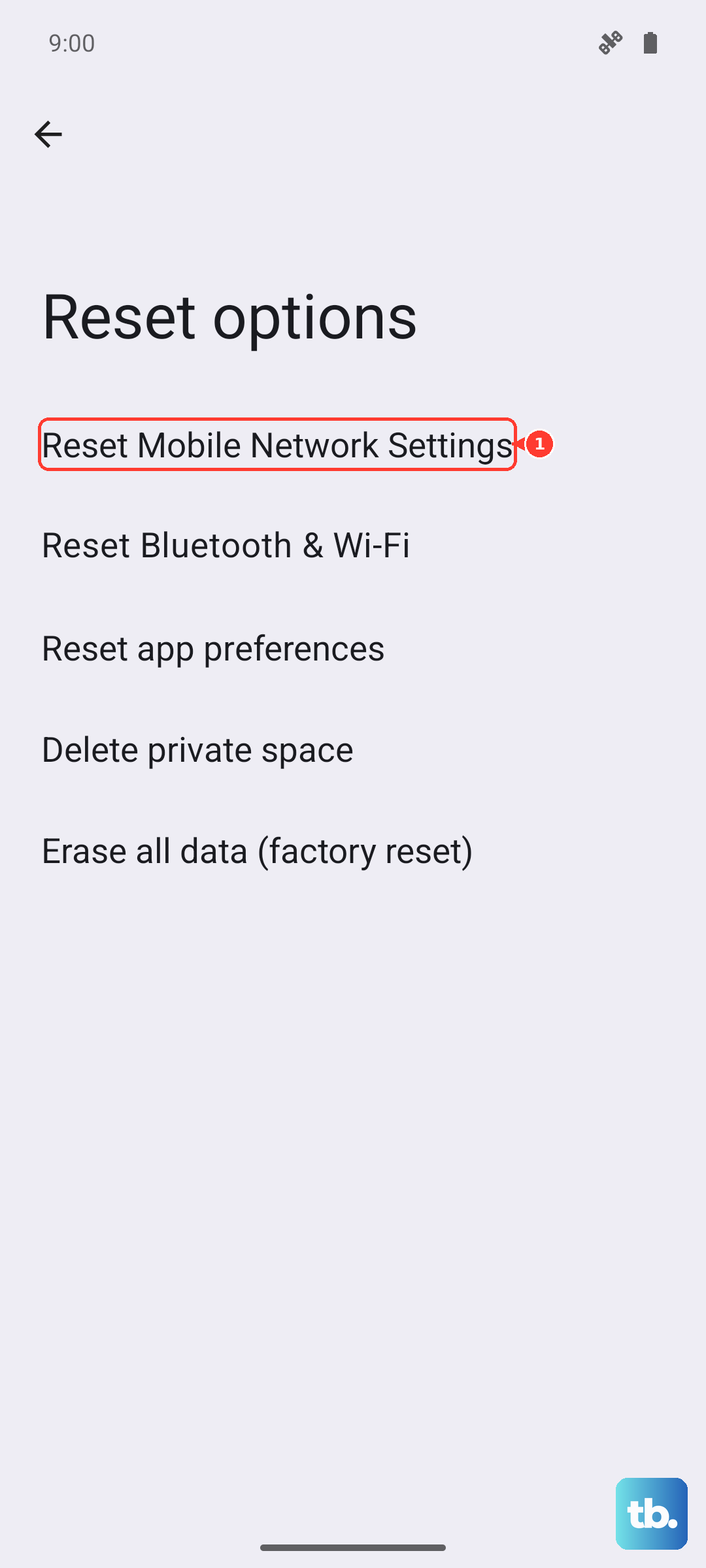
This clears saved Wi-Fi networks too, so you'll need to reconnect to your home Wi-Fi afterward. But it often clears the provisioning error when other steps haven't.
Contact Your Carrier Directly
If you've gone through all the steps above, the problem is likely on your carrier's end. They may need to reprovision your SIM or check for network outages in your area. Call or chat with them and mention the "SIM Card Not Provisioned MM2" error, they'll know exactly what that means.
In some cases, they might need to send you a replacement SIM if the current one is flagged as faulty or expired.
Test the SIM in Another Phone
This is a fast way to figure out where the problem lives. Insert your SIM into another unlocked, compatible phone. If it works normally, the issue is isolated to your Pixel 10a. If it shows the same provisioning error, the SIM itself or the account is the culprit.
If the SIM works fine in the other phone, a factory reset of your Pixel 10a might be worth considering as a last resort. Just make sure to back up your data first. Most of the time, though, one of the earlier steps will get you back online quickly.