
Factory resetting your Google Pixel 10a wipes everything and returns it to its original state. It's the nuclear option, but sometimes exactly what you need, whether you're selling your phone, fixing persistent software issues, or just starting fresh.
Back Up Your Pixel 10a Data
Before you reset, make sure your data is safe. Go to Settings > System > Backup and confirm that backup is turned on for your Google account. Tap Back up now to run an immediate backup. Your apps, settings, contacts, and more will be saved to Google Drive.
Also check that your photos are synced to Google Photos. Once you factory reset, everything on the device is gone permanently.
Remove Your Google Account First
It's critical to remove your Google account before resetting to avoid Factory Reset Protection (FRP) issues. Head to Settings > Passwords & accounts, tap your Google account, and select Remove account. This ensures you won't be locked out after the reset.
Reset from the Settings Menu
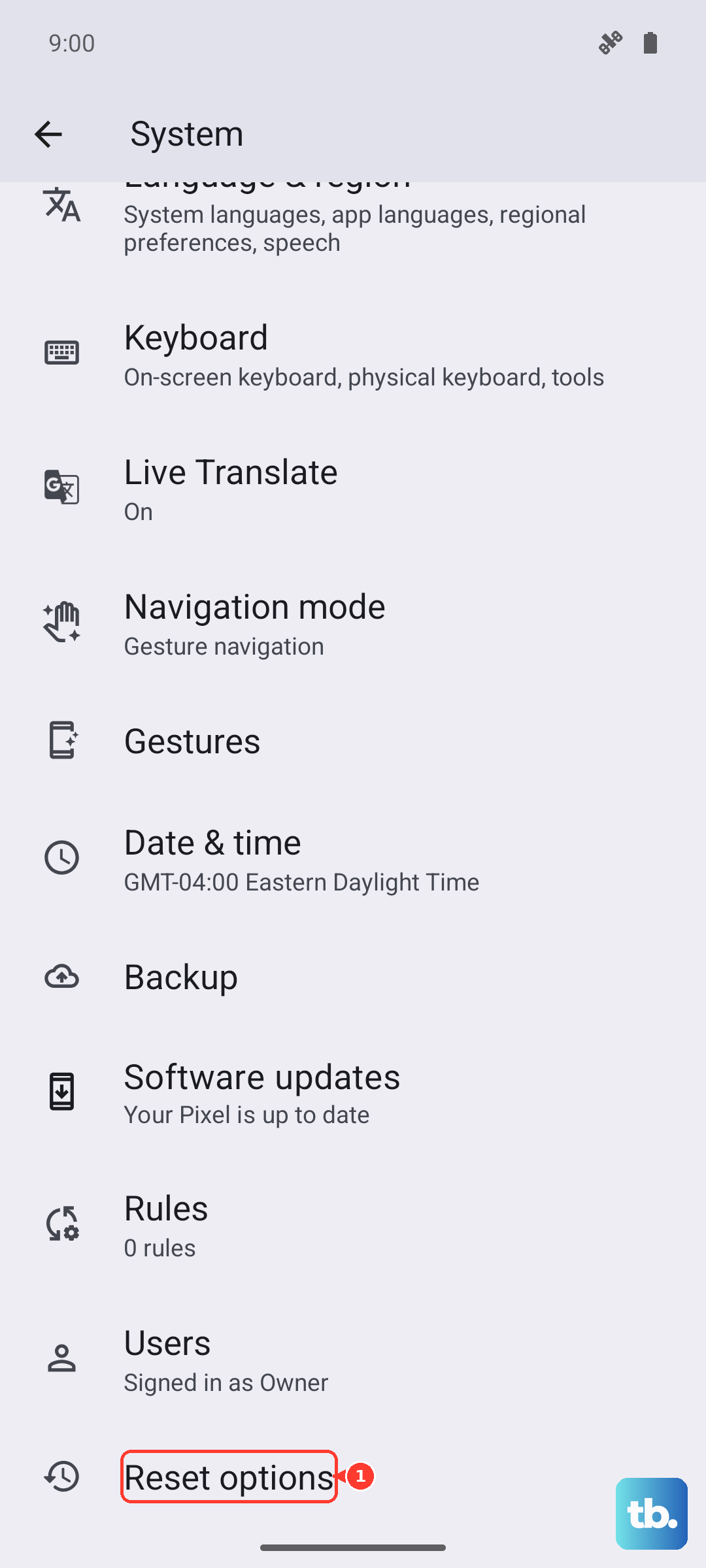
This is the most straightforward method on your Pixel 10a. Go to Settings > System > Reset options > Erase all data (factory reset). You'll see a list of everything that will be erased. Tap Erase all data and confirm with your PIN or password. The phone will restart and begin wiping everything. When it finishes, you'll see the initial setup screen.
If your phone is responsive, this is the way to go.
Hard Reset via Recovery Mode
If your Pixel 10a is frozen, stuck on a boot loop, or won't boot at all, use recovery mode instead. Start by turning the phone off completely. Then press and hold Power + Volume Down until the bootloader appears. Use the Volume buttons to navigate to Recovery mode and press the Power button to select it.
When you see the Android robot with "No command" on screen, hold the Power button and press Volume Up once. That opens the recovery menu. Navigate to Wipe data/factory reset and confirm. When it's done, select Reboot system now.
Lighter Reset Options
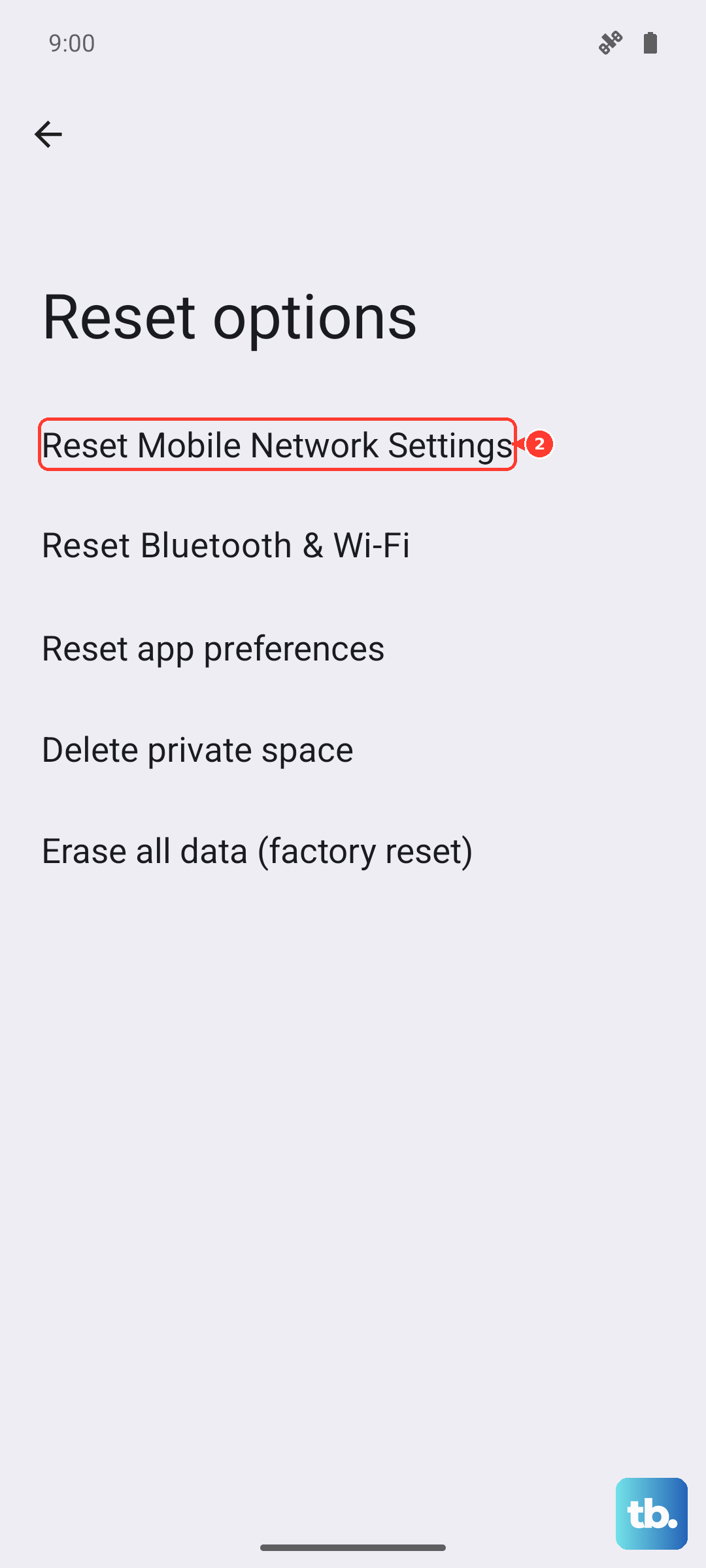
If you're dealing with something less severe, you don't need a full factory reset. Go to Settings > System > Reset options. From there you can reset only Wi-Fi, mobile & Bluetooth settings, reset app preferences, or reset network settings. These fix common problems without wiping your data.
For minor software glitches, try clearing the cache partition first. Boot into recovery mode using the steps above, but choose Wipe cache partition instead. It doesn't delete your personal files.
Restoring from Backup After Reset
Once the reset completes, your Pixel 10a will take you through the initial setup. Choose your language, connect to Wi-Fi, and sign into your Google account. You'll be asked if you want to restore from a backup. Pick the one you created earlier, and your apps, settings, and data will return.
Is a Factory Reset Necessary?
Factory reset helps with persistent lag, crashes, battery drain, or malware. It's also essential before selling your phone. For issues like software glitches where the phone doesn't recognize a charger or settings keep misbehaving, a reset often clears those hiccups. But if you're dealing with a clogged charging port or a bad USB-C cable, those are hardware issues a reset won't fix, clean the port gently with a wooden toothpick or try a different cable.
If your Pixel 10a is completely unresponsive and you can't even get to recovery mode, try a force restart first: press and hold the Power button for 30 seconds, or press and hold Power + Volume Down for 10-15 seconds until the device restarts. Only go the full factory reset route if that doesn't help.