
So your Google Pixel 10a won't charge. You've plugged it in, maybe tried a different cable, and nothing's happening. It's a common issue, and in most cases you can fix it yourself without heading to a repair shop.
The Pixel 10a uses a USB-C port for wired charging, supports Qi wireless charging at up to 10W, and can handle up to 45W wired when you use the right charger. Let's walk through the fixes from quickest to most involved.
Start with a Force Restart
This is always step one. A force restart clears out temporary software bugs that might be blocking your phone from recognizing the charger. It takes about 30 seconds and fixes the problem more often than you'd expect.
Press and hold the Power button for about 30 seconds, or for up to 60 seconds until the device restarts.
Once it boots back up, plug it in and see if the charging indicator appears on screen.
The Port Is the Usual Suspect
This fix solves the problem for a shocking number of Pixel 10a owners. Lint and dust pack into the USB-C port every time you slide your phone into a pocket or bag, and eventually there's so much gunk in there that the cable can't make a proper connection.
Grab a flashlight and take a look inside. If you see debris, turn off your Pixel 10a first. Then use a wooden toothpick to gently scrape out the lint. Don't use metal tools, they can damage the delicate contacts inside. Compressed air from a safe distance also works well. Tap the phone gently with the port facing down to shake loose anything stuck in there.
If the port looks damaged or the cable still feels loose after cleaning, you'll want a technician to take a look.
Check Your Cable and Charger
You need to figure out whether the problem is your cable, your adapter, or the outlet. The easiest way is to swap each one out individually. Try a different USB-C cable first. The Pixel 10a works best with a 45W USB-C PPS charger for fastest wired charging, but any decent USB-C charger should at least get power flowing.
Test with a different wall adapter, or plug your phone into a computer's USB-C port. Try a different wall outlet entirely. And remove your phone case, especially thick ones that might prevent the cable from seating fully.
If your Pixel 10a charges fine with a different cable, you've found your culprit. Toss the old one.
Try Wireless Charging as a Backup
If wired charging isn't working, grab a Qi wireless charger. The Pixel 10a supports Qi wireless charging at up to 10W, and this can help you figure out whether the problem is your USB-C port or something else entirely. If wireless charging works but USB-C doesn't, your port likely needs repair.
A couple of things to keep in mind: make sure the charger is properly aligned with the center of your phone, and remove any thick cases that might block the connection. If your Pixel 10a gets warm during wireless charging, it may slow down or pause, that's normal temperature protection kicking in.
Is Your Phone Overheating?
The Pixel 10a will stop charging if it gets too hot. This happens a lot when you're using the phone while it's charging, leaving it in direct sunlight, or charging on a soft surface like a bed or couch that traps heat.
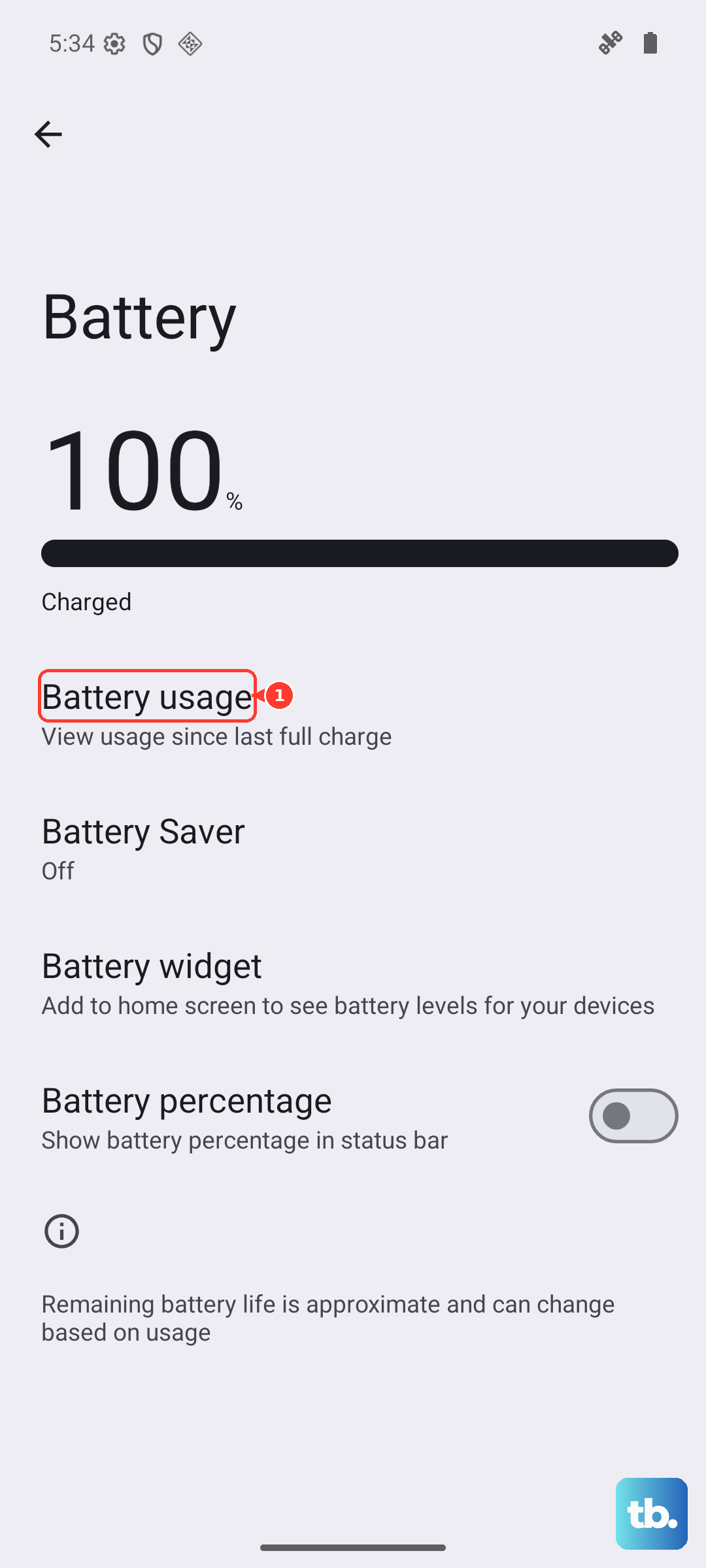
If your phone feels warm, unplug it and let it cool down in a shaded, well-ventilated area for 15 to 20 minutes. Once it's back to a normal temperature, try charging again. You can also check if any apps are running hot in the background through Settings > Battery > Battery Usage.
Update Android 16
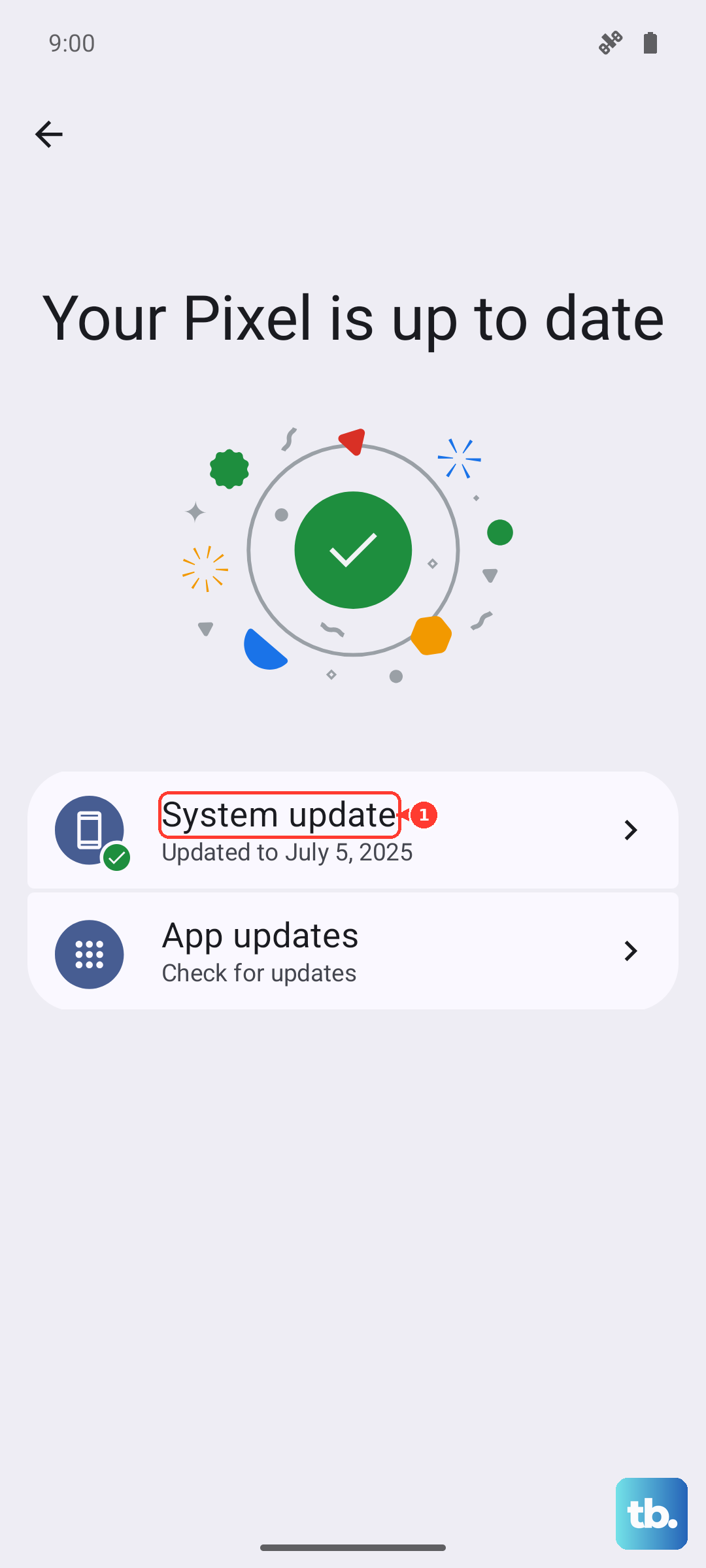
Google regularly patches charging bugs in Android 16 updates. If you're running an older version, updating could fix the issue. Go to Settings > System > System Update and check for any available updates. Download and install whatever shows up, then test charging again.
If your Pixel 10a won't turn on at all, you can update through a computer. Connect it to your computer with a USB-C cable, then use the Android Flash Tool or visit the Google Pixel support site for instructions.
Charge With the Phone Turned Off
Sometimes a rogue app or background process interferes with charging. Turn your Pixel 10a completely off by pressing and holding the Power button and tapping Power Off. Then plug it in. If it starts charging normally, you know it's a software issue.
This is also the fastest way to charge your phone when you're in a hurry. No screen, no apps running, just pure charging speed.
Check Battery Health
If your Pixel 10a charges but only to a certain percentage or drains unusually fast, the battery itself might be the issue. Go to Settings > About Phone > Battery Information to see your battery's estimated capacity. If it's significantly degraded, you might need a battery replacement.
You can also try a factory reset as a last resort, but back up your data first because this wipes everything. Go to Settings > System > Reset Options > Erase All Data (Factory Reset). After the reset, test charging before restoring your apps and data to see if the problem is resolved.