If your Google Pixel 10's battery seems to vanish before your eyes, you're not imagining things. A sudden, fast drain is almost always caused by a software setting or a misbehaving app, not a failing battery. Let's start with the quickest way to find the culprit.
Head to Settings > Battery > Battery usage. This screen is your best friend. It shows exactly which apps have been using power over the last 24 hours. If you see an app with a suspiciously high percentage that you haven't been actively using, that's your prime suspect. Tap on it to see details and force stop it.
Update Your Pixel and Apps
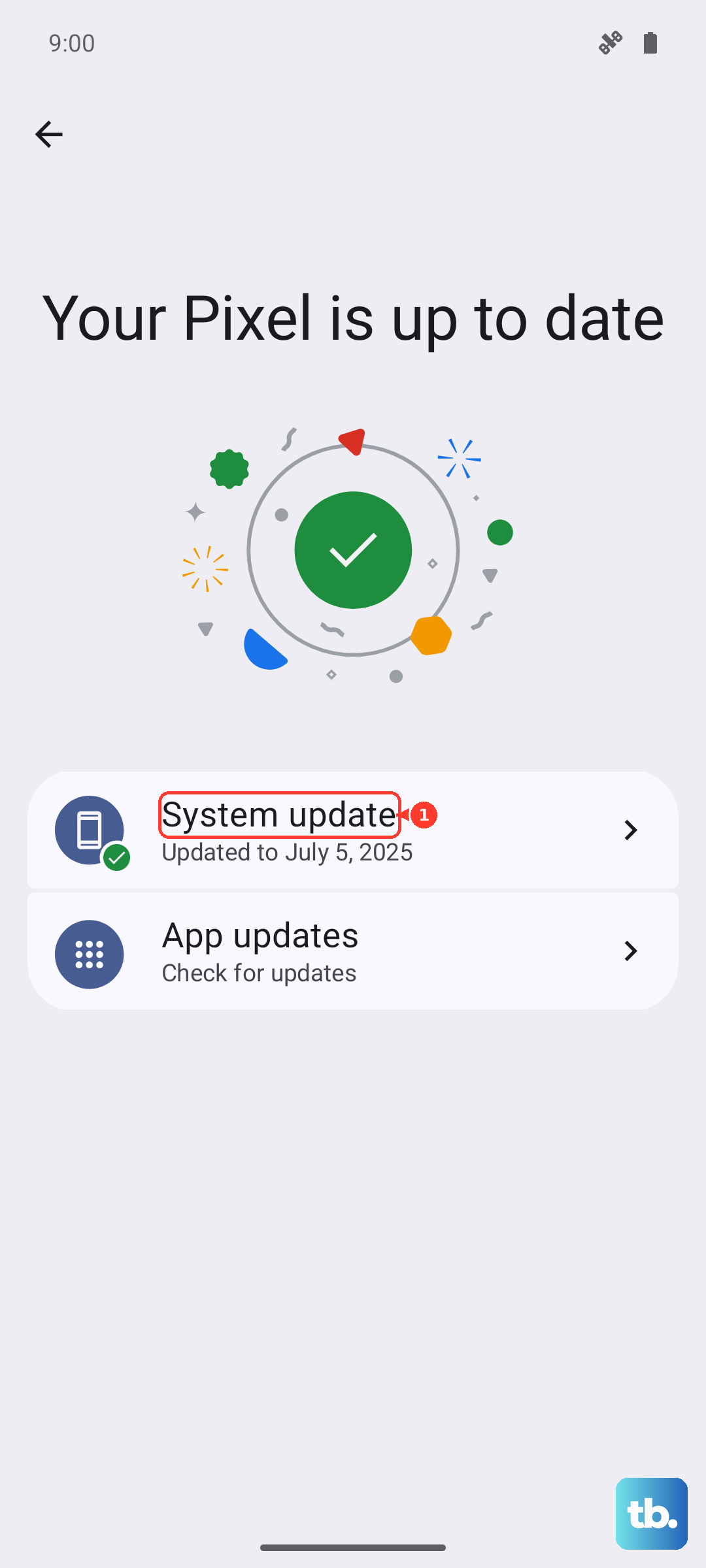
Before you dive into changing a bunch of settings, make sure your software is current. Google frequently releases updates that include battery optimizations and bug fixes for Android 16. Go to Settings > System > System update to check.
Outdated apps can also cause battery drain. Open the Google Play Store, tap your profile icon, and go to Manage apps & device. Install any available updates, especially for apps that showed high usage.
Manage Location Services
Constant location pinging is a major battery drain. You don't need every app tracking you all the time. Go to Settings > Location. Here, you can toggle it off entirely or, better yet, review app permissions.
Tap App location permissions. For most apps, change the setting from "Allow all the time" to "Allow only while in use" or "Ask every time." This prevents apps like weather widgets or social media from draining battery in the background.
Control Background Activity and Notifications
Some apps are too eager to run when you're not looking. Android 16 gives you good control over this. Go to Settings > Apps > See all apps. Select a power-hungry app and tap Battery.
You can set it to "Restricted" to severely limit background activity. Also, head to the app's notification settings and turn off any that aren't essential. Fewer wake-ups for notifications means less battery used.
Adjust Your Display Settings
The screen is your phone's biggest power consumer. A few tweaks here can make a big difference. First, lower the brightness manually or ensure Adaptive Brightness is on in Settings > Display.
Next, reduce the screen timeout. Go to Settings > Display > Screen timeout and choose 30 seconds or 1 minute. Also, enable Dark theme in the Display settings. On the Pixel's OLED screen, showing black pixels uses significantly less power.
Review Connectivity Features
Turn off what you're not using. If you're not connected to a Wi-Fi network, turn Wi-Fi off from the Quick Settings panel. The same goes for Bluetooth. While modern Bluetooth is efficient, it still uses power to scan for devices.
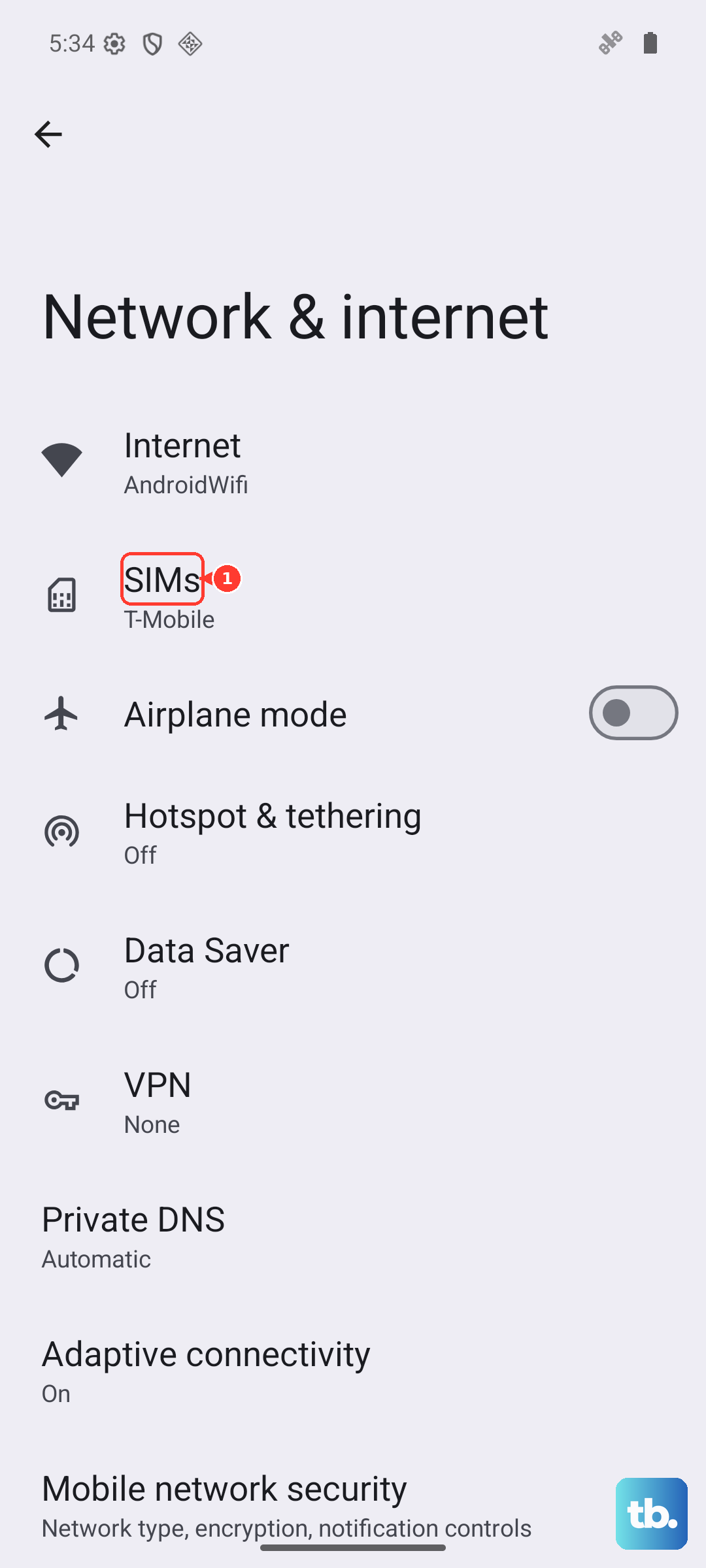
For mobile data, using 5G can drain battery faster than 4G/LTE in areas with weak signal. If you're in a spotty area, you can try forcing 4G. Go to Settings > Network & internet > SIMs > Preferred network type and select "LTE" to see if it helps.
Enable Adaptive Battery and Battery Saver
Your Pixel has smart features built-in to help. Adaptive Battery learns your usage patterns over time and restricts power for apps you rarely use. Make sure it's enabled in Settings > Battery > Adaptive preferences.
For a more immediate boost, use Battery Saver. You can turn it on manually from the Battery settings or Quick Settings. It limits background activity, location services, and other non-essential functions. I'd use this when you know you'll be away from a charger for a long time.
Check for Rogue Apps and Widgets
Sometimes a single app goes haywire. If you installed something new just before the drain started, try uninstalling it as a test. Also, take a look at your home screen widgets. Live widgets that constantly update, like a detailed weather widget, can use more power than static ones.
Consider removing widgets you don't actively need by long-pressing them and tapping "Remove."
Perform a Force Restart
If the phone is acting sluggish and the battery is dropping fast, a simple software glitch might be the cause. A force restart can clear this up without deleting any data. Press and hold the Power button and the Volume Up button together for about 10 seconds until the Google logo appears, then release.
Reset All Settings
If you've tried everything and the drain persists, a deeper setting might be misconfigured. You can reset all your system settings to their defaults without touching your personal data like photos or messages.
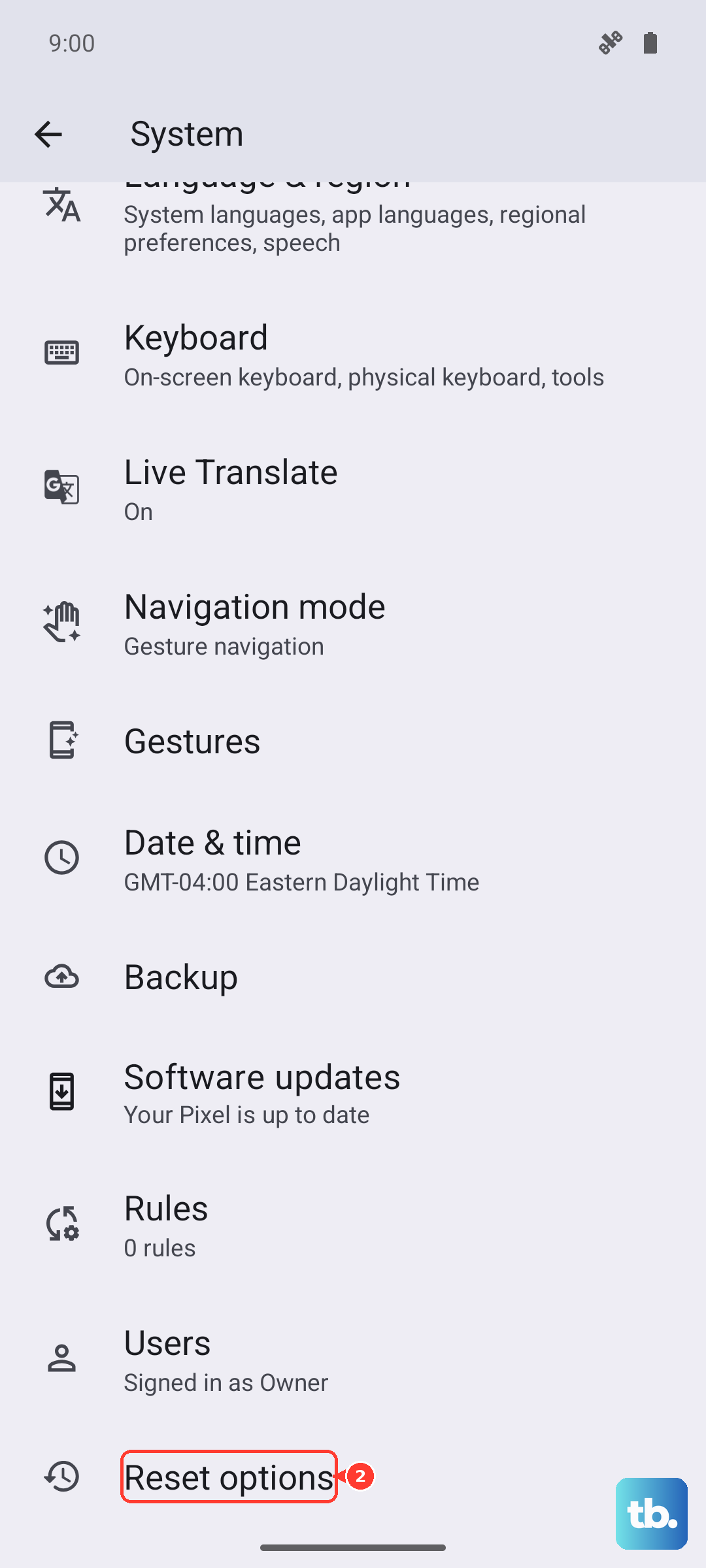
Go to Settings > System > Reset options. Tap Reset all settings. You'll have to re-enter Wi-Fi passwords and reconfigure things like ringtones, but it often resolves persistent software-related battery issues.