
You open the Galaxy Wearable app, hit Add device, and the scan spins forever. Or the Buds 3 Pro show up in your Bluetooth list but the connection drops at the last second. Same result, no sound, no controls, just a blinking case light you can't make sense of.
Before anything else, drop both buds into the charging case and close the lid for a full 15 seconds. Open the lid, then press and hold the button on the back of the case for about 5 seconds until the status light flashes blue. Try searching for them on your phone again. If that doesn't do it, work through the rest of these fixes.
Forget the Buds and Start Over
Open Settings > Connections > Bluetooth on your phone. Find Galaxy Buds 3 Pro in the list, tap the gear icon, and select Unpair. This clears the stuck handshake on your phone's side.
With the old pairing record gone, open Galaxy Wearable and tap Add device. The buds should show up immediately and connect without the conflict. Make sure they aren't still connected to another device, the Buds 3 Pro can only hold one active Bluetooth connection at a time.
Reset the Buds Inside the Galaxy Wearable App
If the button on the case doesn't get them into pairing mode, the app-based reset goes straight to the firmware. Open Galaxy Wearable. Tap About earbuds. Tap Reset. Confirm your choice.
Wait for the buds to reboot, which takes about 30 seconds. The LED on the case will flash blue when they're ready to pair. This reset clears internal glitches that a simple power cycle can't touch.
Make Sure the Case Battery Isn't Dead
This is the most common reason a case won't enter pairing mode. The case LED might not even light up if it's completely drained. Plug the case into a USB-C cable for 10 to 15 minutes.
The Buds 3 Pro case supports standard USB-C and Qi wireless pads, but stick to the cable for the fastest top-up. A solid green light on the case means you're good to go. If the light stays red or off, let it charge longer before retrying.
Check for a SmartThings Find Lock
If you bought these second-hand and they refuse to pair, factory-reset them instead of worrying about an account lock. Unlike Apple's AirPods, Galaxy Buds have no activation lock, so SmartThings Find can only locate or ring lost earbuds, not stop a new owner from pairing them once they are reset.
The original owner needs to open SmartThings Find on their device, select the Buds 3 Pro, and remove them from their account. You can't bypass this yourself. Make sure the seller confirms removal before you finalize any used purchase.
Update Your Phone's Software and Drivers
Android 10.0 or later with at least 1.5 GB of RAM is what you need to set up the Buds 3 Pro in the Galaxy Wearable app; on older or non-Samsung phones they still pair as a standard Bluetooth audio device. An outdated Galaxy Wearable app or bud firmware can still cause flaky connections. Open Settings > Software Update > Download and install.
You should also update the Galaxy Wearable app and the Galaxy Buds3 Pro Manager plugin from the Galaxy Store. Keeping these in sync solves random handshake failures that look like hardware problems. If you're on One UI 7 or later, you also unlock the full Galaxy AI features for the buds.
Turn Off Nearby Device Scanning
Android's automatic device switching feature can interrupt the manual pairing process. Go to Settings > Connections > More connection settings > Nearby device scanning. Toggle it off.
This stops your phone from trying to auto-connect to every Samsung device in range while you're trying to set up the Buds 3 Pro manually. Try pairing again, and you can turn the setting back on once everything is working.
Hard Reset the Buds Themselves
The case resets the connection, but the buds might have a software hiccup inside them that needs individual attention. Place both buds in the case and leave the lid open.
Press and hold both touchpads on the stems simultaneously for about 7 seconds. The LED should flash red, then green. Close the lid, wait 10 seconds, open it, and search for them in Galaxy Wearable again.
Try Pairing to a Different Phone or via iOS
This isolates the problem fast. Install the Galaxy Wearable app on another Android phone or the Galaxy Buds app on an iPhone. If the buds pair instantly to another device, the issue lives on your original phone.
If they refuse to pair to anything at all, you're likely looking at a hardware defect. The Buds 3 Pro are still relatively new, so Samsung's warranty or repair service would be the next step in that case.
Watch Your Grip During Pairing
The Buds 3 Pro have highly sensitive stem touch controls. If you're holding them by the stem while trying to pair, the accidental taps can cancel the process or trigger random commands.
Hold them by the earbud body, the part that goes in your ear, when placing them in the case or handling them during setup. After pairing, you can adjust the touch sensitivity inside Galaxy Wearable > Earbud settings > Touch controls to prevent future issues.
Clear the Bluetooth System Cache
If nothing else worked, the Bluetooth system service on your phone might have corrupted data blocking new connections. Open Settings > Apps > tap the three dots and select Show system apps. Find Bluetooth > Storage > Clear Cache, then Clear Data.
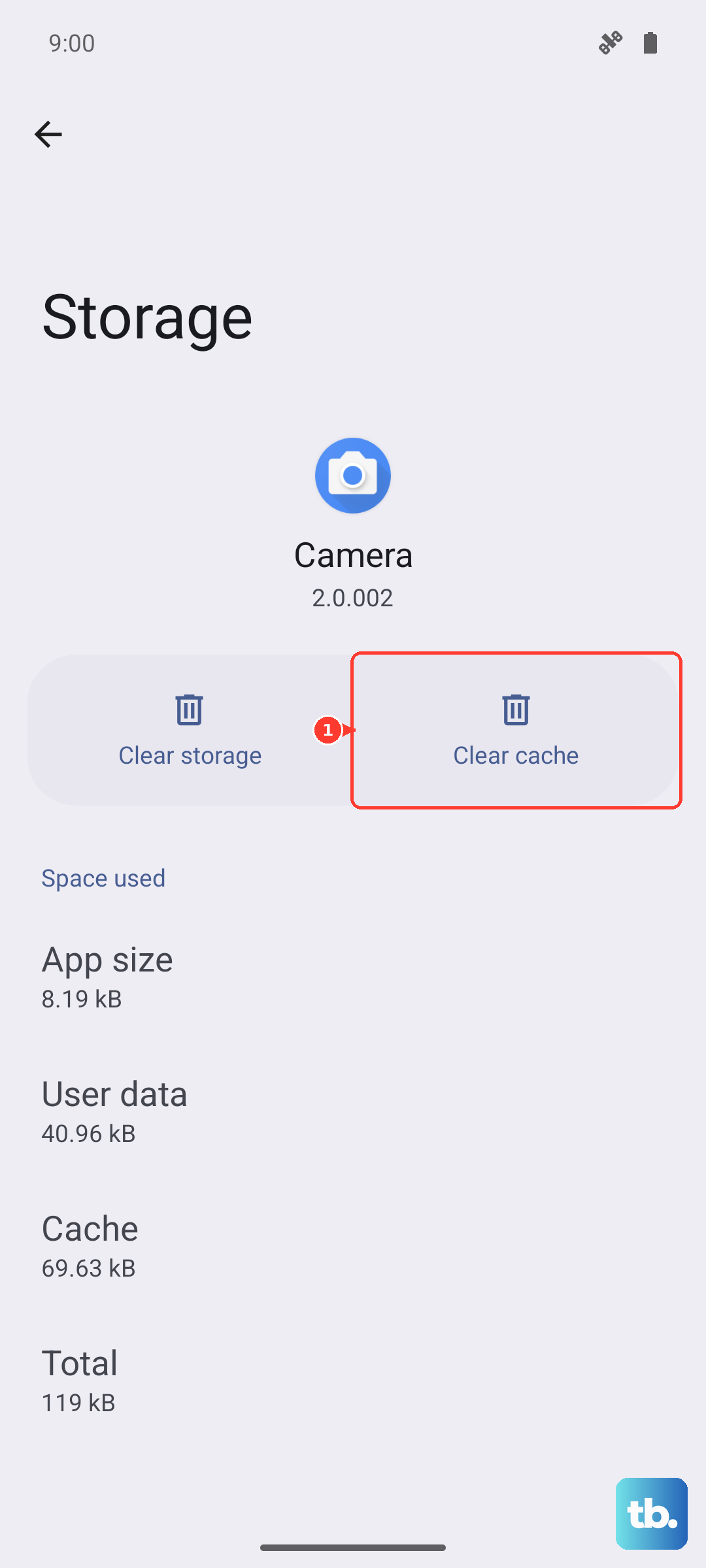
Your phone will forget all Bluetooth pairings, including your car, speaker, and watch, so you'll have to set those up again. But it completely clears the deck for the Buds 3 Pro and wipes out any deep corruption preventing a fresh connection.