When your iPhone camera will not focus, every photo comes out soft, hazy, or blurry no matter how steady you hold the phone. The good news is that most focus problems come from something simple like a dirty lens, a case in the way, or a setting that needs adjusting.
To know whether you are fixing hardware or software, try a online camera test in the browser. A working preview narrows the problem down to the app you were using.
Work through these 15 fixes in order. They run from the quickest checks to the deeper software steps, so you will usually solve the problem long before the end of the list.
Quick Diagnosis Before You Start
A blurry iPhone photo usually points to one of a few causes. Matching the symptom to the likely cause helps you jump to the right fix instead of guessing.
| Symptom | Likely cause | Fix to try |
|---|---|---|
| Every photo is hazy or foggy | Smudged or dirty lens | Fix 1 and Fix 2 |
| Blurry only on close-up shots | Macro mode not engaging | Fix 6 and Fix 7 |
| Camera hunts and never locks focus | Glitchy Camera app | Fix 3 and Fix 4 |
| Focus drifts as you move | No focus lock set | Fix 4 and Fix 5 |
| Image shakes or jitters | Magnetic mount or lens attachment | Fix 2 |
| Nothing focuses on any camera | Software bug or hardware fault | Fix 9 to Fix 15 |
Clean the Camera Lens
This is the single most common cause of a blurry iPhone camera. A fingerprint, a drop of water, sunscreen, or a speck of dust on the lens will fool the autofocus and soften every shot.
Wipe the rear and front camera lenses gently with a soft, dry microfiber cloth. Hold the phone up to a light at an angle so you can see any film or smudge you might have missed, then test the camera again.
Remove Your Case and Any Attachments
Apple specifically recommends taking off any case, film, or accessory that might block the camera or sit too close to the lens. A thick case, a cheap screen protector that overlaps the lens, or a stick-on lens kit can all push photos out of focus.
Magnets are a bigger problem than most people realize. Apple advises that if you see motion blur in low light while using a lens converter, a metallic case, or a magnetic lens mount, you should remove the accessory and test again. Pull off anything magnetic and shoot a test photo.
Tap the Screen to Focus
The iPhone focuses automatically, but you can tell it exactly where to look. While framing a shot, tap the part of the screen you want sharp and a yellow box appears around that spot to confirm the focus point.
If your subject is off-center or there are objects at different distances, tapping the right area often fixes a blurry result instantly. After tapping, you can swipe up or down on the screen to brighten or darken the exposure.
Lock the Focus With AE AF Lock
If the focus keeps drifting every time you move, lock it in place. Tap and hold on your subject for a couple of seconds until a yellow AE/AF Lock banner appears at the top of the screen, then let go.
This locks both the autofocus and the auto exposure, so your subject stays sharp even when you recompose the shot. To release the lock and return to normal autofocus, simply tap anywhere on the screen and the banner disappears.

Force Close and Reopen the Camera App
Like any app, the Camera app can hang or glitch and stop focusing correctly. Closing it fully clears the temporary error and starts it fresh.
Swipe up from the bottom edge of the screen and pause to open the App Switcher, or double-press the Home button on older models. Swipe up on the Camera app card to close it, then reopen the app and test the focus.
Turn On Macro Control for Close Ups
If photos are blurry only when you get close to your subject, macro mode is the answer. On iPhone 16 models and the iPhone 13 Pro, 14 Pro, and 15 Pro and Pro Max, the camera automatically switches to the Ultra Wide lens to stay sharp as close as about 2 cm.
Turn on the macro icon so you can control this yourself.
- 1.Go to Settings > Camera
- 2.Scroll down and turn on Macro Control
- 3.Open the Camera app and move close to your subject
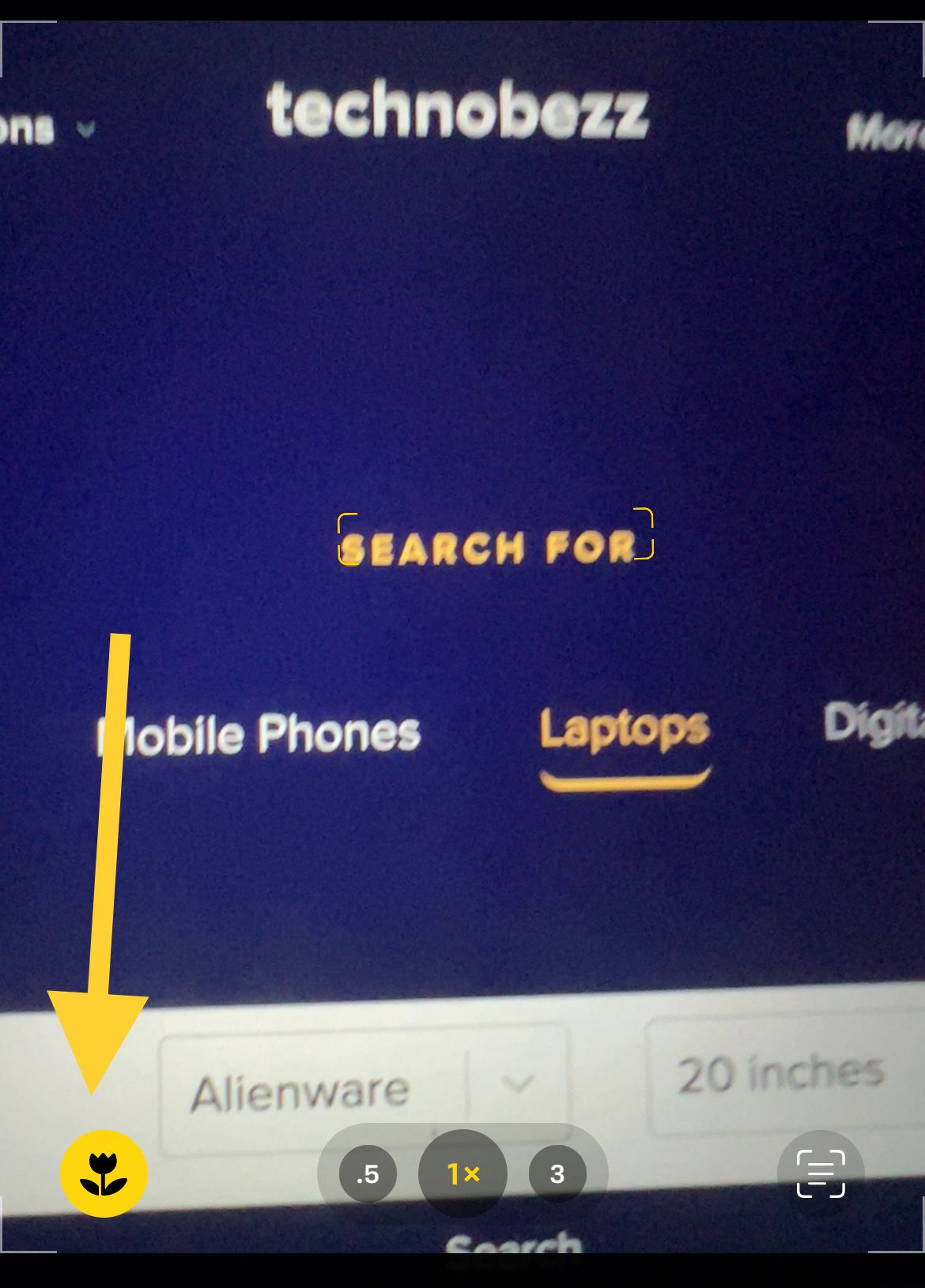
- 4.A yellow flower icon appears in the corner when macro mode is active
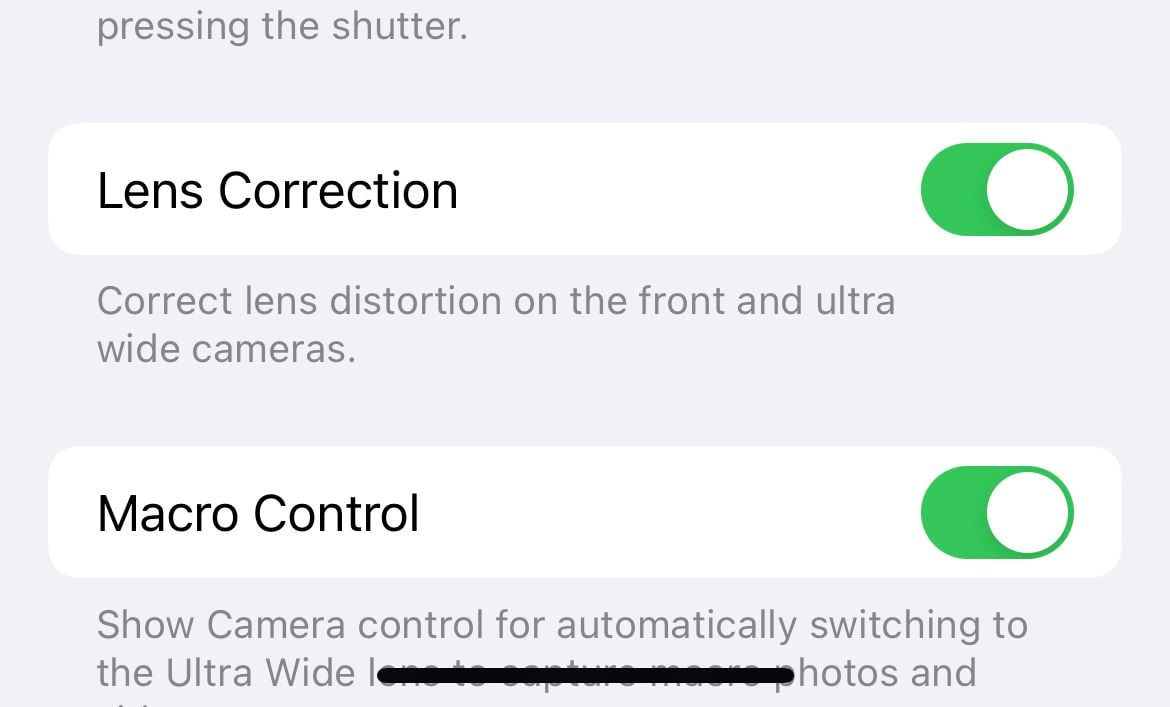
Tapping that flower icon toggles macro mode on and off, so you can force the right lens when the camera is unsure. To keep your choice between sessions, go to Settings > Camera > Preserve Settings and turn on Macro Control.
Stop the Camera Switching Lenses on Close Ups
On macro-capable iPhones, the camera flicks between the main and Ultra Wide lenses as you move closer, which can look like flickering and leave shots out of focus at the moment you press the shutter. Controlling that switch keeps focus steady.
With Macro Control turned on, watch for the flower icon and tap it to lock the lens you want before you take the shot. This stops the camera from jumping back and forth at the exact distance where focus is hardest to nail.
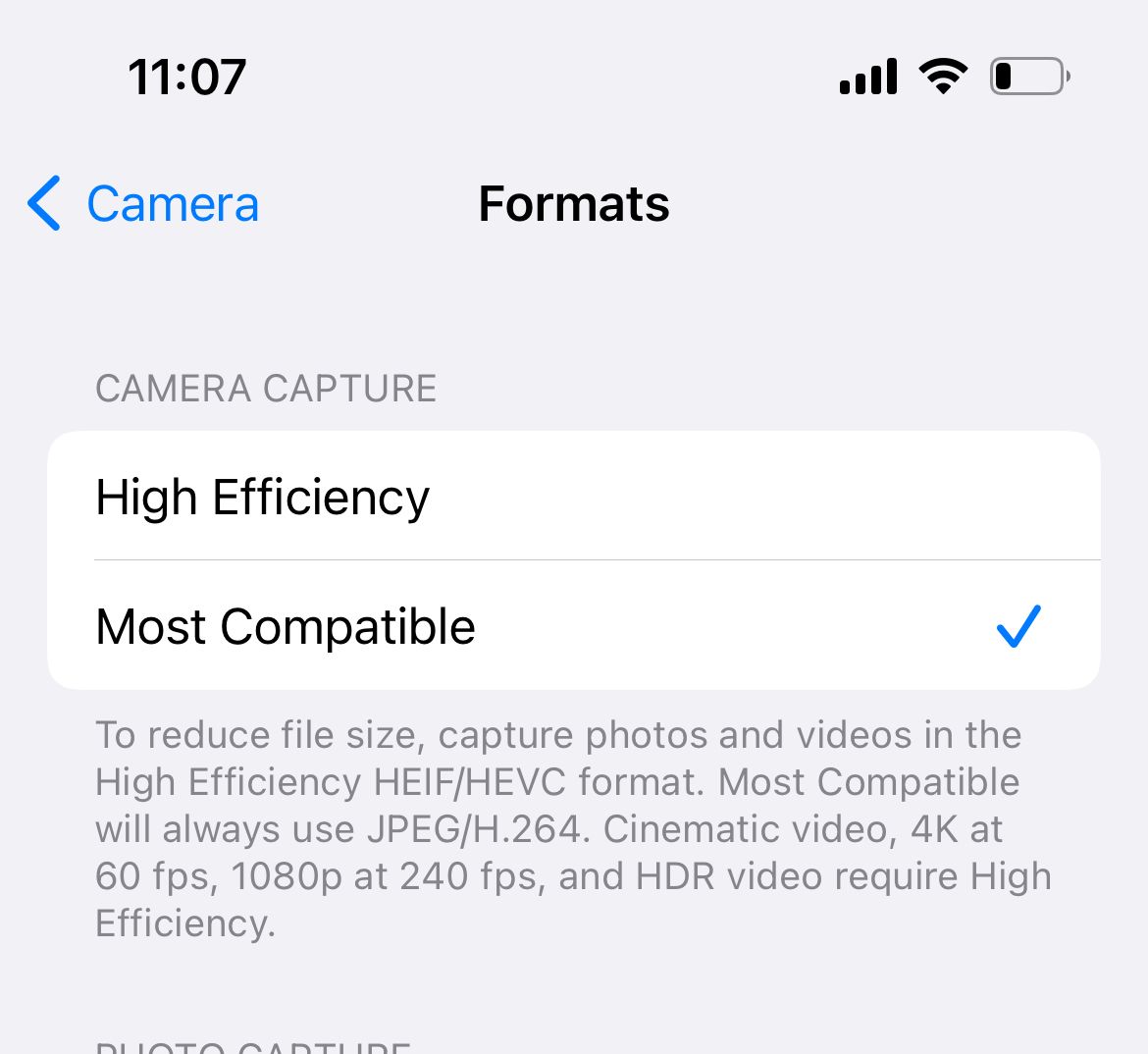
Check Your Camera Format Settings
Your capture format will not blur a photo on its own, but Lens Correction can affect how natural close shots look on the front and Ultra Wide cameras. Apple turns Lens Correction on by default to reduce distortion, so confirm it is enabled.
- 1.Go to Settings > Camera
- 2.Make sure Lens Correction is turned on
- 3.Open Settings > Camera > Formats and choose High Efficiency for HEIF or Most Compatible for JPEG
Press and Hold the Shutter Until It Locks
Tapping the shutter button too fast can fire before the camera has finished focusing, which is why action shots often come out soft. Slow down and let the lens settle first.
Hold the phone steady, wait until the preview looks sharp, then take the shot. Bracing your elbows against your body or resting the phone on a stable surface also cuts down on the motion blur that gets mistaken for a focus problem.
Zoom Out Then Slowly Back In
If the camera struggles to focus at a particular zoom level, reset it. Pinch all the way out to the widest view, let it focus, then zoom back in slowly.
This gives the lens a clean starting point and often finds the sweet spot where focus locks properly. It is a quick trick that works well when only certain zoom levels look blurry.
Switch Between the Front and Rear Cameras
Toggling between the front and rear cameras can reset the focus mechanism when one camera is stuck. Tap the camera rotate button to flip to the other camera, then flip back.
This also tells you something useful. If only one camera is blurry, the problem is likely that lens or its hardware rather than a system-wide software issue.

Restart Your iPhone
A restart clears the temporary software glitches that often affect the camera. It is one of Apple's first recommendations when the camera misbehaves.
Press and hold the side button and either volume button, then drag the slider to power off. Wait about 30 seconds, then hold the side button again until the Apple logo appears and test the camera.
Update to the Latest iOS
Apple regularly ships camera improvements and bug fixes in iOS updates, so an out-of-date system can be the cause of a focus problem that a newer build already fixes.
- 1.Connect to Wi-Fi and plug into power
- 2.Go to Settings > General > Software Update
- 3.Download and install any available update
Reset All Settings
If the camera still will not focus, a setting may be misconfigured without an obvious culprit. Reset All Settings clears system options like network and privacy settings back to default, but it does not delete your photos, apps, or other data.
Go to Settings > General > Transfer or Reset iPhone > Reset, then tap Reset All Settings. You will need to reconnect Wi-Fi afterward, but your content stays intact.
Erase and Restore as a Last Resort
A full erase is the deepest software fix and should be a last resort. Because it wipes everything, back up your iPhone first to iCloud or a computer.
Go to Settings > General > Transfer or Reset iPhone > Erase All Content and Settings. Once the phone restarts, restore from your backup and test whether the camera now focuses correctly.
Check for Hardware Damage and Contact Apple
If you have worked through every software fix and the camera still will not focus, you may be looking at a hardware fault. Inspect the lenses for cracks or internal fogging, and think about whether the trouble started right after a drop or got the phone wet.
Camera focus relies on tiny moving parts and stabilization motors that a hard impact can knock loose. Contact Apple Support or book a visit to an Apple Store or authorized service provider so a technician can run a diagnostic and quote any repair.
Frequently Asked Questions
Why is my iPhone camera blurry all of a sudden?
The most common cause is something on the lens, such as a fingerprint, water, or dust. Wipe the front and rear lenses with a microfiber cloth, remove your case, and tap the screen to set the focus point. If it is still blurry, restart the phone and update iOS.
Why won't my iPhone camera focus up close?
Close-up shots use macro mode, which is available on iPhone 16 models and the iPhone 13, 14, and 15 Pro and Pro Max. Go to Settings > Camera and turn on Macro Control, then watch for the yellow flower icon and tap it to lock the lens when you move within a couple of centimeters of your subject.
How do I turn off Macro mode on my iPhone?
While shooting a close-up, tap the yellow flower icon in the corner of the viewfinder to switch macro off for that shot. To remove the icon entirely, go to Settings > Camera and turn off Macro Control.
Does a magnet affect my iPhone camera focus?
It can. Apple says that if you see motion blur in low light while using a magnetic lens mount, a metallic case, or a lens converter, you should remove the accessory and test again. Take off magnetic accessories and lens attachments, then shoot a test photo.
Will resetting my iPhone fix the camera and delete my photos?
Reset All Settings can clear a software glitch without deleting any photos, apps, or data. Only Erase All Content and Settings performs a full factory wipe, so always back up before using that option.
How do I lock focus on my iPhone camera?
Tap and hold on your subject until the yellow AE/AF Lock banner appears at the top of the screen, then release. Focus and exposure stay locked as you move the phone. Tap anywhere on the screen to unlock.
First published October 15, 2025. Last updated June 4, 2026.