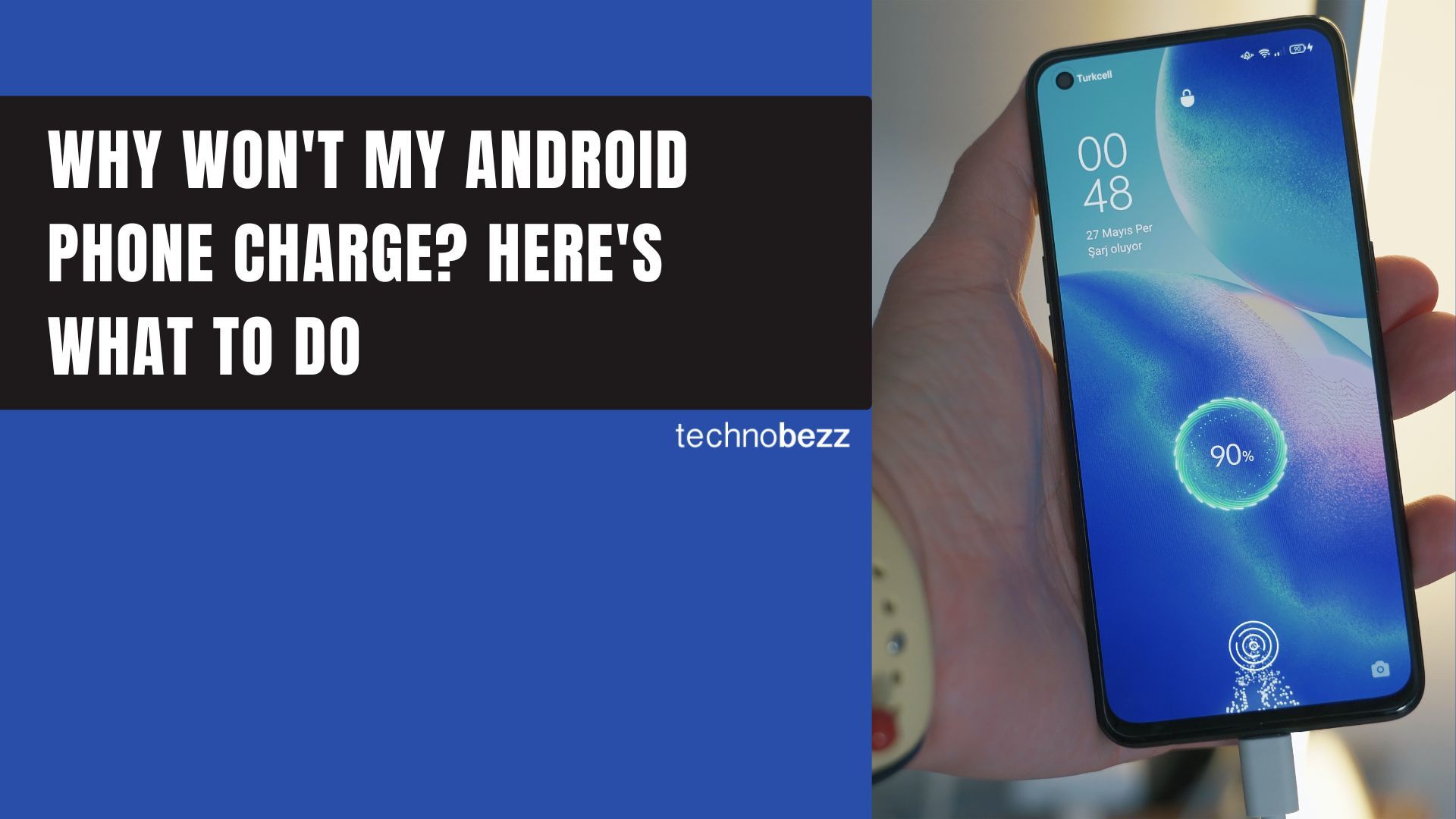
A phone that refuses to charge is one of the most stressful problems you can hit, but it is rarely as serious as it looks. Most charging failures come down to a worn cable, a clogged port, a moisture warning, or a battery setting you forgot you turned on, not a dead battery or a broken motherboard.
Work through the checks below in order, starting with the quickest and least invasive. They apply to Samsung Galaxy phones running One UI and to most other Android brands, with Samsung-specific menu paths called out where they differ. If your phone powers on but apps misbehave instead, see Android Phone Won't Download Apps? 16 Ways to Fix It for that separate problem.
Swap the Cable and Adapter First
A failing USB-C cable is the single most common cause of a phone that will not charge, because the thin wires inside break with daily bending long before the phone does. Try a completely different cable and a different wall adapter, ideally the ones that came with another known-good device.
Use a charger and cable rated for your phone. Samsung recommends its own approved adapters because low quality or non-approved cables can charge slowly, intermittently, or not at all. If borrowing a known-good cable suddenly fixes the problem, your original cable was the culprit.
Test the wall outlet too. Plug a lamp or another phone into the same socket to confirm it has power, then avoid charging through laptop USB ports or weak car adapters when you can, since those deliver far less current than a proper wall charger.
Clean the Charging Port
Lint, pocket dust, and grit pack into the USB-C port over time and physically block the cable from seating against the power pins. If your cable feels loose or wobbly in the port, this is very likely your problem.
Power the phone off first. Shine a flashlight into the port and look for a compacted plug of lint at the bottom. Gently scrape it out with a wooden or plastic toothpick, or use a short burst of compressed air, and avoid metal tools, which can bend the pins or cause a short.
Once the port is clear, plug the cable back in and confirm it clicks in snugly with very little wobble. A firm, stable connection is exactly what fast charging needs.
Restart or Force Restart the Phone
A temporary software glitch can stop the charging system from waking up even when the hardware is fine. A restart clears that state and is one of the highest-success, lowest-effort fixes.
If the screen still responds, hold the Side button, then tap Restart. If the phone is fully unresponsive, force a restart by holding the Volume Down and Side (Power) buttons together for about 10 seconds until it reboots.
After a force restart, plug in and wait. If the battery was completely drained, the charging icon can take several minutes to appear, so do not assume it failed in the first minute or two.
Clear a Moisture or Water Drop Warning
If you see a water drop icon or a moisture warning, your Galaxy phone has deliberately paused USB charging to protect the port from corrosion and shorts. This triggers on real water, but also on humidity, sweat, or a slightly damp cable.
Unplug the charger, then wipe the phone dry and gently shake it with the port facing down to release trapped droplets. Set it port-down on a cloth in a well-ventilated spot, or aim a fan at the port, and give it time to fully dry.
If the warning lingers after the port is dry, the moisture-sensing app may be stuck. Go to Settings > Apps, tap the filter or sort icon and turn on Show system apps, find USB Settings, then open Storage and tap Clear cache. While you wait it out, wireless charging still works, since it does not route power through the wet port.
Check Battery Protection and Charge Limits
If your phone consistently stops at 80, 85, or 95 percent and you think it is broken, a battery-longevity setting is almost certainly capping it on purpose. Samsung calls this Battery protection.
Open Settings > Battery > Battery protection. One UI 7 offers three modes: Basic tops up to 100 percent then lets it dip to 95 percent before recharging, Adaptive holds at 80 percent overnight and finishes before your alarm, and Maximum caps charging at a level you choose between 80 and 95 percent.
If you need a full charge for a trip, switch to Basic or turn the feature off temporarily. Capping the charge is good for long-term battery health, so re-enable it once you no longer need 100 percent.
Let the Phone Cool Down or Warm Up
Phones refuse to charge when they get too hot or too cold, because charging outside a safe temperature range damages the battery. If your phone feels warm or shows a temperature warning, it is protecting itself, not malfunctioning.
Unplug it, move it out of direct sunlight or away from a heat source, remove any thick case, and let it return to room temperature before trying again. In cold conditions, bring it indoors and let it warm up first.
Avoid charging on soft surfaces like a bed or couch that trap heat, and do not charge it inside a hot car. Once the phone reaches a normal temperature, charging should resume on its own.
Test Wireless Charging
If wireless charging works but cable charging does not, you have narrowed the fault to the cable or the physical port rather than the battery or board. That alone is worth knowing before you book a repair.
Center the phone on the wireless pad with no case, metal plate, or card between the two, and remove any wired headphones or cables. Off-center placement or a thick case is the usual reason wireless charging seems to fail.
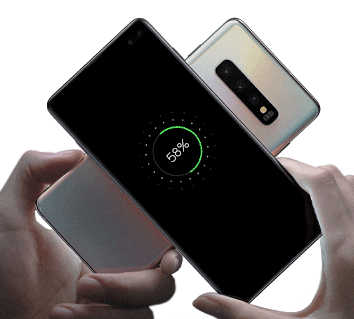
If only one phone needs a quick top-up, Samsung's Wireless PowerShare lets a supported Galaxy share power from its back. Open Quick Settings and tap Wireless PowerShare, then place the other device on the back of your phone.
Fix Slow or Missing Fast Charging
If the phone charges but never shows Fast charging or Super fast charging, the issue is usually the charger, not the phone. Samsung's fast standards rely on USB Power Delivery with PPS, which many third-party bricks do not support, so a generic charger may trickle in at a fraction of the rated speed.
Use an adapter that explicitly lists PPS and enough wattage for your model, paired with a quality USB-C cable. Then confirm the toggles are on under Settings > Battery > Charging settings, where you can enable Fast charging, Super fast charging, and Fast wireless charging.
A clogged port also kills fast charging even when slow charging still works, because debris covers the extra power pins. Clean the port as described above before blaming the charger.
Rule Out a Bad App With Safe Mode
A misbehaving third-party app can interfere with power management and charging in rare cases. Safe Mode loads the phone with only its built-in apps so you can test for that.
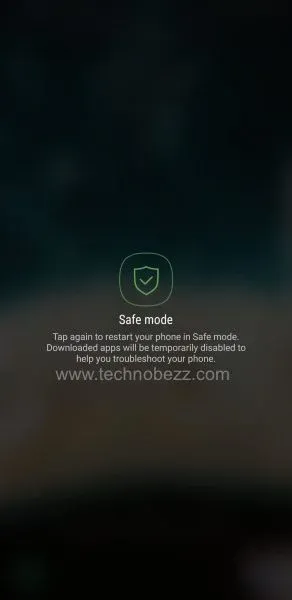
Press and hold the Side button to open the power menu, then touch and hold Power off until the Safe mode prompt appears and tap it. The phone restarts with Safe mode shown in the corner.
Try charging in Safe Mode. If it charges normally now, an installed app is the cause, so restart to exit Safe Mode and uninstall recently added or updated apps one at a time until normal charging returns.
Update the Software or Reset System Settings
Charging bugs do appear after major updates, and Samsung often pushes a follow-up patch to fix them. Make sure you are current under Settings > Software update > Download and install.
On older Galaxy phones running Android 11 or earlier, you could clear a separate cache partition from recovery mode. On modern devices that option has been removed because the dedicated cache partition no longer exists, so the current equivalent is to clear individual app caches in Settings and run Device care optimization instead.
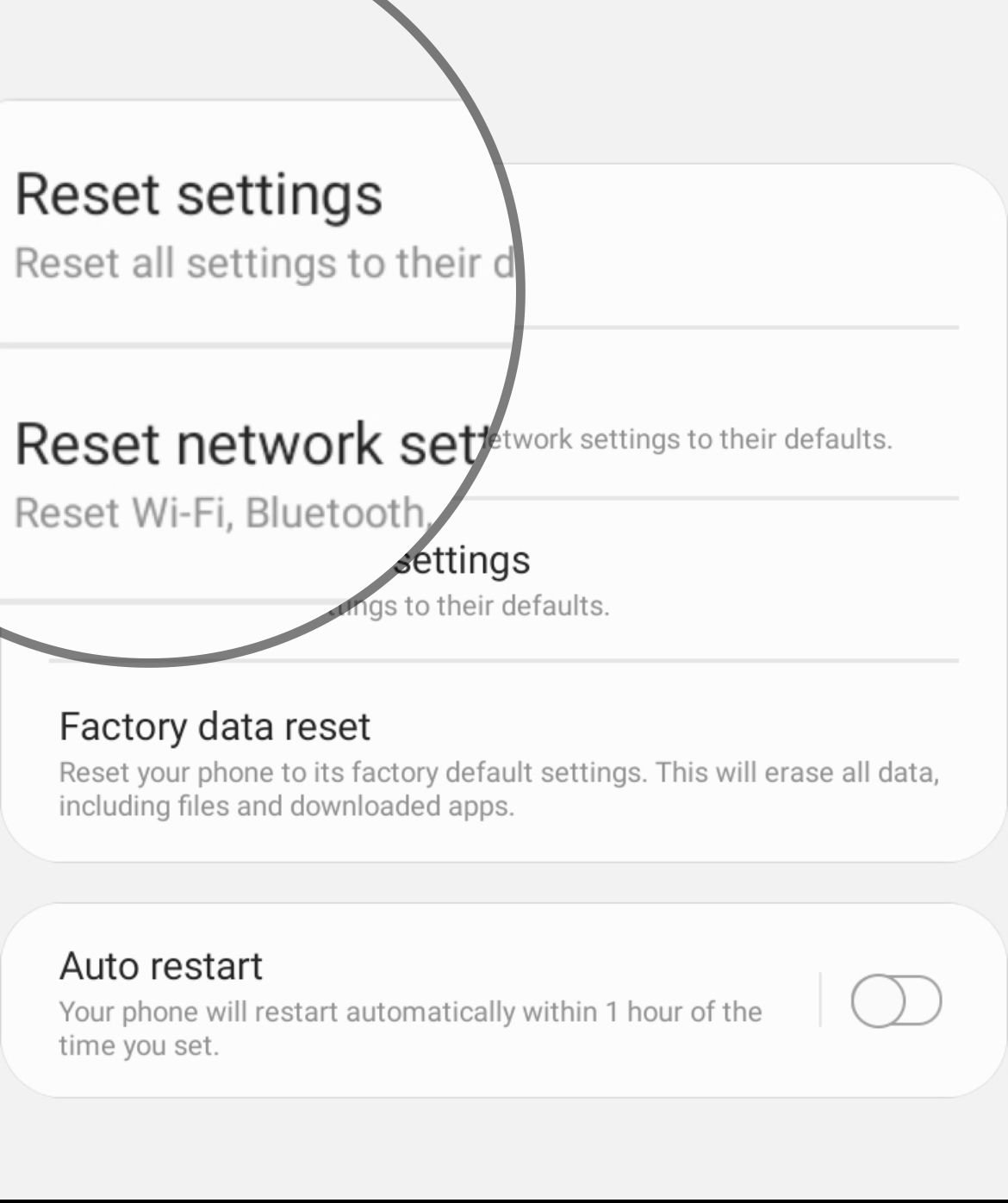
If charging broke right after an update, a settings reset can help without erasing your files. Go to Settings > General management > Reset > Reset all settings, which restores system preferences while leaving your photos, apps, and messages in place.
Know When to Get It Repaired
If you have swapped the cable and adapter, cleaned the port, ruled out moisture and temperature, and confirmed wireless charging also fails, the problem is likely hardware. A loose or corroded charging port, an aging battery, or a power-management fault all need a technician.
Book service through your phone maker's official support site or an authorized center, and check your warranty status first, since unauthorized repairs can void it. If the device is still covered, the fix may cost you nothing.
Until you can get it looked at, keep the phone topped up with wireless charging if it supports that, and avoid forcing a cable into a port that already feels loose, which can make the damage worse.
Frequently Asked Questions
Why does my Samsung phone say moisture detected when it is dry
The sensor reacts to humidity, sweat, and even a slightly damp cable, not just visible water. Dry the port and cable thoroughly, then clear the USB Settings cache under Settings > Apps with system apps shown. Wireless charging keeps working in the meantime.
Why does my phone stop charging at 80 or 85 percent
That is almost always Battery protection limiting the charge on purpose to extend battery life. Open Settings > Battery > Battery protection and switch to Basic or turn it off if you need a full charge.
How do I know if it is the cable or the phone
Try a different known-good cable and adapter first, then test wireless charging. If wireless works but no cable does, the fault is the cable or the charging port, not the battery or the phone's board.
Why is my phone charging so slowly all of a sudden
The most common causes are a charger without PPS support, a worn cable, or lint blocking the port's power pins. Clean the port, use a PPS-rated adapter, and confirm Fast charging is on under Settings > Battery > Charging settings.
Can I still wipe the cache partition on a new Galaxy phone
No. Newer Galaxy models no longer have a separate cache partition, so the recovery-mode option is gone. Clear individual app caches in Settings and run Device care optimization instead.
Is it safe to charge my phone when it feels hot
It is better to let it cool first. Phones intentionally pause charging when they get too hot to protect the battery, so unplug it, remove the case, move it out of the heat, and try again once it returns to room temperature.
First published October 17, 2025. Last updated June 4, 2026.