
A slow Dell XPS 13 can turn a premium laptop into a frustrating experience. Files take ages to save, web browsing stutters, and that snappy feel disappears. Before you consider a new machine, there are several effective tweaks you can try, many of which are specific to Dell's hardware and software ecosystem.
Run a Full Restart
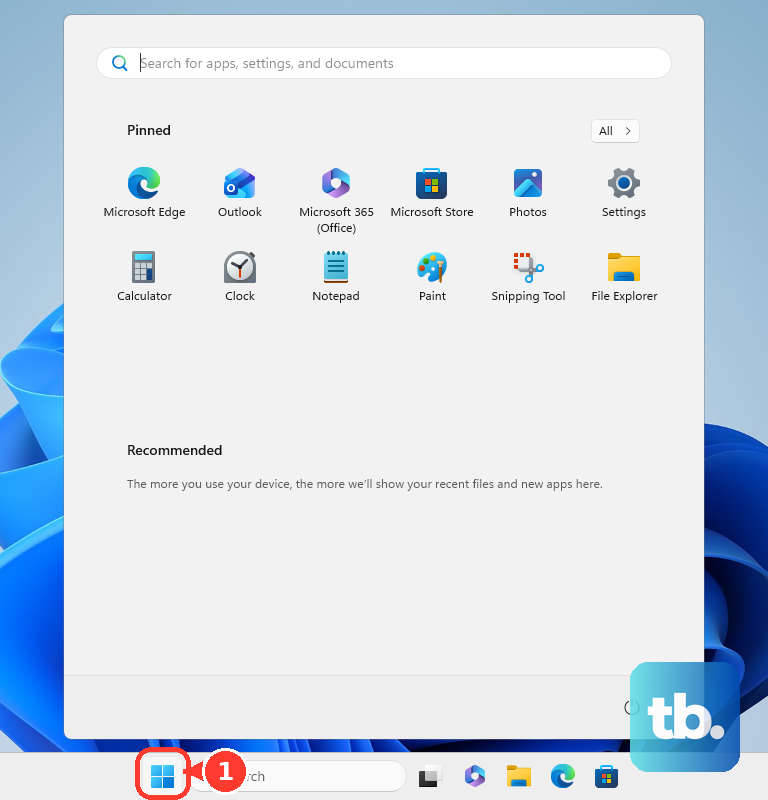
If you usually just close the lid, your XPS 13 might not be getting a true fresh start. Windows fast startup can leave processes hanging. Click Start > Power > Restart to perform a full shutdown and boot cycle. This clears out temporary memory and stops any errant background tasks that could be dragging performance down.
Use Dell SupportAssist
This is a great first step for any Dell-specific slowdown. Open the SupportAssist app (search for it in the Start menu) and run a full system scan. It will automatically check for outdated BIOS, chipset, and driver updates that are crucial for your XPS 13's performance. I've seen this resolve many post-Windows-update slowness issues, especially related to WiFi and audio drivers.
Check Task Manager for Culprits
Press Ctrl + Shift + Esc to open Task Manager. Click on the CPU, Memory, and Disk columns to sort by usage. Look for any single process using an unusually high percentage. Common resource hogs on the XPS 13 can include Windows Search indexing, antivirus scans, or a browser with too many tabs. Right-click on non-essential high-use tasks and select End task.
Manage Startup Programs
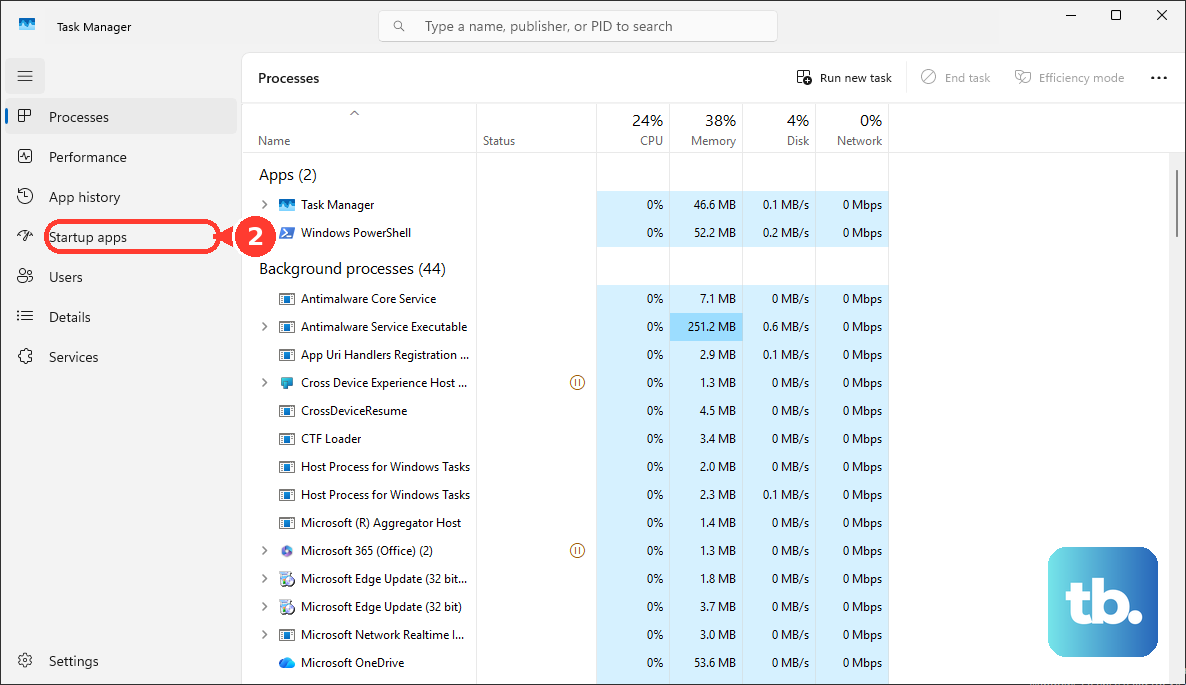
Too many apps launching at boot will slow down your login and run in the background. In Task Manager, go to the Startup apps tab. Review the list and set anything you don't need immediately to Disabled. Pay special attention to manufacturer utilities from other devices, cloud storage apps like Dropbox or OneDrive, and communication tools like Slack or Teams.
Free Up Storage Space
The XPS 13 often comes with fast but smaller SSDs. If your drive is over 85% full, performance will suffer. Go to Settings > System > Storage and turn on Storage Sense to automate cleanup. Click Temporary files to manually remove update leftovers and system cache. For a deeper clean, the built-in Disk Cleanup tool is still very effective.
Scan for Malware
While less common, malware can cripple even a powerful laptop. Open Windows Security from the Start menu, navigate to Virus & threat protection, and run a Full scan. Let it complete; this can take an hour or more depending on your drive size. Windows Defender is well-integrated and shouldn't cause the performance hits some third-party suites can.
Update Windows and Drivers Manually
Head to Settings > Windows Update and install all available updates. Afterwards, visit the official Dell Support website, enter your XPS 13's Service Tag, and check the Drivers & Downloads section. Manually install updates for the chipset, Thunderbolt controller (if you use docks), and Intel graphics. Outdated Thunderbolt drivers are a known source of connectivity and system lag.
Optimize Power Settings
Your XPS 13 might be throttling to save battery. Plugged in, go to Settings > System > Power & battery. For the power mode, select Best performance. For finer control, click on Additional power settings on the right to open the classic Control Panel menu. Here, ensure your active plan is set to High performance or at least Balanced, not Power saver.
Adjust Visual Effects for Performance
Search for "Adjust the appearance and performance of Windows" in the Start menu. In the Visual Effects tab, you can choose Adjust for best performance to disable all animations. Alternatively, manually turn off the most demanding effects like transparency, animations on minimising and maximising, and shadows under menus. This frees up CPU and GPU resources for your actual tasks.
Consider a Clean Windows Installation
If the slowness persists after all other steps, a reset can work wonders. Go to Settings > System > Recovery and click Reset PC. Choose Keep my files to remove all apps and settings while preserving your personal data. For the cleanest result, you can also use the Dell Recovery tool by pressing F8 during startup, which restores the original factory image.











