
When your Dell XPS 13 keyboard stops working, it can feel like you've hit a brick wall. Whether all the keys are dead, certain rows are unresponsive, or it's typing gibberish, the fixes are usually straightforward.
To separate a hardware fault from a driver or settings issue, try a online keyboard tester. What registers on screen tells you exactly where to focus.
Force a Full Shutdown and Restart
This is the most effective first step. A full restart clears out any temporary software glitches that might be blocking the keyboard driver. Hold down the power button for about 15 seconds until the laptop completely powers off.
Wait a few seconds, then press the power button again to turn it back on. I've seen this resolve more keyboard issues on the XPS 13 than any other single step.
Run Dell SupportAssist
Dell's built-in SupportAssist tool is your best friend for driver issues. Open the Start menu, type "SupportAssist," and launch it. Go to the Checkups or Scan Hardware tab and run a full scan.
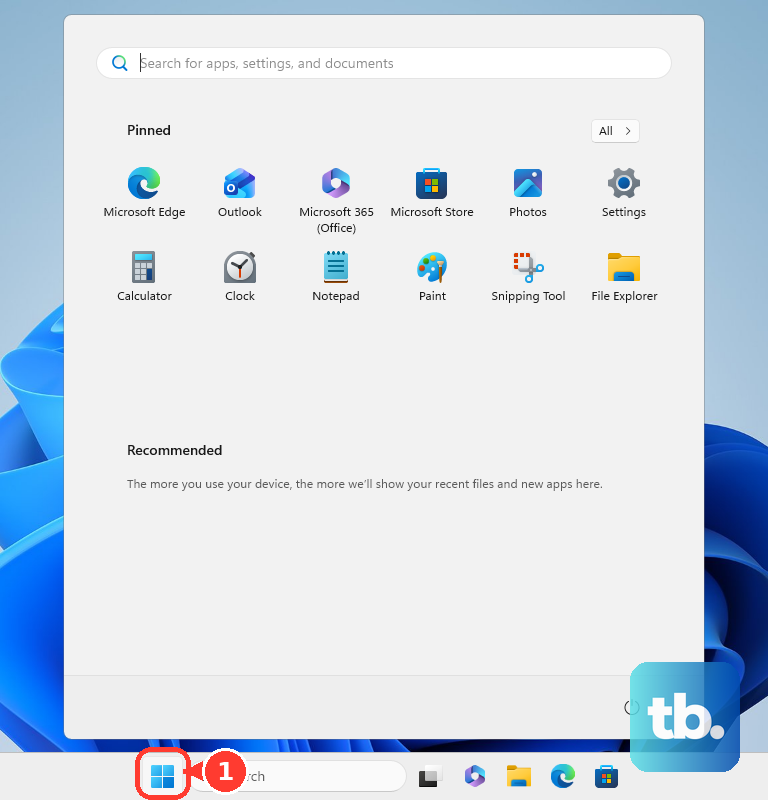
It will automatically check for outdated or corrupted drivers, including the keyboard driver, and install the correct versions directly from Dell. This is more reliable than Windows Update for Dell-specific hardware.
Update and Reinstall the Keyboard Driver
If SupportAssist doesn't fix it, you can tackle the driver manually. Right-click the Start button and select Device Manager. Expand the Keyboards section, right-click on Standard PS/2 Keyboard or a similar HID keyboard device, and choose Update driver.
Select Search automatically for drivers. If that doesn't work, go back, choose Uninstall device, and then restart your laptop. Windows will reinstall a fresh driver on startup.
Check for Physical Issues and Clean
Turn off the laptop and unplug it. Tilt it sideways and gently tap the back to dislodge any loose debris. Use a can of compressed air to blow between the keys, holding the can upright to avoid moisture.
For the XPS 13, pay special attention to the edges of the keyboard near the touchpad, as crumbs can easily get lodged there. Avoid using liquid cleaners directly on the keys.
Disable Accessibility Features
Accidentally enabled accessibility settings can make the keyboard seem broken. Press the Windows key and type "Filter Keys" to go directly to the setting.
Make sure the toggle for Turn on Filter Keys is set to Off. Also check that Sticky Keys and Toggle Keys are disabled while you're in that menu.
Boot to the One-Time Boot Menu
This helps rule out a Windows software problem. Restart your XPS 13 and immediately start tapping the F12 key repeatedly as it boots. This brings up the one-time boot menu.
Use the arrow keys (which might still work even if the letter keys don't) to select Diagnostics and press Enter. Run the pre-boot system assessment, which includes a basic keyboard test.
Check Your Keyboard Language and Layout
If your keys are typing the wrong characters, the input language may have switched. Click the language abbreviation (like "ENG") in your taskbar's system tray.
Ensure only your correct language and layout (e.g., English (United States) - US) are listed. Remove any extra languages you don't use by going to Settings > Time & Language > Language & Region.
Use an External Keyboard to Test
Plug any standard USB keyboard into your XPS 13. If the external keyboard works perfectly, it strongly suggests a hardware fault with the internal keyboard.
The internal keyboard on the XPS 13 is connected by a ribbon cable that can sometimes come loose, especially if the laptop has been serviced or had its bottom cover removed.
Check for Problematic Windows Updates
Windows updates can occasionally introduce driver conflicts. If the keyboard stopped working right after an update, you can try rolling it back. Go to Settings > Windows Update > Update history > Uninstall updates.
Look for recent driver or quality updates, right-click, and select Uninstall. Restart your laptop to see if the keyboard functionality returns.
Perform a System Restore
If you have System Restore enabled, this can take your laptop back to a point before the keyboard issue started. Type "Create a restore point" into the Start menu and open the System Properties window.
Click System Restore, choose a restore point from before the problem began, and follow the prompts. Your personal files won't be touched, but recently installed apps may be removed.











