
Your AirPods Pro 3 finally arrived, the ANC is unreal, the new compact fit works great, and then one day you drop them in the case and the left bud sits at 15% for hours. Or the case LED glows amber even after an overnight charge. Or the whole thing ignores your MagSafe puck entirely. Try these charging checks first; if cleaning and troubleshooting don't resolve the issue, you may need service.
It helps to confirm what actually works before changing settings. Run a quick headphone test, note which channels and frequencies play correctly, and match the result against the steps below.
Start with the obvious stuff everyone skips. Pull both buds out and look for dirt or buildup. Clean the charging case with a soft, dry, lint-free cloth. If necessary, slightly dampen the cloth with isopropyl alcohol, but don't get any liquid in the charging ports or put anything into them.
Allow the case to dry before using it again. If the buds need wiping after exposure to substances such as lotions or sunscreen, use a cloth slightly dampened with fresh water, then a soft, dry, lint-free cloth. Let them dry completely for at least two hours before putting them back in the case.
Rout the USB-C Port First
The case's USB-C port can collect lint. Pocket fluff, dust, and random debris may stop cables from seating fully. Shine a flashlight into the port and look for debris. Remove it with a clean, dry, soft-bristled brush. Don't insert a toothpick, SIM eject tool, or other object into the charging port, as this can damage the metal contacts. Avoid abrasive materials and keep liquid out of the port. Once you've cleaned the case and allowed it to dry, reconnect the cable firmly and check whether charging starts.
Check the Cable and Wall Adapter
Cables go bad silently. A USB-C cable that charged fine last week might be damaged today, especially if it's been coiled tight or bent at a sharp angle near the connector. Swap to a known-good USB-C cable.
Make sure it's plugged firmly into the case and USB power adapter, and that the adapter is plugged into a working power outlet. You can also charge from a USB port; charging is fastest with an iPhone or iPad USB charger or a Mac. If the case starts charging with a different cable, the old one may be faulty.
Watch the MagSafe or Apple Watch Charger Alignment
The AirPods Pro 3 case works with Qi, MagSafe, and the Apple Watch puck. Apple Watch charging also works on the AirPods Pro 2 (Lightning or USB-C) and AirPods 4 (ANC) cases. Set the case directly on a clean MagSafe pad or Apple Watch charger with the status light facing up and the lid closed.
The front status light should show the charge level for 8 seconds, then turn off while charging continues. If nothing happens, reposition the case. If it still won't charge wirelessly, connect it to a USB power adapter with a compatible cable.
The Light Stays Amber? Give It Time
An amber light doesn't necessarily mean charging has failed. Green means fully charged, while amber means less than one full charge remains. With the latest firmware, a brief amber pulse means the buds or case are below 95%; a brief amber flash means the buds are below 95% and the case is below 25%.
With the buds inside, the light shows their charge; without them, it shows the case's charge. Check the battery levels on your iPhone or iPad as well. Optimized Charge Limit can keep your AirPods Pro 3 from charging fully. Turn it off on your iPhone or iPad when you want a full charge.
Charge the Case and Buds Together
Sometimes the buds aren't charging because the case itself is dead. Put both buds in the case, close the lid, and connect the case to power with a compatible cable. Charge the buds and case together for at least 15 minutes, then check their charge status on your iPhone or iPad. An unchanged reading alone doesn't tell you which part is at fault. Make sure the cable connections are firm and the power outlet works, then try a different cable and adapter before assuming the worst.
Use the Tap-Twice Reset
The AirPods Pro 3 uses three timed double-taps to reset. Place both buds in the case and close the lid for 30 seconds. On your paired iPhone or iPad, go to Settings, then Bluetooth. If your AirPods appear under My Devices, tap the More Info button, tap Forget This Device, and confirm.
Open the lid, then double-tap the front while the status light is on. Double-tap again when it flashes white, then a third time when it flashes faster. When the light flashes amber then white, hold the open case near your iPhone and follow the on-screen instructions to reconnect. A reset may help with charging problems, but it also resets your custom settings.
iOS 26 or Later Is Required to Pair
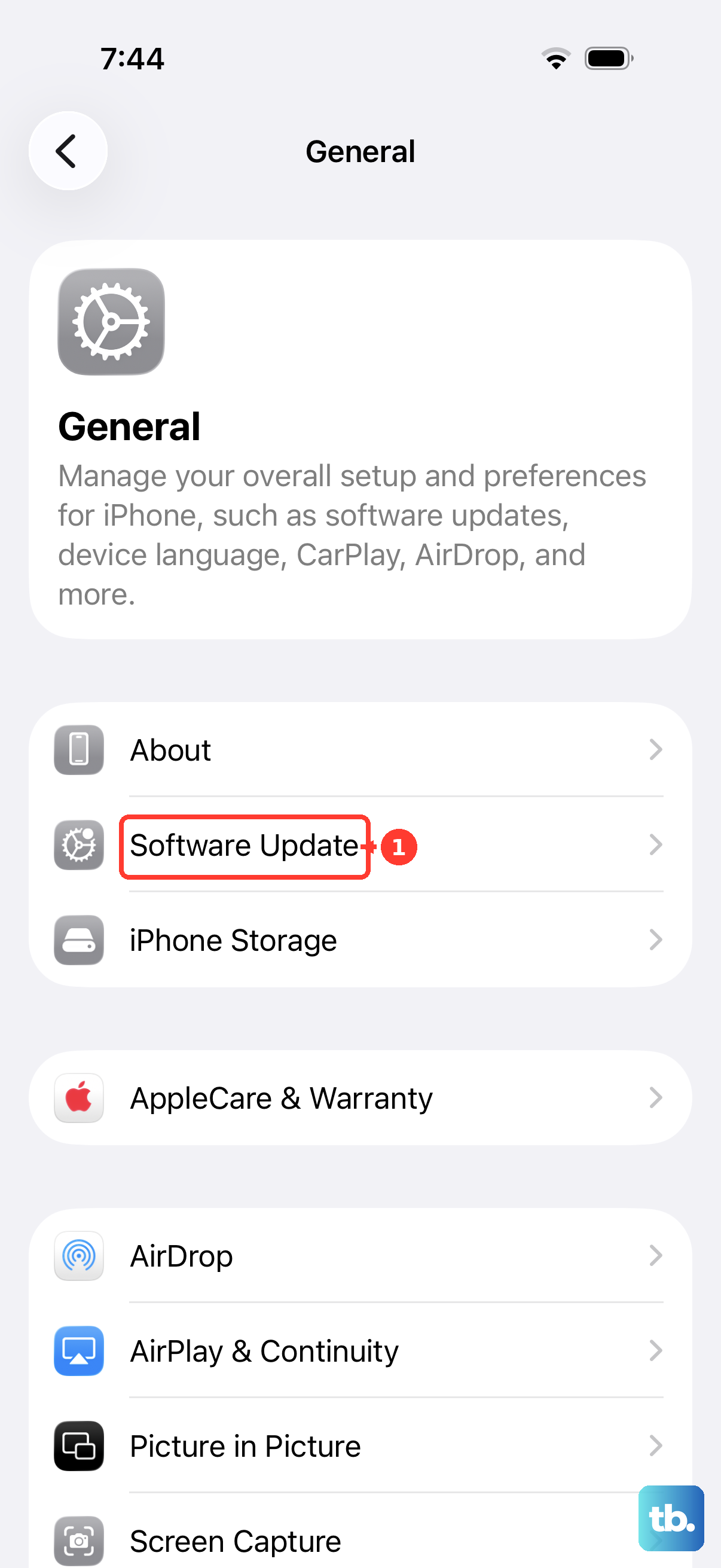
The AirPods Pro 3 needs iOS 26 or later to pair and work with your iPhone. For full functionality, keep your paired iPhone on the latest version of iOS. Go to Settings > General > Software Update and update to the latest available version. Once your iPhone is updated, reconnect your AirPods with the buds in the case and the lid open, then follow the on-screen instructions.
Check Firmware Version Silently
Firmware updates for the AirPods Pro 3 happen automatically while the case charges next to a paired iPhone. Make sure your iPhone has the latest iOS, Bluetooth is on, your AirPods are connected, and the iPhone is connected to Wi-Fi. Connect the case to power, put both earbuds inside, close the lid, and keep the case within Bluetooth range for at least 30 minutes.
Open the lid to reconnect, then check the firmware version again. Open Settings > Bluetooth, tap the (i) next to your AirPods Pro 3, and scroll to the bottom to see the firmware version. If you suspect you're behind, leave the case plugged in and near the phone overnight.
Charging issues on the Pro 3 may involve debris in the charging port, cable connections, or a case that needs charging. Check those first, charge the buds and case together, and try the reset procedure if needed. If cleaning and troubleshooting don't resolve the issue, get service for your AirPods Pro. The ANC on these is genuinely good enough to justify a quick cable swap.