
The most common AirPods Pro 3 disconnect feels like a quick drop on one side during music or a podcast, often the right earbud, that comes back within a second or two. Calls usually survive intact, but the bud keeps showing as connected in the Control Center. The cause is almost always a Bluetooth handoff feature trying to manage too many connections at once, not a hardware fault.
Before working through the fixes, run a quick quick headphone test in your browser. It plays the left and right sides separately, so you can tell right away whether one channel is actually dead.
Start by turning off automatic switching between Apple devices. On your iPhone, open Settings > your AirPods Pro 3 name > Connect to this iPhone and change it from Automatically to When Last Connected to This iPhone. Then go back one screen, tap Automatic Ear Detection and toggle it off temporarily. If the disconnects stop, you can re-enable ear detection later and see if that alone fixes things.
Turn Off Automatic Switching
AirPods Pro 3 can hop between iPhone, iPad, Mac, and Apple Watch based on audio source. When two devices are both playing audio, the buds sometimes get stuck mid-handoff, causing a one-sided dropout. The fix is to limit which devices can grab the buds automatically.
On each device that has your AirPods Pro 3 in its Bluetooth list, go to that device's Bluetooth settings and change the connection mode to When Last Connected to This [Device] instead of Automatically. This keeps the buds from jumping around while you're listening.
Move Away From 2.4 GHz Interference
Bluetooth shares the 2.4 GHz band with WiFi, microwaves, baby monitors, and a ton of smart home gear. If you're sitting near a microwave while it's running, or your home WiFi is stuck on 2.4 GHz with no 5 GHz fallback, the radio waves get crowded and your buds lose sync temporarily.
Walk outside or into a different room away from electronics and test. If the disconnects stop, you've found the source. Moving your WiFi router to 5 GHz for all compatible devices is the best permanent fix, and it also improves overall Bluetooth range on the AirPods Pro 3.
Reset the AirPods Pro 3 With the Tap-Twice Method
This reset is specific to the AirPods Pro 3 and AirPods 4 models. Close the case lid and wait 30 seconds. Open the lid, then double-tap the front of the case three times in a row, waiting for the status light to change each time: first double-tap while the light is on, second when it flashes white, third when it flashes faster. The light should flash amber, then white. That's a full reset, and it's more thorough than the old 15-second hold method.
The reset clears any internal pairing state corruption. After it finishes, you'll need to re-pair the buds with your iPhone by holding the case near the phone and following the popup.
Update Firmware Through iOS
Apple occasionally ships firmware updates that improve Bluetooth stability. Your AirPods Pro 3 update automatically when they're connected to an iPhone with an internet connection and the case is charging nearby. There's no manual update button, but you can force a check by putting the buds in the case, plugging in the case, placing it next to your iPhone (with Wi-Fi on), and waiting 15 30 minutes.
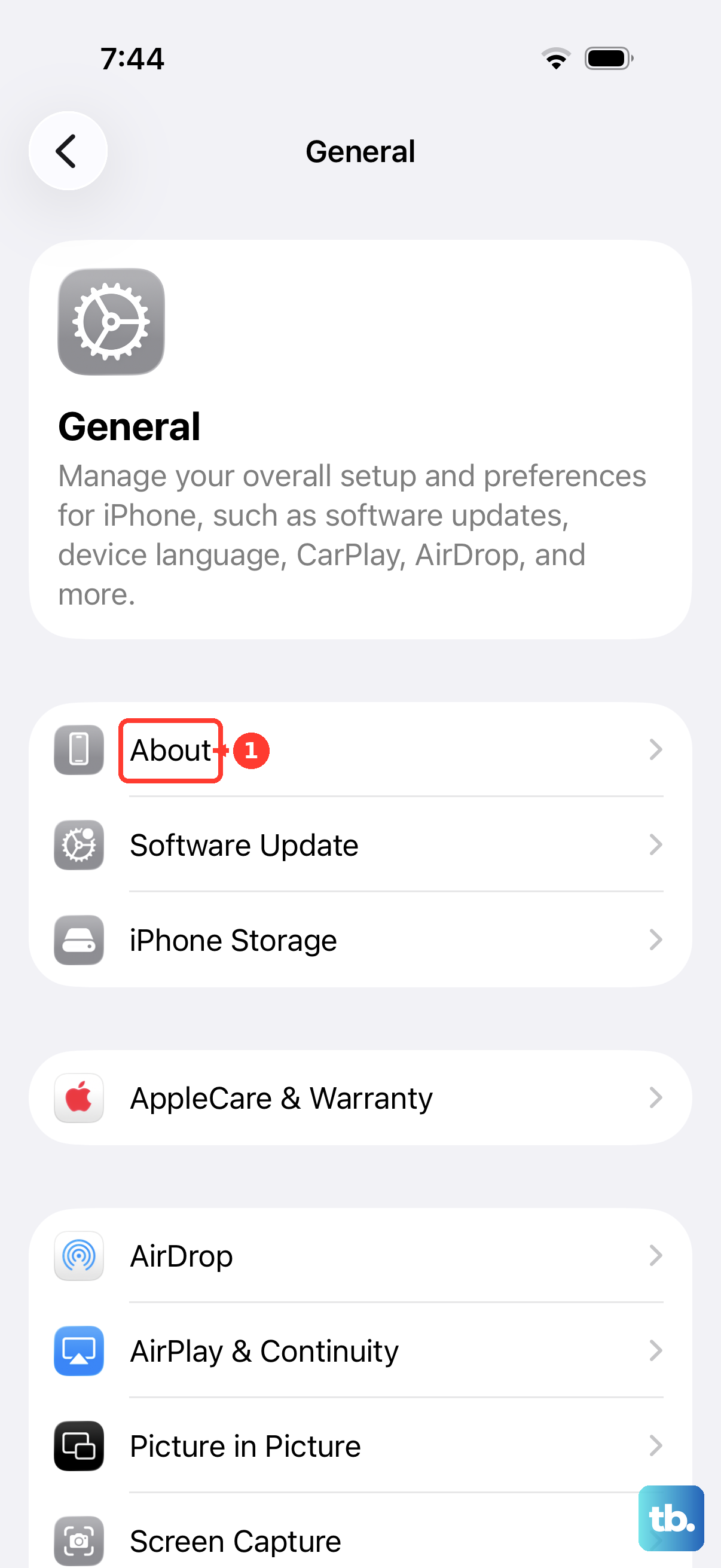
To see what firmware version you're on, go to Settings > General > About > AirPods Pro 3. The latest firmware version as of early 2026 is 8B34, but just having any post-launch build is better than the initial factory firmware.
Forget the Pairing and Re-Pair From Scratch
If the saved Bluetooth pairing record on your iPhone is corrupt, no amount of resets will fix the disconnects until you delete that record. Go to Settings > Bluetooth, tap the i icon next to your AirPods Pro 3, and choose Forget This Device. Then put both buds in the case with the lid open, double-tap the front of the case beneath the status light until it flashes white, and bring the case near your iPhone to re-pair.
Make sure your iPhone is running iOS 26 or later, because the AirPods Pro 3 require it for heart rate tracking, Live Translation, and the new tap-twice reset method to work. If your phone is on an older iOS version, some features won't function and that could cause unexpected behavior.
Charge the Case and Buds to 100% First
Low battery can cause the Bluetooth radio to throttle output, leading to dropouts that look like connection bugs but are just power-related. Put both buds in the case, connect the case to a USB-C power source (or place it on a Qi/MagSafe/Apple Watch charger) and let it charge fully. Then test again before diving into resets or re-pairing.
The AirPods Pro 3 case gives 24 hours of total battery life per Apple's specs, and the buds last 8 hours with ANC on. A quick top-up at 5W is enough; there's no official fast-charge wattage to worry about.
Check In-Ear Detection and Auto-Pause Settings
A known issue with the AirPods Pro 3 is that the auto-pause feature sometimes triggers from cheek movement, making it seem like the buds disconnected. If you hear audio cut out when you talk or chew, try turning off automatic ear detection in Settings > your AirPods Pro 3 > Automatic Ear Detection. The buds will stay playing even when you remove one, but they won't cut out falsely.
If the problem only happens during workouts, the heart rate sensor (a custom optical PPG sensor) might be causing the earbud to think it's being handled. Turning off heart rate tracking in Health or Fitness+ can stop that false signal. Note that the AirPods Pro 3 do include a dedicated heart rate sensor, a custom photoplethysmography (PPG) sensor that pulses invisible infrared light 256 times per second to measure blood flow during workouts.
Try a Different Source Device
If the disconnects happen on your iPhone but not on your Mac or iPad, the issue is on the iPhone side, not the buds. Try pairing the AirPods Pro 3 to a friend's iPhone running iOS 26 or later. If they stay connected fine, your iPhone may need a network settings reset (Settings > General > Transfer or Reset iPhone > Reset > Reset Network Settings). This clears saved Wi-Fi networks and Bluetooth pairings, so only do it as a last resort.
Visual check: cracked case shells or bent stems can interfere with the internal antennas. A quick look with the buds out of the case rules out physical damage before you spend time on software fixes.