
AirPods 4 firmware updates are handled entirely by the iOS system itself, not a separate app. To even see the update notification, both buds have to be in the case, the lid has to be open, the case needs a solid charge, and your iPhone needs to be nearby and unlocked. Miss any one of those conditions and the update either fails silently or never appears at all.
A browser based online headphone test makes this easy to confirm. If both sides play test tones correctly there, the headphones are fine and the problem is in the device or app.
The most common culprit is case battery level. If the case is low, the firmware simply won't push. Plug the case into a standard USB‑C charger (5W works fine) and let it charge for 20 30 minutes before trying again. Once the case has some reserve, the update usually goes through on the next check.
Give iOS Nearby Device Access
AirPods updates come through the standard Bluetooth settings, but iOS still needs permission to communicate with the case during the firmware push. If you skipped granting Bluetooth or Nearby Interactions permissions when you first paired the AirPods, that can block the update. Go to Settings > Bluetooth, tap the info (i) button next to your AirPods 4, and make sure Show in Find My and Accessories are both turned on. Then go back to Settings > Privacy & Security > Bluetooth and confirm the Bluetooth toggle for your AirPods is enabled. If it's off, the update can't start.
Both Buds Must Be in the Case With Lid Open
Unlike some true wireless earbuds, AirPods 4 update both buds at the same time. If you leave one bud in your ear or on the table, only the bud sitting in the case gets the new firmware. The other will be stuck on the old version until you do another update. Place both buds in the case, open the lid, and leave it open for the entire update window. The status light on the front of the case will show amber while updating and go to white when it's done.
Keep the iPhone Within a Few Feet
The firmware transfer happens over Bluetooth through your iPhone. If you pick up the phone and walk to another room, or if the phone goes to sleep, the connection drops and the update stops. Set your iPhone next to the open case, plug it in if you want to be extra safe, and don't touch it until you see the firmware version update in Settings > Bluetooth > AirPods 4.
Restart the iPhone After a Failed Update
If the update hangs or you see the buds disconnect mid-way, don't just retry immediately. The AirPods are in a half‑updated state and another attempt can leave them corrupted. Power down your iPhone fully (hold the side button and volume down until the slider appears, then slide to power off), wait 30 seconds, and turn it back on. After the reboot, open the case near the unlocked phone, the update should resume cleanly. Skipping the restart is the most common reason users get stuck in a loop.
Check for iOS Updates First
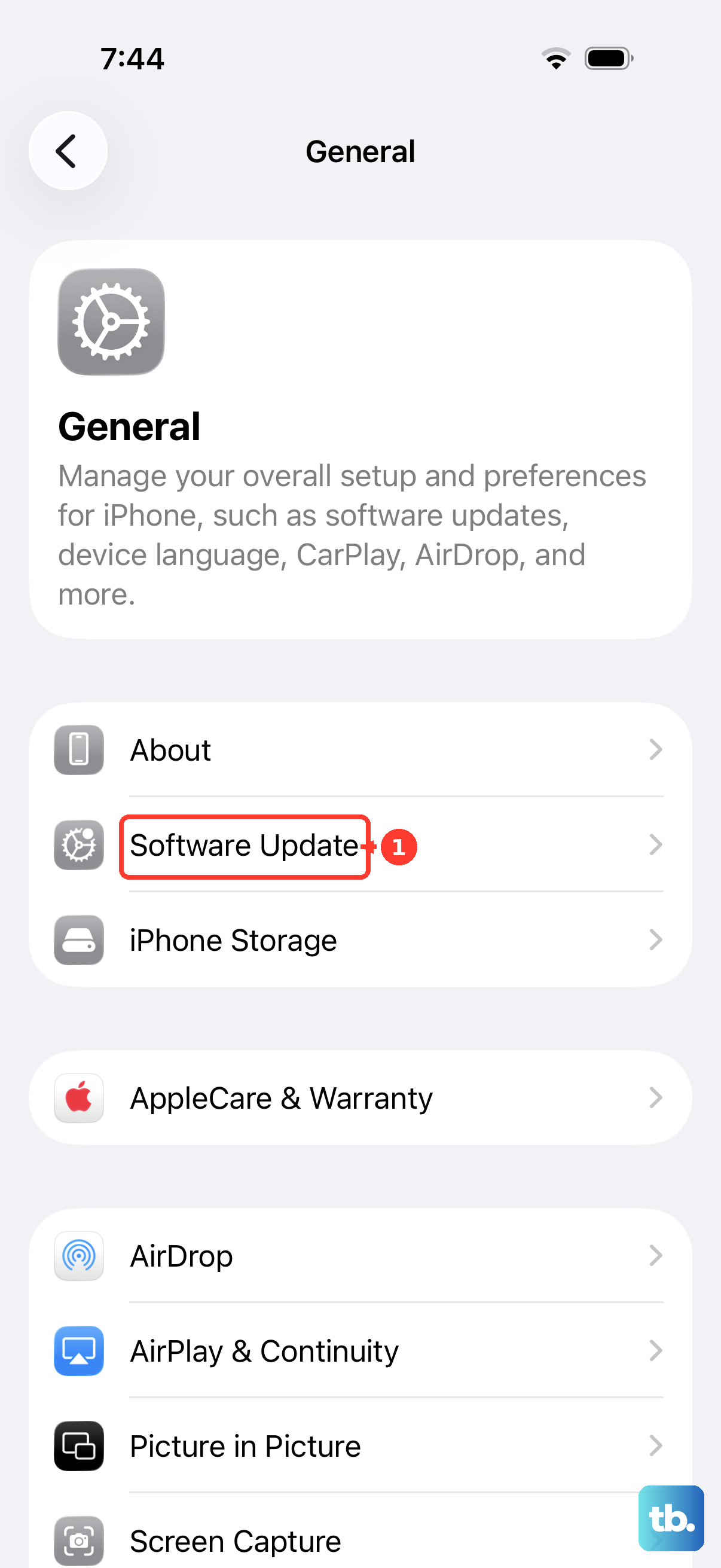
AirPods 4 require iOS 18 or later for full feature support, and the firmware update mechanism itself relies on the iOS version running on your phone. If your iPhone is on an older release, the update may never be offered. Go to Settings > General > Software Update and install any available iOS update. After that, open the AirPods case again, the firmware should appear within a few minutes.
Forget and Re‑Pair the AirPods
If the update keeps failing despite full battery and a stable connection, a clean re‑pair can clear out whatever is stuck. Go to Settings > Bluetooth, tap the info (i) next to your AirPods 4, then tap Forget This Device. Confirm the removal. Now perform a fresh pairing: open the case lid near your unlocked iPhone and tap Connect when the setup card appears. Once paired, check for the firmware update again in Settings > Bluetooth > AirPods 4. A clean pairing often pushes the update through.
Wait 24 Hours and Retry
Sometimes the issue is on Apple's side. If a firmware version is pulled or delayed, updates will silently fail across the board for that model until Apple republishes it. Wait a full day, then check again. If nothing changes, the update simply isn't rolling out to all devices yet. No amount of resetting or charging will force it earlier.