
Your AirPods 4 with ANC microphone isn't picking up your voice clearly. People on calls keep saying you sound muffled, distant, or like you're underwater. Voice memos come out as quiet whispers, and dictation types out garbage instead of what you said. There's a good chance this is a simple setting fix.
If you are not sure whether the mic is dead or just misconfigured, open a online mic test first. A moving level meter means the hardware is healthy, which rules out the worst case before you touch any settings.
The quickest test is to check which microphone iOS is actually using. Open Settings > Bluetooth, tap the (i) next to your AirPods 4, and look for Microphone. It's probably set to Automatic, which lets the phone decide. Switch it to Always Left and make a quick test recording in Voice Memos. Then try Always Right. If one side records cleanly while the other doesn't, set it permanently to the working bud.
Why the Mic Malfunctions
A few things can cause this beyond just the setting:
- Automatic microphone switching picks wrong bud: iOS decides based on movement and placement, it sometimes gets confused
- Dirt on the stem mic: the open-fit design puts the microphone vent at the bottom of the stem where ear contact and pocket lint accumulate
- Bluetooth profile handoff: the buds switch between AAC for music and HFP/HSP for calls, and that switch occasionally leaves the mic routed wrong
- iOS 26 mic permission quirk: system updates can silently revoke microphone access for specific apps
- Placement on open-fit buds: because AirPods 4 don't seal in your ear, even slight movement changes where the stem mic picks up your voice
Clean the Stem Microphone Vent
Take a close look at the rounded bottom of each stem. There's a small mesh-covered opening there, that's the mic for voice pickup. With open-fit AirPods, this vent faces outward just below ear level, so it collects earwax residue and skin oil even faster than in-ear models where the stem sits farther from the ear canal.
Use a clean, dry soft-bristle brush and sweep across the mesh gently. A toothbrush you no longer use works well. Don't push anything into the mesh. If the buildup looks stubborn, press a piece of sticky tape against it and lift away the debris. This method clears the vent without pushing gunk deeper inside.
Check Microphone Permissions Per App
If the mic works in Voice Memos but fails in one specific app, you're looking at a permission problem, not a hardware issue. Go to Settings > Privacy and Security > Microphone and confirm the problematic app has its toggle on. iOS 26 has been known to clear permissions randomly after updating, especially for apps you haven't opened in a while.
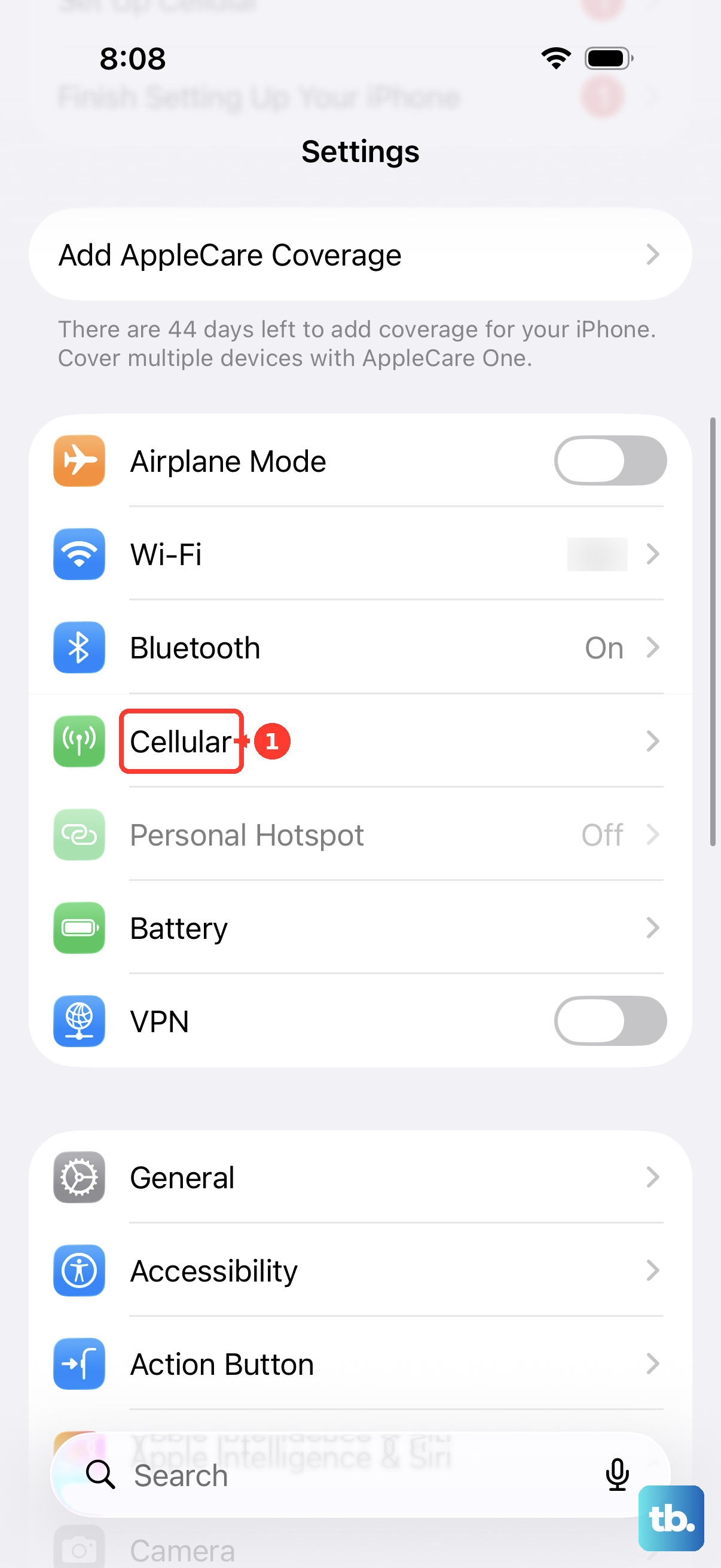
For Phone and FaceTime specifically, also check Settings > Cellular to make sure your line has full call features enabled.
Force Restart Your iPhone
When the audio routing gets stuck, a fresh restart often clears it. Press and release Volume Up, press and release Volume Down, then hold the Side button until you see the Apple logo. Let it boot fully. Once it's back on, open the AirPods 4 case lid next to the phone. They'll reconnect automatically. Make a quick test call and see if the mic picks up cleanly.
Reset AirPods 4 With the Triple-Tap Method
The AirPods 4 with ANC don't use the old 15-second setup-button hold that older models used. Put both buds in the case and close the lid for about 30 seconds. Open the lid. Double-tap the front of the case three times. You'll see the status light flash amber, then white. That confirms the reset worked. Now re-pair them to your iPhone by opening the lid next to it.
This reset clears any internal mic state mismatch between the buds, the case, and the phone's Bluetooth stack, so try it before assuming the hardware is faulty.
Test With Voice Memos and FaceTime
Always isolate the issue by using Apple's own apps first. Open Voice Memos and record yourself for a few seconds. If that sounds clear, the AirPods 4 mic is fine and the problem lives in a third-party app's audio handling. Try a FaceTime audio call next. FaceTime uses AAC in both directions, which gives much better voice quality than a standard cellular call that drops to mono HFP.
If Voice Memos sounds muffled but FaceTime sounds OK, you're hearing the codec compression from a regular phone call, not a broken mic. If both sound bad, the mic itself needs attention.
Update the AirPods Firmware Silently
Apple pushes firmware updates to AirPods automatically when they're charging near your connected iPhone. Plug the case into a USB-C charger and keep your iPhone nearby and unlocked. Give it at least 30 minutes. Then check Settings > Bluetooth > tap the (i) next to AirPods 4 > scroll to Version. Compare against the current version on Apple's support page. If you're behind, leave the case charging next to your iPhone for another hour or two.
When One Bud's Mic Has a Hardware Issue
If you've gone through all these steps and one specific bud reliably can't record anything while the other works perfectly, that bud likely has a hardware-level mic problem. Apple's standard 1-year warranty covers this if you're still within the window. AppleCare+ covers accidental damage too, including something as simple as a blocked vent that couldn't be cleaned. Take only the failing bud to an Apple Store, not both. There's no need to swap working hardware.