
When people can't hear you on your iPhone 16, it turns simple calls and video chats into a frustrating game of charades. The issue could be a blocked microphone, a software hiccup, or a settings misconfiguration. Let's start by figuring out which microphone is acting up, as your phone uses several for different tasks.
Test Which Microphone Isn't Working
Your iPhone 16 has microphones at the bottom, top, and back. The primary one for calls and Siri is at the bottom, near the USB-C port. The one for FaceTime and video is at the top, and the rear mics are for video recording. A quick test in the Voice Memos app can tell you a lot.
Open Voice Memos, tap the red record button, and speak normally for a few seconds. Play it back. If your voice sounds muffled or isn't there, the bottom microphone is likely blocked or faulty. For good measure, also try asking Siri a question by holding the Side button to see if she responds.
Remove the Case and Check for Blockages
This is the most common fix I'd start with. Many cases, especially rugged or thick ones designed for the iPhone 16, can partially cover the microphone grilles. Take the case off completely and make a quick test call.
While the case is off, take a close look at the microphone openings. The tiny grilles near the USB-C port and at the top of the frame can easily collect pocket lint or debris. Use a dry, soft-bristled brush (a clean toothbrush works) to gently dislodge any visible gunk.
Disconnect All Bluetooth Accessories
If your AirPods, a headset, or a car stereo are connected via Bluetooth, your iPhone 16 will route all audio through them by default. This includes the microphone. Even if the headphones aren't in your ears, the connection can still be active.
Swipe down from the top-right corner to open Control Center. Tap the Bluetooth icon to turn it off entirely, then try your call or Voice Memos test again. This instantly rules out any audio routing conflicts with wireless devices.
Force Restart Your iPhone 16
A simple restart clears out temporary software glitches that can affect the audio controller. On the iPhone 16, you force restart by pressing and quickly releasing the Volume Up button, then pressing and quickly releasing the Volume Down button. Finally, press and hold the Side button until you see the Apple logo appear.
This process doesn't delete any data. It's just a deeper refresh than a standard power off and on. After the phone reboots, test the microphone immediately to see if the issue is resolved.
Check App-Specific Microphone Permissions
If the problem only happens in apps like WhatsApp, Zoom, or Facebook Messenger, those apps might have lost permission to use the mic. iOS 26 manages these permissions tightly. Go to Settings > Privacy & Security > Microphone.
You'll see a list of all apps that have requested microphone access. Make sure the toggle is switched on (green) for the app giving you trouble. If it's off, turn it on, then force close and reopen the app to try again.
Update to the Latest iOS 26 Version
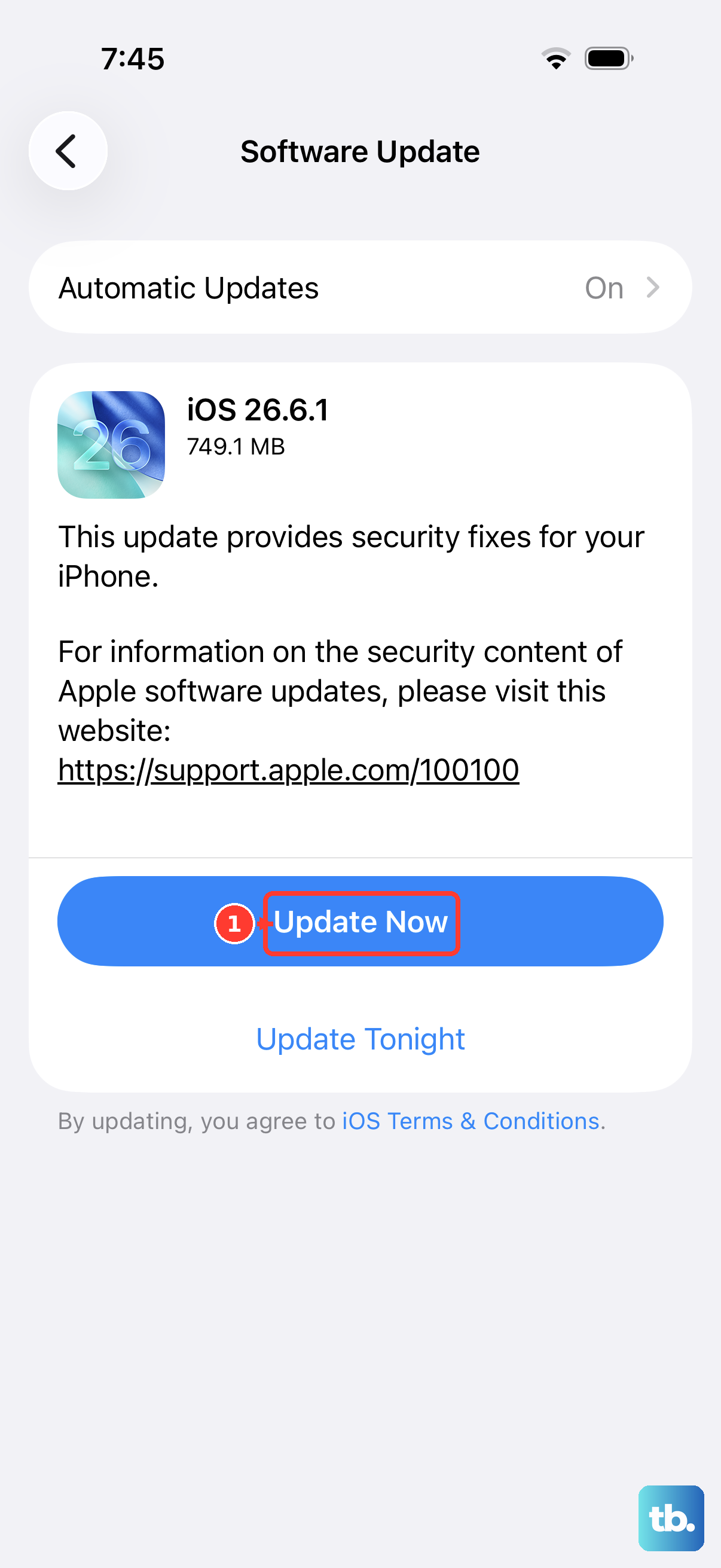
Apple frequently releases software updates that patch bugs, including audio and microphone issues. An update could directly address the problem you're experiencing. Go to Settings > General > Software Update.
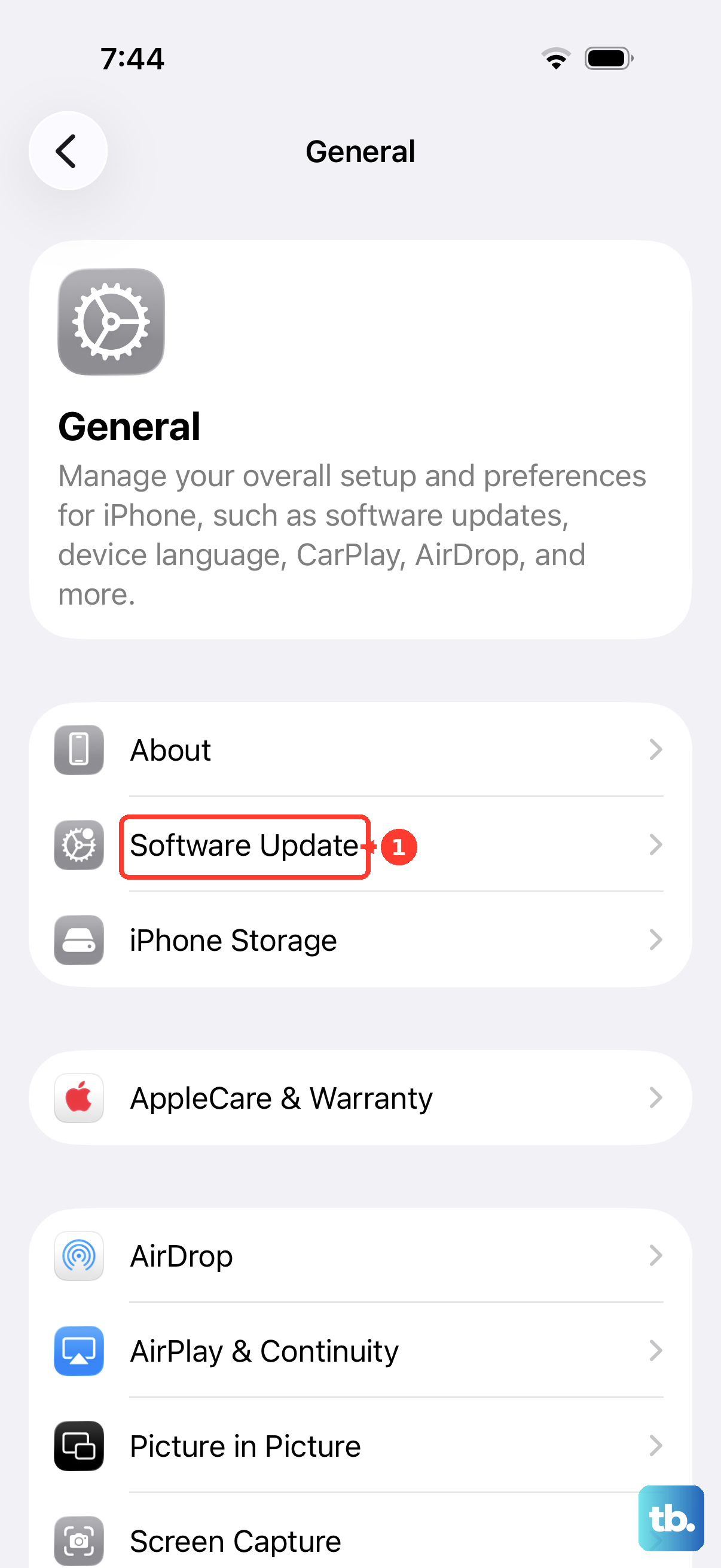
If an update is available, I'd recommend installing it. Make sure your iPhone 16 is connected to Wi-Fi and has at least 50% battery or is plugged into a charger. After the update completes, give your microphone another test.
Reset All Settings on Your iPhone
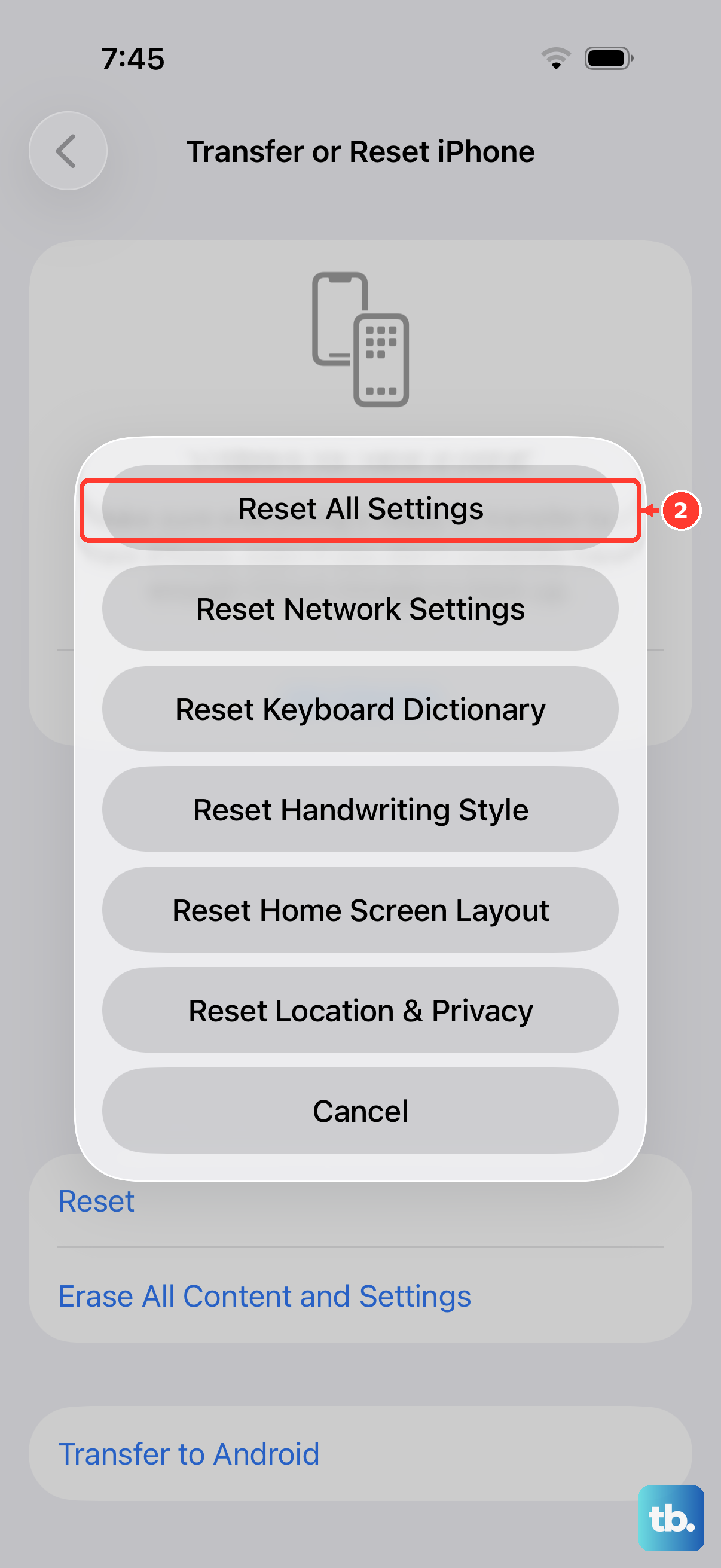
This is a more significant step, but it won't touch your photos, messages, or apps. It resets all your preferences, like Wi-Fi passwords, wallpaper, and privacy permissions, back to factory defaults, which can clear out a corrupted setting causing the mic to fail.
To do this, go to Settings > General > Transfer or Reset iPhone. Tap Reset, then choose Reset All Settings. You'll need to enter your passcode. After the phone restarts, you'll need to reconnect to Wi-Fi and re-grant app permissions, but it often fixes stubborn audio issues.
Inspect for Moisture or Liquid Damage
The iPhone 16 is water-resistant, but exposure to liquids can still cause temporary microphone issues. If you see a liquid detection alert on the screen or the microphone grilles look wet, power the phone off immediately if you haven't already.
Let the phone dry thoroughly for at least 24 hours in a dry, well-ventilated area. Avoid using heat sources like a hair dryer. Once you're confident it's dry, power it back on and test the microphone. The alert should clear if the issue was temporary.
Try a Call with Speakerphone On
This is a useful diagnostic step. During a phone call, tap the Speaker button. If the other person can hear you clearly on speakerphone but not on the normal handset mode, it points to an issue specifically with the bottom call microphone.
Conversely, if they can't hear you on speakerphone either, the problem might be more systemic or related to the top microphone. This helps narrow down whether it's a specific hardware component or a broader software or network issue.
Restore Your iPhone Using a Computer
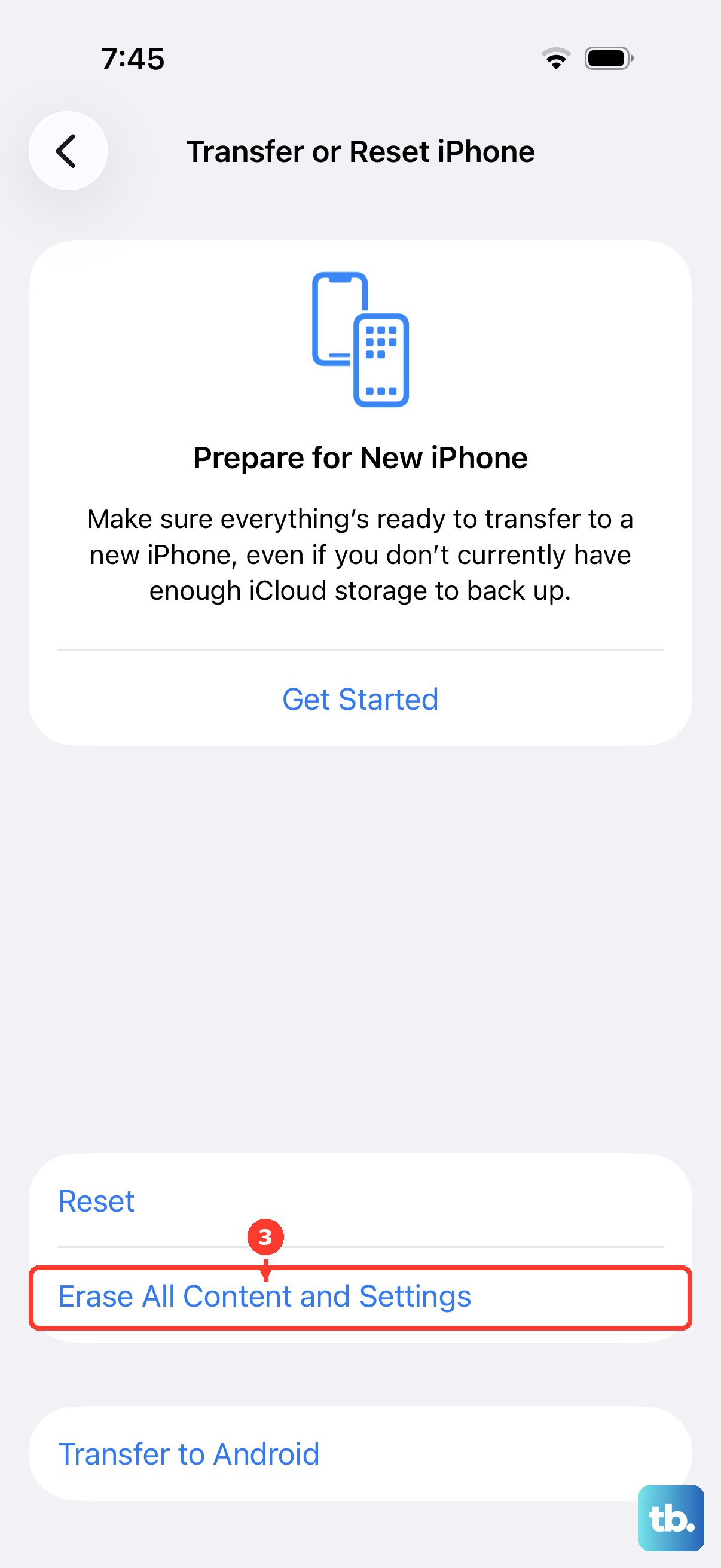
If all else fails, restoring the device software via a computer can fix deep-seated corruption. This will erase your iPhone, so ensure you have a recent backup in iCloud or on your computer first. Connect your iPhone 16 to a Mac or PC with a USB-C cable.
On a Mac with macOS Catalina or later, open Finder. On a PC or older Mac, open iTunes. Select your iPhone, then choose the option to Restore iPhone. This downloads and installs a fresh, clean copy of iOS 26. Afterward, you can set up the phone as new or from your backup to test the microphone.