
When the predictive text on your Xiaomi 15 stops working, it can feel like you're typing with one hand tied behind your back. Word suggestions vanish, autocorrect starts making bizarre changes, or the whole keyboard just feels sluggish. The good news is this is almost always a software hiccup you can fix yourself.
I'd start with a simple restart. Press and hold the power button for about 15 seconds until you see the phone reboot. This clears out any temporary glitches in HyperOS 2 that might be interfering with the keyboard's learning model.
Clear the Gboard App Cache and Data
Since the Xiaomi 15 uses Google's Gboard as its default keyboard, the first real fix is to clear its temporary files. Go to Settings > Apps > Manage apps. Find and tap on Gboard in the list. Tap on Storage & cache, then hit Clear cache.
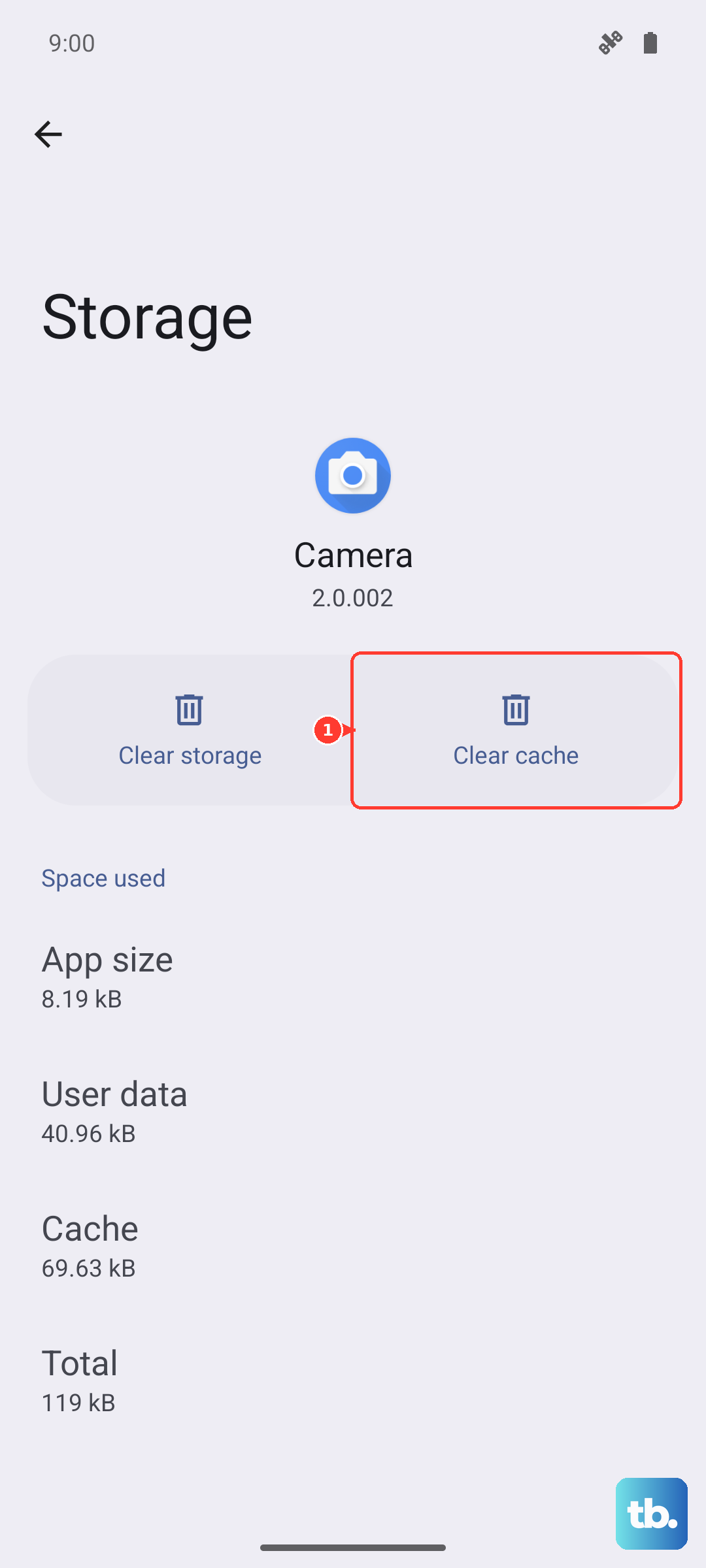
If that doesn't bring predictions back, you can go a step further. In that same Gboard storage menu, tap Clear data. This will reset the keyboard to its default state, so you'll lose any custom dictionary words you've added and need to re-grant permissions.
Check Your Predictive Text and Language Settings
Sometimes the feature just gets accidentally toggled off. Open any app that uses the keyboard and tap to bring it up. Look for the gear icon on the top row of the keyboard to open Gboard settings, or go the long way through Settings > Additional settings > Languages & input > On-screen keyboard > Gboard.
Inside Gboard settings, tap on Text correction. Make sure the switch for Show suggestion strip and Next-word suggestions are both turned on. Also, verify your primary language is set correctly under Languages.
Update Gboard and System Software
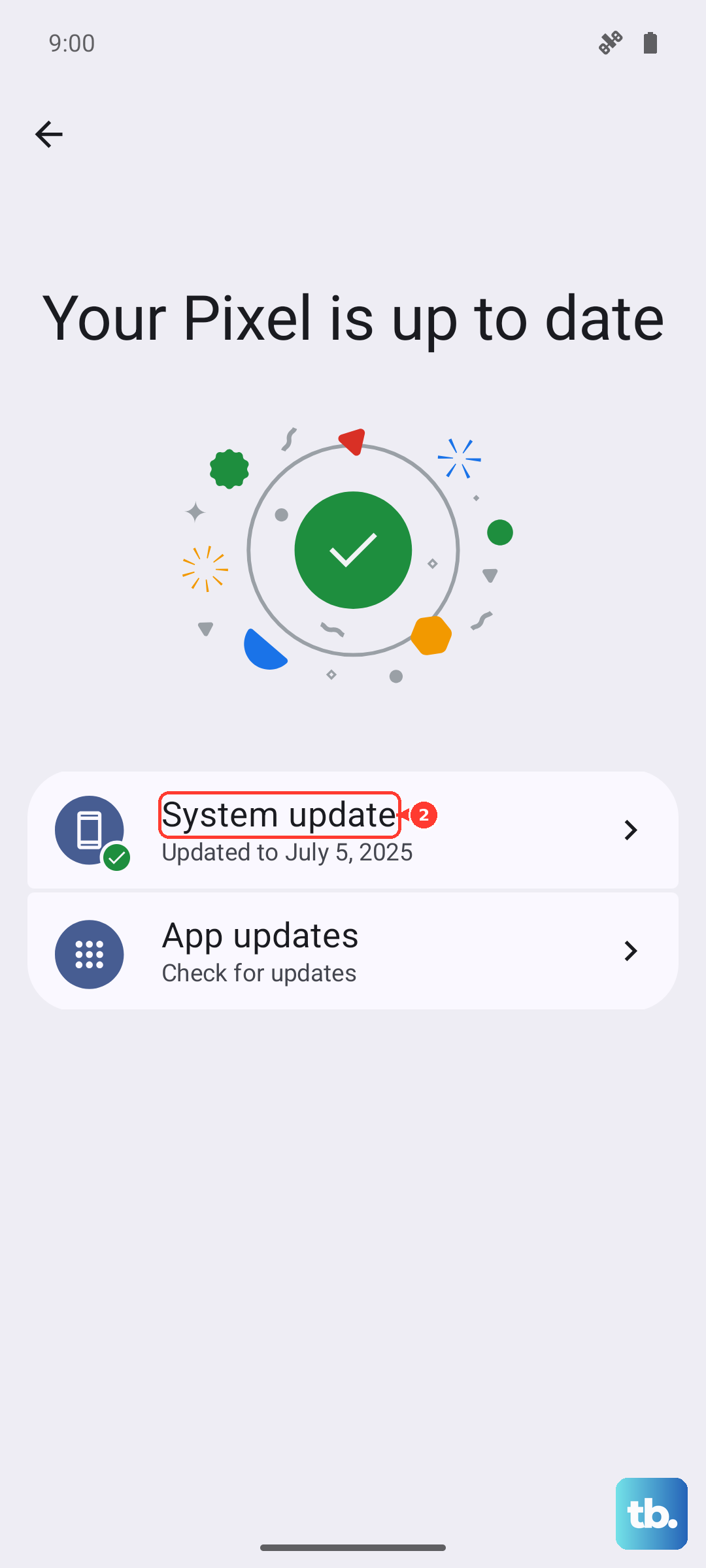
An outdated keyboard app can cause all sorts of issues. Open the Google Play Store, search for Gboard, and see if an update is available. Installing it can patch bugs that affect predictive text.
It's also worth checking for a full system update. HyperOS 2 updates from Xiaomi often include stability fixes. Go to Settings > About phone > HyperOS version and tap "Check for updates."
Try a Different Keyboard Temporarily
This is a great way to figure out if the problem is with Gboard specifically or something deeper in the system. Install another keyboard like Microsoft SwiftKey from the Play Store, set it as your default, and see if predictions work there.
If they do, the issue is isolated to Gboard. If predictions are still broken on a fresh keyboard app, it points to a broader system setting or conflict.
Reset App Preferences as a Last Resort
This is a broader fix that won't delete your personal data. It resets all your app permissions, notification settings, and default apps back to factory state. It can resolve conflicts that might be stopping Gboard from working properly.
Go to Settings > Apps > Manage apps. Tap the three-dot menu in the top right and select Reset app preferences. Confirm the action. After your phone reboots, you'll need to re-allow permissions for your apps, but it often clears up stubborn software issues.