
When your Xiaomi 15 won't send texts, it's incredibly frustrating. You might see messages stuck on "Sending," get a failure notification, or just have them disappear into the void. The good news is this is almost always a simple software or network hiccup you can fix yourself.
Restart Your Phone First
This is the universal fix for a reason. A simple restart clears temporary glitches in HyperOS 2 that can stall the messaging app. Just press and hold the power button, tap restart, and give it a minute to boot back up. I'd start with this one every time.
If the phone is completely frozen and won't respond to the normal restart, you'll need to force it. Press and hold the power button for 15 seconds or more until you feel the phone vibrate and see the Xiaomi logo appear on screen. This forces a hard reboot.
Check Your Mobile Data and Signal
Text messages (SMS) need a cellular signal, and multimedia messages (MMS) require mobile data to be active. Look at the top of your screen. If you see an "X" over the signal icon or no bars, you're out of service range.
Move to a window or a different location. You can also quickly refresh your connection by toggling Airplane mode. Swipe down from the top to open the Control Center and tap the airplane icon to turn it on, wait 10 seconds, then tap it again to turn it off.
Verify Your Mobile Data Settings
Since MMS pictures and group texts require data, you need to make sure it's enabled for messaging. Go to Settings > SIM cards & mobile networks. Select your active SIM card and ensure Mobile data is switched on.
While you're there, tap on Access Point Names (APN). Your carrier's APN settings should be configured automatically, but if they're missing or wrong, messages can fail. You can try resetting them to default here or get the correct APN details from your carrier's website.
Clear the Messaging App's Cache
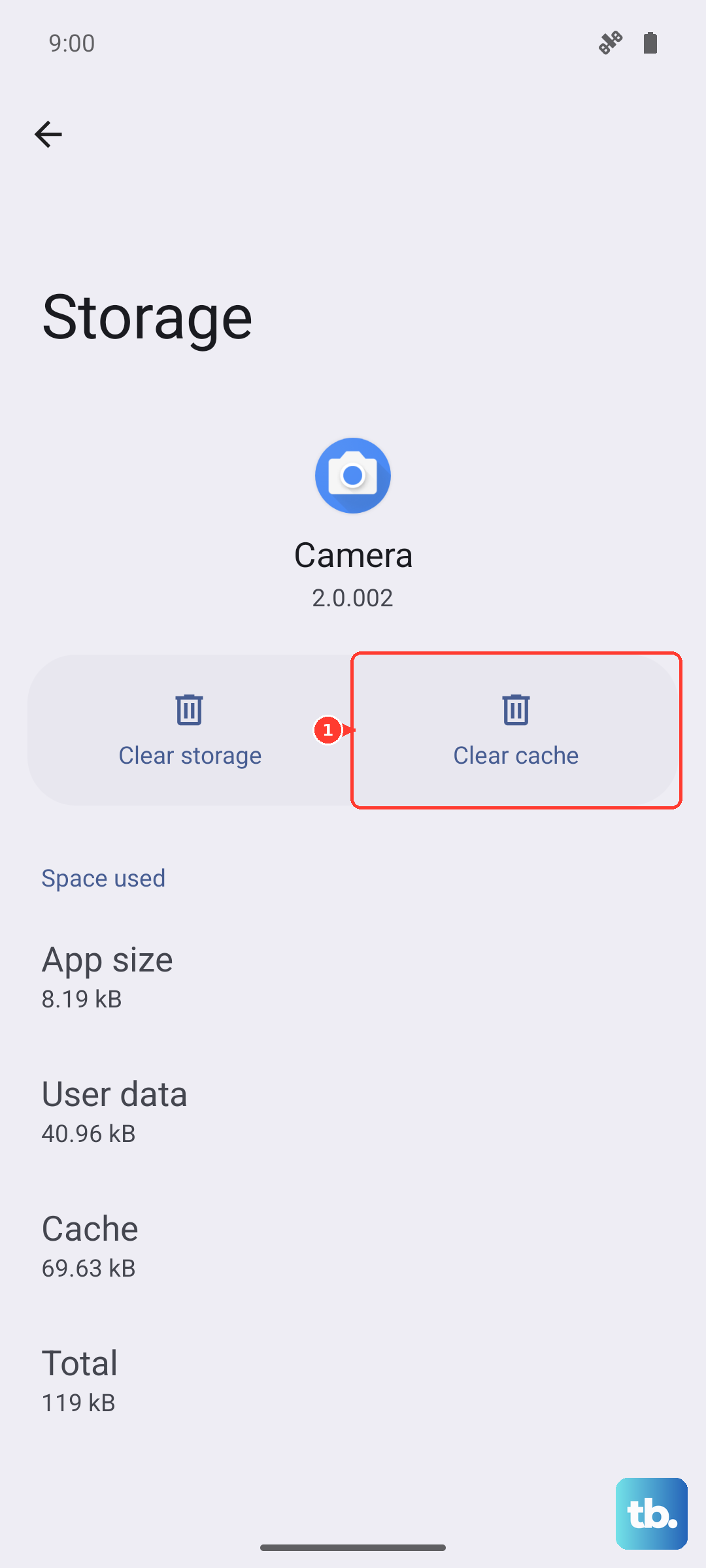
Over time, the data cache for your Messages app can become corrupted. Clearing it forces the app to rebuild this data fresh, which can resolve sending failures without deleting your actual conversations.
Go to Settings > Apps > Manage apps. Find and tap on Messages (it might be called Messaging or SMS). Tap on Clear cache. Do not tap "Clear data" unless you're prepared to lose your message history, as that's a more drastic step.
Check for System Updates
Xiaomi frequently releases updates for HyperOS that fix bugs, including ones related to connectivity and messaging. An outdated system can be the root cause of your problem.
Go to Settings > About phone > HyperOS version. Tap on Check for updates. If an update is available, install it. Make sure your phone is connected to Wi-Fi and has at least a 50% charge, or better yet, plug it into that 90W HyperCharge adapter first.
Reset Your Network Settings
This is a more comprehensive step that resets all network-related configurations to factory defaults. It will erase saved Wi-Fi networks, Bluetooth pairings, and mobile data settings, but it often solves persistent messaging issues.
Navigate to Settings > Additional settings > Backup & reset. Tap on Reset phone. Here, select Reset Wi-Fi, mobile & Bluetooth. Confirm the reset and your phone will reboot. You'll need to reconnect to Wi-Fi and re-pair Bluetooth devices afterward.
Try a Different Messaging App
To rule out a problem with the default Xiaomi messaging app, try installing a popular alternative like Google Messages from the Play Store. Set it as your default app and see if you can send texts successfully.
If the third-party app works, the issue is isolated to your stock app. You can continue using the new app, or you can go back to the stock app and try the more thorough step of clearing its full data (remembering you'll lose message history) to start fresh.
Reinsert Your SIM Card
A poor connection between the SIM card and the phone's tray can cause intermittent network issues. Power your Xiaomi 15 off completely. Locate the SIM eject hole on the frame, use the provided tool or a paperclip to open the tray, and carefully remove the SIM.
Gently wipe the gold contacts on the SIM card with a soft, dry cloth. Blow any dust out of the SIM tray slot, then reinsert the SIM card, ensuring it's seated correctly. Power your phone back on and wait for it to fully register on the network.
Contact Your Mobile Carrier
If you've tried everything and texts still won't send, the problem might be on your carrier's end. There could be a temporary outage in your area, a provisioning issue with your account, or SMS/MMS services might be blocked on your plan.
Give your carrier's customer service a call. They can check your account status, reprovision your services, and confirm there are no network problems affecting your number. They can also send a refresh signal directly to your SIM card, which sometimes does the trick.