
When your Xiaomi 15 won't send pictures, it's usually a quick fix. The most common culprit is a simple network or app glitch. I'd start by force closing the messaging app you're using and then checking your mobile data or WiFi connection.
If the photo is stuck on "sending" or fails immediately, a quick restart often clears it up. Just press and hold the power button for 15 seconds or more until you feel the phone vibrate and the screen comes back on.
Check Your Mobile Data and Network
First, make sure your mobile data is actually turned on. Swipe down from the top of your screen to open the Quick Settings panel and tap the cellular data icon to enable it. If you're on WiFi, tap the WiFi icon to ensure you're connected to a working network.
Sometimes, the phone's data saver or a network mode setting can block MMS messages, which is how pictures are sent via standard text. Go to Settings > Mobile network and make sure your SIM card is active and data is enabled for it.
For a deeper network refresh, you can try toggling Airplane mode on and off from the Quick Settings. This resets all your radio connections at once and can fix transient signal issues.
Verify MMS and APN Settings
Your carrier's Access Point Name (APN) settings are essential for sending multimedia messages. If these are wrong or missing, pictures will fail to send. You can find and check these in Settings > Mobile network > SIM cards & mobile networks > select your SIM > Access Point Names.
Don't edit these unless you know the correct values from your carrier. If they look blank or incorrect, it's best to contact your mobile provider and ask for the correct Xiaomi 15 MMS/APN settings. They can usually send a configuration message that sets it up automatically.
Also, within your messaging app's settings, look for an option called "MMS messages" or "Multimedia messages" and ensure it's enabled. Some third-party apps like Google Messages have this under Settings > Advanced within the app.
Clear the Messaging App's Cache and Data
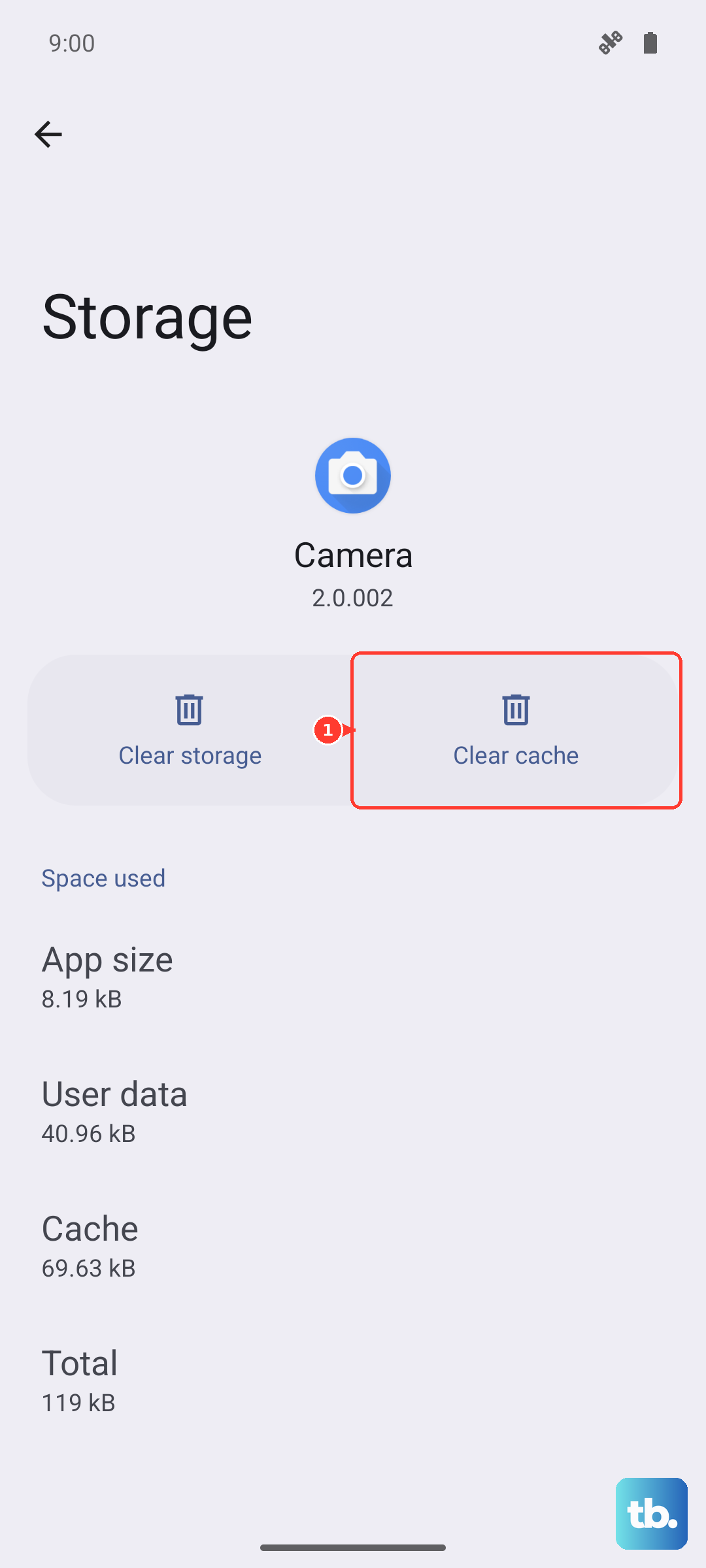
A corrupted cache in your messaging app can cause send failures. This is a safe fix that won't delete your messages. Go to Settings > Apps > Manage apps. Find your default messaging app (like "Messages" or "Google Messages") and tap on it.
Tap Storage usage at the bottom. Here, you'll see two options: "Clear cache" and "Clear data." Tap Clear cache first. This removes temporary files that might be causing trouble. If that doesn't work, you can try Clear data, but be aware this will reset the app to its default state and erase your message history within that app.
Check for System Updates
HyperOS 2, while powerful, can have occasional UI and connectivity bugs that Xiaomi fixes with updates. An outdated system might be the reason your photos are stuck. Make sure your phone is connected to WiFi, then go to Settings > About phone > HyperOS version.
Tap on the "Check for updates" button. If an update is available, install it. These updates often include stability improvements for the modem and messaging services that can resolve sending issues.
Try a Different Messaging App
This is a great way to figure out if the problem is with the app itself or with the phone's system. If pictures send fine using WhatsApp, Telegram, or Signal, then the issue is likely with your default SMS/MMS app.
You can download Google Messages from the Play Store as a reliable alternative. If the new app works, you might want to stick with it, or you can proceed to fix the original one knowing the system itself is capable.
Disable VPN or Proxy Connections
If you're using a VPN, ad blocker, or have configured a proxy, it might be interfering with the MMS data connection. MMS often requires a direct carrier connection that some VPNs can disrupt.
Go to Settings > Connection & sharing and look for any VPN or proxy settings. Turn off any active VPNs and try sending the picture again. You can turn it back on after the media sends.
Reset Your Network Settings
This will wipe all your saved WiFi passwords, Bluetooth pairings, and cellular network preferences, but it's very effective for persistent network-related issues. It's like giving your phone's connectivity a clean slate.
Go to Settings > Additional settings > Backup & reset > Reset phone. Here, tap on Reset network settings. Confirm your lock screen password if prompted. After the phone reboots, you'll need to reconnect to WiFi and re-pair Bluetooth devices, but your pictures should send.
Ensure Date and Time Are Correct
Incorrect date and time settings can sometimes cause authentication issues with carrier services. Your phone needs to know the correct time to communicate properly with the network for MMS.
Open Settings > Additional settings > Date & time. Make sure the "Set time automatically" and "Set time zone automatically" options are toggled on. This lets your phone sync the time directly from the network.
Contact Your Mobile Carrier
If you've tried everything here and pictures still won't send, the issue might be on your carrier's end. There could be a temporary service outage in your area, or there might be a block on MMS services on your account.
Give them a call or use their online support. You can tell them you've verified APN settings and network connectivity on your Xiaomi 15. They can check your line provisioning and may need to refresh your connection on their network, which often solves the problem instantly.