Is your Xiaomi 15's screen stuck in one orientation, refusing to flip when you turn the phone? It's a common snag that can pop up, especially with the newer HyperOS 2 interface. The good news is it's usually a quick software setting, not a broken phone.
Let's start with the most likely fix. Pull down your notification shade and look for the auto-rotate icon. On HyperOS, it often looks like a phone with arrows circling it. If it's grayed out or shows a lock symbol, just tap it once to enable it. The icon should light up, usually turning blue or white.
Check the Quick Settings Panel
Sometimes the toggle in the notification shade is just a shortcut. For the full settings, pull down the notification shade fully and tap the pencil icon to edit your quick tiles. Look for the "Auto-rotate" tile and make sure it's added to your active panel. If it's missing, drag it from the available tiles up to the top section.
I've seen this happen after a HyperOS update where the layout resets. Once the tile is back, give it a tap from the main quick settings panel to ensure it's truly activated.
Enable Home Screen Rotation
By default, the Xiaomi 15's home screen doesn't rotate to landscape, even with auto-rotate on. If you want your app icons and widgets to flip, you need to dig into the launcher settings. Press and hold on an empty area of your home screen and tap "Settings".
Look for an option called "Rotate to landscape mode" or "Allow home screen rotation". The exact wording can vary slightly. Toggle this on, and your home screen should now follow your phone's orientation.
Restart Your Xiaomi 15
If the settings look correct but nothing happens, a simple restart can clear out a temporary glitch. Just press and hold the power button until the power menu appears, then tap "Restart". Wait for the phone to fully boot back up and test the rotation again.
This is my go-to second step, as it often resolves minor UI hiccups that can occur with HyperOS 2.
Perform a Force Restart
When a normal restart doesn't cut it, a force restart is the next move. This is different from a standard reboot and doesn't erase any data. Simply press and hold the power button for about 15 seconds. You'll feel a vibration and see the Xiaomi logo as the phone powers off and back on by itself.
Release the button once you see the logo. This can clear deeper system caches that might be interfering with the accelerometer.
Test for App-Specific Problems
Does rotation fail in just one app, like your browser or YouTube? Some apps, especially older ones, lock their orientation. Try opening your camera app, which almost always rotates, to see if the sensor itself is working.
If rotation works in the camera but not in a specific app, the issue is with that app, not your phone. Check the app's settings for a rotation lock, or try updating the app from the Play Store.
Update Your System Software
Xiaomi frequently releases updates for HyperOS that fix bugs, including sensor issues. Go to Settings > About phone > HyperOS version. Tap on the "Check for updates" button.
If an update is available, download and install it. Make sure your phone is charged above 50% and connected to Wi-Fi. A software bug from an early HyperOS 2 build could easily be the culprit.
Check for Sensor Calibration
Your phone uses an accelerometer and gyroscope to detect movement. These can sometimes get out of sync. While Xiaomi doesn't have a public diagnostic code like some brands, you can try a calibration trick.
Open the Phone app and dial *#*#64663#*#*. This is Xiaomi's hidden hardware test menu. If the code works, look for tests labeled "Accelerometer sensor test" or "Gyroscope sensor test". Follow the on-screen instructions to see if the sensors are responding correctly.
Investigate Third-Party App Interference
Did you recently install a new launcher, screen recorder, or accessibility tool? Some apps request special permissions that can override system behaviors like auto-rotation. Think back to when the problem started.
You can boot into Safe Mode to test. Hold the power button, then press and hold the "Power off" option on the screen until you see a "Reboot to safe mode" prompt. In Safe Mode, all third-party apps are disabled. If auto-rotate works here, a recently installed app is likely causing the conflict.
Consider a Software Reset
If all else fails and the hardware tests pass, a software issue deep within the system might be to blame. Before doing anything drastic, try clearing the cache for the "Settings" and "System UI" apps. Go to Settings > Apps > Manage apps.
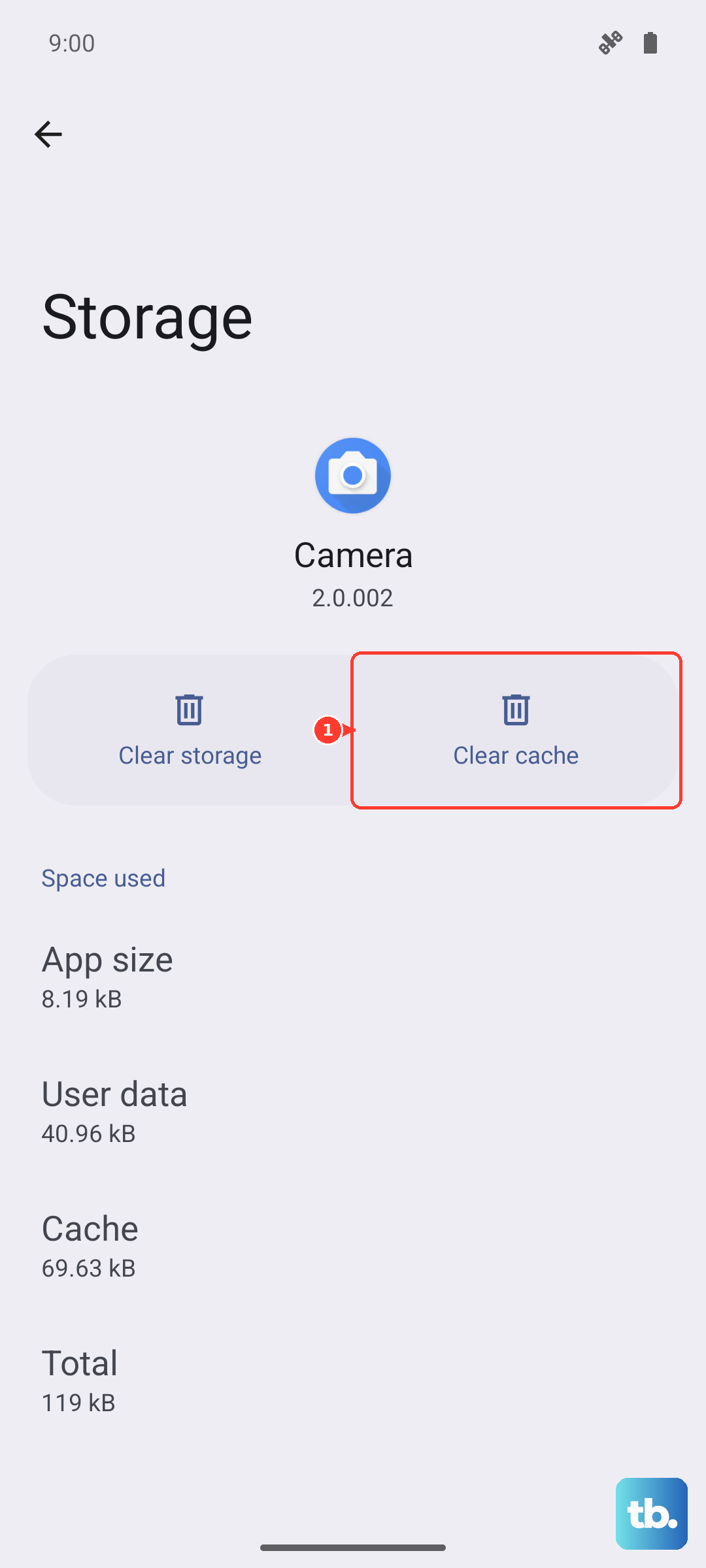
Tap the three-dot menu, select "Show all apps", and find "Settings" in the list. Tap on it, then tap "Clear cache". Do the same for "Android System" or "System UI". This won't delete your data, but it can resolve corrupted temporary files.