
Seeing that notification dot on your messaging app but finding no new messages when you open it is a common annoyance. On the Xiaomi 14T Pro with HyperOS, this can happen for a few reasons, from a simple app glitch to a deeper system setting. I'd start with the quick fixes first, as they resolve most cases.
First, force quit the app that's showing the false badge. Swipe up from the bottom and hold to enter the recent apps view, then swipe the messaging app away. Open it again from your home screen. This clears its temporary state and often fixes a stuck notification count immediately.
If that doesn't work, a full device restart is your next best step. Press and hold the power button for about 15 seconds until you feel a vibration and see the phone reboot. This clears system caches and resets all background services, including the one that manages notification badges.
Clear the App's Cache and Data
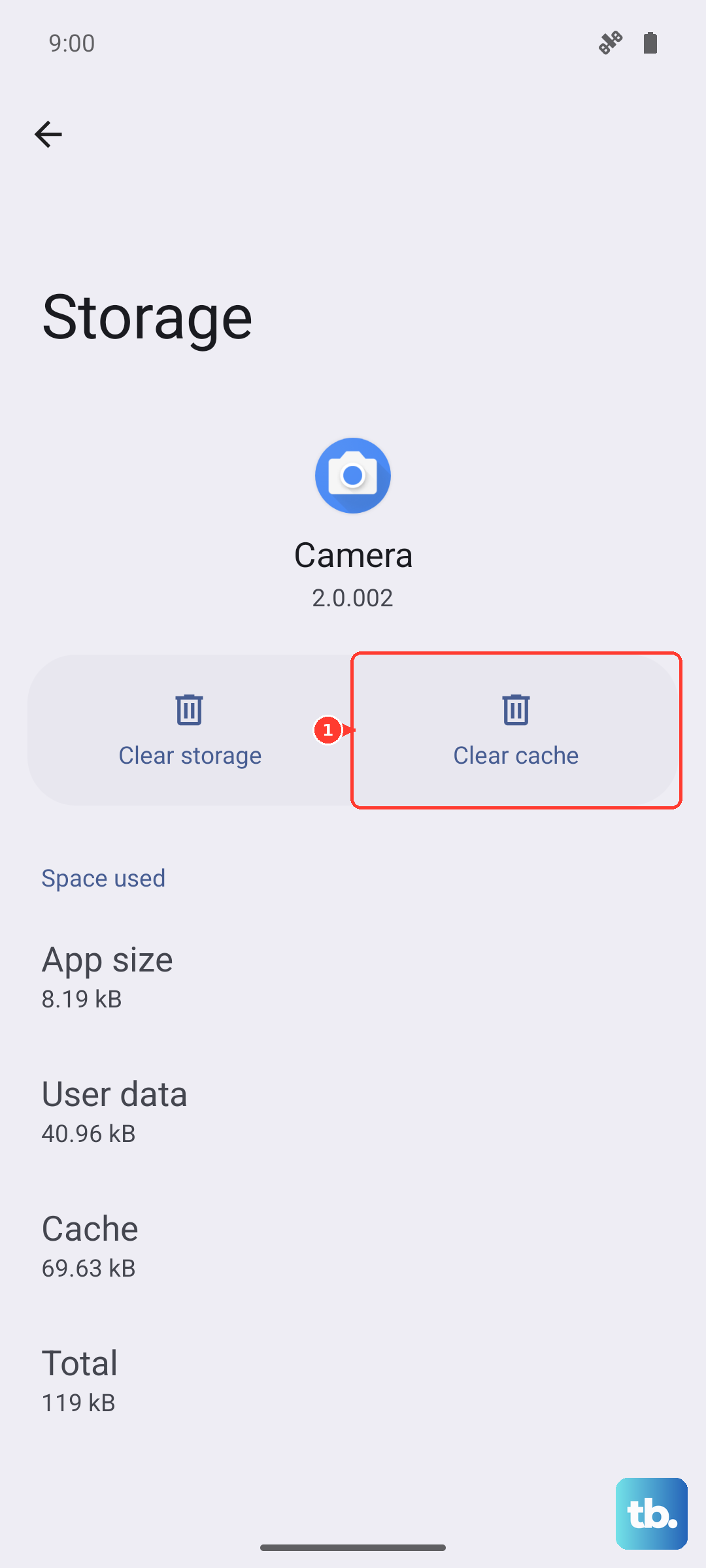
Corrupted temporary files within the app itself are a frequent culprit. Clearing this cache is safe and won't delete your messages. Go to Settings > Apps > Manage apps. Find your messaging app (like Messages or Google Messages) in the list and tap on it.
Tap on Storage usage at the bottom. Here, you'll see two options: "Clear cache" and "Clear data". Tap "Clear cache" first. If the problem persists, you can try "Clear data", but be aware this will reset the app to its default state, erasing your in-app preferences (though your actual SMS messages are stored by the system and should remain).
Check App-Specific Notification Settings
HyperOS has granular notification controls. The issue might be that the app is allowed to notify you, but the badge (or dot) is specifically turned off. Go to Settings > Notifications & control center > App notifications.
Select the problematic app from the list. Make sure "Allow notifications" is toggled on. Then, tap on "Notification categories" or "Other notifications". Look for an option labeled "Badge" or "App icon badges" and ensure it's enabled. Sometimes, toggling it off and back on can kick the system back into working order.
Review Battery and Background Restrictions
The Xiaomi 14T Pro's aggressive battery optimization, especially useful for managing the Dimensity 9300+ chip's power, can sometimes prevent apps from updating their badges in the background. Go to Settings > Battery > App battery saver.
Find your messaging app. If it's set to "Restrict background activity" or "Smart background", change it to "No restrictions". This gives the app the permission it needs to check for new messages and update the badge icon correctly, even when it's not open.
Manage HyperOS's Security and Optimization Tools
Xiaomi's security app can interfere. Open the Security app on your phone. Tap on the brush icon for "Cleaner" at the bottom, then tap the settings gear in the top corner. Look for options related to notification cleaning or "Lock screen notifications" and review them. Sometimes features designed to "clean" or hide notifications can get overzealous.
Also, check the app's autostart permission. In the Security app, go to Boost speed > Manage apps' autostart. Ensure your messaging app is allowed to autostart. This helps it run the necessary background processes for notifications.
Update Your Apps and System Software
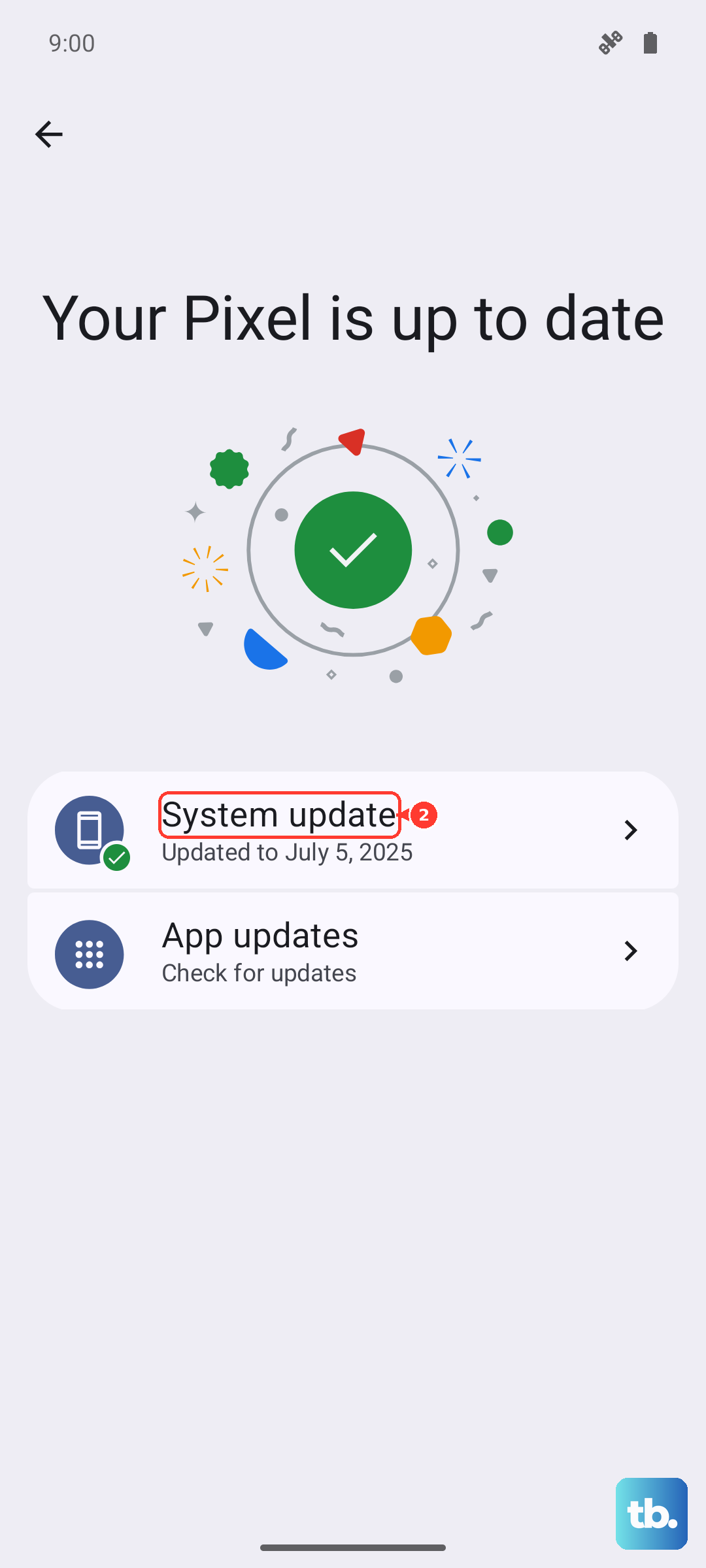
An outdated app or system software version might have a bug causing the badge error. Open the Google Play Store, tap your profile icon, and go to Manage apps & device > Updates available. Update all apps, especially your messaging app.
For system updates, which often contain crucial bug fixes for HyperOS, go to Settings > About phone > MIUI version. Tap "Check for updates" and install any available version. Keeping your 14T Pro updated is one of the best ways to prevent these kinds of glitches.
Reset App Preferences
This is a broader fix that resets all your app-related settings, like notifications, default apps, and background restrictions, back to factory defaults. It won't delete any personal app data. Go to Settings > Apps > Manage apps.
Tap the three-dot menu in the top right and select Reset app preferences. Confirm the action. After your phone resets, you'll need to re-grant notification permissions for your apps, but this can clear out any conflicting system-wide settings causing the badge error.
If you've been using the 120W charger, which can make the phone quite warm, try a reboot after it cools down. Extreme heat can sometimes cause temporary software hiccups, including with the notification system. For long-term battery and system health, consider enabling the battery protection feature in settings to cap charging at 80%.