Telegram has become super slow on my phone lately. Messages load very slowly, and media files take forever. Does anyone know how to fix this?
Slow Telegram usually traces back to one of three things: a weak or restricted network, a bloated local cache, or a download speed limit on your account. The good news is that most slowdowns clear up in a minute or two without losing any chats. Work through the fixes below from top to bottom, since they are ordered fastest to most involved.
Need clear tech advice? We have helped millions of readers with honest guides since 2012.
Find What Is Actually Slow
Telegram slowness comes in different flavors, and the right fix depends on which one you have. Match your symptom in the table below, then jump to the matching method so you do not waste time.
| What you are seeing | Most likely cause | Start with |
|---|---|---|
| Messages and chats load slowly | Weak or unstable connection, or app needs a refresh | Methods 1 to 3 |
| Photos and videos open slowly | Auto-download flooding your bandwidth, or large cache | Methods 4 and 5 |
| Downloads start then stall or crawl | Account speed limit, proxy or VPN, or ISP throttling | Methods 6 to 8 |
| The whole app is laggy and unresponsive | Low storage, background limits, or outdated version | Methods 9 to 11 |
| Slow everywhere, all at once | Possible Telegram outage | Method 1 |
Check Whether Telegram Is Down
Before changing anything on your phone, rule out a server-side outage. If Telegram is having problems, no setting on your end will help and you can simply wait it out.
Open web.telegram.org or the desktop app on a different device and network. If Telegram is just as slow there, the issue is likely on Telegram's side or with your broader internet, not your phone. Telegram also posts incident updates on its official channels when a major disruption hits.
For a quick reconnect, switch your phone to airplane mode for about ten seconds, then turn it off again. This forces Telegram to drop and rebuild its connection, which often clears a stuck session.
Test Your Connection and Switch Networks
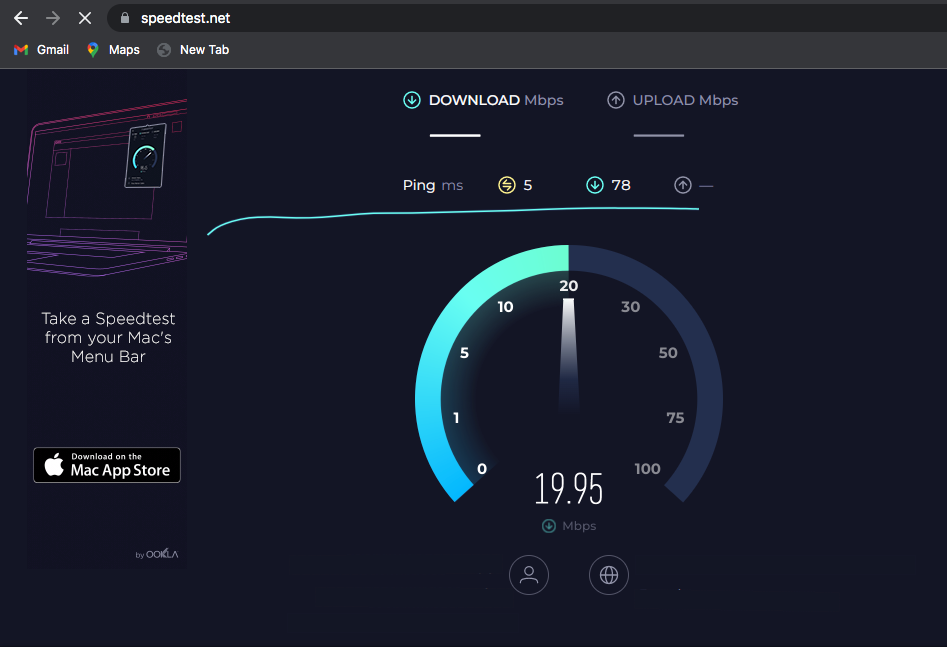
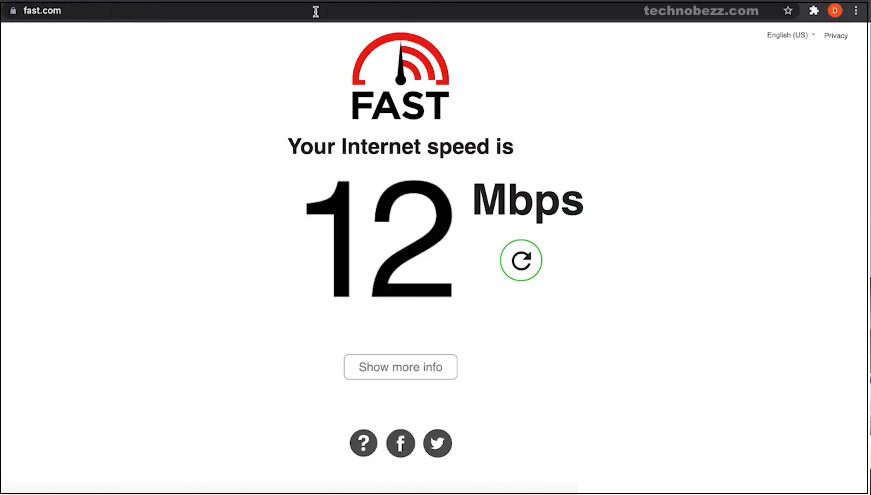
Telegram leans heavily on a stable network to fetch messages and media, so a weak signal is the most common culprit. Run a quick speed test in your browser, and try loading a couple of other apps to confirm whether the problem is Telegram or your whole connection.
If your speed looks low, switch between Wi-Fi and mobile data to see which is faster, move closer to your router, or step outside for a stronger cellular signal. Crowded public Wi-Fi and congested cellular towers can both throttle real-world speed well below what the bars suggest.
If you are on Wi-Fi, restarting your router clears temporary glitches, and connecting to a 5 GHz band instead of 2.4 GHz gives you more headroom when other devices are streaming.
Restart the App and Your Phone
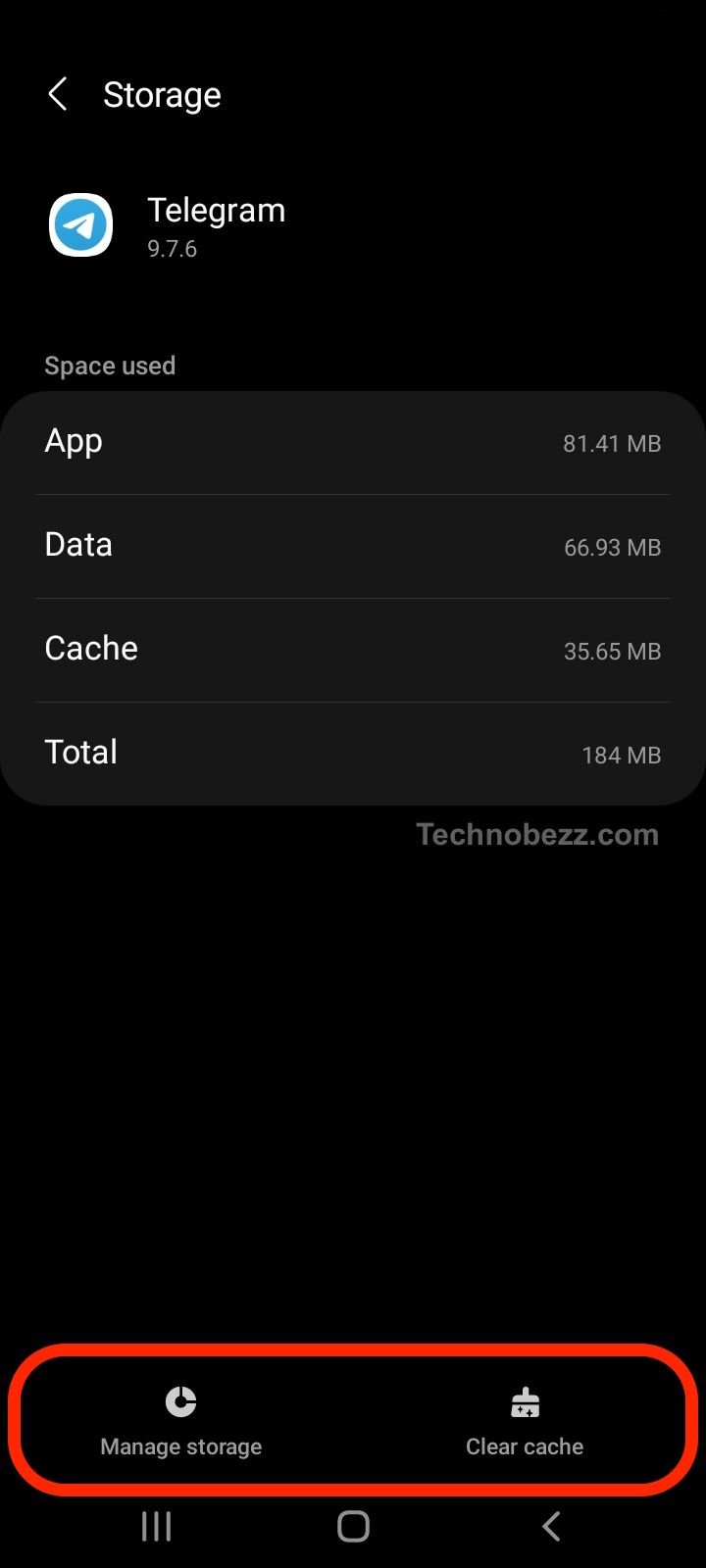
A simple restart clears the system glitches and memory leaks that quietly build up over a long uptime. Fully close Telegram from your recent apps view, then reopen it.
If that does not help, restart the phone itself. This frees up RAM, drops stale network connections, and resolves a surprising share of laggy app behavior in one step.
Limit Automatic Media Downloads
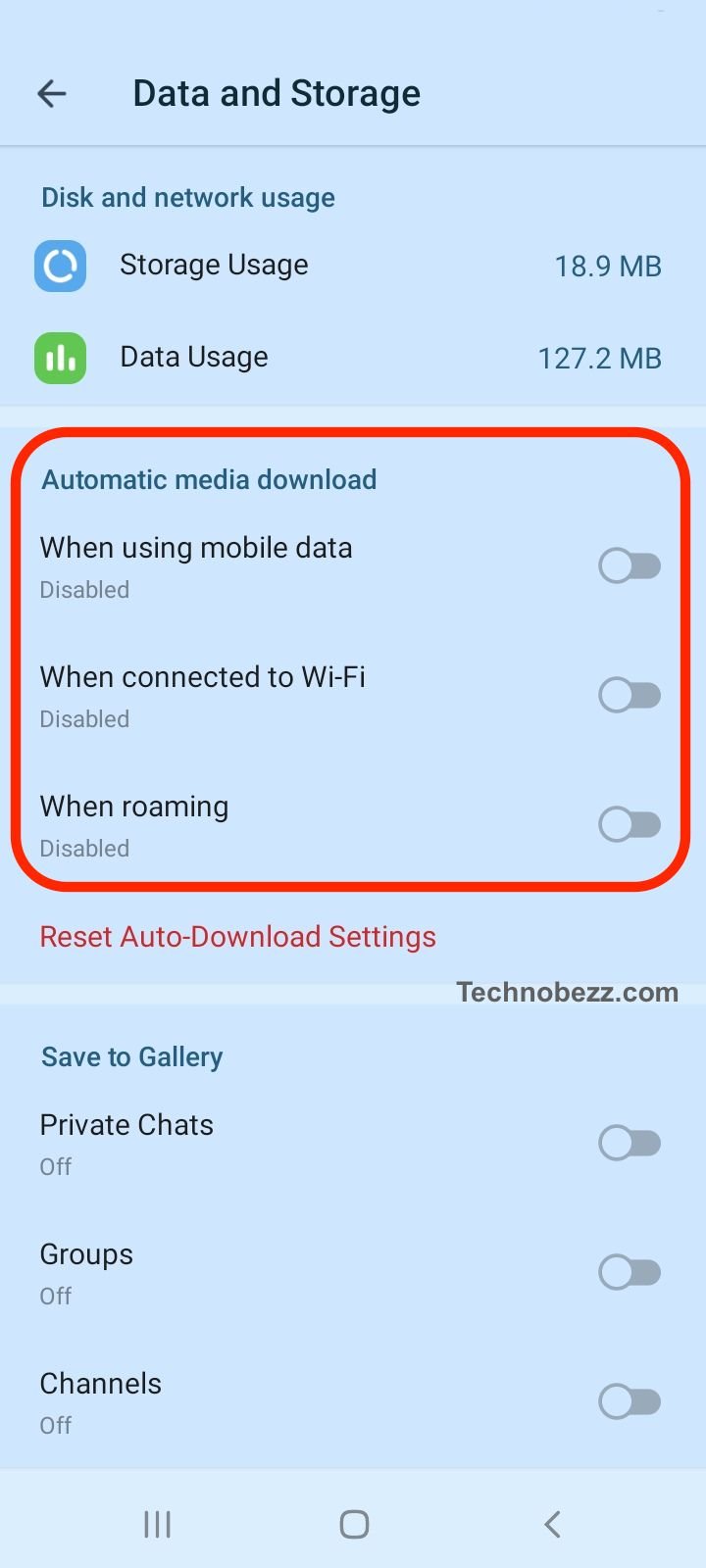
By default Telegram pulls in photos, videos, and files automatically, which can saturate a slow connection and make everything else feel sluggish. Restricting auto-download is one of the highest-impact changes you can make.
On Android, open the menu and go to Settings > Data and Storage. On iPhone, tap the Settings tab, then Data and Storage. Under Automatic Media Download you will see separate controls for When using mobile data, When connected to Wi-Fi, and When roaming.
Turn off auto-download for mobile data and roaming, and on Wi-Fi uncheck large items like videos and files. Media then loads only when you tap it, which keeps your bandwidth free for messages.
Clear the Telegram Cache
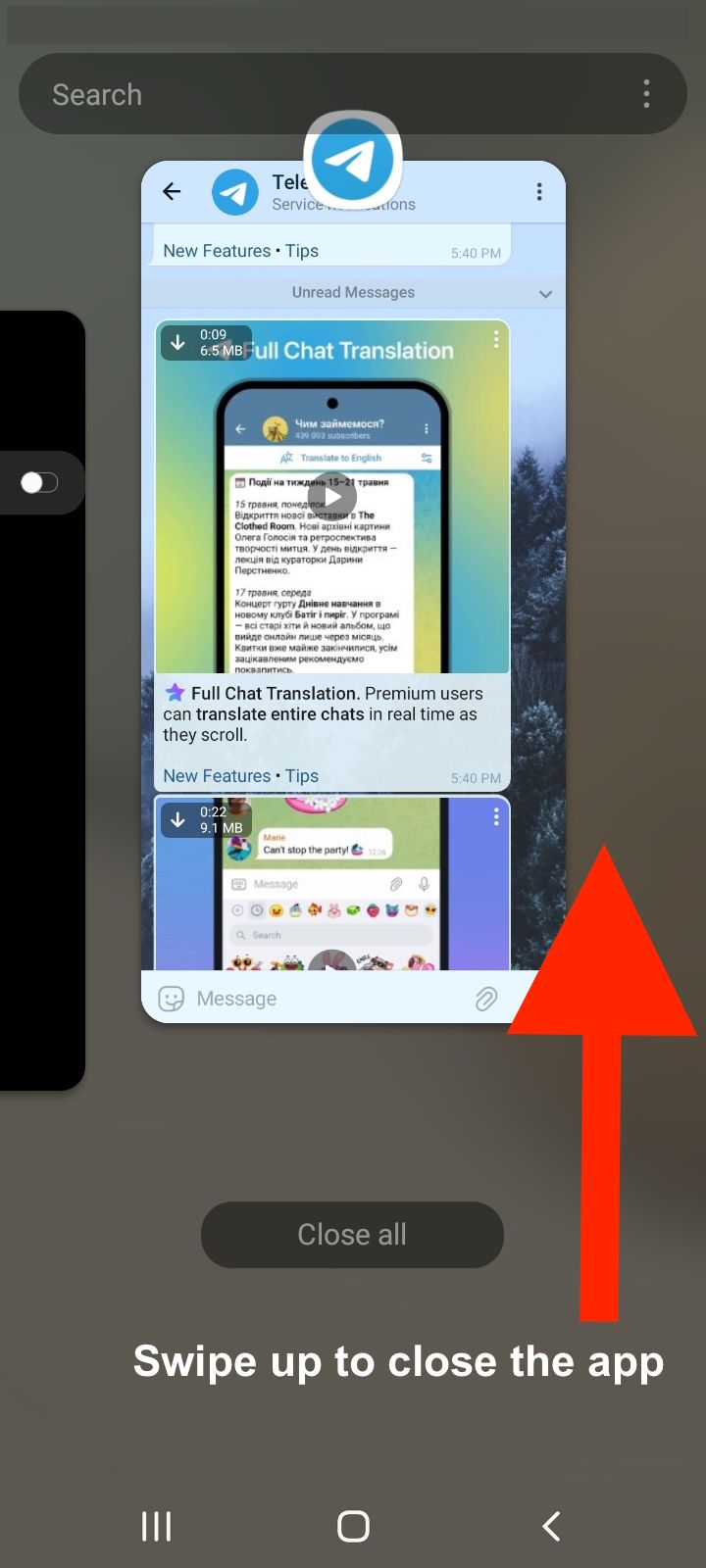
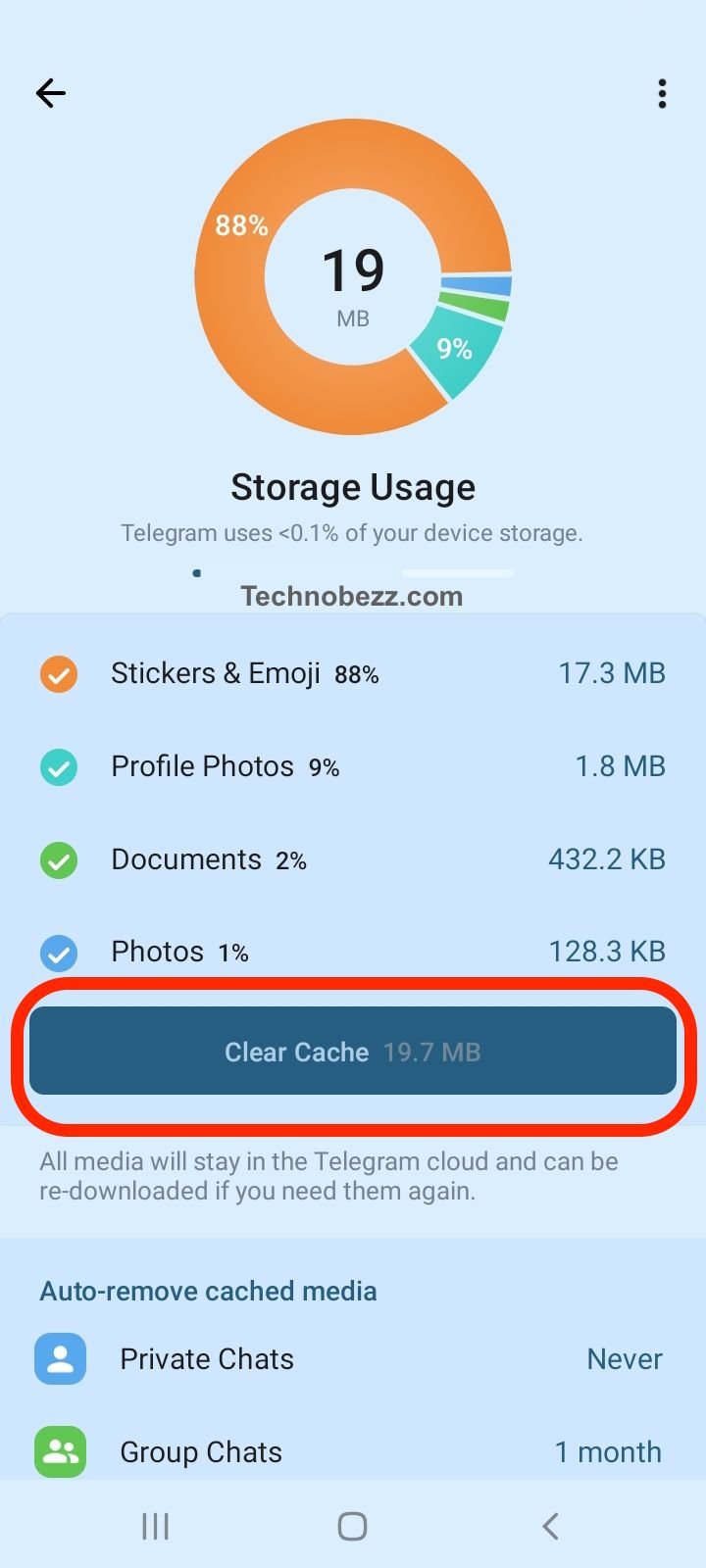
A bloated or corrupted cache is one of the most frequent causes of slowness, and clearing it often brings instant improvement. Your chats, contacts, and messages are not deleted, since they live in the cloud and only local copies are removed.
Go to Settings > Data and Storage > Storage Usage. You will see a breakdown by media type such as photos, videos, files, music, and stickers. Tap Clear Cache to wipe everything at once, or tap an individual category or chat to clear it selectively.
While you are there, set Keep Media to a shorter window so unused files are removed automatically and the cache stays lean over time. On Android you can also tap and hold a large channel or supergroup in your chat list and choose Delete from Cache.
Turn Off Proxy and VPN to Test
A proxy or VPN routes your traffic through an extra server, and a slow or distant one adds heavy lag to every message and download. Telegram often connects faster on a direct path.
Check Settings > Data and Storage > Proxy and switch any active proxy off to test. If you run a separate VPN app, disable it temporarily as well, then see whether Telegram speeds up.
If you genuinely need a proxy or VPN, switch to a server geographically closer to you and try connecting at off-peak hours, when servers are less congested.
Understand Telegram Download Speed Limits
Telegram applies a download speed limit to standard accounts so that bandwidth stays balanced across its huge user base. This is why a big file can crawl even on a fast connection.
Telegram Premium lifts any media download speed limit from your account on Telegram's side, removing throttling for media and documents. It is the only official way to remove the limit, and Telegram lists faster download speed as a paid subscription feature.
Keep your expectations realistic. Premium removes Telegram's own limit, but your real download speed is still bound by your internet plan, your hardware, and any throttling from your provider.
Free Up Storage on Your Device
When your phone is nearly full, every app slows down because the system has no room to write temporary files. Telegram is no exception and may stall while saving incoming media.
Check your free space and aim to keep at least a few gigabytes available. Delete unused apps, offload large videos and photos, and clear other apps' caches to give Telegram room to breathe.
Update Telegram to the Latest Version
Updates regularly ship bug fixes, performance improvements, and optimizations for new operating system releases. Running an old build can leave you stuck with a slowdown that was already patched.
Open the App Store or Google Play, search for Telegram, and install any pending update. Then fully close and reopen the app so the new version starts cleanly.
Allow Background Activity on Android
Aggressive battery savers on many Android phones throttle or freeze apps in the background, which can leave Telegram playing catch-up when you reopen it. Giving it unrestricted access keeps messages syncing on time.
Go to Settings > Apps > Telegram > Battery and choose Unrestricted. While you are in the app's settings, make sure background data and notifications are allowed so nothing is being held back.
iPhone handles this automatically, so make sure Background App Refresh is enabled for Telegram under your iOS settings if messages feel stale on launch.
Reinstall Telegram
If problems persist after everything above, a clean reinstall resets the app's configuration and clears any corrupted files that a normal cache clear missed. Because your chats and media are stored in the cloud, they sync back after you log in.
Before you uninstall, confirm you can still receive your login code by SMS or on another logged-in device. Then remove Telegram, reinstall it from the official store, and sign back in.
Use Telegram Web or Desktop as a Test
Opening Telegram on a computer is the fastest way to isolate whether the slowdown is your phone, your network, or Telegram itself. It is also a solid workaround when you need speed right now.
Sign in at web.telegram.org or with the desktop app. If Telegram runs smoothly there on the same network, the problem is specific to your phone and points you back to the cache, storage, and background-activity fixes above.
Frequently Asked Questions
Why is Telegram suddenly so slow?
A sudden slowdown is usually a weak or congested connection, a bloated cache, or a temporary Telegram outage. Toggle airplane mode to reconnect, clear the cache under Storage Usage, and check Telegram on another device to see whether the issue is on their side.
Does Telegram throttle downloads?
Yes. Telegram applies a download speed limit to standard accounts to keep bandwidth balanced across users. Telegram Premium removes that cap on Telegram's side, though your internet plan and hardware still set the real ceiling.
Is Telegram down right now?
Open web.telegram.org or the desktop app on another network. If Telegram is slow or unreachable everywhere, the problem is likely a server outage rather than your phone, and waiting it out is the only fix.
Will clearing the cache delete my messages?
No. Clearing the cache only removes locally stored copies of photos, videos, and files. Your chats, contacts, and messages stay safe in Telegram's cloud and reload when you open them again.
Does a VPN make Telegram faster or slower?
It depends. If your provider throttles or restricts Telegram, a fast nearby VPN can restore normal speed. But a slow or distant server adds lag, so disable any VPN or proxy first to test the difference.
Why are my Telegram messages fast but media is slow?
Messages are tiny while media is large, so media is the first thing to suffer on a weak connection or under the account download limit. Limit automatic media downloads, clear the cache, and switch to a stronger network to speed it up.