
If videos on your Tecno Spark 30 Pro are stuttering, freezing, or looking choppy, it can be really annoying. This is a common issue, especially on budget phones, but there are quite a few things you can try to smooth things out.
A browser based online refresh rate test shows the real Hz your display is delivering right now. Many stutter complaints turn out to be a monitor silently running at 60 Hz.
Clear the App Cache and Data
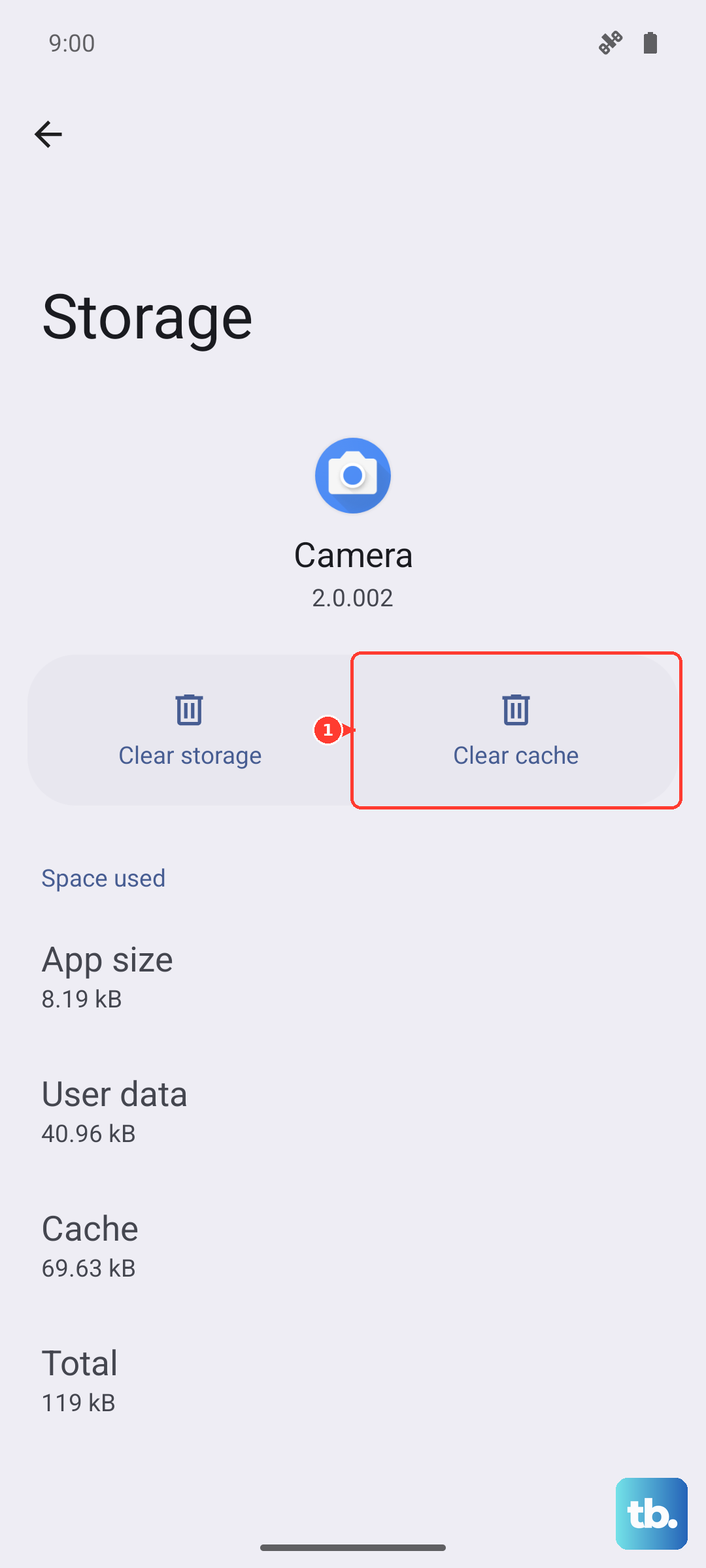
This is often the quickest fix. Over time, the video app you're using (like YouTube, Netflix, or your gallery) accumulates temporary files that can get corrupted. Clearing this cache gives the app a fresh start without deleting your personal data or login info.
Go to Settings > Apps > Manage apps. Find the app giving you trouble, tap on it, and select Storage usage. From there, tap Clear cache. If that doesn't help, you can try Clear data, but be aware this will reset the app to its default state and you'll need to log in again.
Check Your Available Storage
When your phone's internal storage is nearly full, it struggles to read and write data efficiently. Video playback is particularly demanding, and low space can absolutely cause stuttering and lag.
Head to Settings > Storage to see how much free space you have. I'd recommend keeping at least 3-4GB free for the system to operate smoothly. If you're low, start by clearing out old downloads, unused apps, and backed-up photos and videos.
Restart Your Phone
It sounds too simple, but a restart clears out temporary system glitches and stops any background processes that might be hogging the MediaTek Helio G100 processor's resources. Just press and hold the power button, then tap restart.
If the phone is completely frozen and you can't access the menu, you'll need to force a restart. Press and hold the Power button and the Volume Down button together for about 10 seconds until you feel a vibration and see the Tecno logo appear.
Look for a Software Update
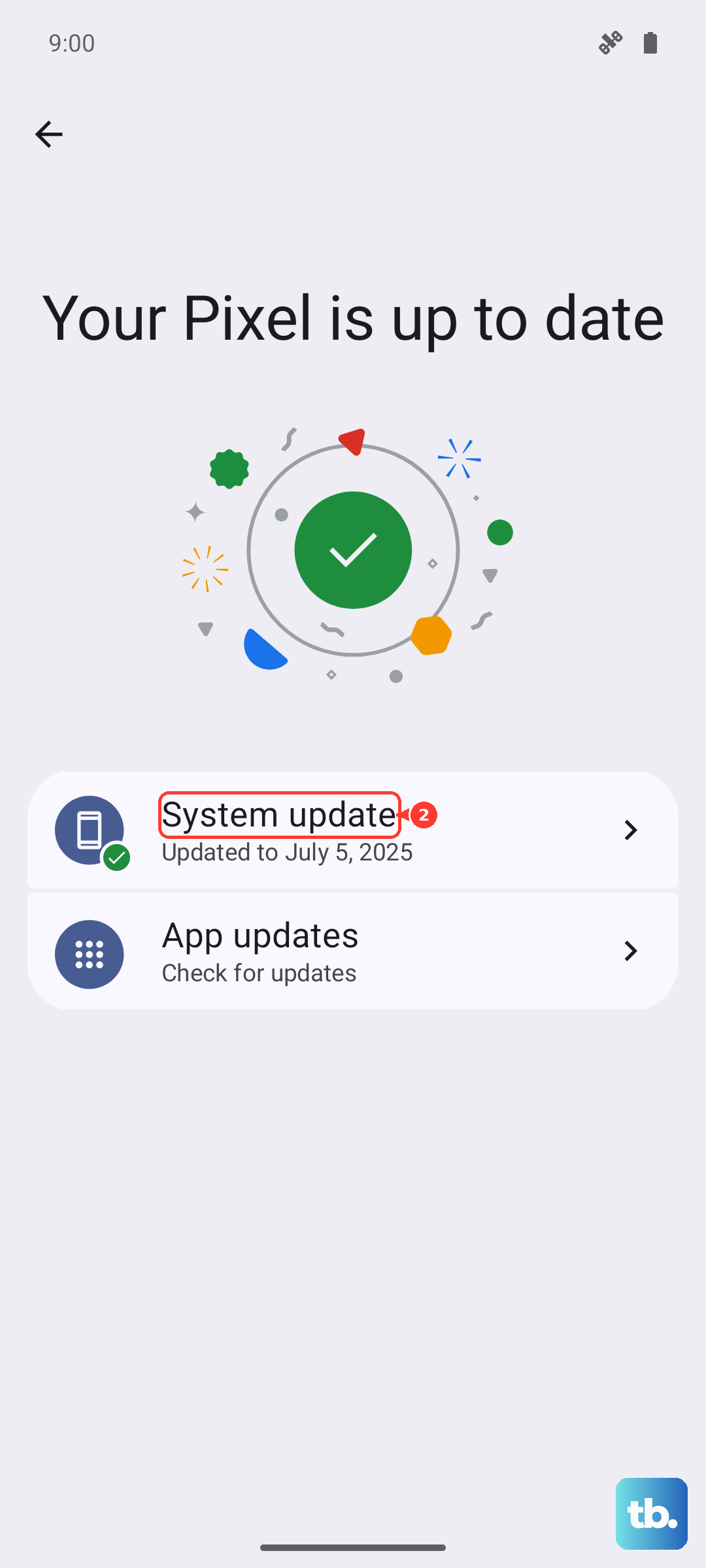
Outdated software can have bugs that affect video decoding and performance. Tecno occasionally releases updates for HiOS 14 that include stability improvements and bug fixes.
Check for an update by going to Settings > System > System updates. If an update is available, make sure your phone is charged above 50% and connected to Wi-Fi before installing it.
Examine Your Network Connection
For streaming videos, a weak or unstable internet connection is the most common culprit for buffering and stuttering. The issue might be with your Wi-Fi router or your cellular data signal.
Try playing a video you've downloaded directly to your phone (not streamed). If it plays smoothly, then your network is likely the problem. Try moving closer to your Wi-Fi router, restarting the router, or switching to mobile data to test.
Close Background Apps
The Helio G100 is a capable budget chip, but it can be overwhelmed if too many apps are running at once. Other apps, especially social media or games, can use up RAM and CPU power needed for smooth video playback.
Swipe up from the bottom of the screen and hold to enter the recent apps view. Swipe away any apps you aren't actively using. You can also go into Settings > Battery > Battery usage to see which apps have been consuming the most power in the background.
Disable Battery Saver Mode
Battery Saver is great for extending your charge, but it works by limiting background activity and sometimes reducing processor performance. This can directly impact video playback, causing it to stutter to save power.
Swipe down from the top of your screen twice to open the quick settings panel and look for the battery saver icon. If it's highlighted or blue, tap it to turn it off. Also check Settings > Battery > Power saving mode to ensure it's disabled.
Manage or Remove Bloatware
The Tecno Spark 30 Pro comes with several pre-installed apps that you may not use. Some of these can run background services or display ads, which consumes system resources.
You can't uninstall all of them, but you can disable many. Go to Settings > Apps > Manage apps, find an app like Palm Store or Boomplay, tap on it, and if the option is available, select Disable. This stops it from running and frees up a bit of RAM.
Try a Different Video Player
Sometimes the problem is specific to the app you're using. The default gallery app or a particular streaming service might have a bug or compatibility issue with certain video formats.
For local videos, try installing a lightweight third-party player like VLC or MX Player from the Google Play Store. They often handle a wider range of video codecs more efficiently. If streaming is the issue, try the same video in a different browser or app.
Perform a Factory Reset
If you've tried everything else and the stuttering affects all video apps, a factory reset is your last software step. This will erase everything on your phone, so it's crucial to back up your photos, contacts, and important files first.
Once backed up, go to Settings > System > Reset options > Erase all data (factory reset). Follow the prompts to reset the phone. After it restarts, set it up as new and test video playback before restoring all your apps and data, as a corrupted app backup could be the original cause.