
If your Tecno Spark 30 Pro is getting uncomfortably warm, the first thing I'd check is what you're running. The Helio G100 processor inside is a budget chip, and it can heat up quickly if you're pushing it with demanding games or multiple apps. Close any apps you aren't using, especially games, social media, and the camera. Swipe up from the bottom of the screen and hold, then swipe away the apps you want to close. This simple step can cool things down in under a minute.
Check Your Charging Setup
Using the phone while it's fast charging is a common culprit for heat. The included 33W charger is great for speed, but it generates more heat than a slower charger. If your phone is hot, unplug it for a bit and let it cool down before continuing to charge. Always use the official charger and cable that came in the box, as third-party chargers might not regulate power correctly.
Make sure you're not charging on a soft surface like a bed or pillow, which can trap heat around the phone. Place it on a hard, cool surface like a nightstand or desk. Since the Spark 30 Pro doesn't support wireless charging, you don't have to worry about heat from a charging pad, but the wired connection still needs ventilation.
Manage Background Apps and Bloatware
HiOS, Tecno's software, can come with pre-installed apps that run in the background. These use up RAM and processor cycles, which generates heat. Head to Settings > Apps and look through your app list. For any app you don't recognize or use, you can tap on it and select Force Stop, then Disable if the option is available. Be careful not to disable critical system apps.
Also, check for apps running high-power processes. Go to Settings > Battery > Battery Usage. This will show you which apps have been consuming the most power recently. If you see a social media app, game, or browser at the top, consider limiting its background activity or using it less intensely for a while.
Adjust Your Display and Performance Settings
A bright screen and high refresh rate make the processor work harder. Try reducing your screen brightness manually. You can also enable Settings > Battery > Power Saving Mode. This mode typically limits background activity, reduces performance slightly, and might lower the screen refresh rate, all of which help reduce heat.
For a more direct approach, you can limit the peak performance. Go to Settings > Additional Settings > Developer Options. If Developer Options aren't enabled, go to About Phone and tap "Build Number" seven times. Once inside, look for "Background process limit" and set it to "At most 4 processes." This prevents too many apps from running at once.
Update Your Software and Clear Cache
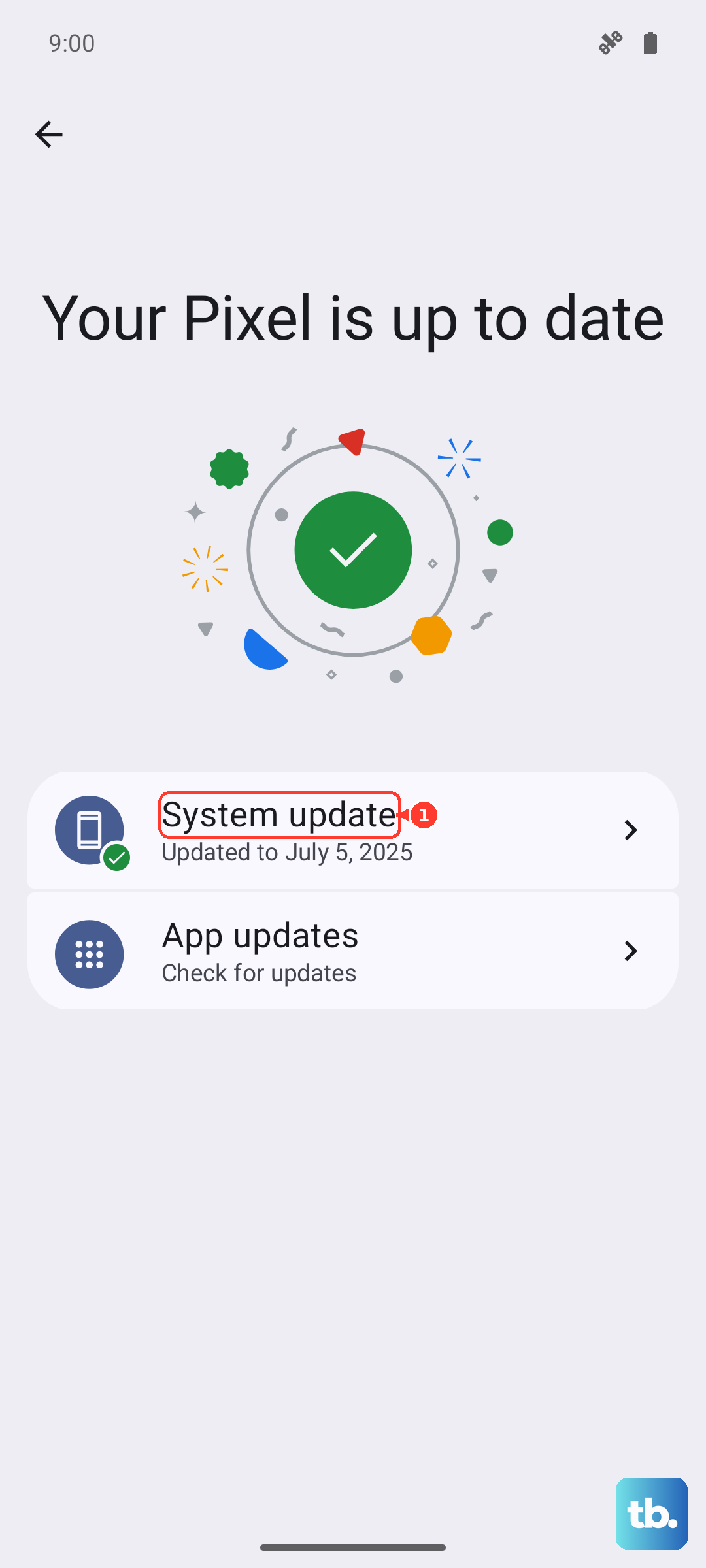
Software updates often include optimizations and bug fixes that can improve thermal management. Go to Settings > System > System Update to check for any available updates. Installing the latest version of HiOS and Android can make a noticeable difference.
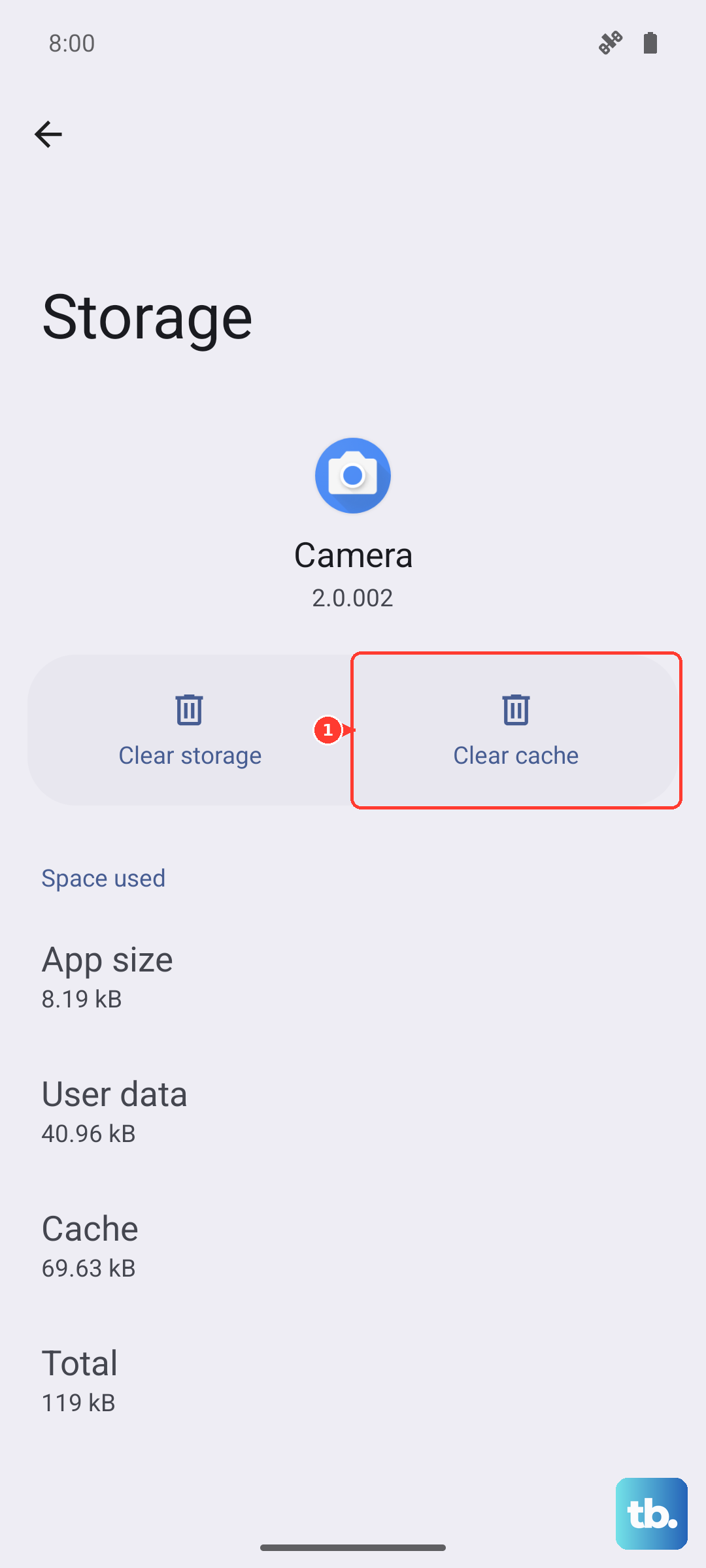
If your phone gets hot during a specific task, like using the camera or a particular app, try clearing that app's cache. Go to Settings > Apps, select the problematic app, then tap Storage & Cache > Clear Cache. This won't delete your personal data but can resolve performance glitches that cause overheating.
Give Your Phone a Break and Force Restart
Sometimes, a process gets stuck and causes the CPU to run continuously. A force restart can clear this. Press and hold the Power button and the Volume Down button together for about 10 seconds, until you see the Tecno logo appear and the phone restarts. This is a safe way to reboot without losing any data.
If you've been using your phone for an extended gaming session or video recording, just put it down for five or ten minutes. Turn the screen off and let it sit in a cool spot. The Helio G100 isn't designed for sustained, heavy workloads, so periodic breaks can prevent it from thermal throttling, which is when it slows down to protect itself from heat damage.
Consider Your Environment and Case
Using your phone in direct sunlight or a hot car will cause it to overheat much faster. The internal temperature sensors will trigger warnings and may even shut down the camera or other functions. Always try to use it in the shade or indoors when possible.
While the included case offers good protection, thick or poorly ventilated cases can insulate heat. If your phone is consistently hot, try removing the case for a while, especially during charging or intensive use, to see if it improves. Just be extra careful with the phone while it's unprotected.