
When your Tecno Spark 30 Pro's fingerprint unlock stops working, it can lock you out of your own phone. The side-mounted sensor is generally reliable, but like any tech, it can have its moments. Let's get it working again.
Clean the Sensor and Your Finger
This is the most common fix. The sensor on the side of your phone is tiny and picks up every bit of oil and dirt from your hands. Take a soft, dry microfiber cloth and gently wipe the sensor clean.
Do the same for your finger. Any moisture, lotion, or grime will prevent a good read. I'd start with this one every single time, as it solves the issue more often than you'd think.
Restart Your Phone
A quick restart clears out temporary software glitches that can confuse the sensor. Just press and hold the power button, then tap "Restart" on the screen.
If the screen is unresponsive, you'll need to force a restart. Press and hold the Power button and the Volume Down button together for about 10 seconds, until you see the Tecno logo appear.
Re-register Your Fingerprint
If the sensor is clean but still failing, the stored print data might have gotten corrupted. You need to delete the old one and add it again. Go to Settings > Privacy & Security > Fingerprint.
Enter your PIN or password, tap on the fingerprint you're having trouble with, and select "Delete." Now, tap "Add fingerprint" and follow the prompts. Press your finger at different angles until the registration is complete.
Check for Software Updates
Tecno releases updates for HiOS that can fix bugs, including ones affecting the fingerprint sensor. An outdated system is a common culprit. Go to Settings > System > System update and tap "Check for updates."
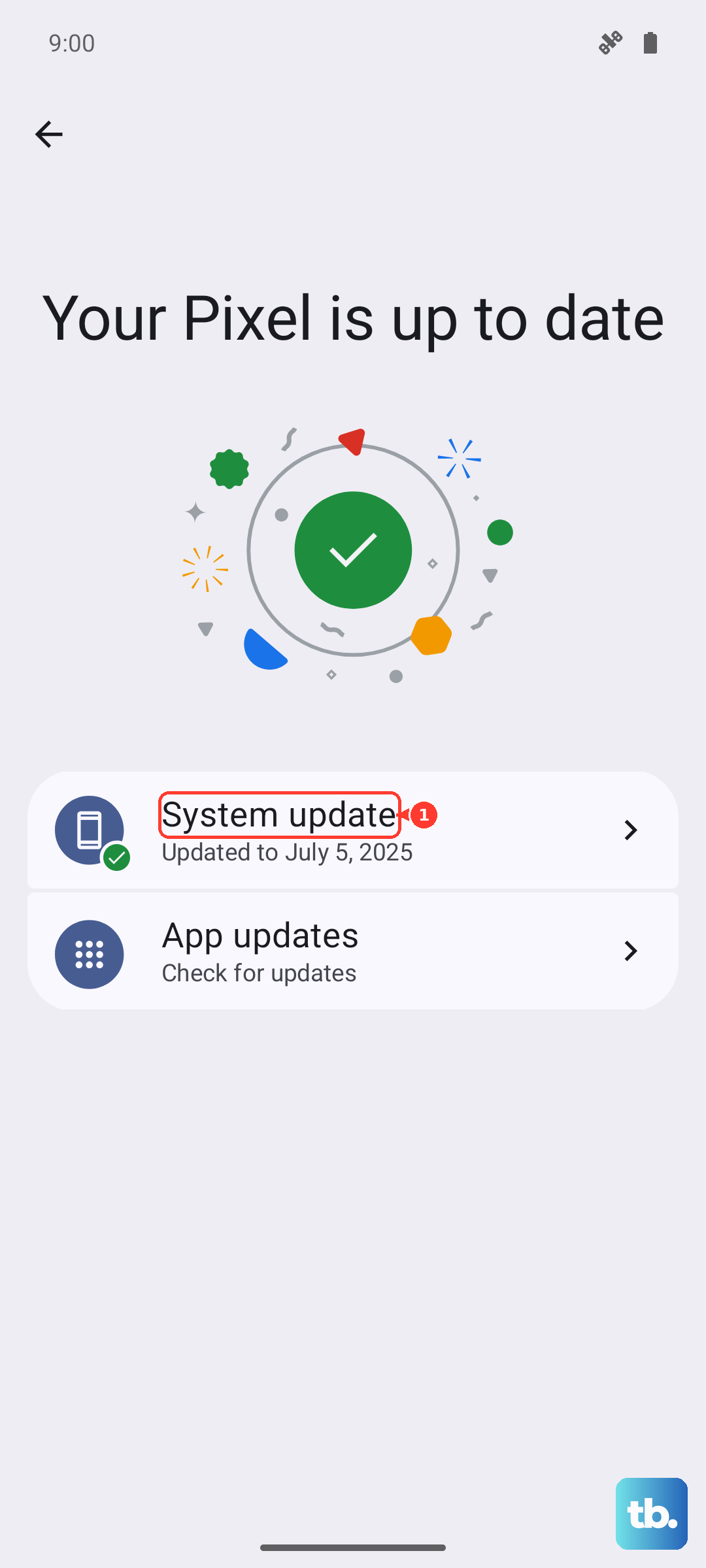
If an update is available, install it. Make sure your phone is charged above 50% or plugged into the included 33W charger first, as updates can take a few minutes.
Examine Your Screen Protector or Case
The Spark 30 Pro comes with a basic screen protector pre-applied. Over time, it can develop small scratches or bubbles right over the sensor area on the screen, which might interfere if you're using screen-based unlock (though this model uses a physical side sensor).
More likely, a bulky case can make it harder to press your finger flat against the side sensor. Try removing the case temporarily and see if recognition improves.
Add the Same Finger Twice
For a fingerprint that's worn or hard to read, this is a great trick. In the fingerprint settings, register your primary thumb or finger as two separate entries. This gives the system more data points to recognize you from.
During setup, focus one registration on the center of your finger and the other on the edges. This extra coverage makes unlocks much more consistent.
Clear the System Cache
Corrupted cache files can cause all sorts of weird behavior. Clearing them won't delete your personal data. First, power off your phone completely.
Now, press and hold the Power button and the Volume Up button together. When you feel a vibration or see the HiOS logo, release the buttons. Use the volume keys to navigate to "Wipe cache partition" and press the power button to select it. Confirm, then select "Reboot system now."
Check Your Finger's Condition
Your fingerprint itself can be the issue. Very dry skin, cracks, cuts, or peeling can change your print pattern enough that the sensor no longer recognizes it. If you've been doing dishes, gardening, or any work that roughens your hands, this is probably why.
Try using a different finger that's in better condition. It's a good idea to always have at least two fingers registered for this exact reason.
Boot into Safe Mode
Sometimes, a recently installed third-party app can conflict with system security features like the fingerprint sensor. Booting into Safe Mode temporarily disables all those apps.
Press and hold the power button until the power menu appears. Then, tap and hold the "Power off" icon on your screen. A prompt will ask if you want to reboot to Safe Mode. Tap "OK." If the fingerprint works perfectly in Safe Mode, you know a downloaded app is the problem. You'll need to uninstall apps one by one to find the culprit.
Review Your Security Settings
There are a couple of settings in HiOS that can affect the lock screen. Go to Settings > Privacy & Security > Device unlock. Make sure "Fingerprint" is toggled on.
Also, check if "Smart unlock" or any similar feature is enabled. These features can sometimes bypass the lock screen under certain conditions, which might make it seem like the fingerprint has failed. Toggling these off can give you a clearer test.