
Is your Tecno Spark 30 Pro stuck in one orientation and refusing to flip when you turn it sideways? This is a common hiccup where the auto-rotate feature, which relies on the phone's internal sensors, stops responding.
The fix is usually straightforward, often just a toggle you've missed. I'd start with the quick check below, as it resolves the issue for most people.
Toggle the Quick Settings Rotation Lock
The absolute first thing to check is the rotation lock in your notification shade. It's incredibly easy to tap this icon by accident when pulling down the panel.
Swipe down from the top of your screen twice to expand the full quick settings menu. Look for an icon that looks like a phone with arrows circling it, or one that says "Auto-rotate." Tap it once to enable it if it appears grayed out.
When active, the icon should be highlighted, often in blue or your system accent color. This single toggle fixes the problem more often than not.
Restart Your Spark 30 Pro
If the quick setting is on but rotation still isn't working, give your phone a fresh start. A simple restart clears out temporary system glitches that can confuse the sensors.
Just hold down the power button until the power menu pops up, then tap "Restart." Wait for the phone to fully boot back up and try rotating the screen again in an app like YouTube or your gallery.
Perform a Force Restart
When a normal restart doesn't cut it, a force restart can be more effective. This is a soft reset that doesn't erase any data but can clear deeper temporary caches.
On the Tecno Spark 30 Pro, press and hold the Power button and the Volume Down button together for about 10 seconds. Release when you see the Tecno logo appear, and the phone will reboot on its own.
Check for App-Specific Rotation Settings
Not every app supports landscape mode. If rotation works in your camera or Chrome but not in, say, your messaging app, that app probably just doesn't have a landscape layout.
Some apps also have their own internal rotation locks. Open the problematic app and look in its settings menu for a display or screen option that might be overriding the system setting.
Update Your Phone's Software
Since the Spark 30 Pro runs on HiOS 14 over Android 14, bugs in either layer can affect basic functions like rotation. Tecno releases updates to patch these kinds of issues.
Go to Settings > System > Software update and tap "Check for updates." If an update is available, download and install it. It's a good practice to keep the phone updated, especially since Tecno typically offers only 1-2 major OS updates for this series.
Test the Sensors with a Diagnostic App
Auto-rotate depends on the accelerometer and gyroscope. You can check if these hardware components are functioning using a free sensor testing app from the Play Store, like "Sensor Test" or "Phone Tester."
After installing, open the app and find the tests for the accelerometer and gyroscope. Tilt and rotate your phone. If the values on screen change smoothly as you move, your sensors are likely fine and the issue is software-based.
Clear Cache for the System UI
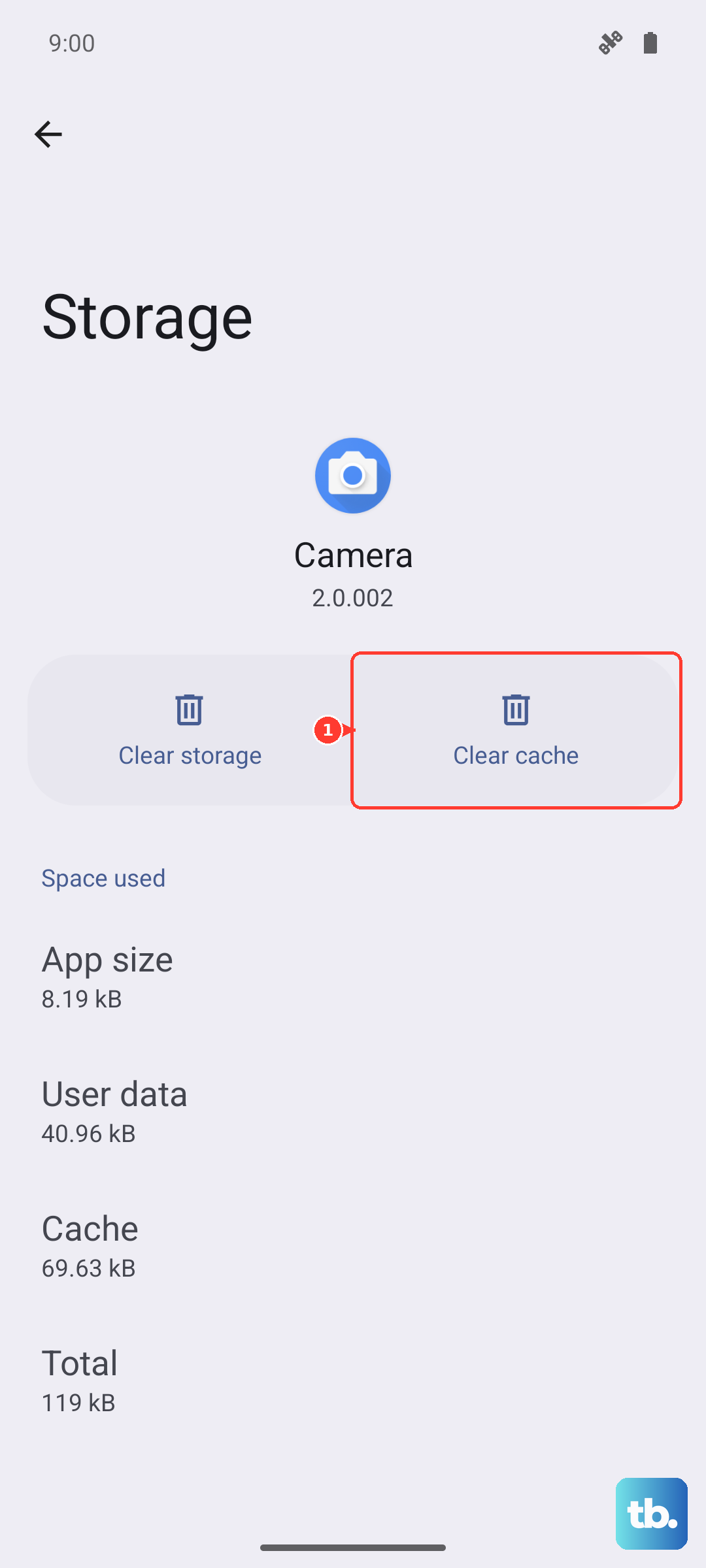
Corrupted cache data for the system interface can sometimes cause odd behavior. Clearing it is safe and won't delete your personal files or settings.
Go to Settings > Apps > Manage apps. Tap the three-dot menu and select "Show system apps." Find and select "Android System" or "System UI." Inside its app info, tap "Storage usage" and then "Clear cache." Restart your phone afterward.
Consider a Recent App or Drop
Think back to when the problem started. Did you drop your phone recently, even with its included case on? Physical damage can disconnect or break the tiny sensor chips.
Alternatively, did you install a new app just before rotation stopped? Some poorly coded apps, especially from outside the Play Store, can interfere with system functions. Try booting into Safe Mode by holding the power off option on the restart menu, then tap "Safe Mode." If rotation works in Safe Mode, a third-party app is the culprit.