If you keep seeing "Unfortunately, Settings has stopped working" on your Galaxy Z Fold 7, you're probably in the middle of something important. This error usually means the Settings app hit a snag with corrupted cache or a system glitch. These seven fixes should get you back on track.
Force Restart the Galaxy Z Fold 7
Before diving into menus you can't open, try a forced restart. This clears out temporary software hiccups that might be causing the crash. On the Galaxy Z Fold 7, press and hold both the Volume down button and the Side button at the same time for about 10 seconds. The screen will go black, then the Samsung logo appears as the phone reboots. Once it's back on, try opening Settings again.
This is a safe step and doesn't erase any of your data. It's especially useful if the phone feels sluggish or the error popped up after a long charge cycle.
Clear the Settings App's Cache and Data
If the forced restart didn't stick, the Settings app itself may have bad cache files. You can clear those without a working Settings app by using the Quick Settings panel or the app drawer, but the easiest route is through the app info screen.
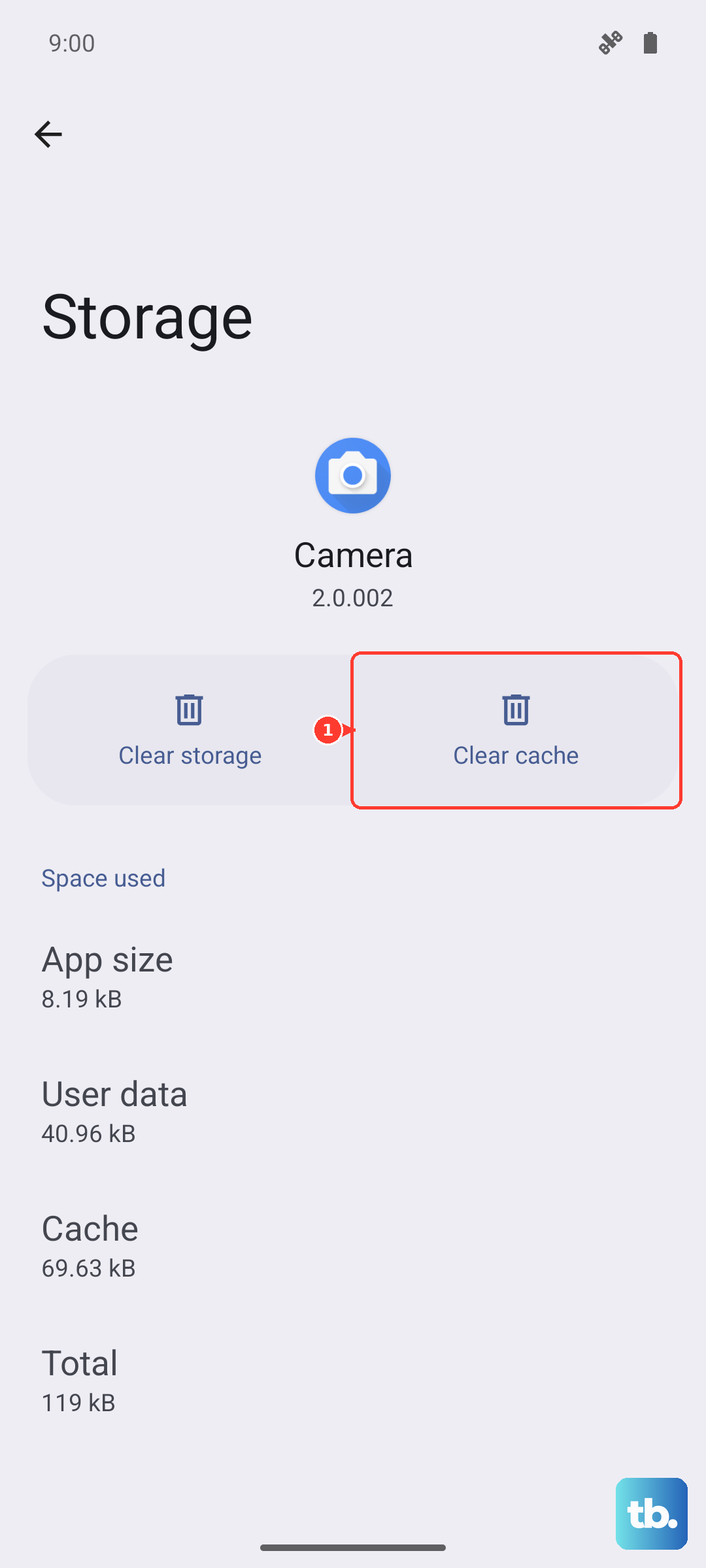
Long‑press the Settings icon on your home screen or app drawer, then tap the little "i" (info) icon. From there, tap Storage and then Clear cache. If the problem persists, go back and tap Clear data (this will reset Settings preferences but won't affect your accounts or personal files).
Force Stop and Restart the Settings App
Sometimes the app just needs a hard reset. Navigate to Settings > Apps (if you can get into Settings at all). If not, use the long‑press method above to reach app info. Find Settings in the list, tap Force stop, and confirm. After that, reopen Settings from the app drawer. This kills any background processes that might be stuck in a crash loop.
Tackle Google Play Services Issues
Google Play Services handles a lot of behind‑the‑scenes work on your Galaxy Z Fold 7. If it's corrupted, it can take down system apps like Settings with it.
Go to Settings > Apps and tap Google Play Services. Tap Force stop first. Then go to Storage and tap Clear cache. You'll also see a Manage storage option tap that and then Clear all data. Restart your phone after doing this to give everything a fresh start.
Roll Back Google Play Store Updates
An update to the Play Store can occasionally conflict with system apps. Uninstalling those updates is a quick fix that often resolves the Settings error.
Open Settings > Apps and find Google Play Store. Tap the three‑dot menu in the upper‑right corner and select Uninstall updates. Confirm and then restart your Galaxy Z Fold 7. The Play Store will automatically update itself again in the background, but the trouble usually doesn't come back after a clean update.
Check for a System Update
Software bugs are sometimes fixed silently in a system patch. Since the Z Fold 7 runs Android 15 out of the box, Samsung has already pushed a few updates to smooth out early quirks.
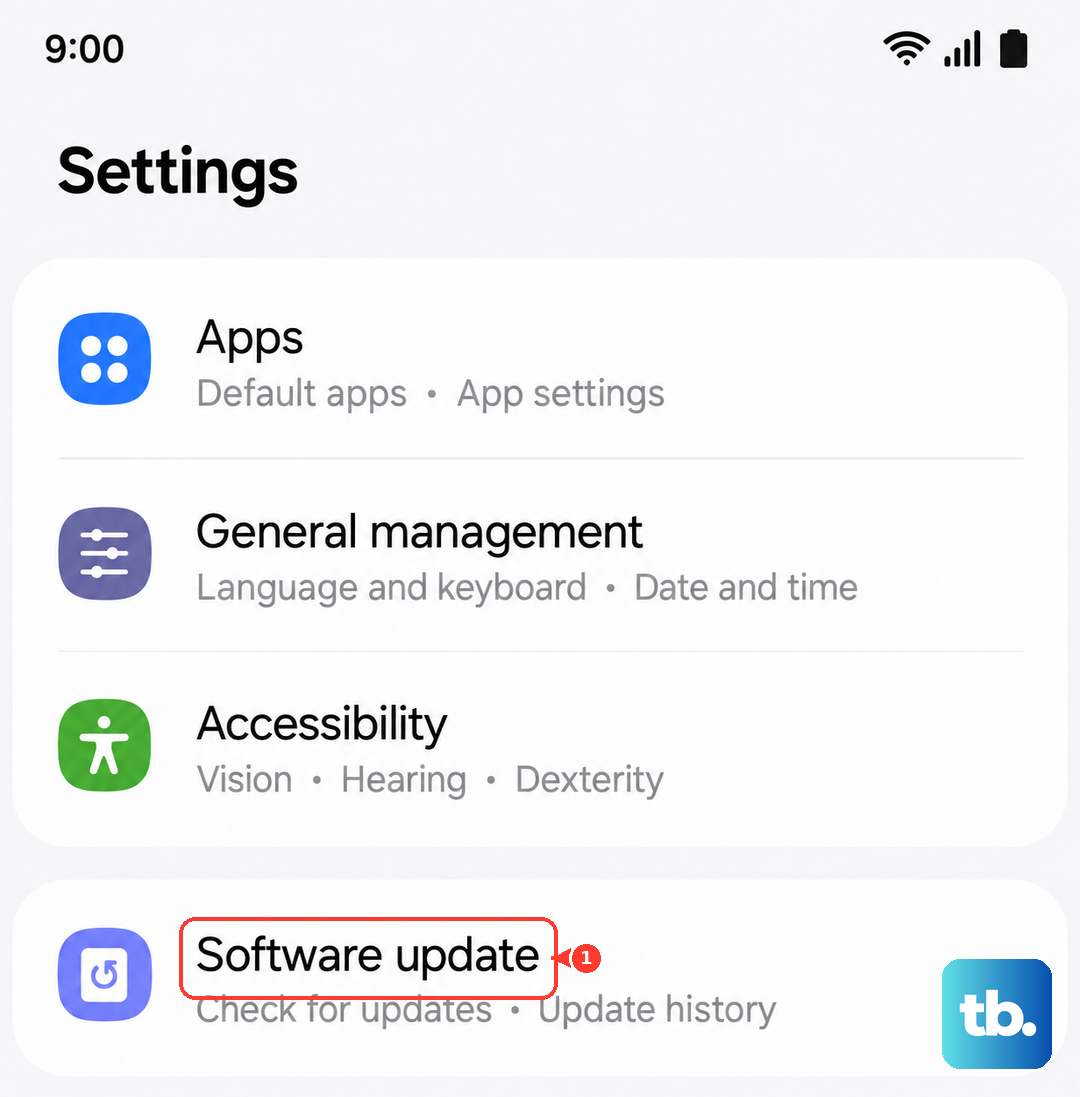
If you can get into Settings, head to Settings > Software update and tap Download and install. If you can't open Settings, swipe down the notification shade twice, then tap the gear icon occasionally that shortcut still works even when the app itself crashes. Install any available update and reboot.
Reset the Entire Device (If Nothing Else Works)
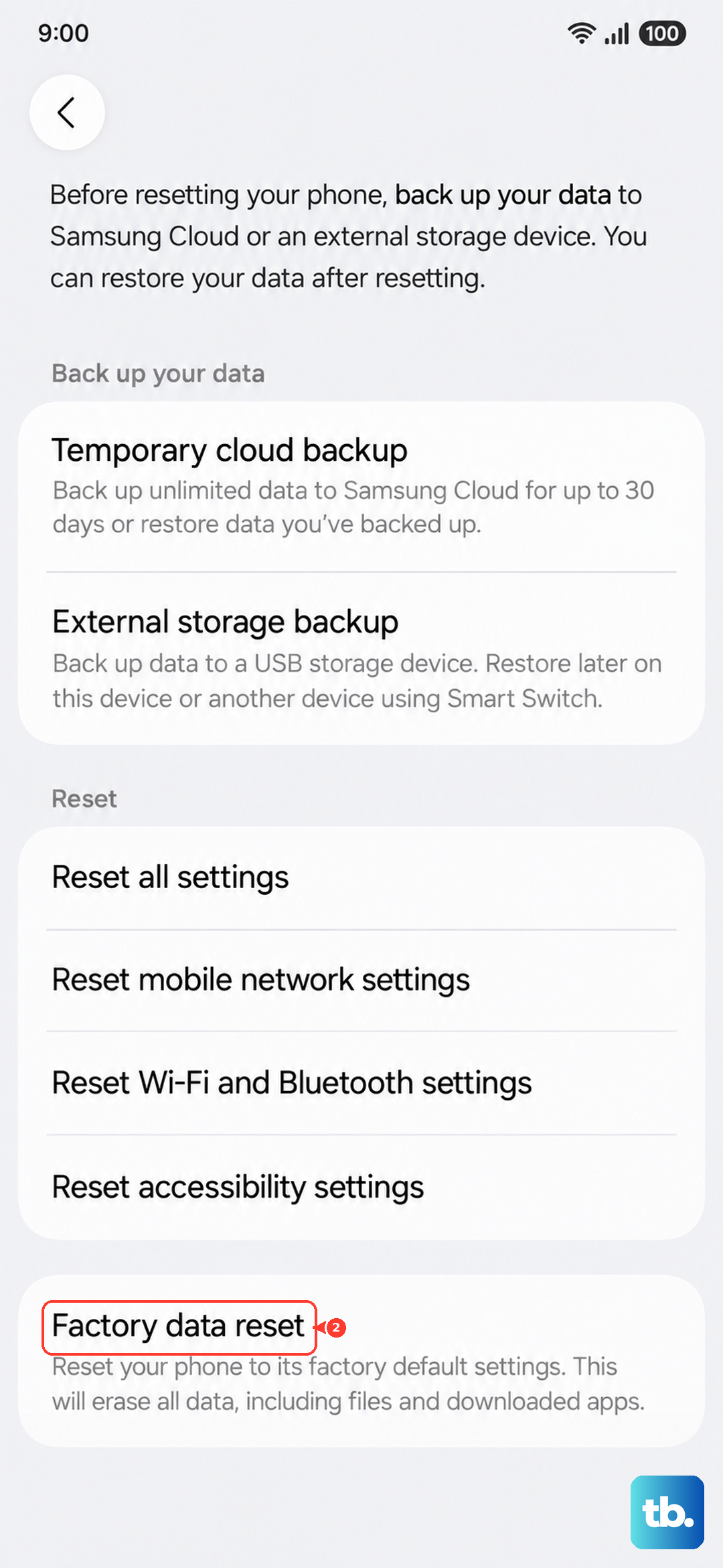
A factory reset is the nuclear option. It wipes everything accounts, apps, photos, and files so make sure you back up first. You can use Samsung Cloud or Google Drive from the Settings menu (if it's working) or connect to a computer to copy files.
To reset, open Settings > General management > Reset > Factory data reset. Tap Reset and enter your PIN or password. The phone will restart and take a few minutes to restore to out‑of‑box condition. This almost always clears stubborn software errors, including the Settings crash.